
Items can be created using either of the two processes. "Quick Create Item" -Includes basic item information and Description, while "Create Item” provides a more detailed setup of the item.
Below is a guide on how to Quick Create Items, by entering and saving basic information only. For more details on how to create an item with a more detailed description, see Create New Item.
-
Open Backoffice.
-
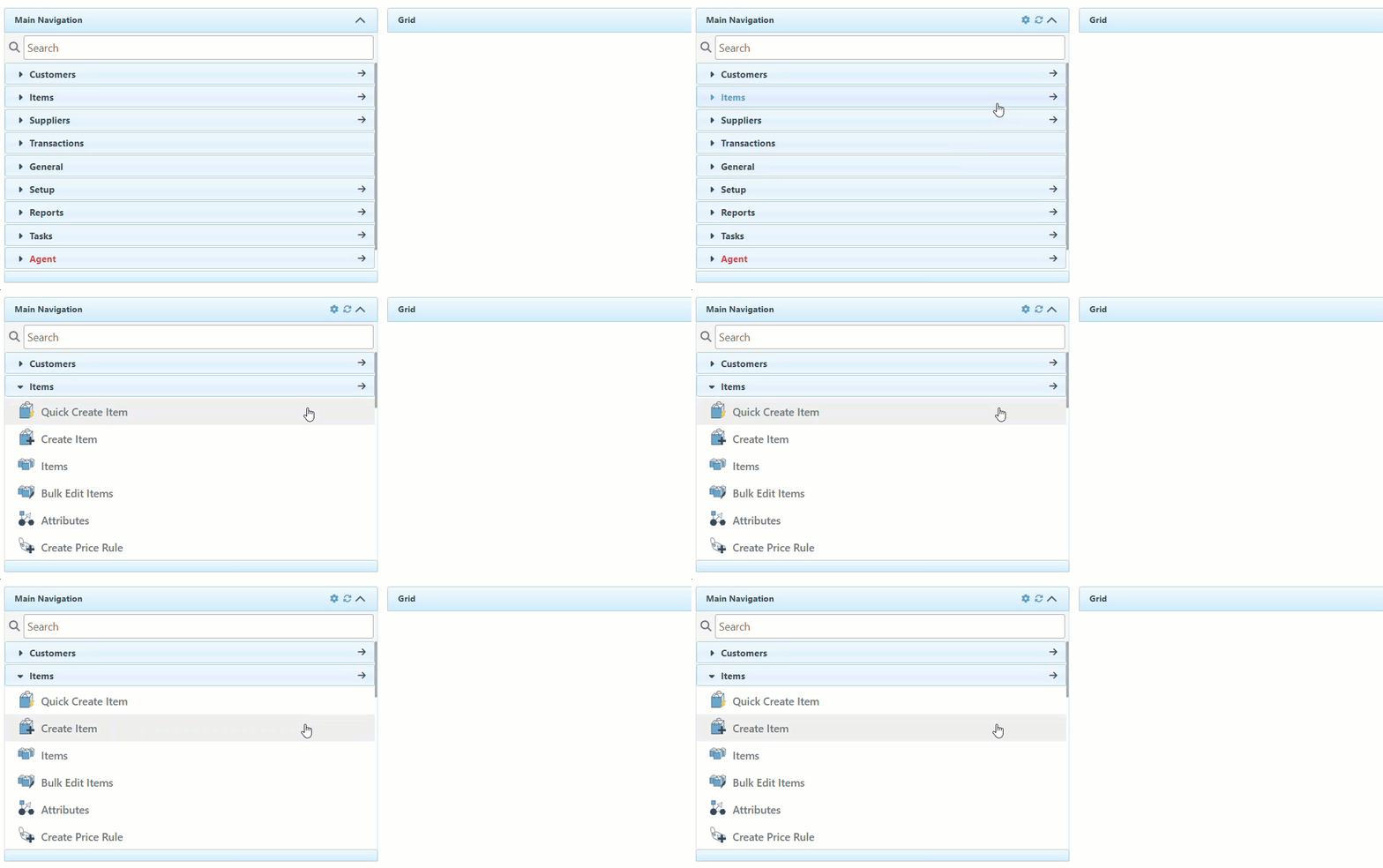
Click “Items” in the Main Navigation menu and select “Quick Create Item” from the appearing dropdown.
-
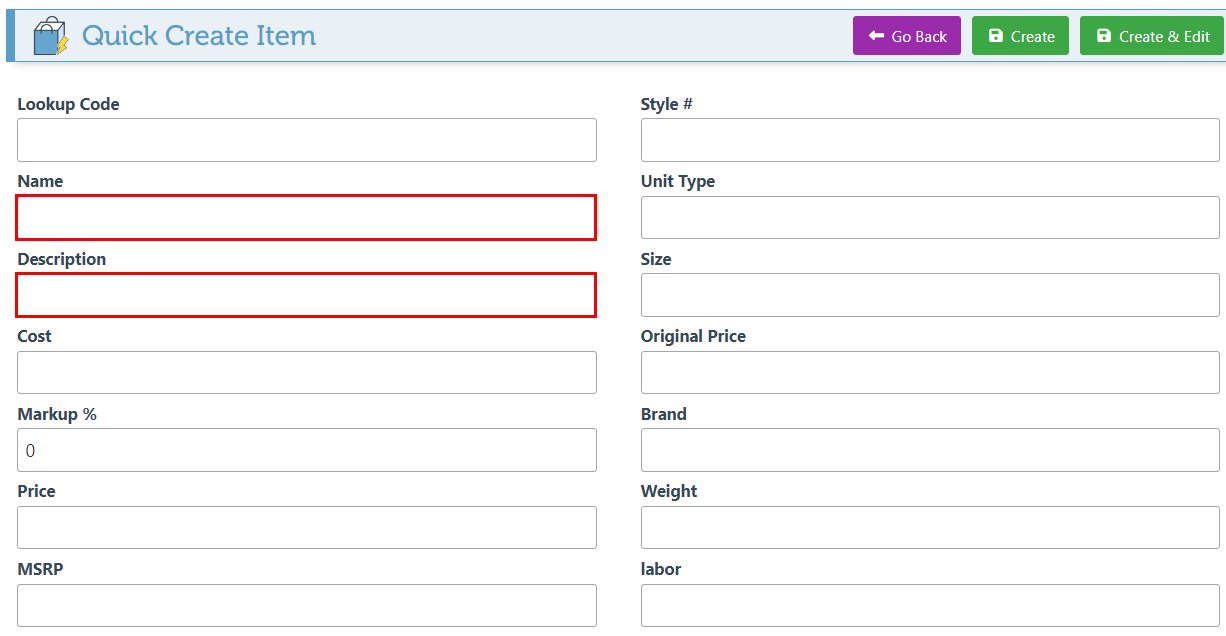
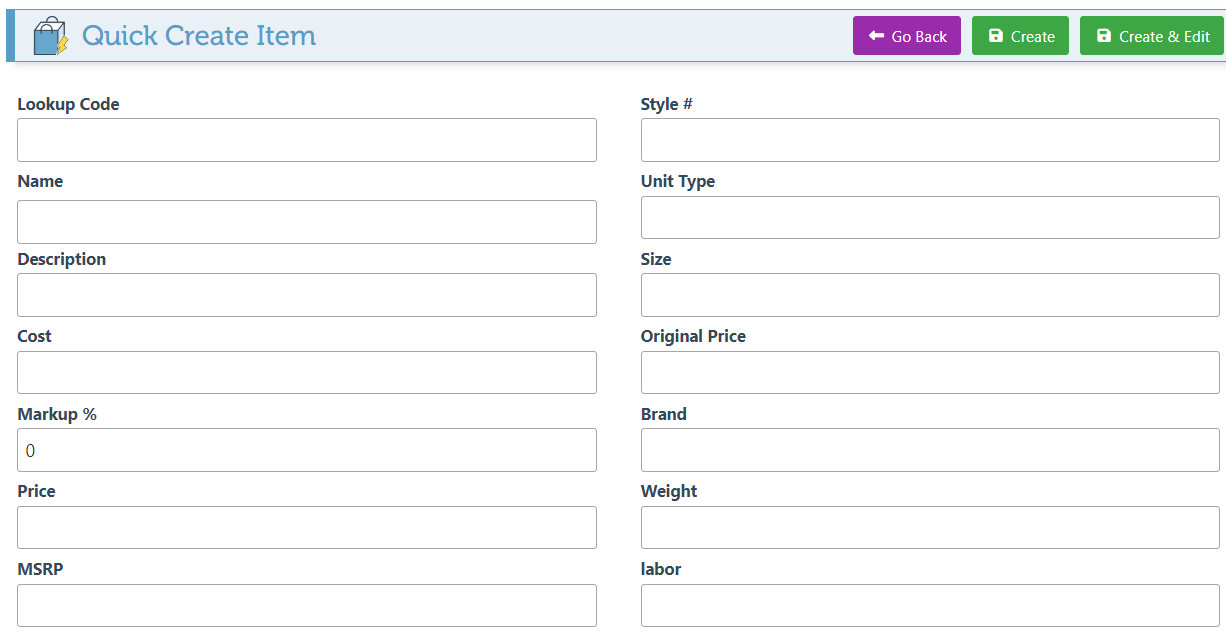
Enter the Item Name and Description.
-
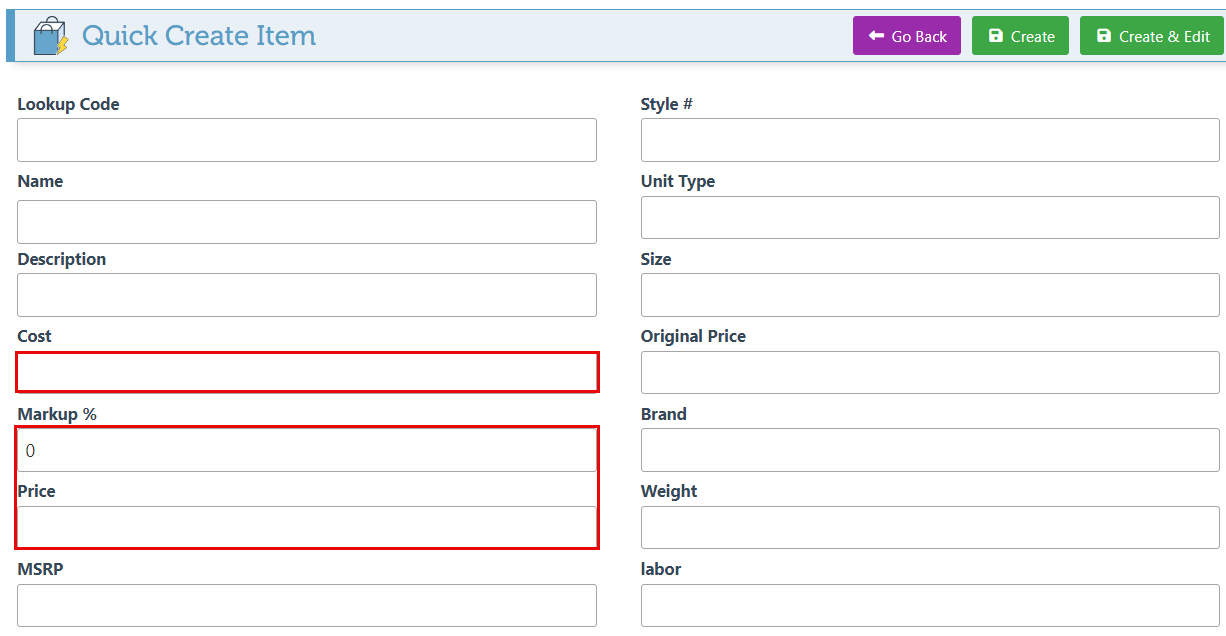
Enter the cost and markup percentage or price to calculate the other value automatically.
-
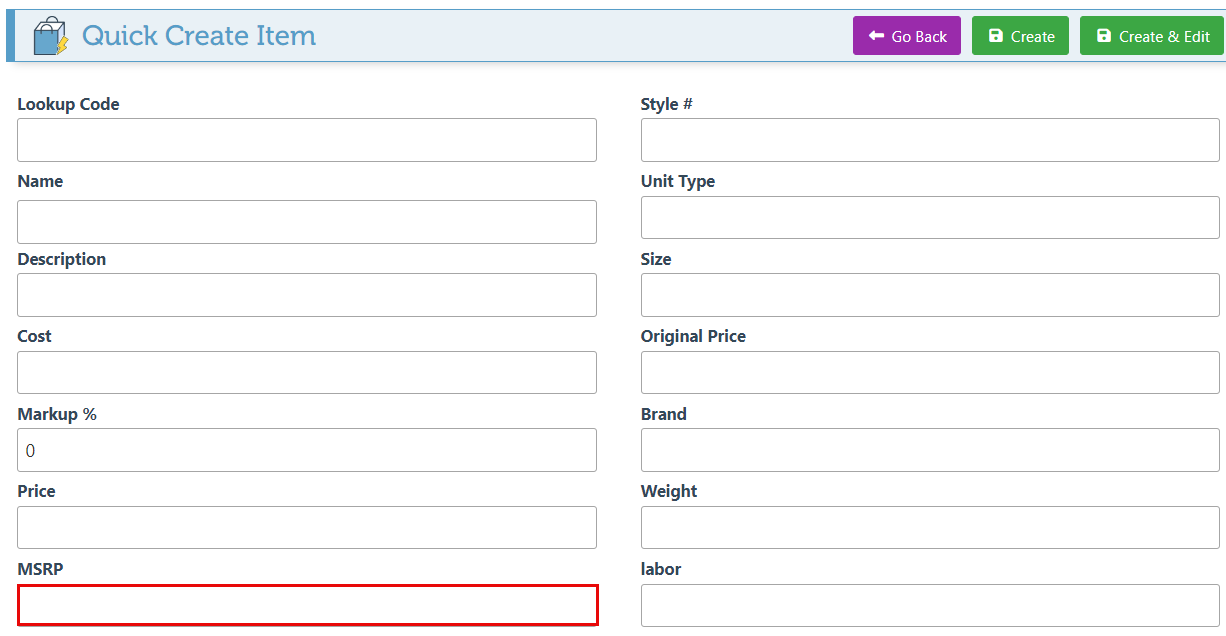
Enter the MSRP (the suggested retail price.)
-
Enter other applicable Item fields in the designated bars. For information on how to customize item fields, click here.
-
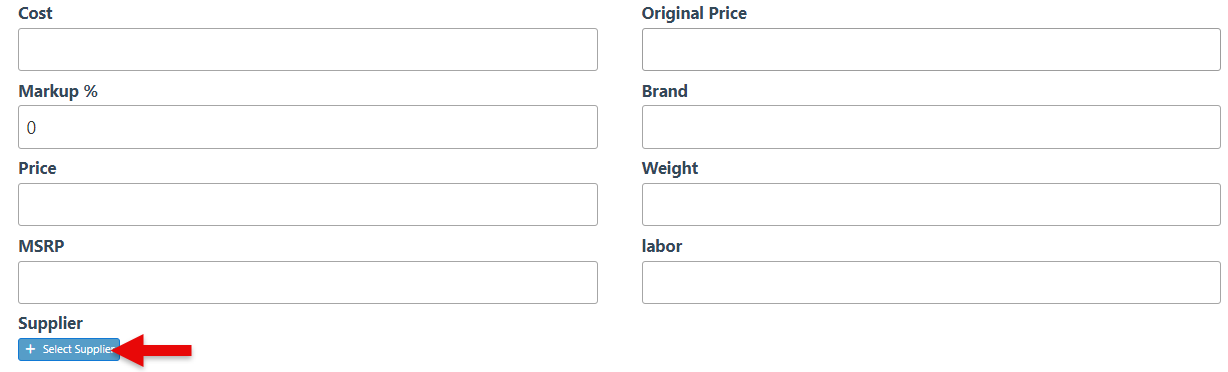
Click "Select Suppliers" to add the item supplier to the Description. In the supplier popup that appears, search for and select the relevant Item supplier.
-
Click “Save” at the top right of the screen to save the new item.