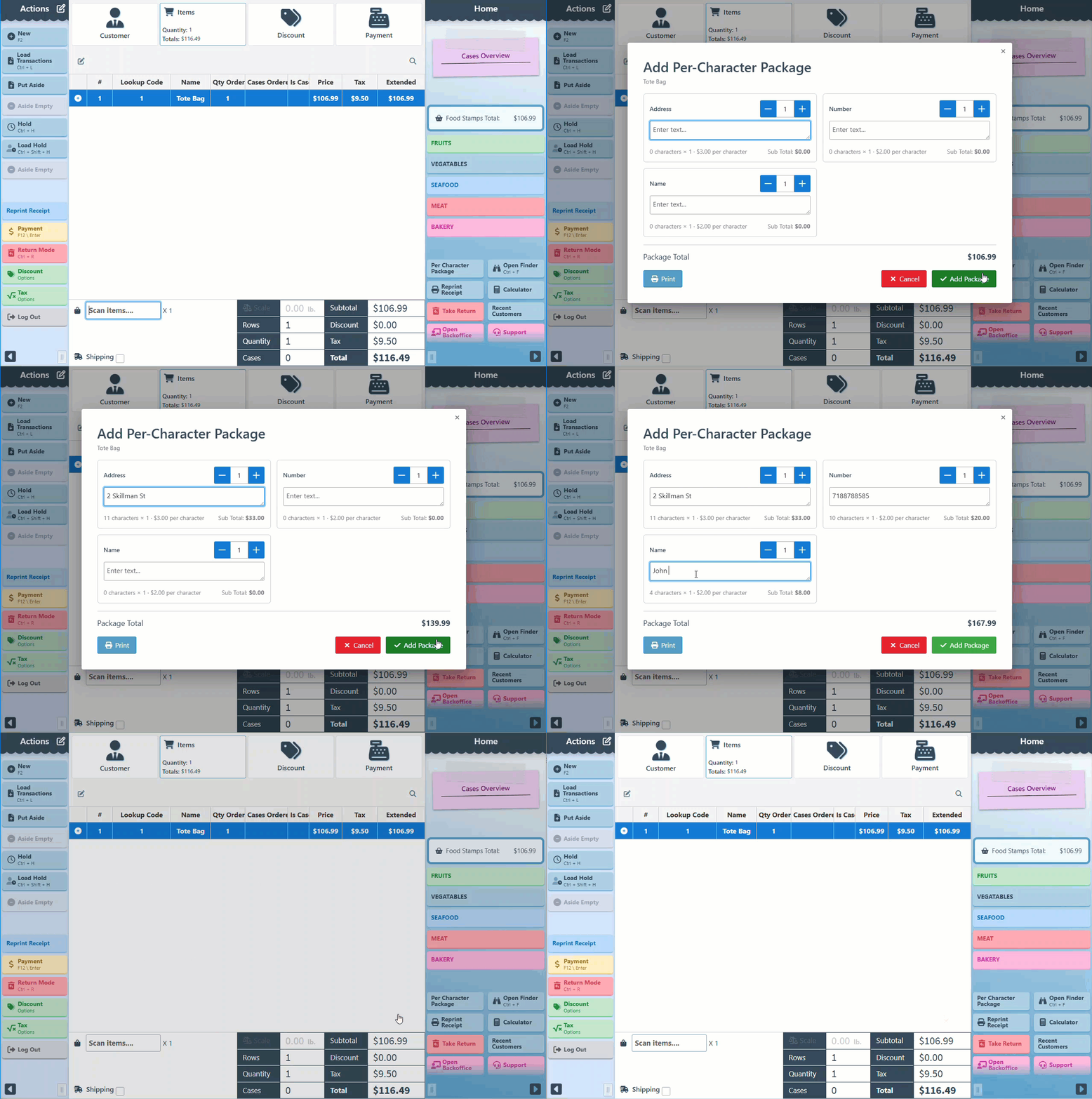
Here is a guide on creating and using the "Per Character" item, which allows the item price to be calculated based on the number of characters. This feature is particularly useful for customizable products, such as embroidery, where the price varies depending on the amount of personalization included. The price calculation for the item will automatically exclude special characters, like spaces and dots, to ensure more accurate pricing.
Create a Per-Character Item
-
Open Backoffice.
-
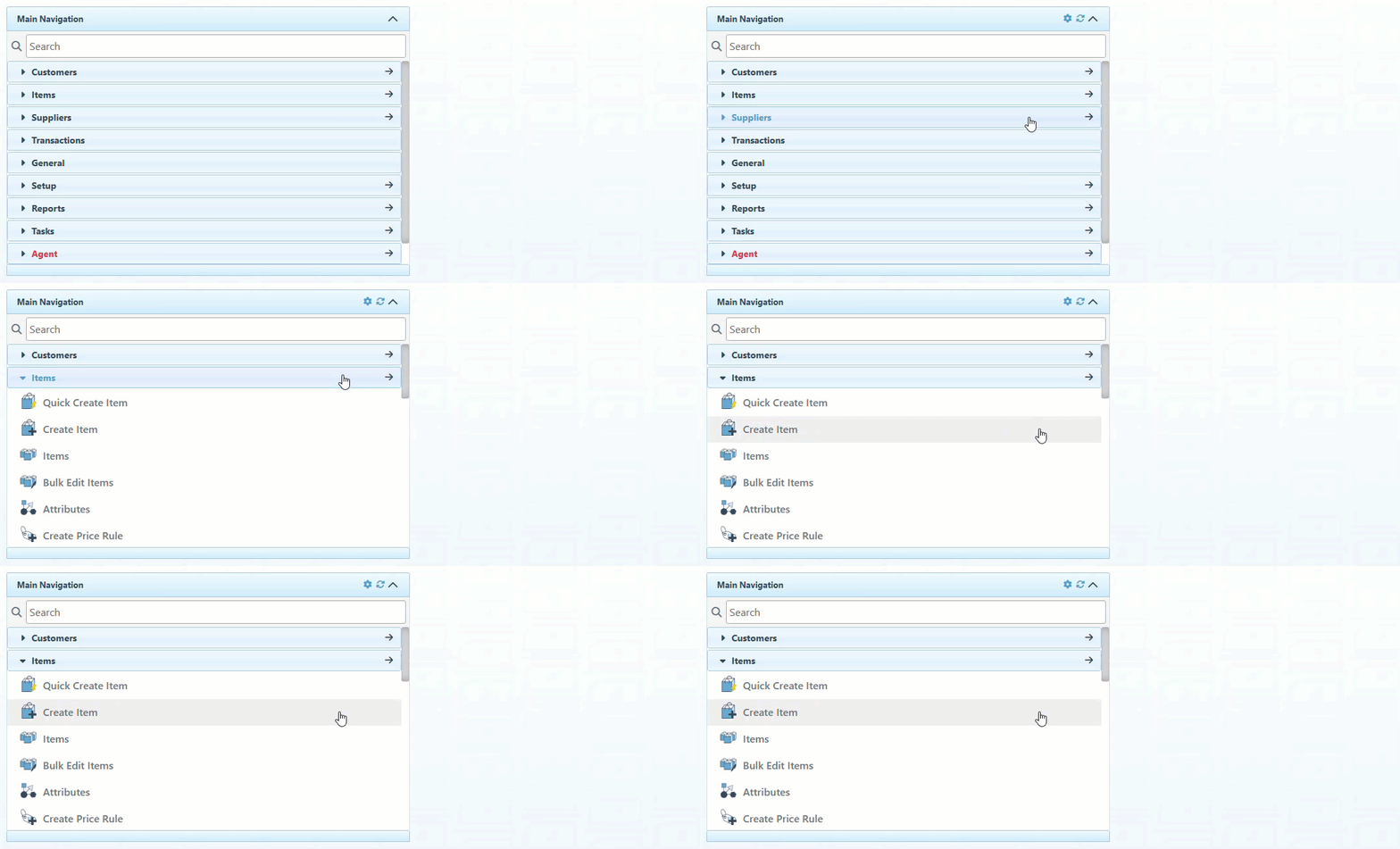
Click “Items” in the Main Navigation menu and select “Create Item” in the scrollable dropdown.
-
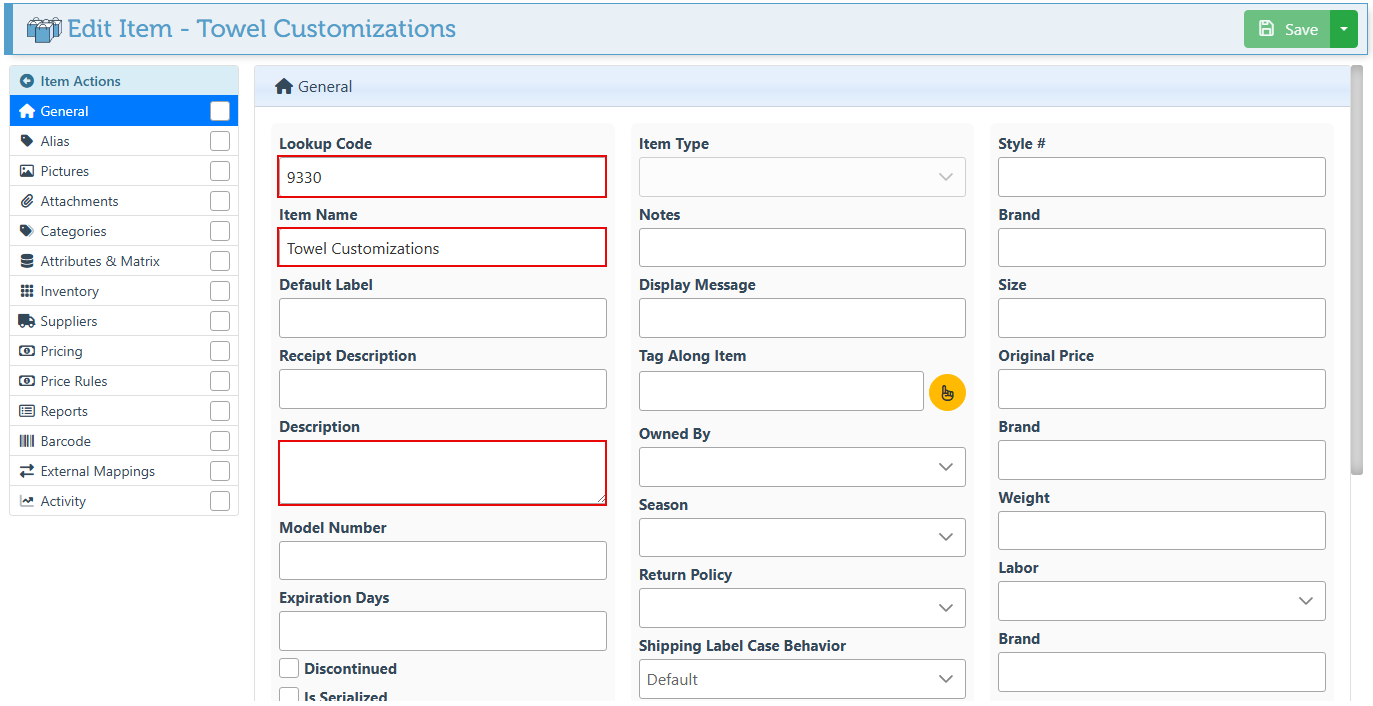
Enter and select all relevant item details, such as lookup code, name, description, etc. For more details on creating a new item, click here.
-
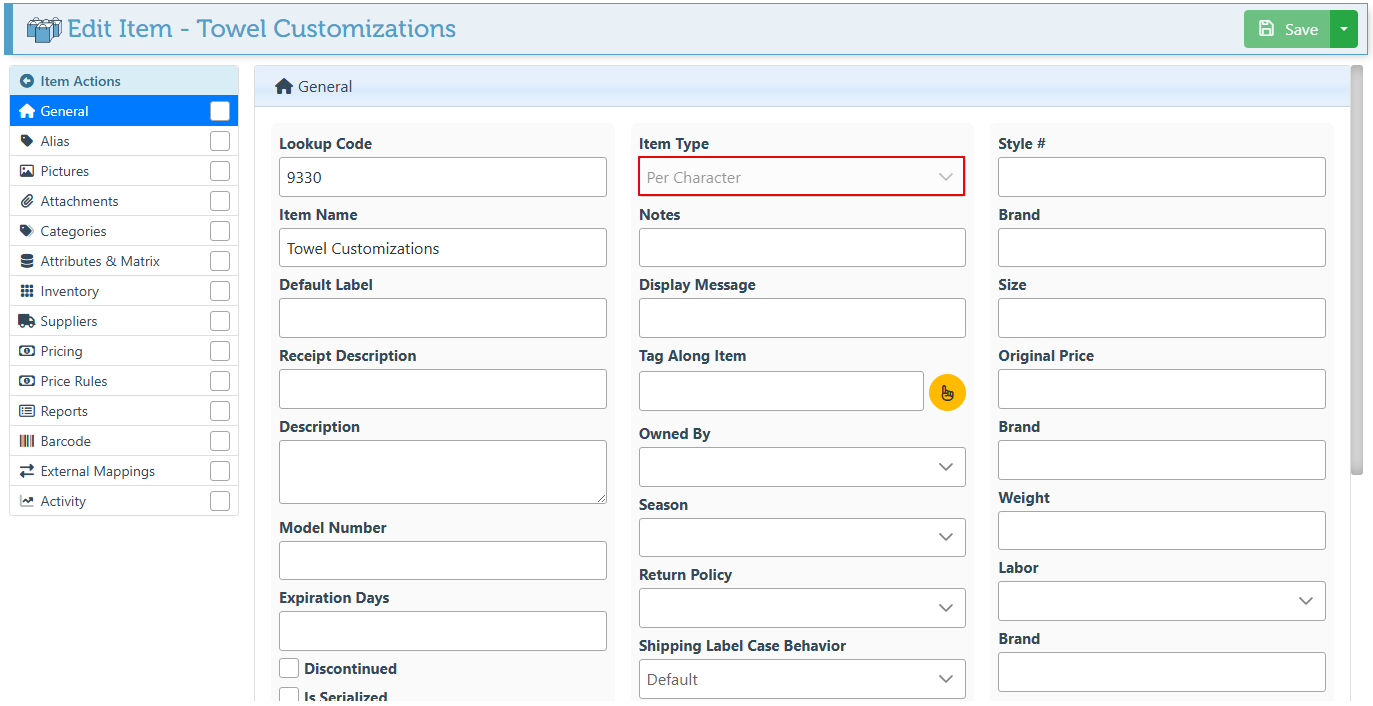
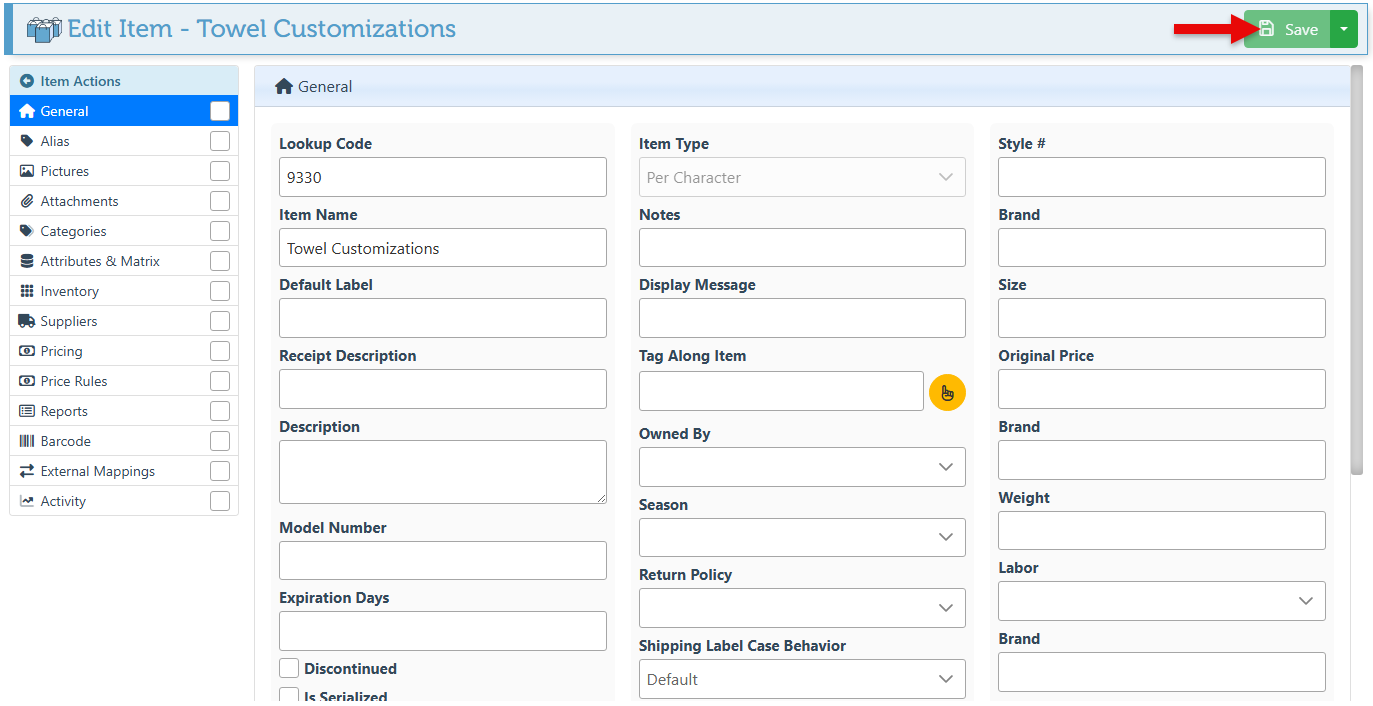
Select “Per Character” in the Item Type dropdown.
-
Click Save at the top right.
-
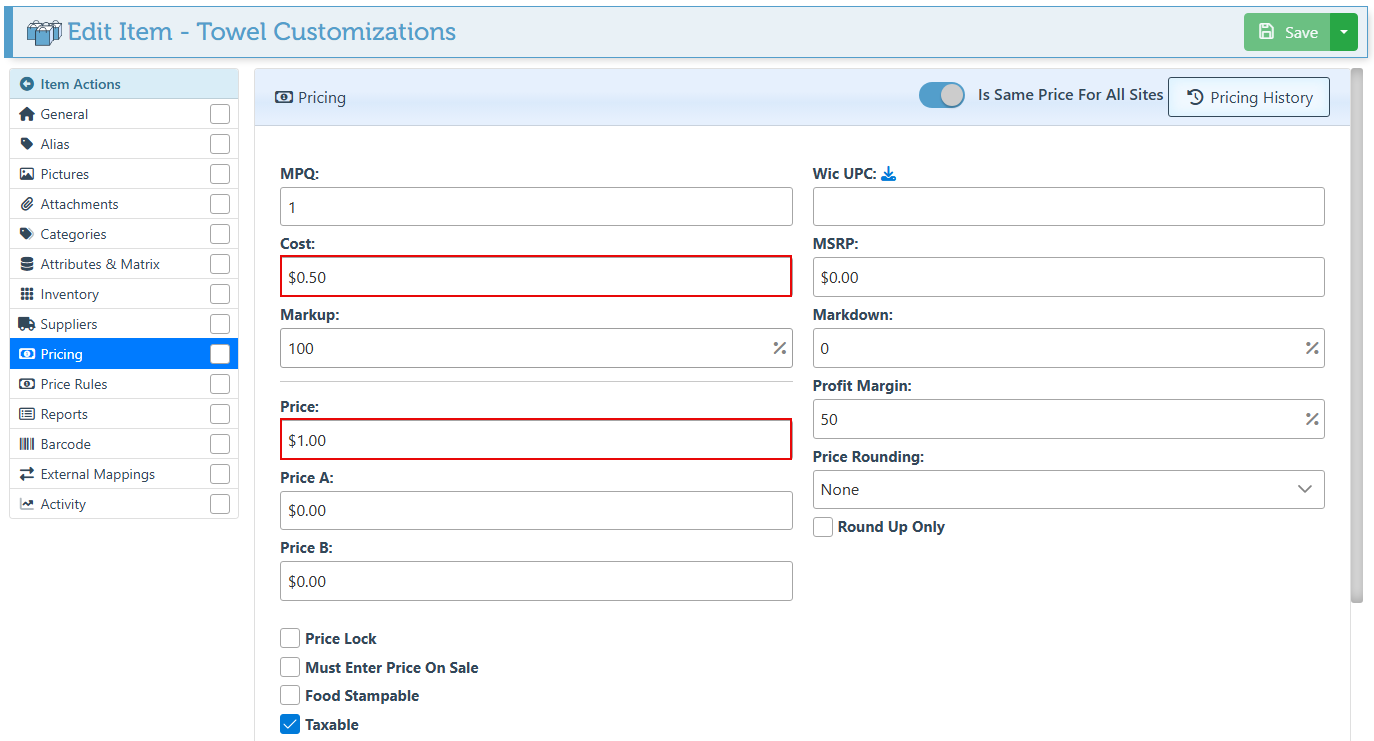
Navigate to the Pricing tab in the Item Actions menu, and enter the item price. For per-character items, this will be applied as the price per character.
-
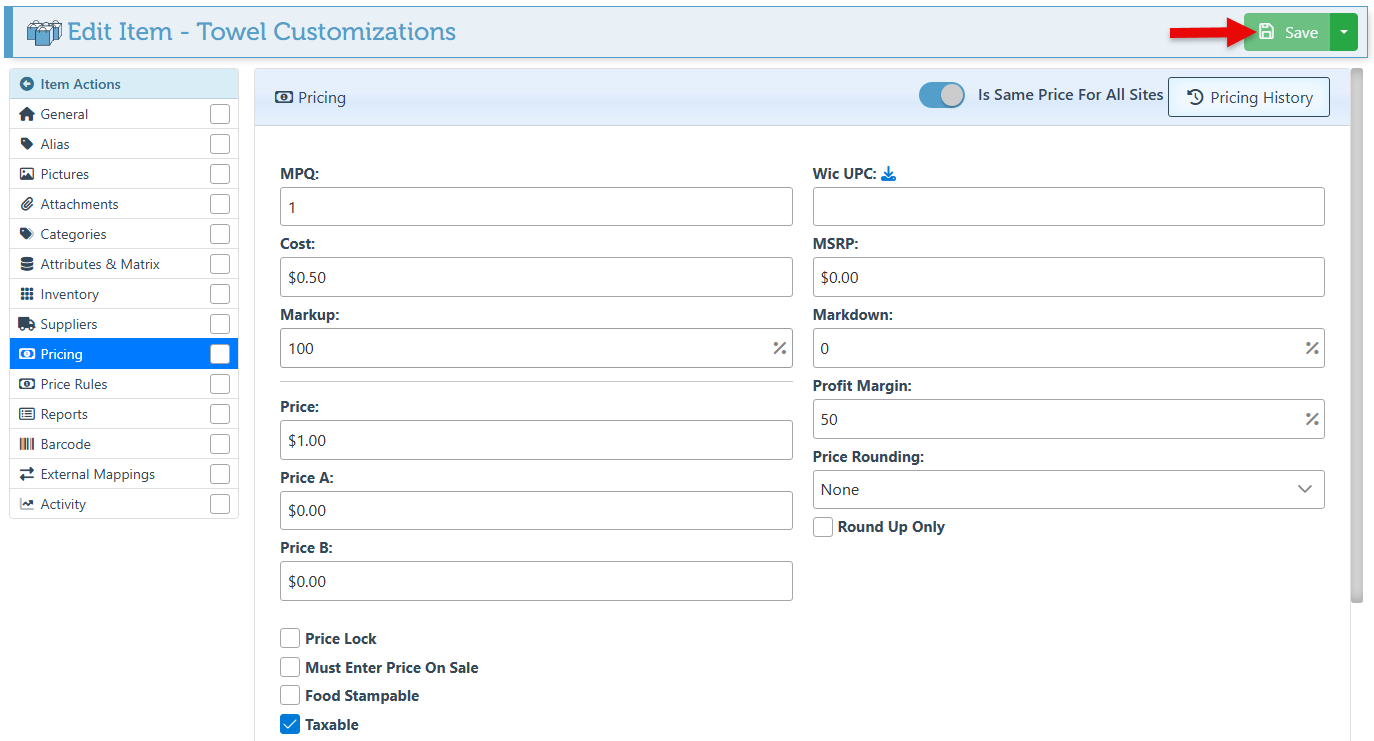
Click “Save” at the top right.
Use the Per-Character Item
-
Open the frontend.
-
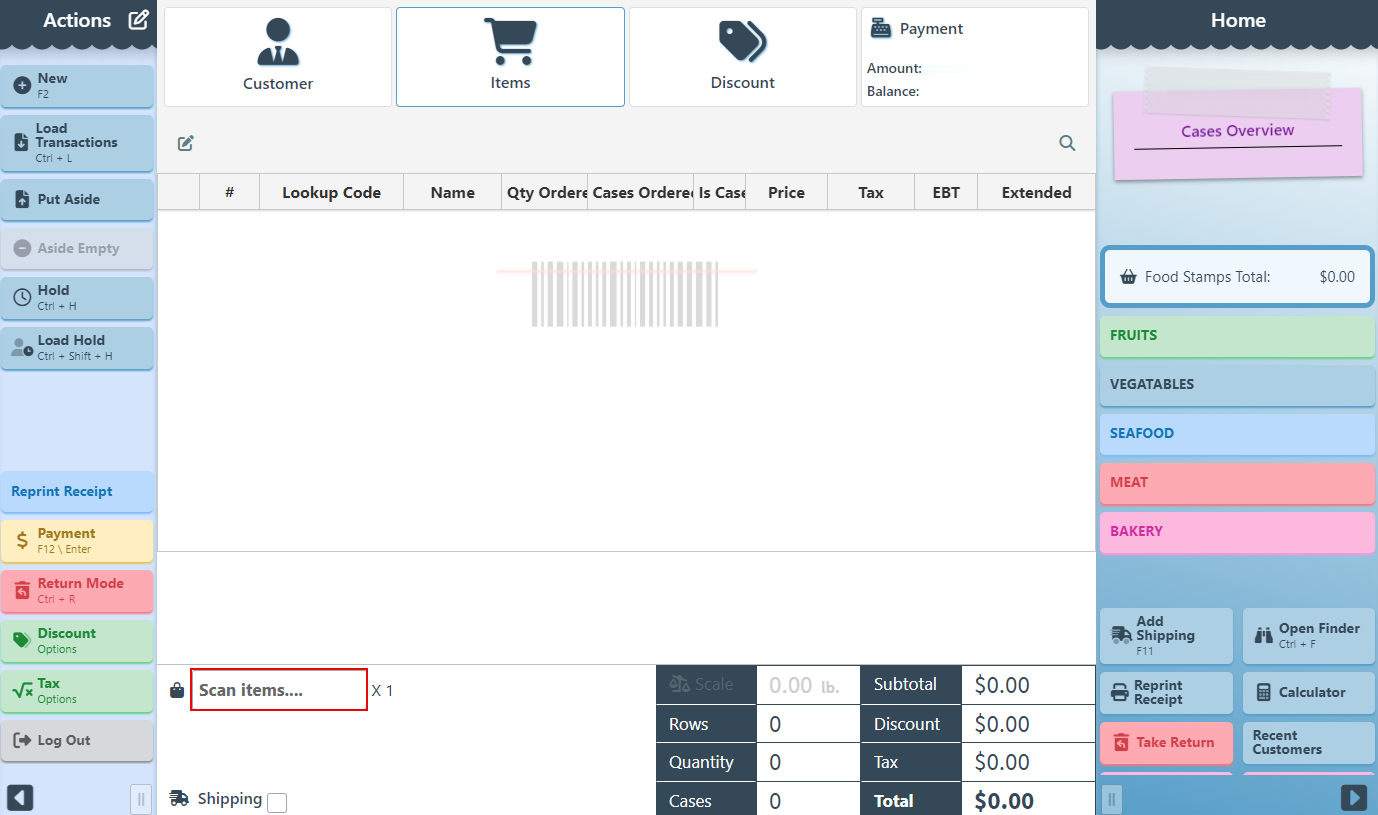
Scan or enter the item lookup code to add it to the transaction.
-
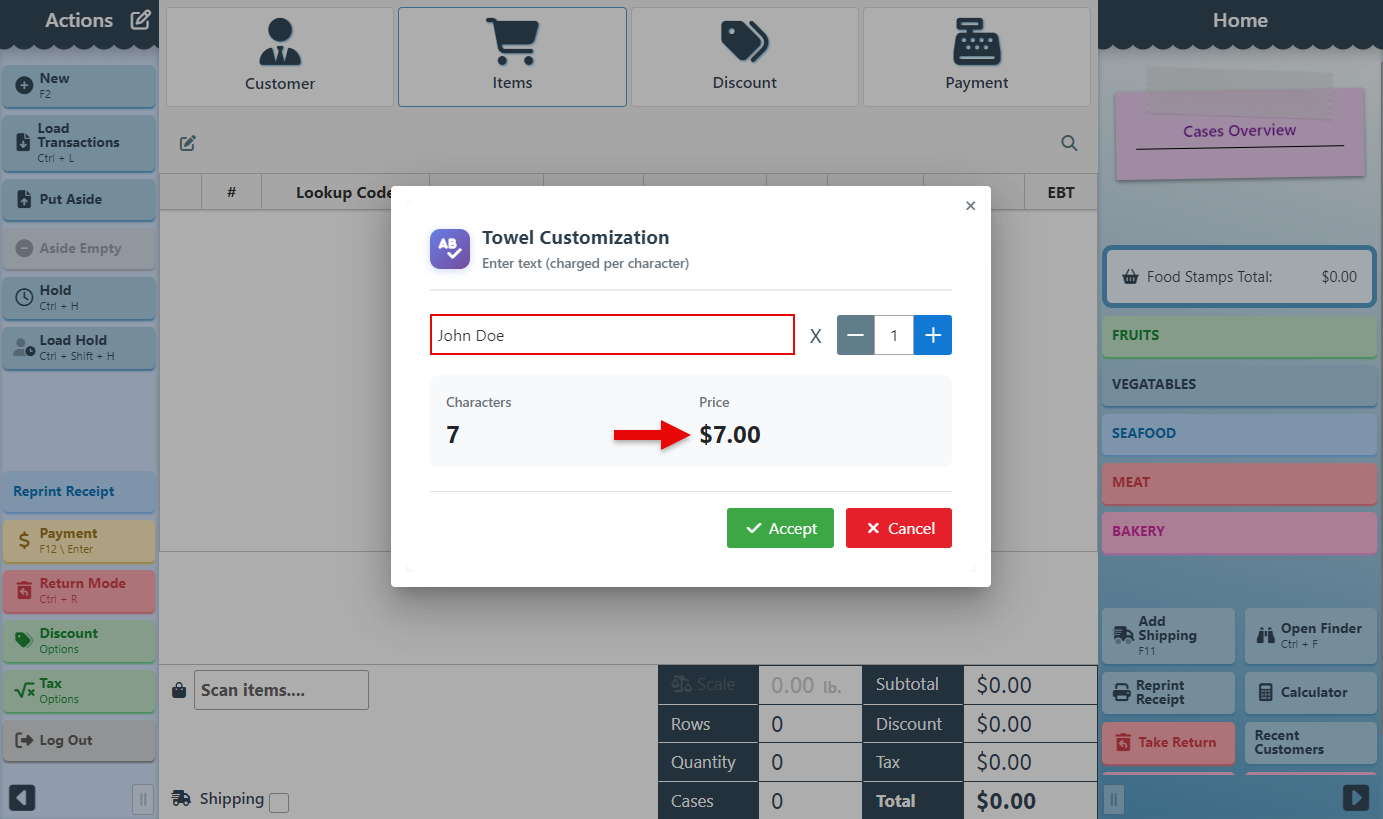
A pop-up will appear to enter customization details. Input the text in the designated field to automatically calculate the item price.
-
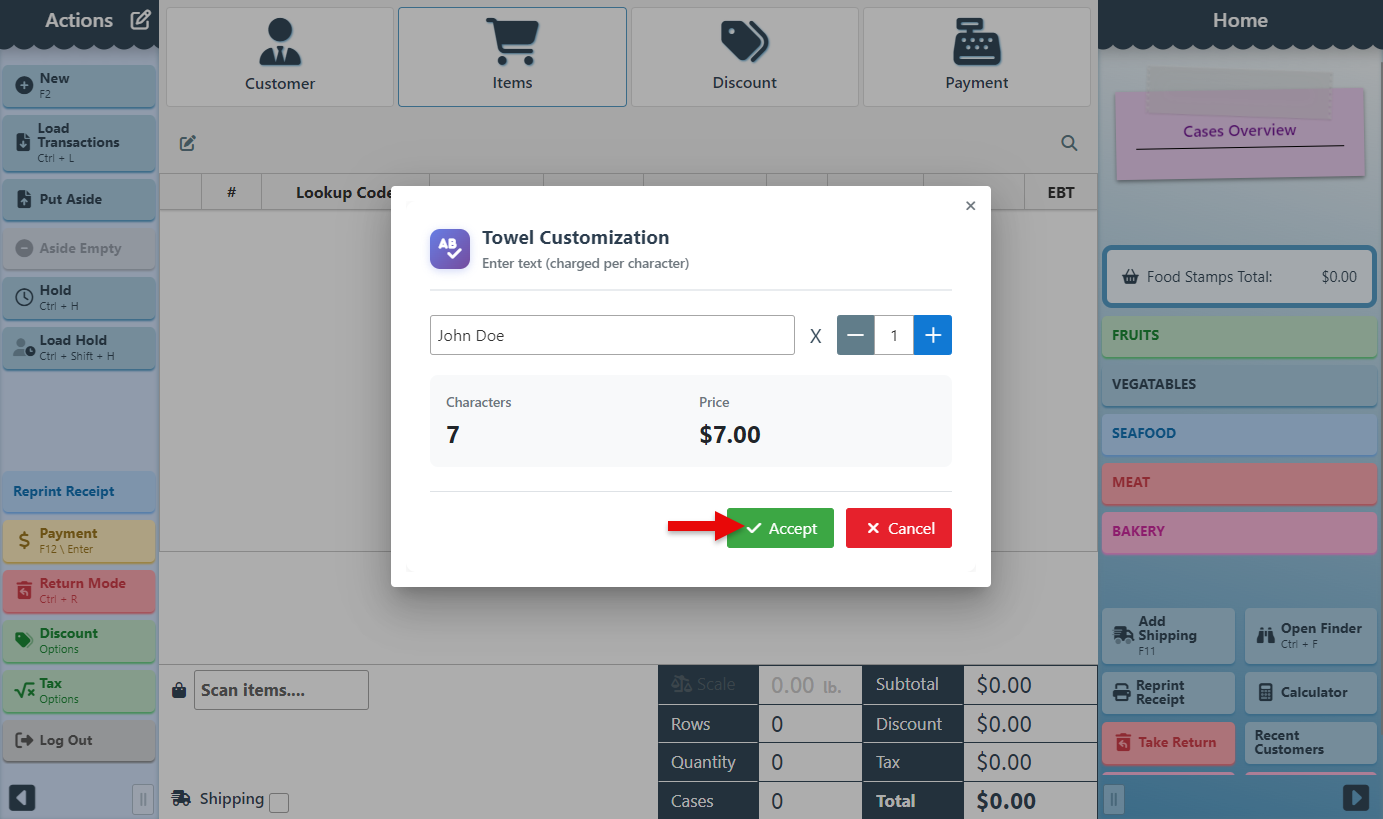
Click “Accept” to add the item to the transaction.
-
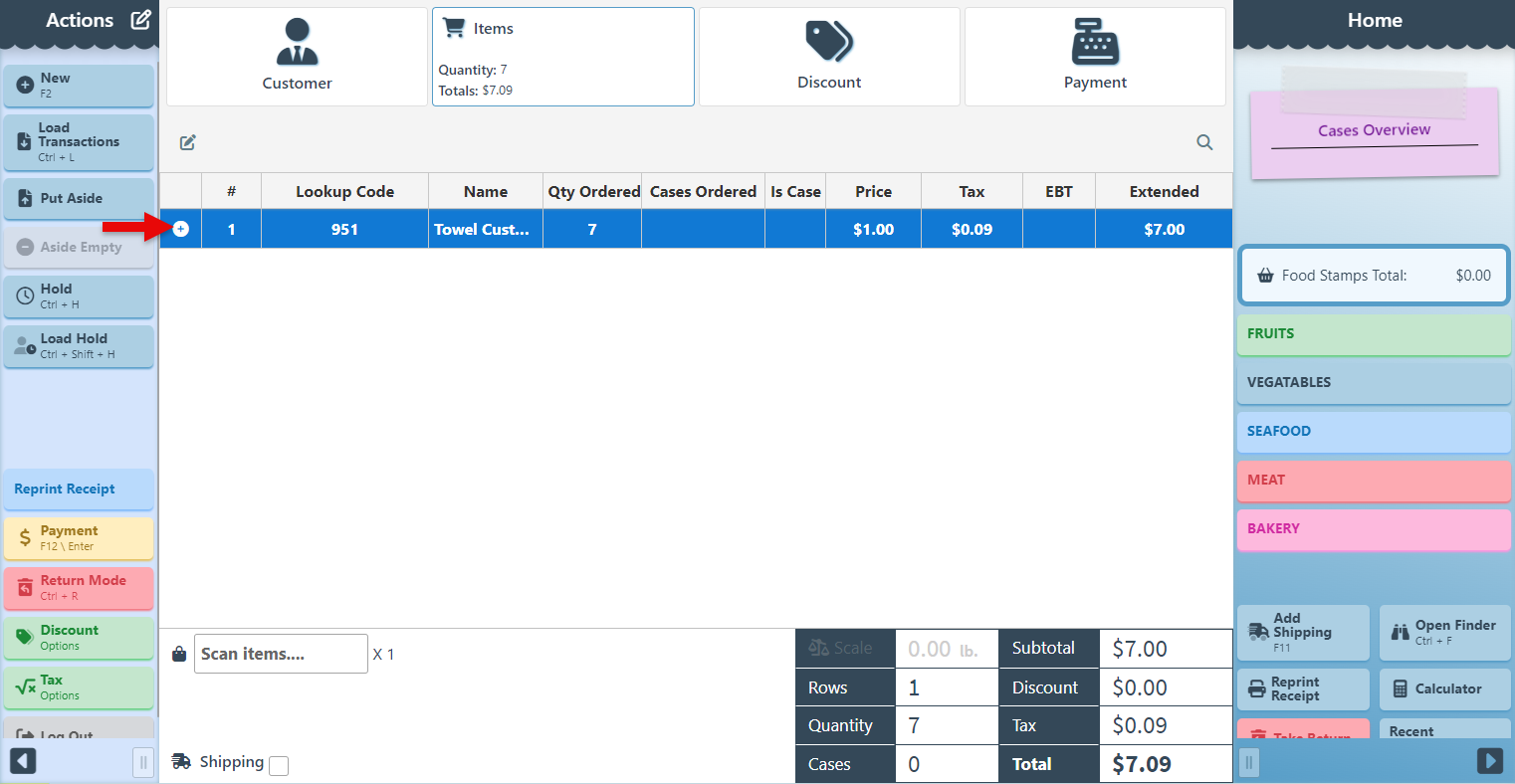
The item will be added with the original price, while the quantity and total will update based on the number of characters selected.
Per-character Package
The Per-Character Package Popup allows for group personalization to be added to an item without the need to individually select each customization. By clicking the Per-Character Package button, a popup will appear where multiple customizations can be selected at once. This streamlines the customization process, making it more efficient and convenient.