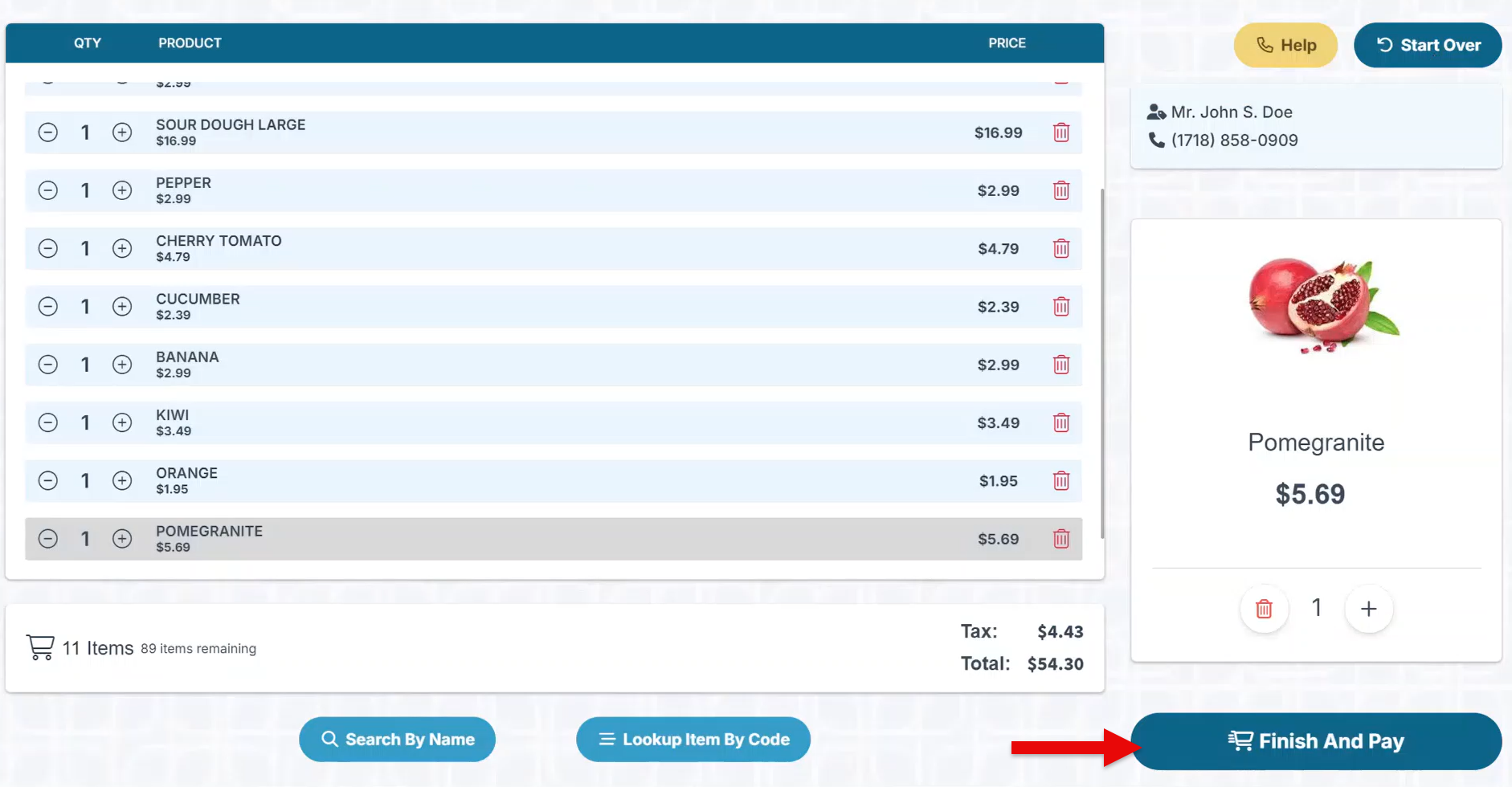
Below is a customer guide on the self-checkout POS system—designed to streamline your operations, reduce wait times, and enhance the customer experience.
To check out large orders quickly, see the Fast Lane Self-Checkout option, which streamlines the process. This service allows store personnel to scan, process, and pack customer orders while they are no longer present in the store.
-
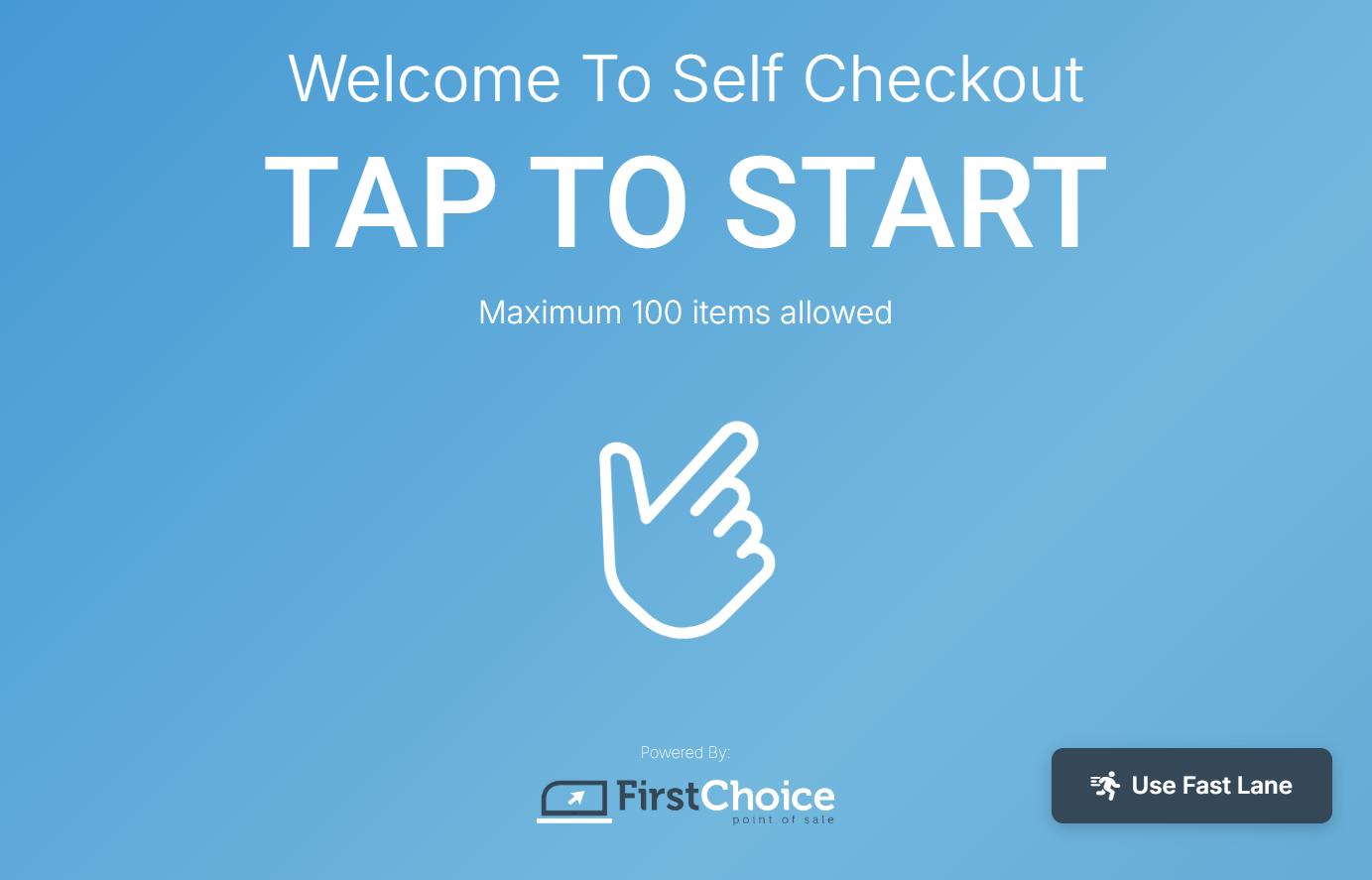
Click the homescreen to start checkout.
-
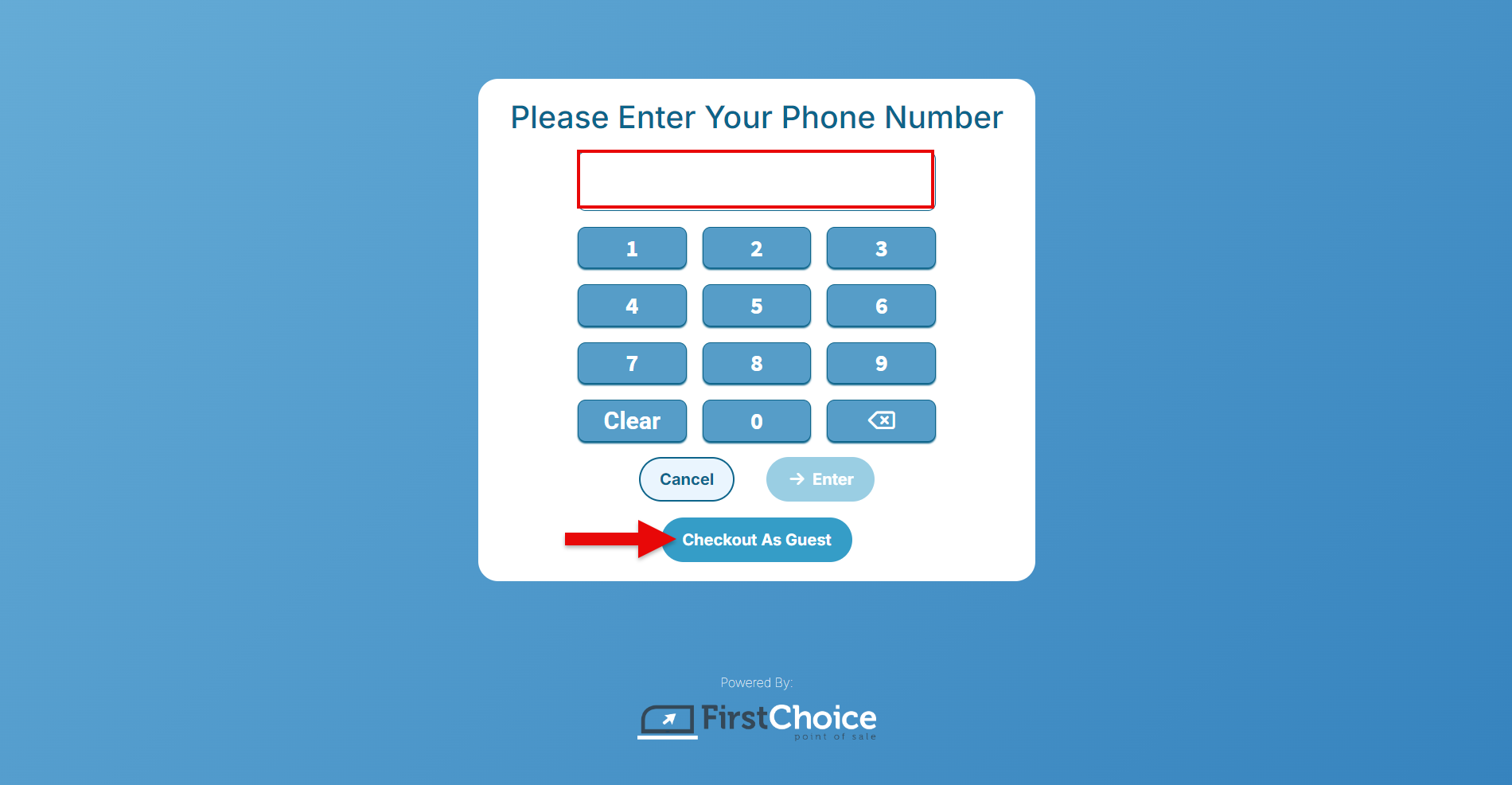
Enter a phone number or click “Checkout As Guest” to proceed.
-
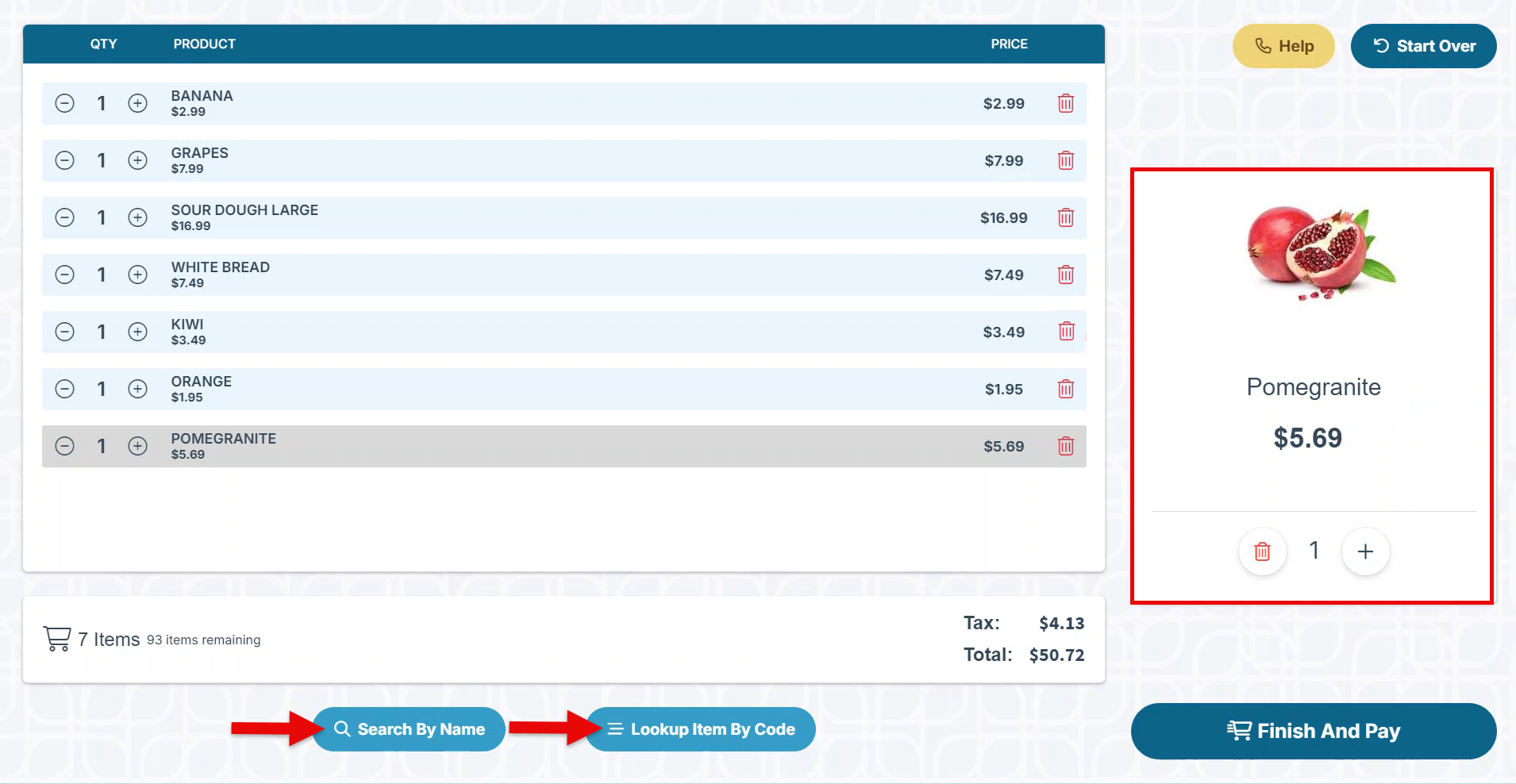
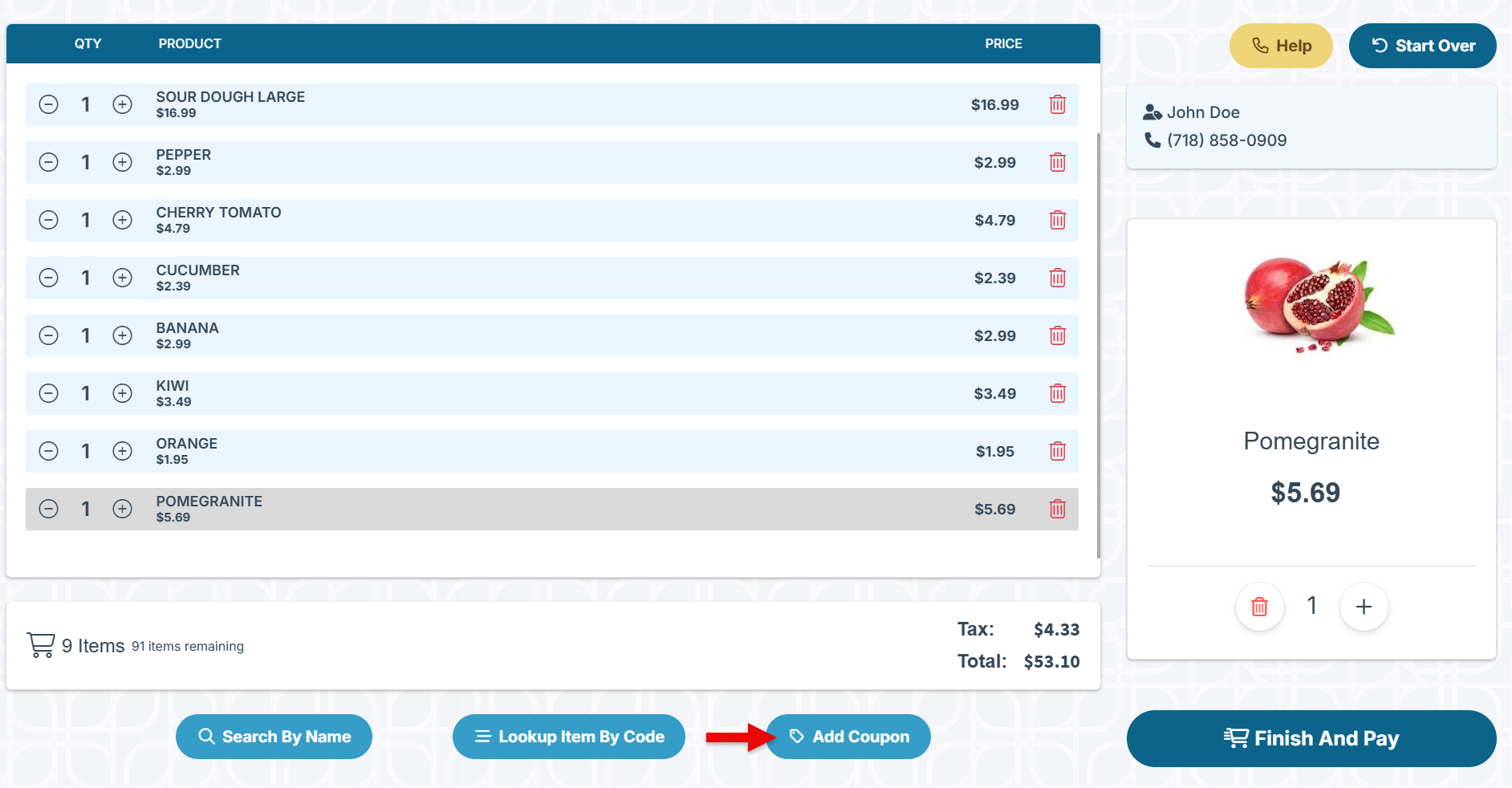
Add items to the order by scanning or searching for them by code, name, or category. An enlarged image and item description will appear on the right side of the screen to enhance the shopping experience.
-
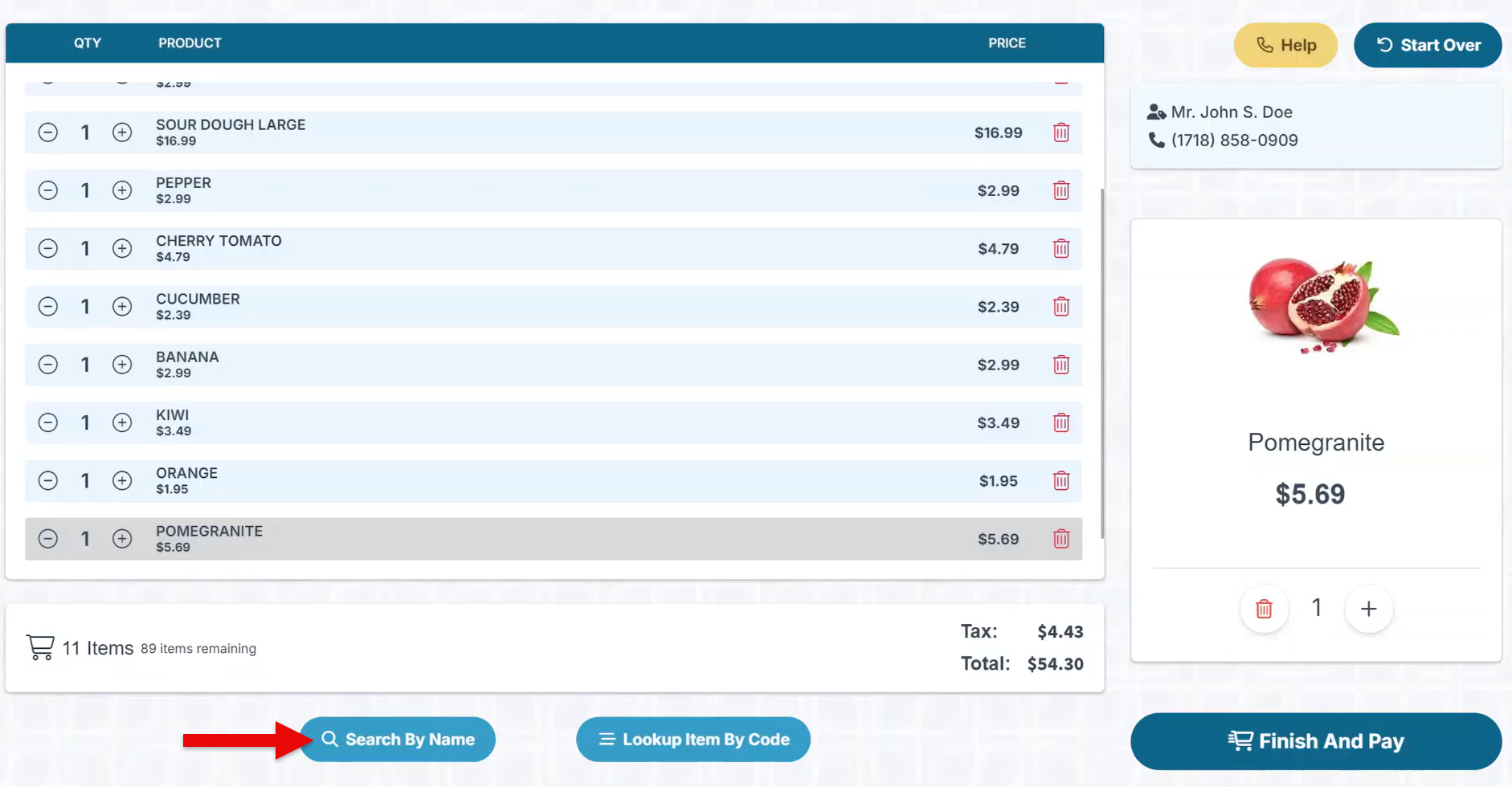
Click “Search By Name” to add items by name or category.
-
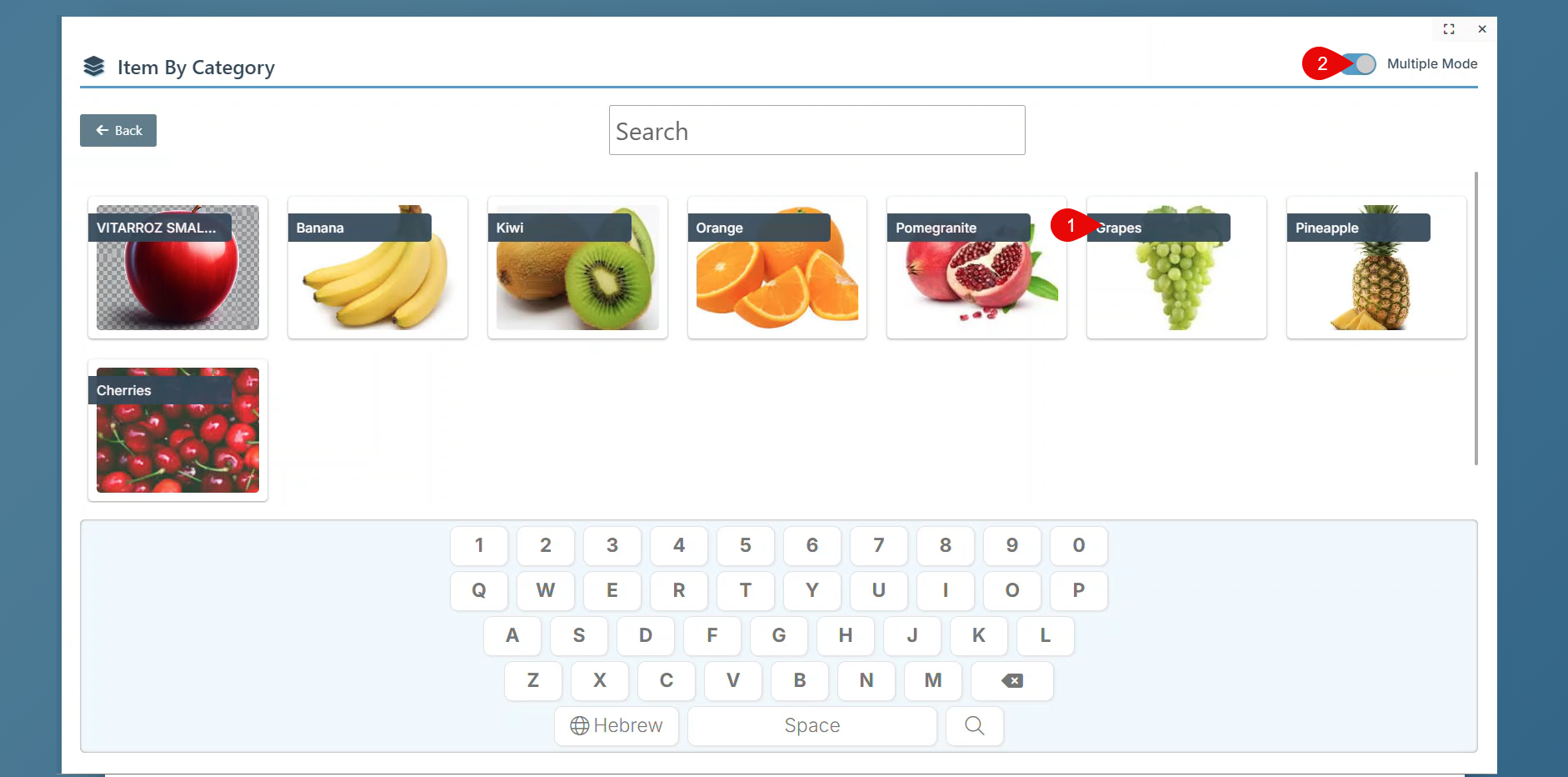
Select a specific Category to view items from within the category (1). Enable “Multiple Mode” to select multiple items from a category without closing the category pop-up (2).
-
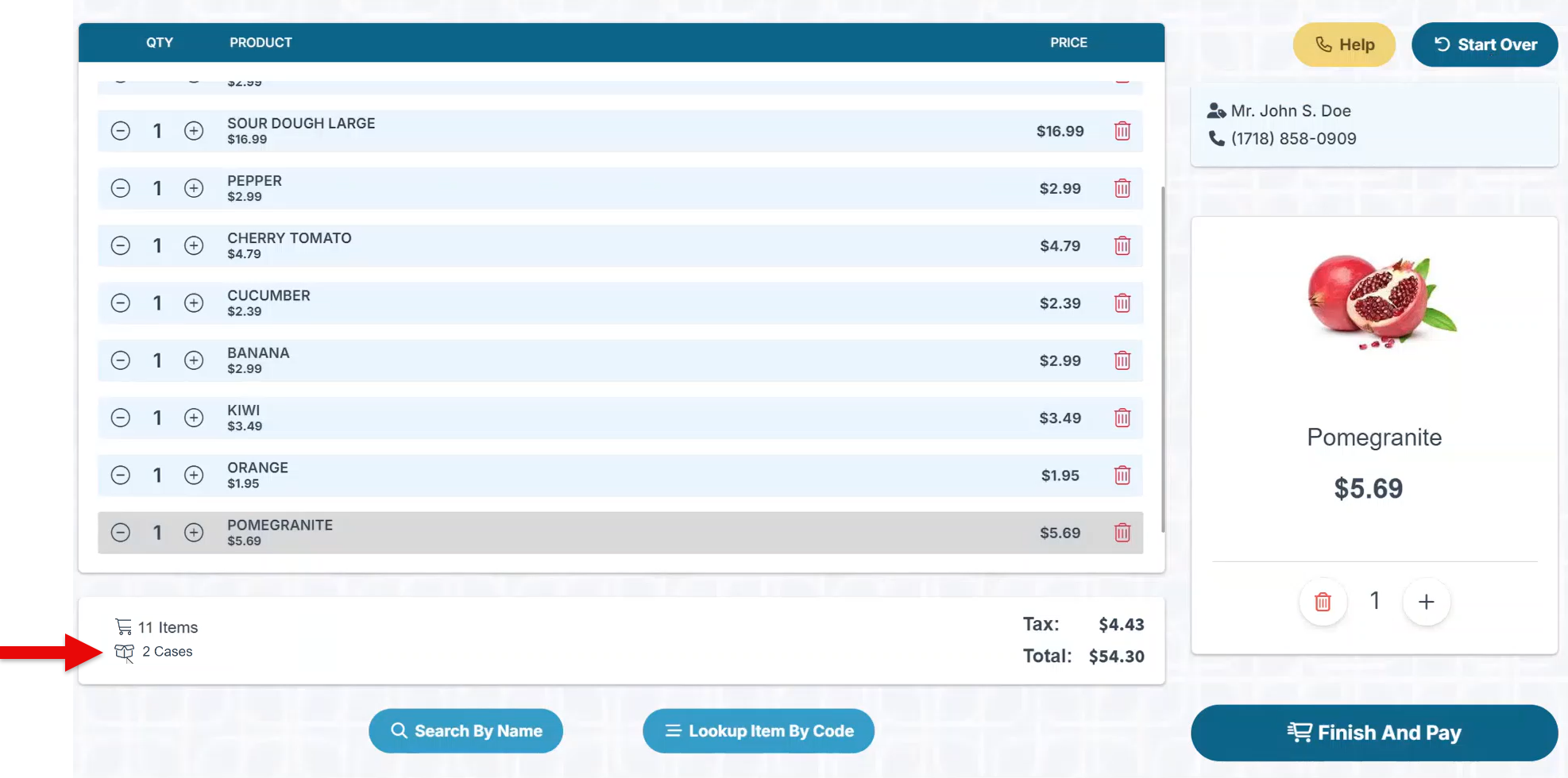
The order summary at the footer of the page, will show the total items and cases included in the transaction.
-
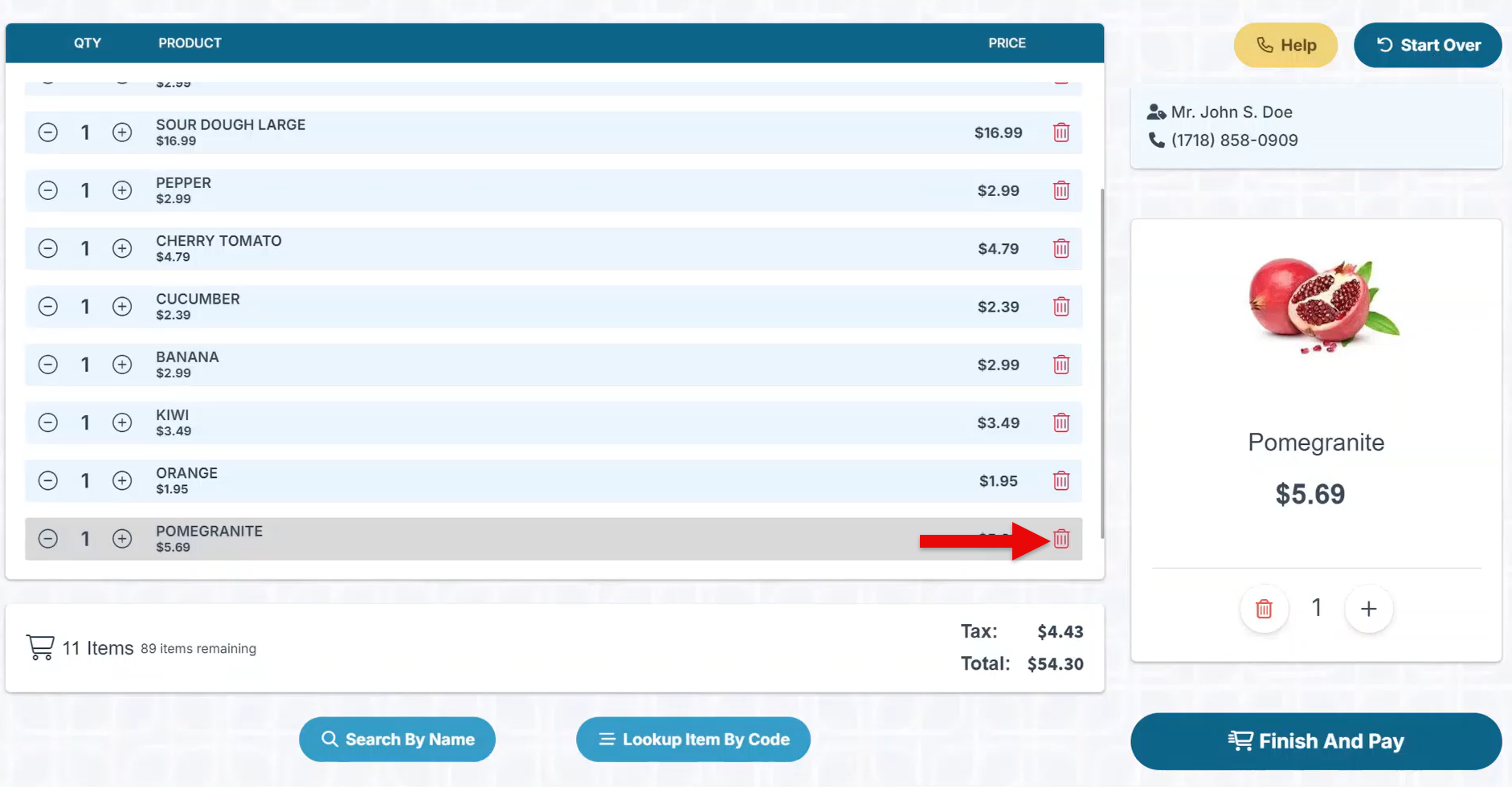
Click the delete icon on any item row to remove the item entry.
-
To apply a discount coupon to the transaction, click the “Coupon” button and proceed to scan the coupon code.
-
Click “Finish and Pay” to continue to payment and complete the sale.