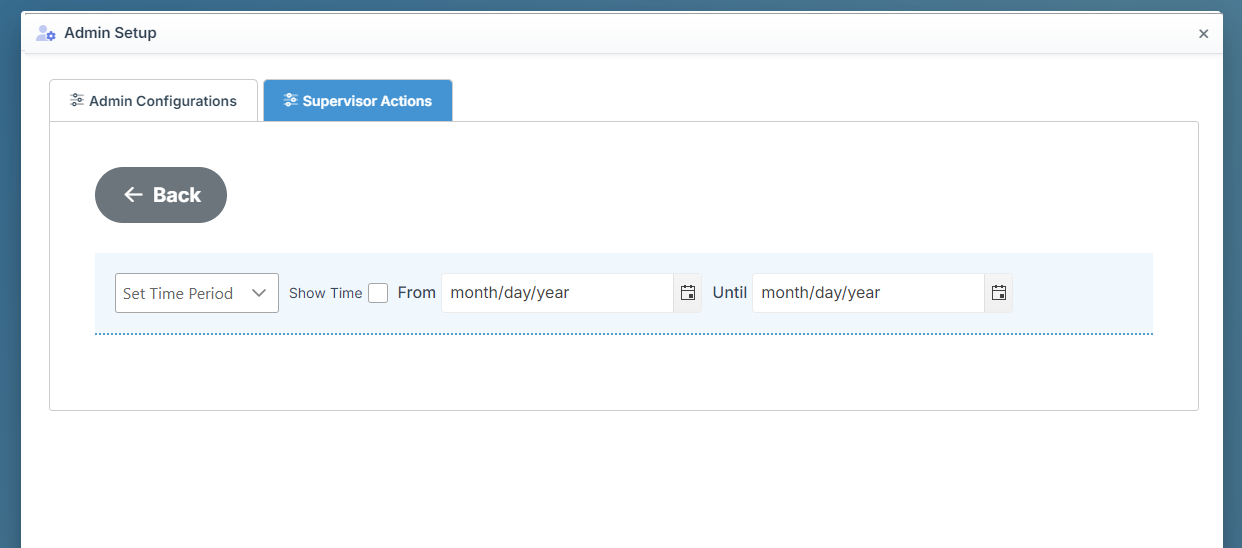
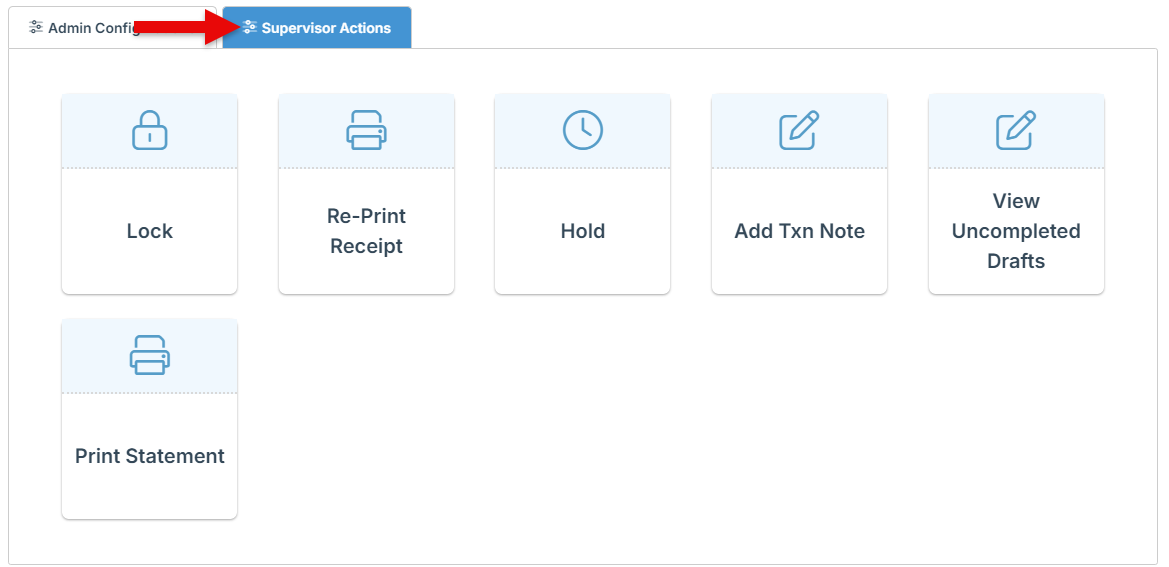
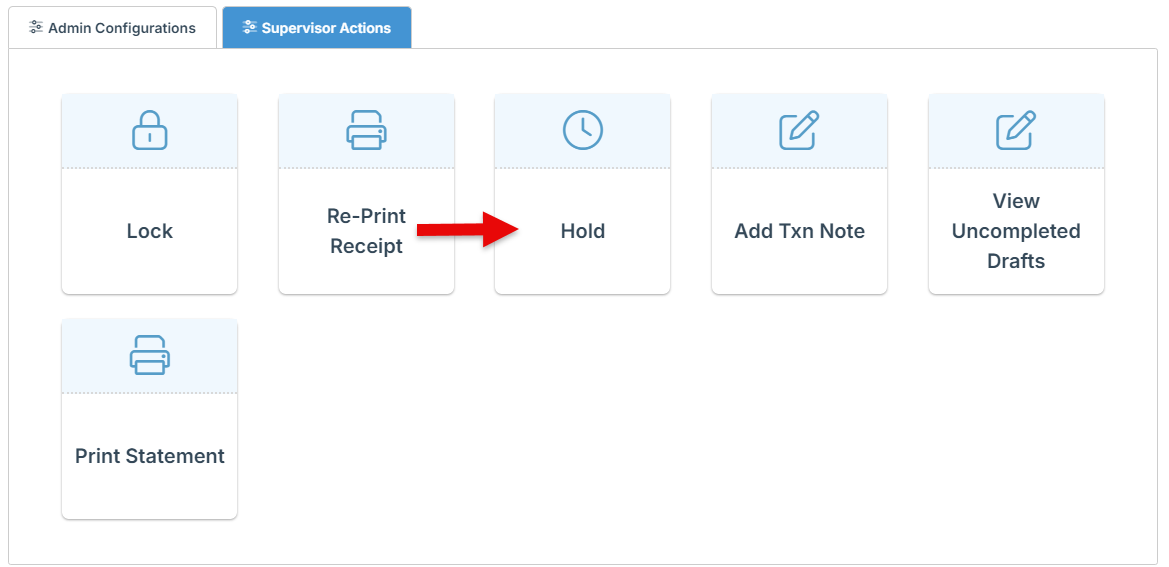
The guide below outlines the supervisor actions available for self-checkout, enabling a manager to make real-time adjustments to sales, including placing a sale on hold, reprinting receipts, and more.
-
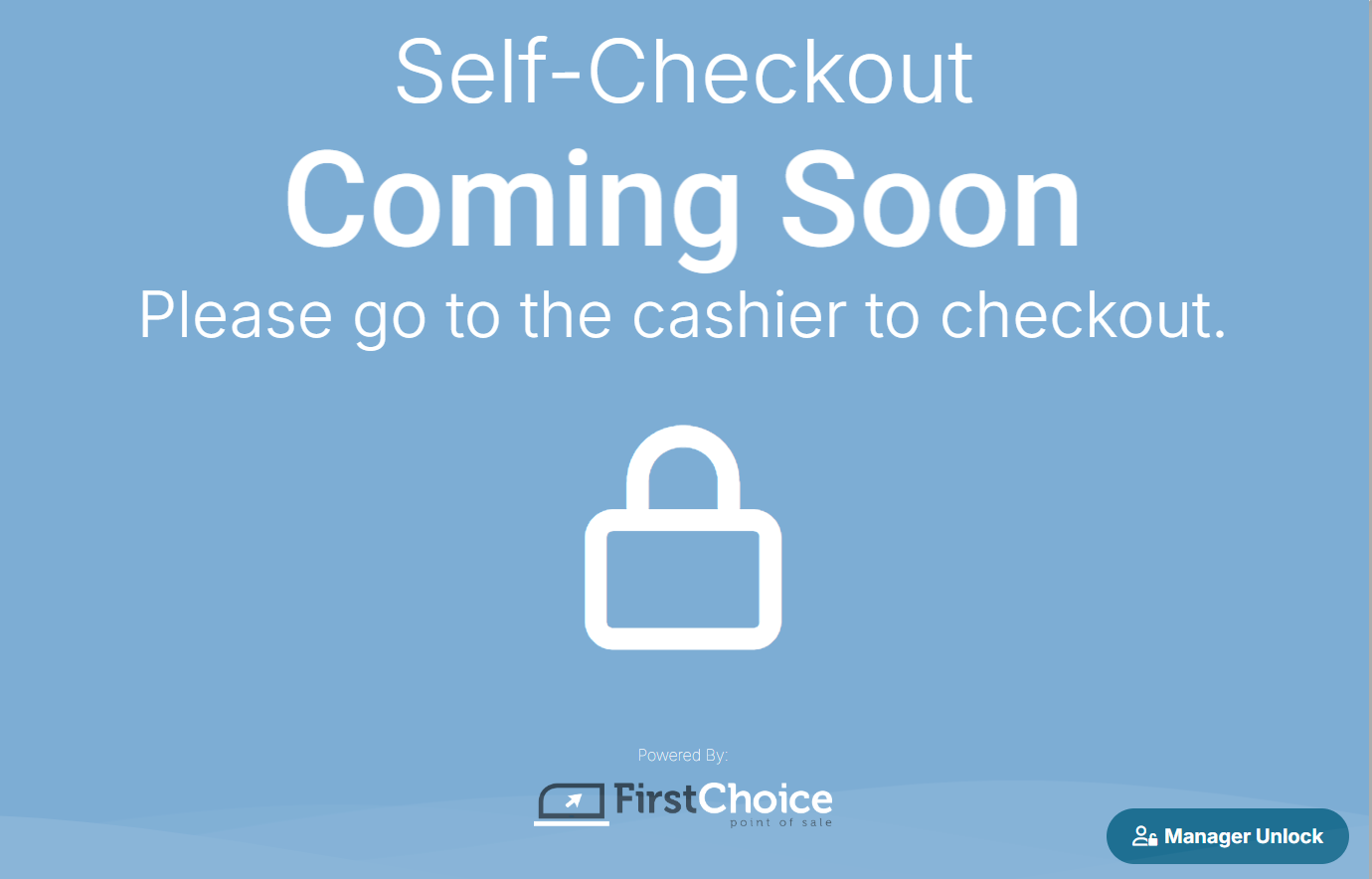
Click the “Lock” icon to lock the station and display a “Coming Soon” message on the homescreen. A “Manager Unlock” button will appear at the bottom right of the screen, enabling authorized personnel to unlock the station when needed.
-
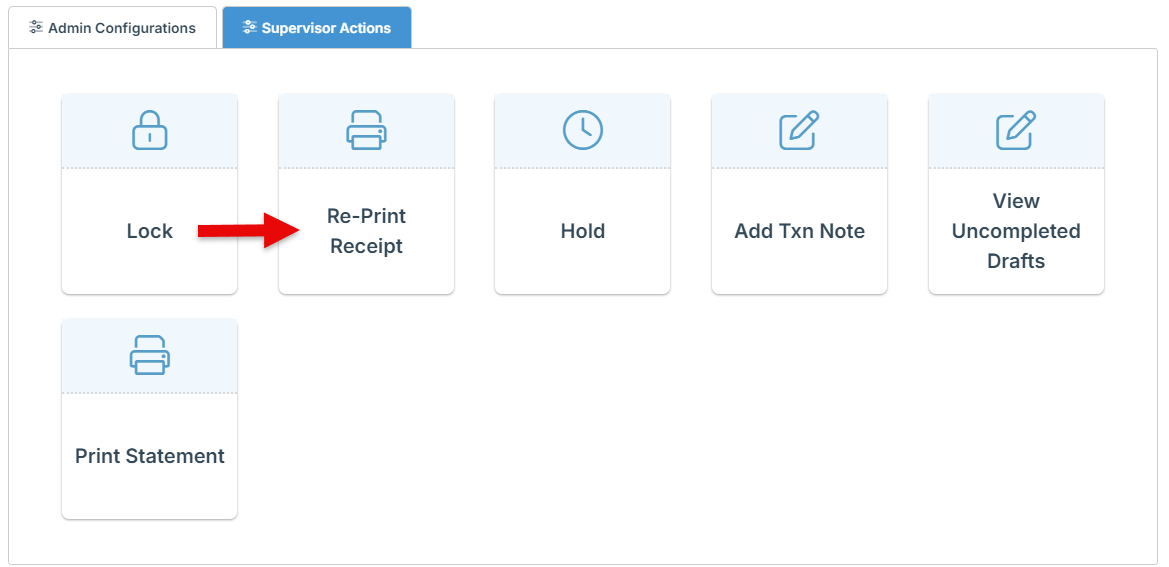
To reprint the receipt from the most recent transaction conducted at the self-checkout station, click the “Reprint Receipt” option.
-
Use the “Hold” button to place an order on hold, enabling it to be completed at a regular checkout station.
-
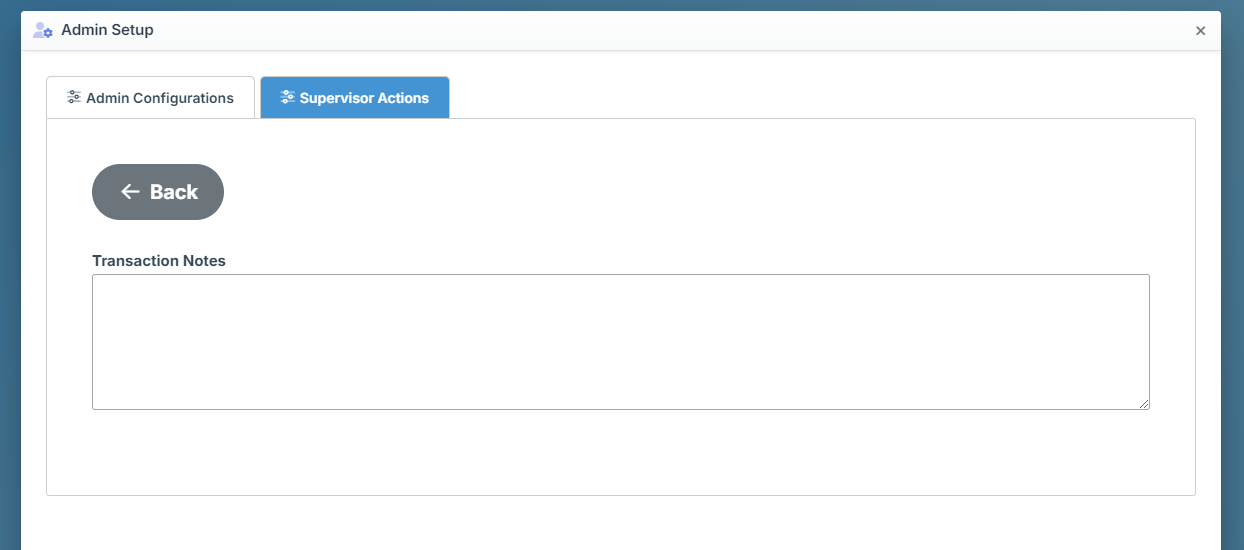
To add a note to the transaction, click the “Add Txn Note” button.
-
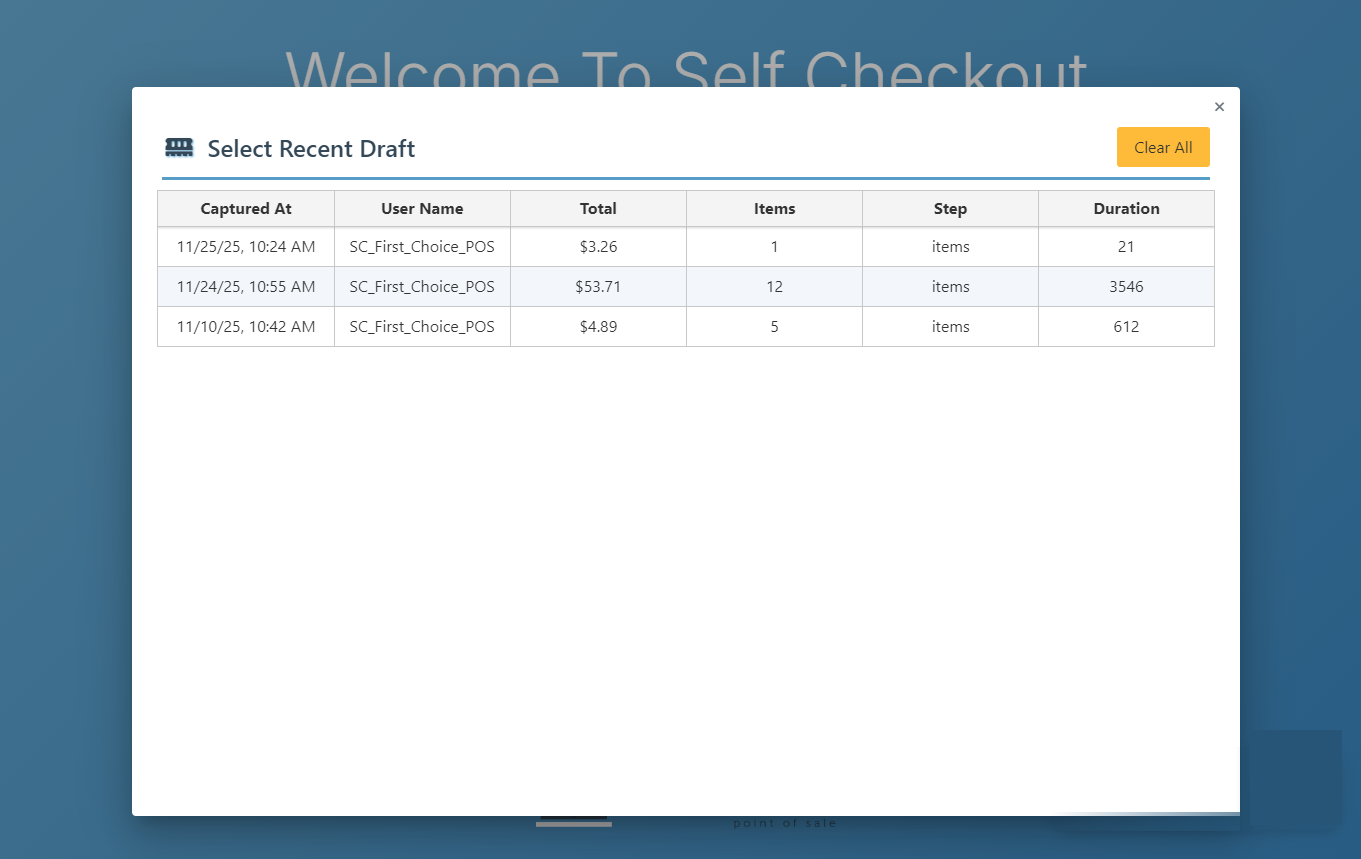
Click the “View Uncompleted Drafts” button to see a list of any orders that were started for checkout but not completed. A specific draft can then be reopened and completed.
-
Use the “Print Statement” button to generate a statement of the customers transactions.