
Follow the steps below to configure automatic SMS or email receipts to customers. This can be done from both the front and backend, and the guide includes instructions for both.
Frontend
-
Open the POS.
-
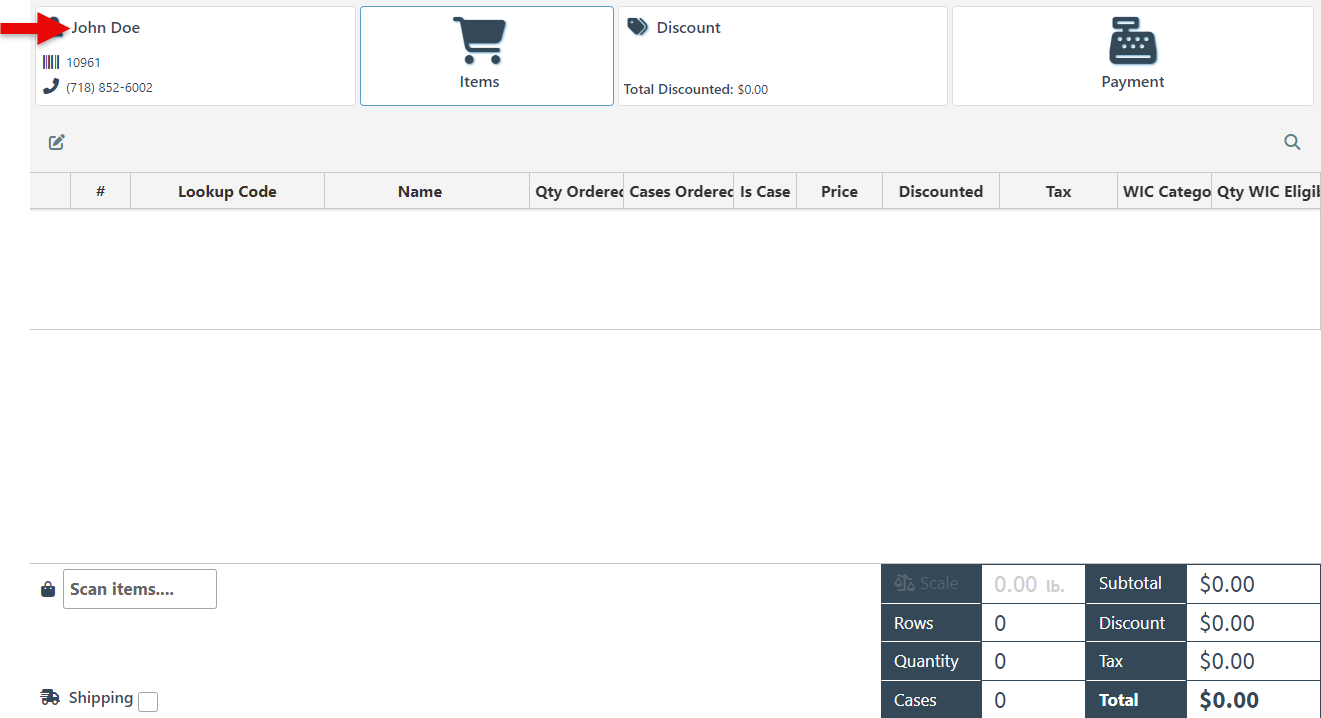
Select the relevant customer in the customer tab, and double click to open the expanded customer details.
-
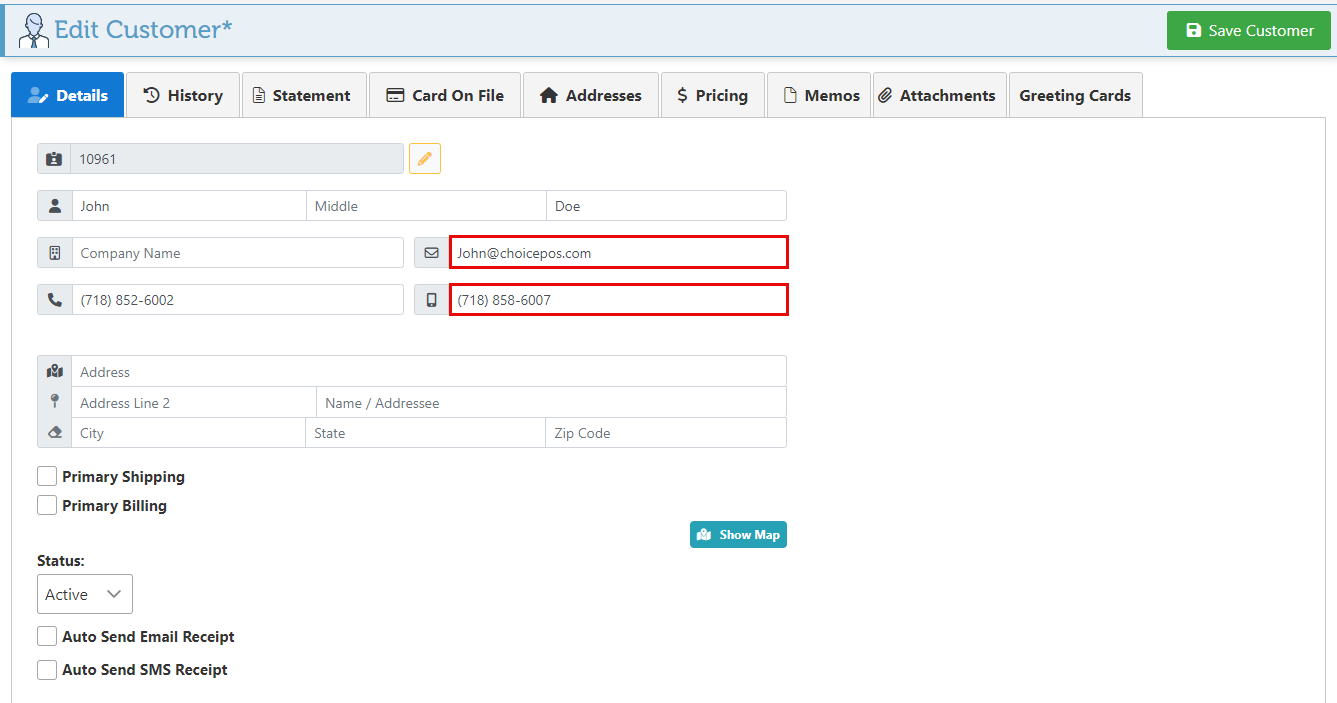
Enter the customer’s Phone number and email address in the designated fields.
-
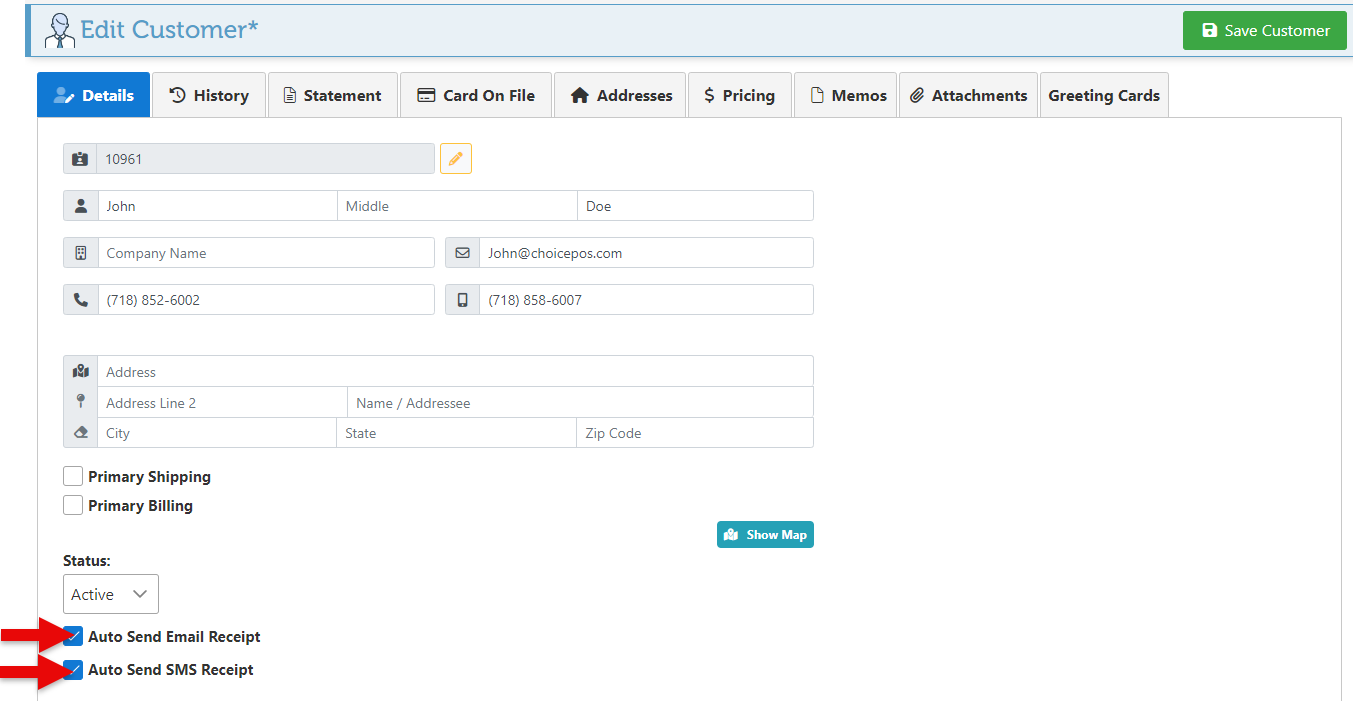
Select the “Auto Send Email Receipt” and/ or “Auto Send SMS receipt” checkbox.
-
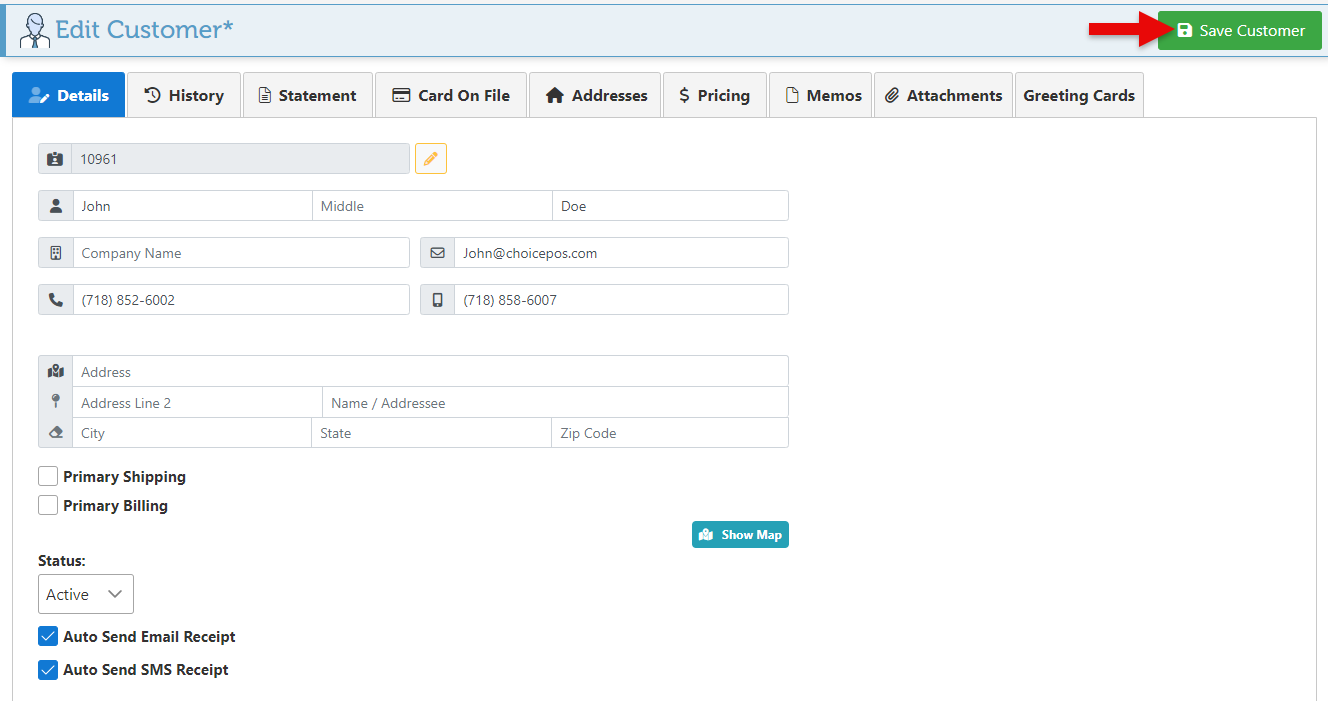
Click the “Save Customer” button to save new configurations.
Backend
-
Log in to app.firstchoicepos.com
-
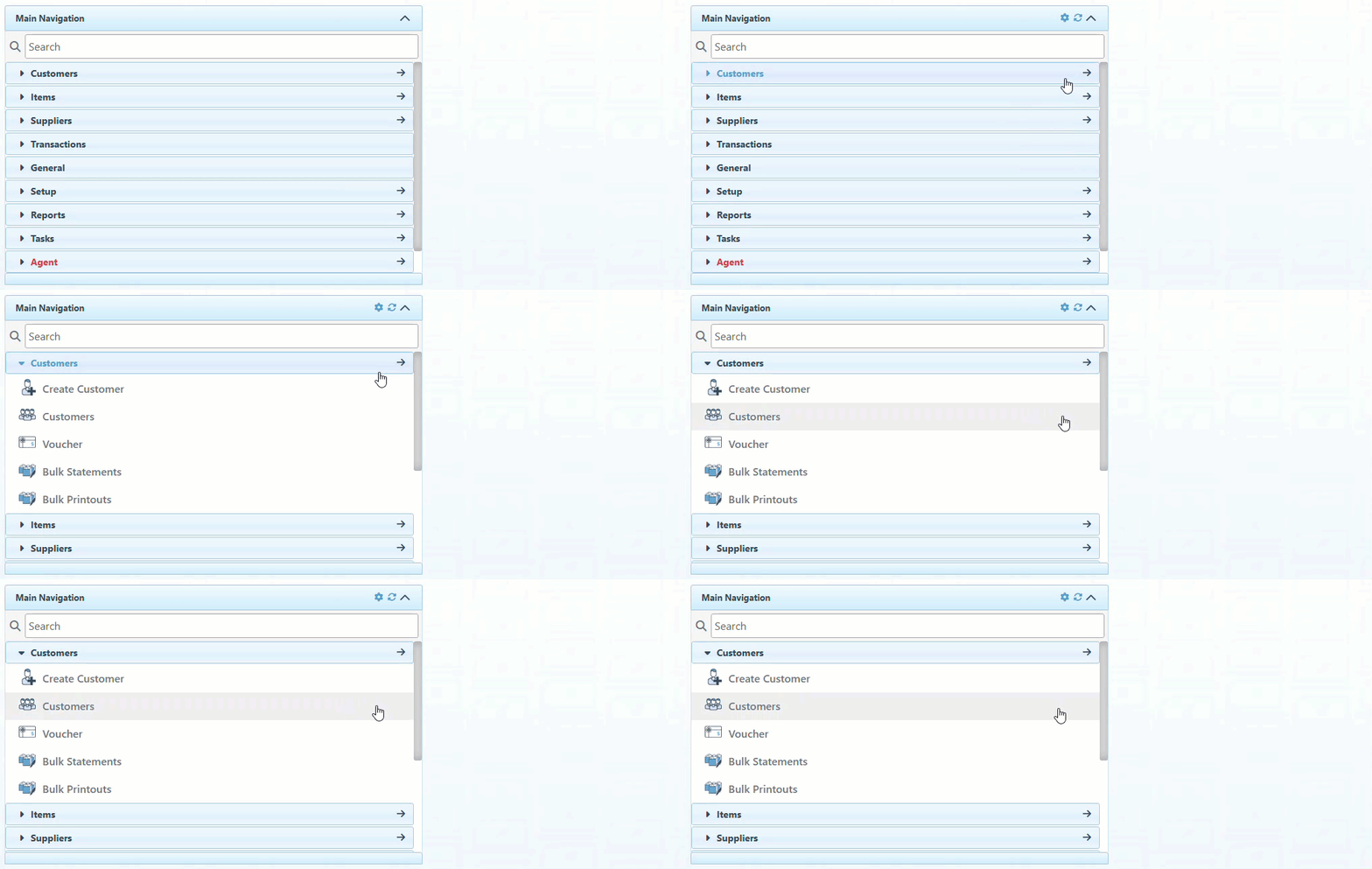
Click “Customers” in the Main Navigation menu and select “Customers” in the scrollable dropdown.
-
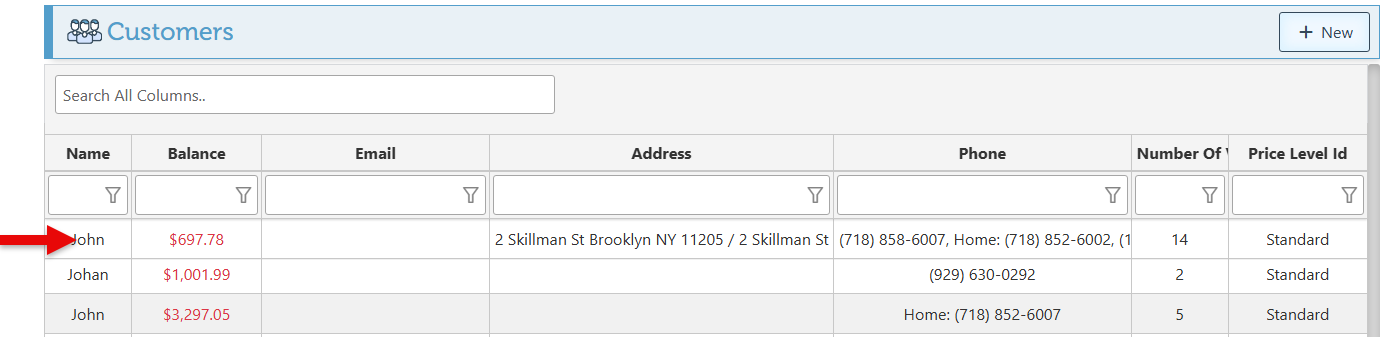
Click to select the relevant customer (for which to set up the automated messages) from the appearing list.
-
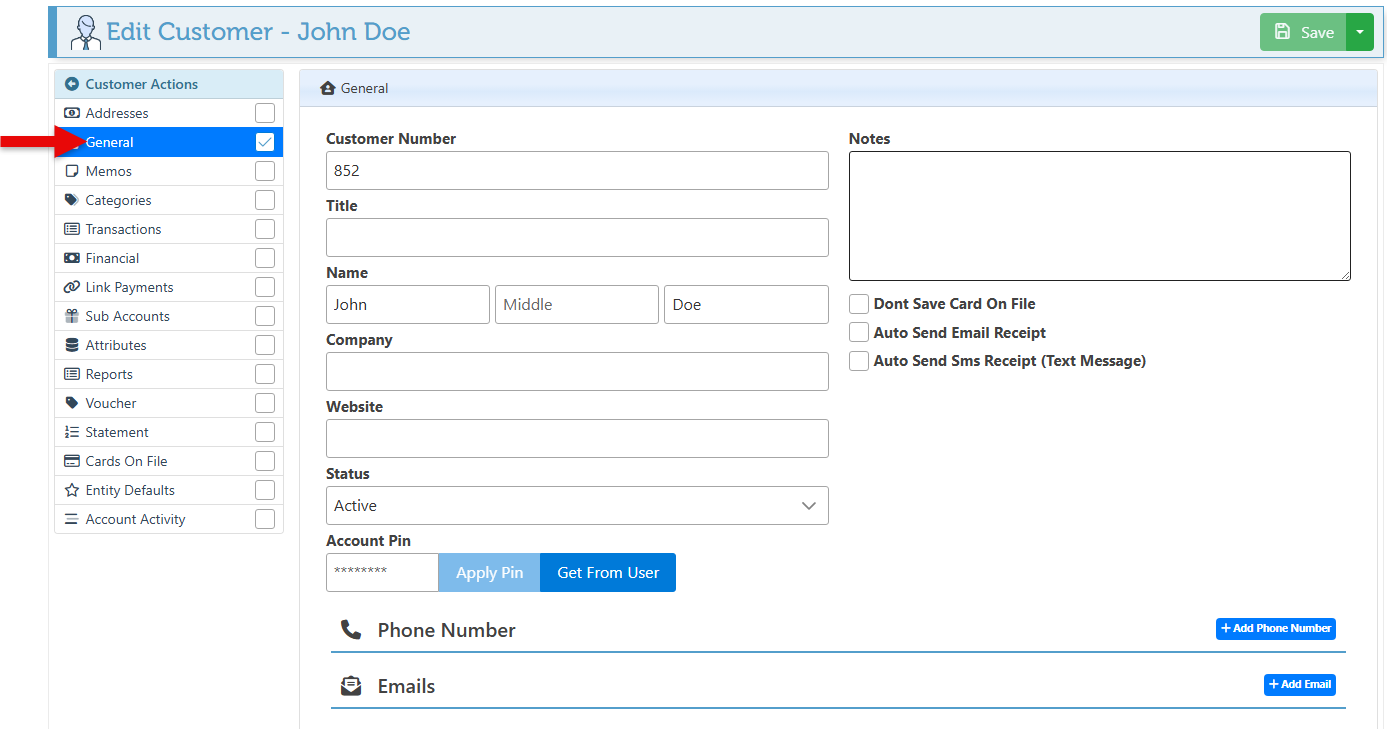
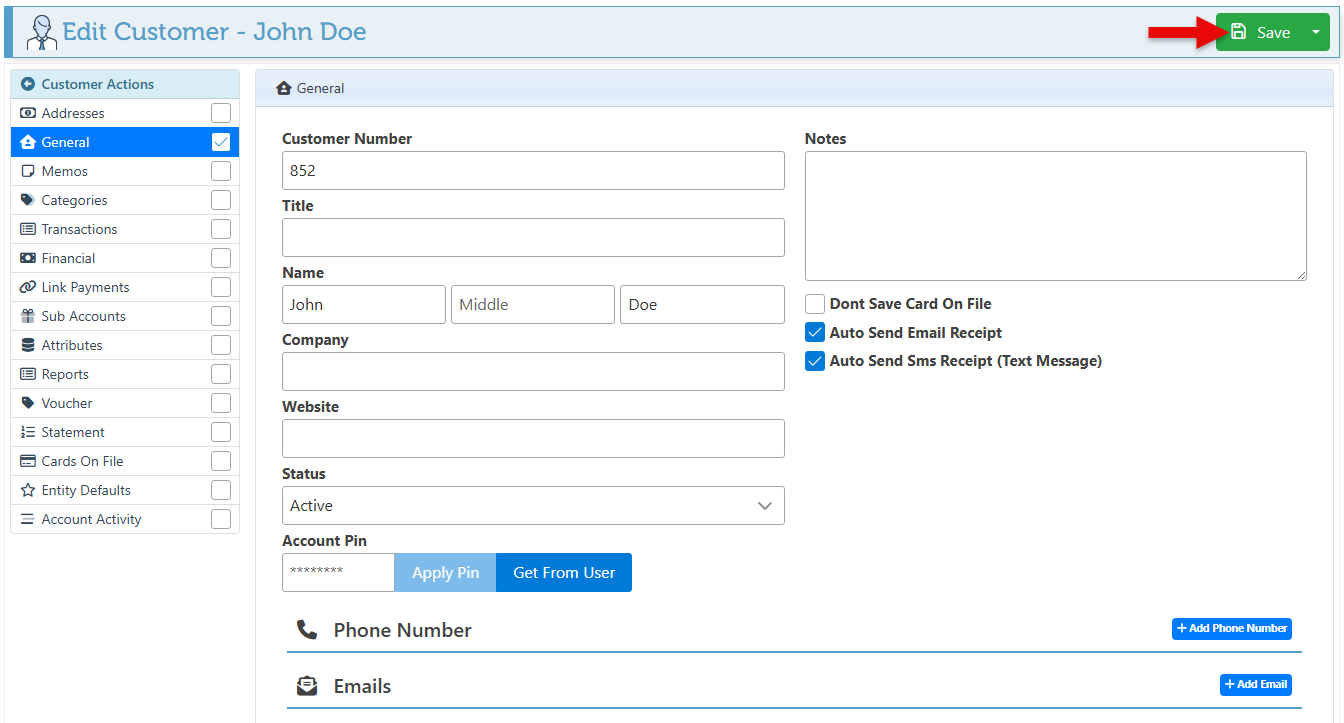
Navigate to the “General” tab in the Customer Actions menu on the left.
-
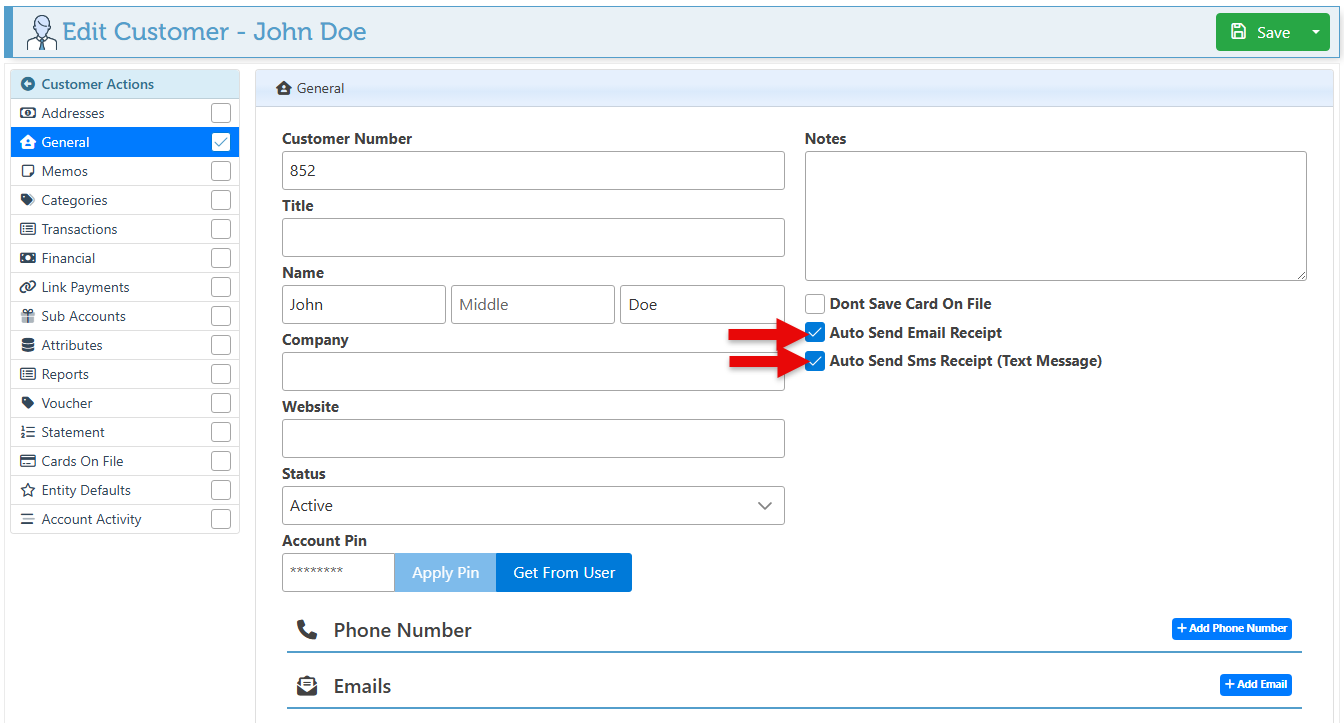
Select the “Auto Send Email Receipt” and/ or “Auto Send Sms Receipt” checkboxes.
-
Click “Save” at the top right to save changes.
Messages and emails are automatically sent based on the selected state of the workflow rule. For example, if the workflow rule state is set to “Complete,” the message will be automatically sent when a transaction is completed, in both- the front and backend. To change the state that triggers the email or SMS, refer to the POS workflow rules “SendEmail” and “SendSMS.” For more information on workflows, see Workflow Rules and States.