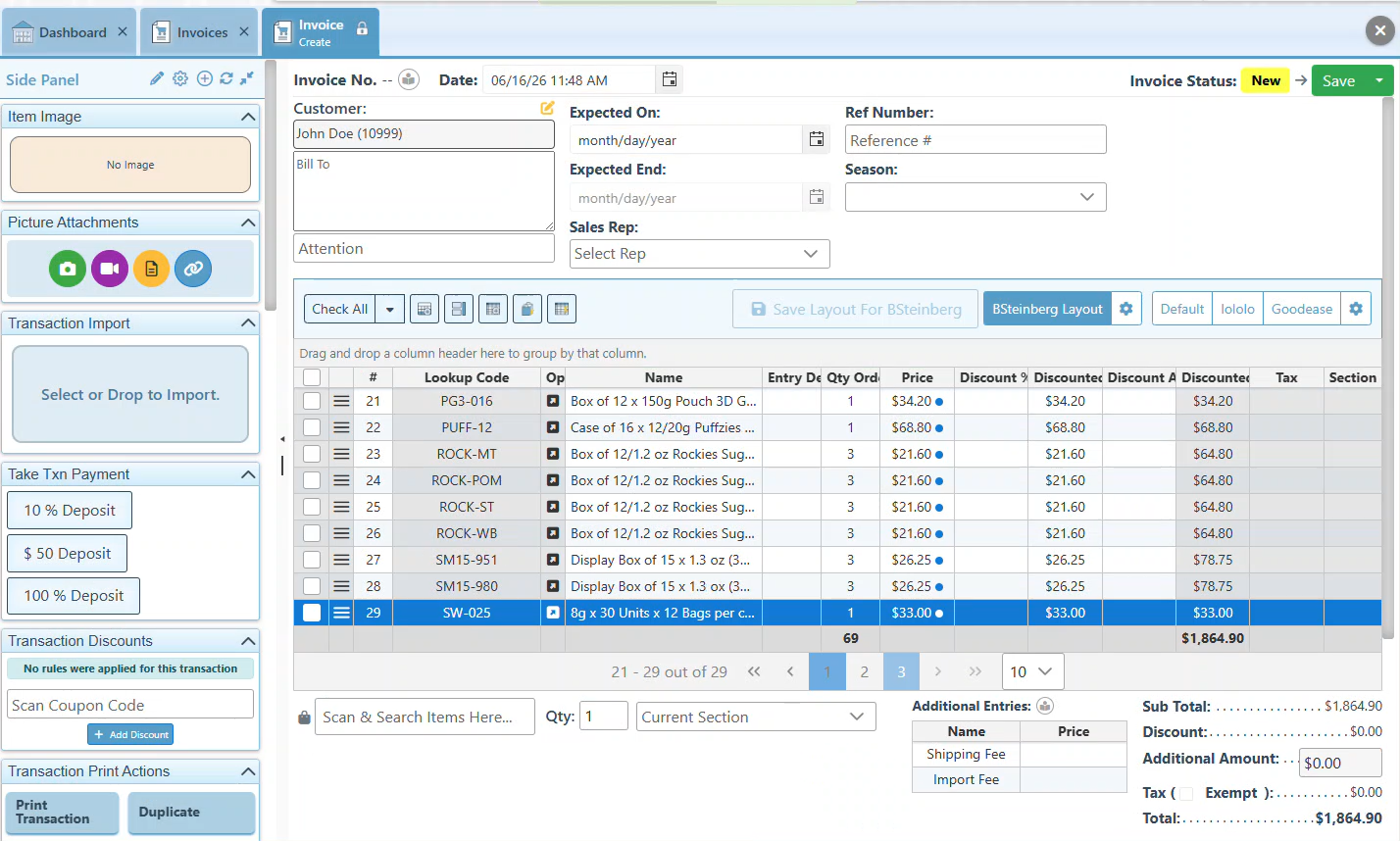
Below is a guide on how to import items listed in a PDF directly into a transaction as transaction entries. When a PDF contains items in multiple colors and sizes, AI will recognize them as pivot (matrix) items and prompt with the option to create them as pivot items.
Follow the steps below to import items listed in a PDF document as transaction entries.
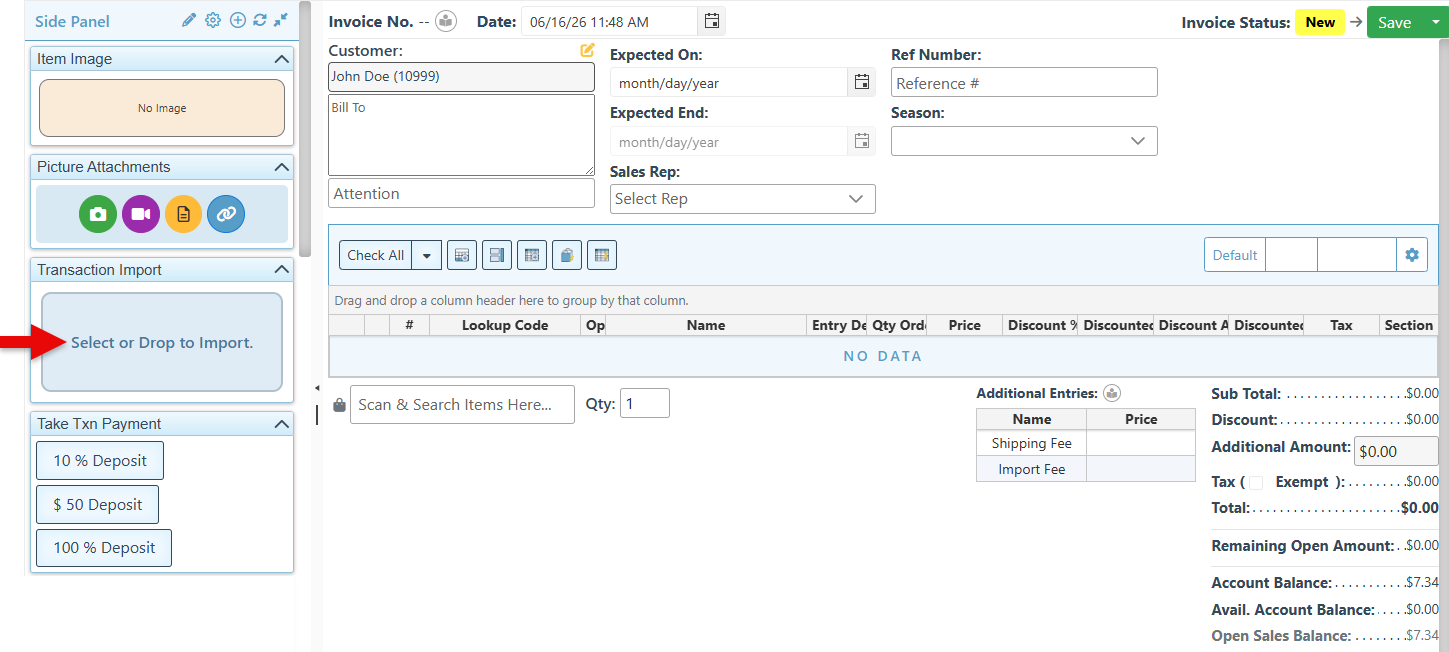
Ensure that the Transaction import side panel widget is added on the Purchase Order/ Invoice page.
-
Open Backoffice.
-
Open to the relevant transaction page.
-
Click the Transaction Import widget to open the file pop-up, then select the PDF file to import.
-
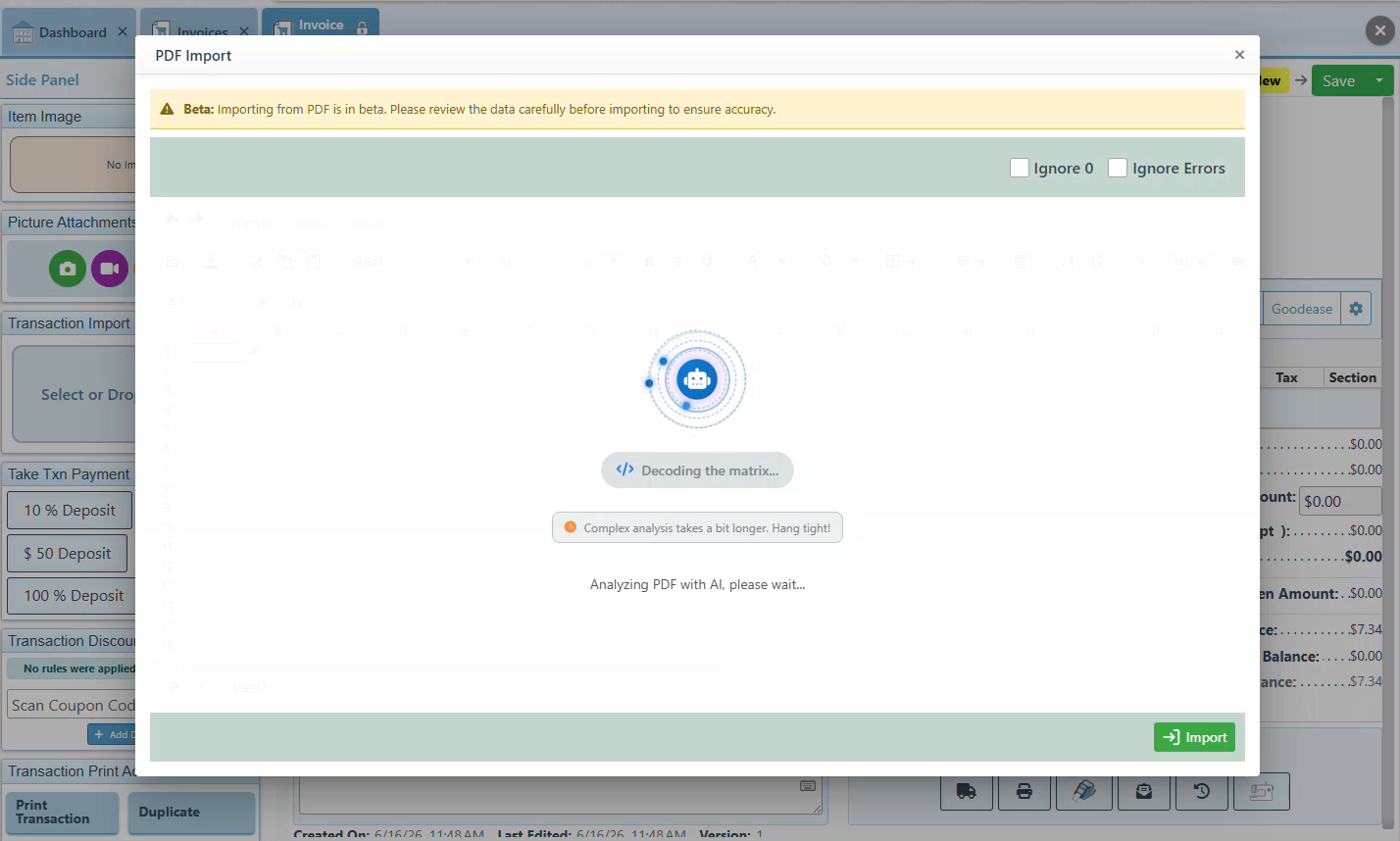
Once selected, AI will analyze and convert the PDF to an Excel file.
-
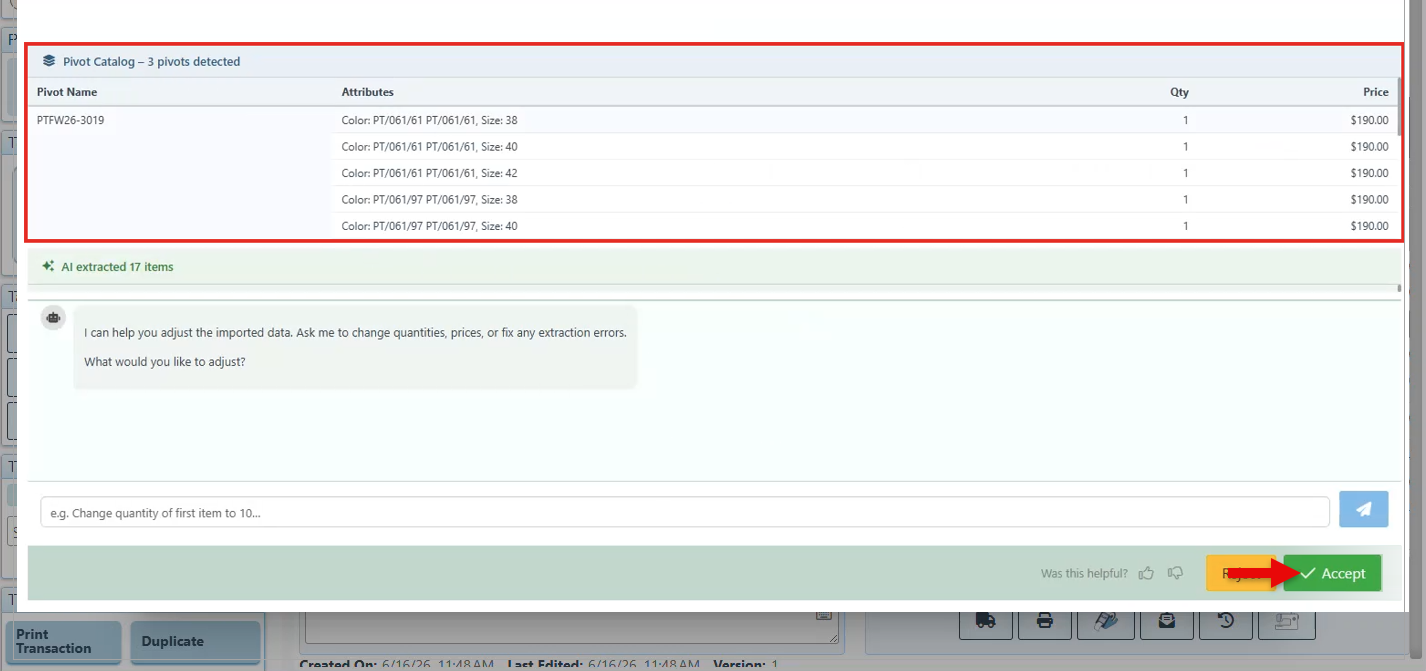
If AI identifies pivot items in the PDF, a pivot catalog will appear, displaying a draft of the items in a pivot form, with their Pivot Name, Attributes (e.g., Color and Size), Quantity, and Price.
To correct or update the results, enter changes in the chat box. For example: “Change the quantity of the first item to 10.”
-
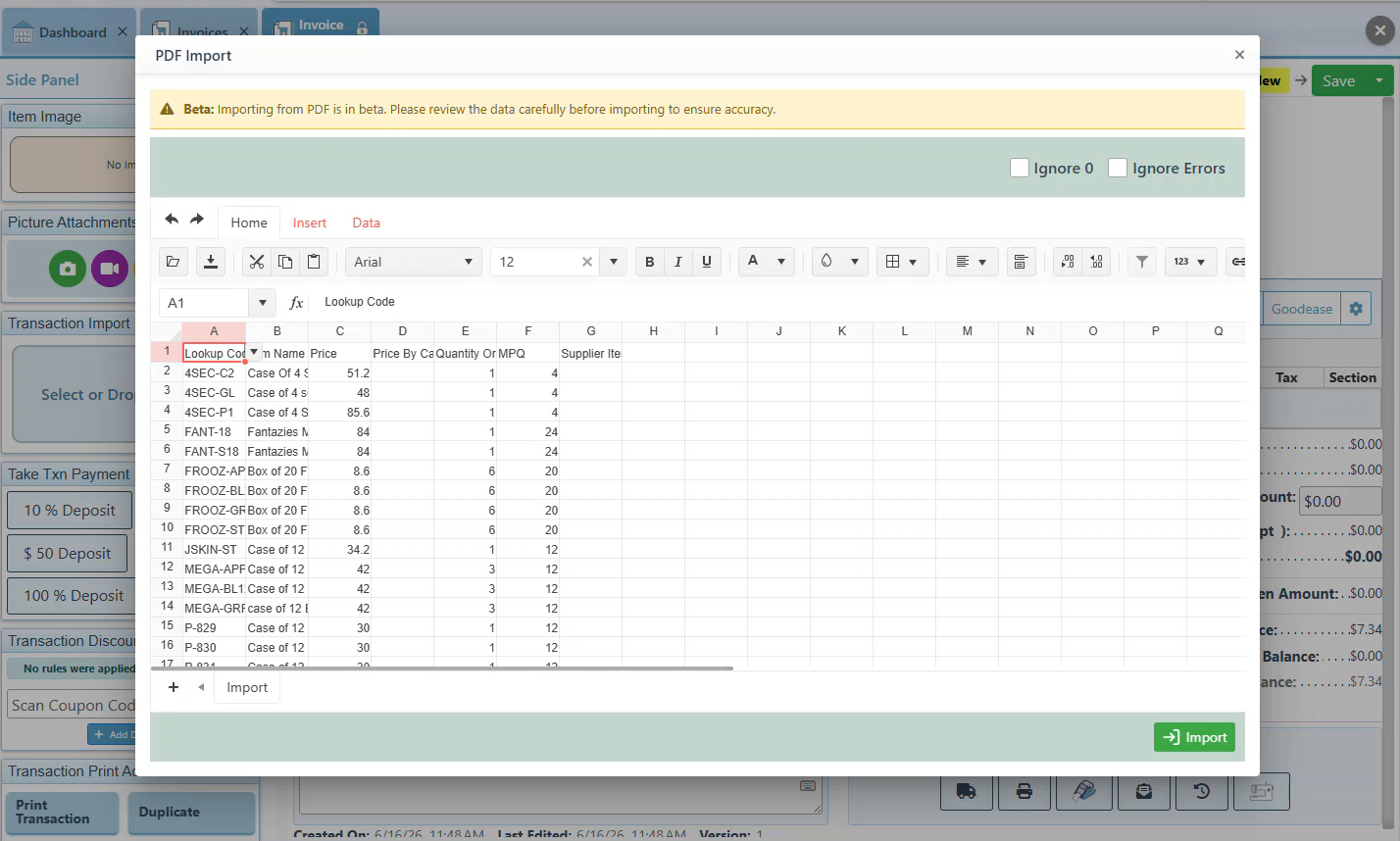
A pop-up with an Excel sheet listing the items will appear, allowing changes to the item entries.
-
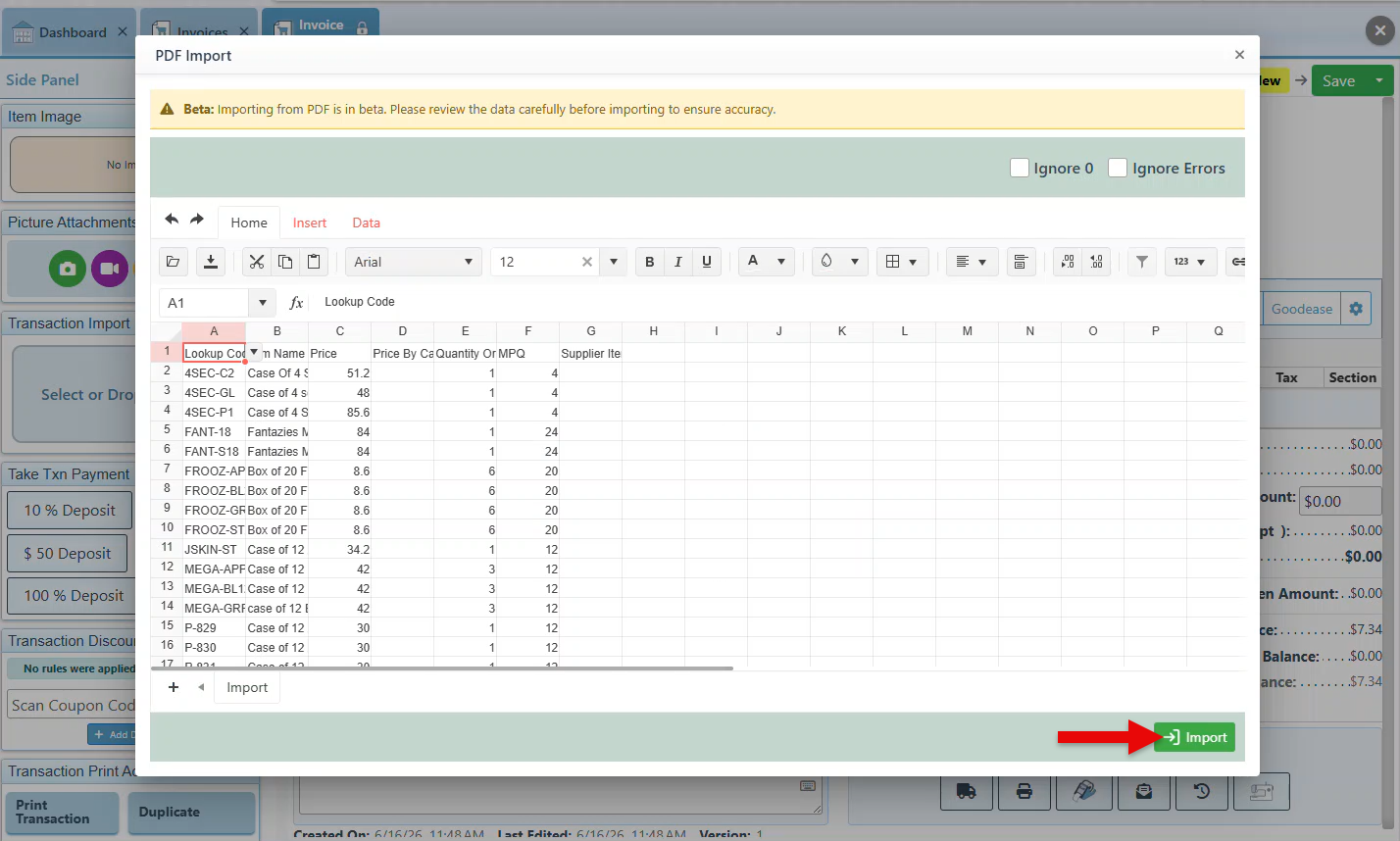
Click “Import” to add the item entries to the invoice/ purchase order grid.
-
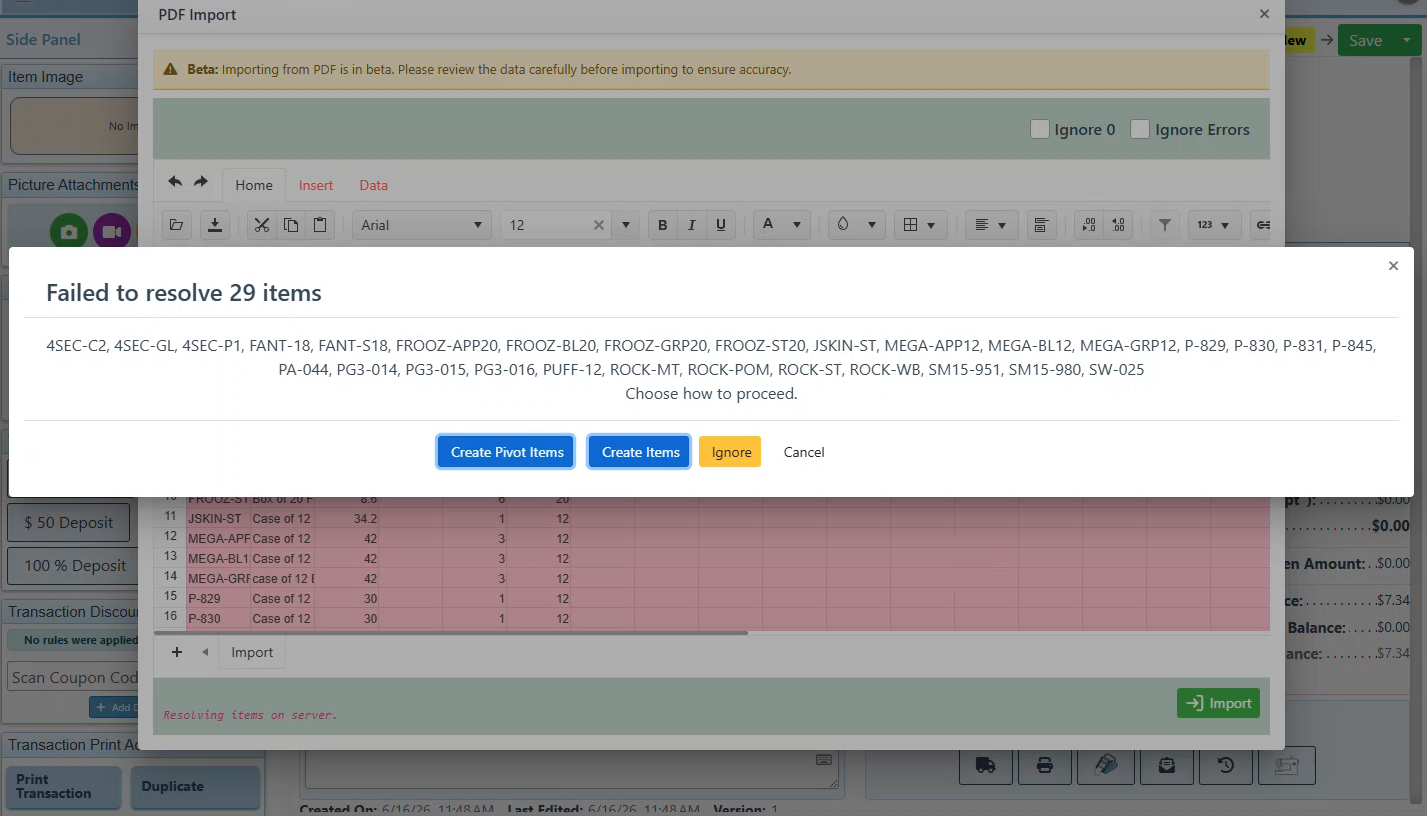
If items in the PDF are not yet in the system, a pop-up will appear to confirm whether to ignore them or create them. For imports including items that have been recognized as pivot items, an option will appear to create them as pivot items.
-
The items are then added to the invoice and can be removed or updated as usual.