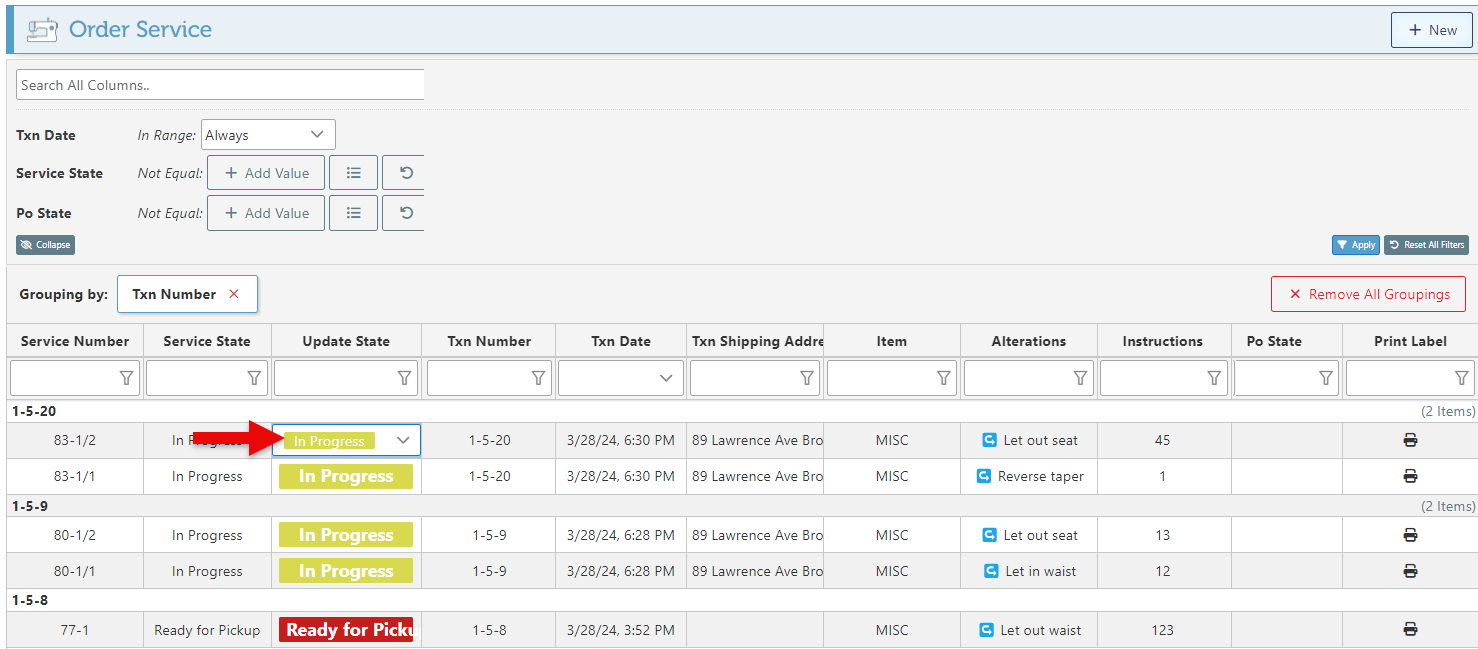
Upon completion of a transaction involving a service, an order service is automatically generated. Automated tasks can be configured to trigger notifications and printouts whenever the order service state changes, streamlining service execution. Although order services are automatically created when a service is included in a frontend transaction, viewing and editing are done in the backend.
Follow the steps below to view or edit an order service:
-
Log in to app.firstchoicepos.com
-
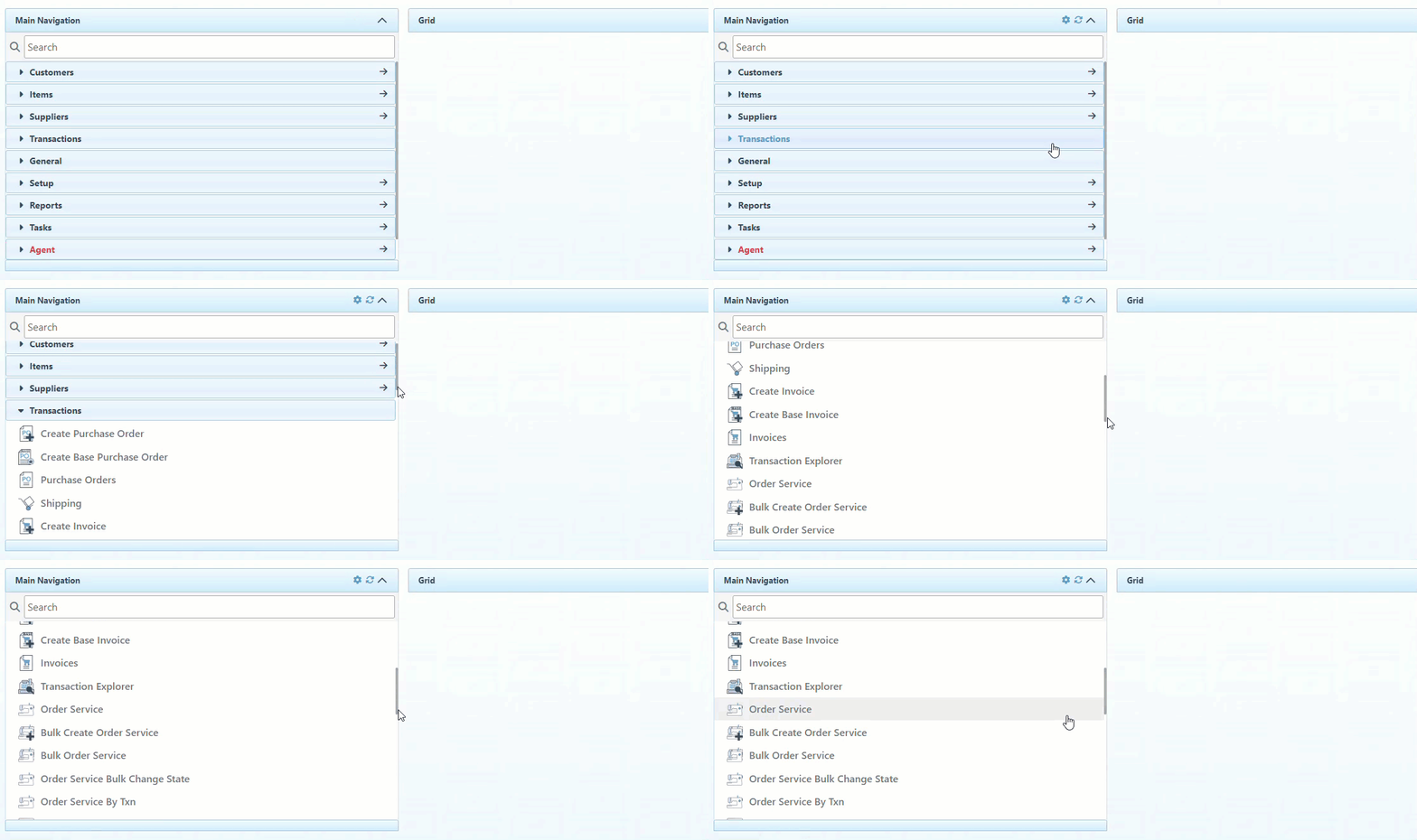
Click “Transactions” in the Main Navigation menu and select “Order Service” in the scrollable dropdown.
-
Scroll to view all Order Services and details.
-
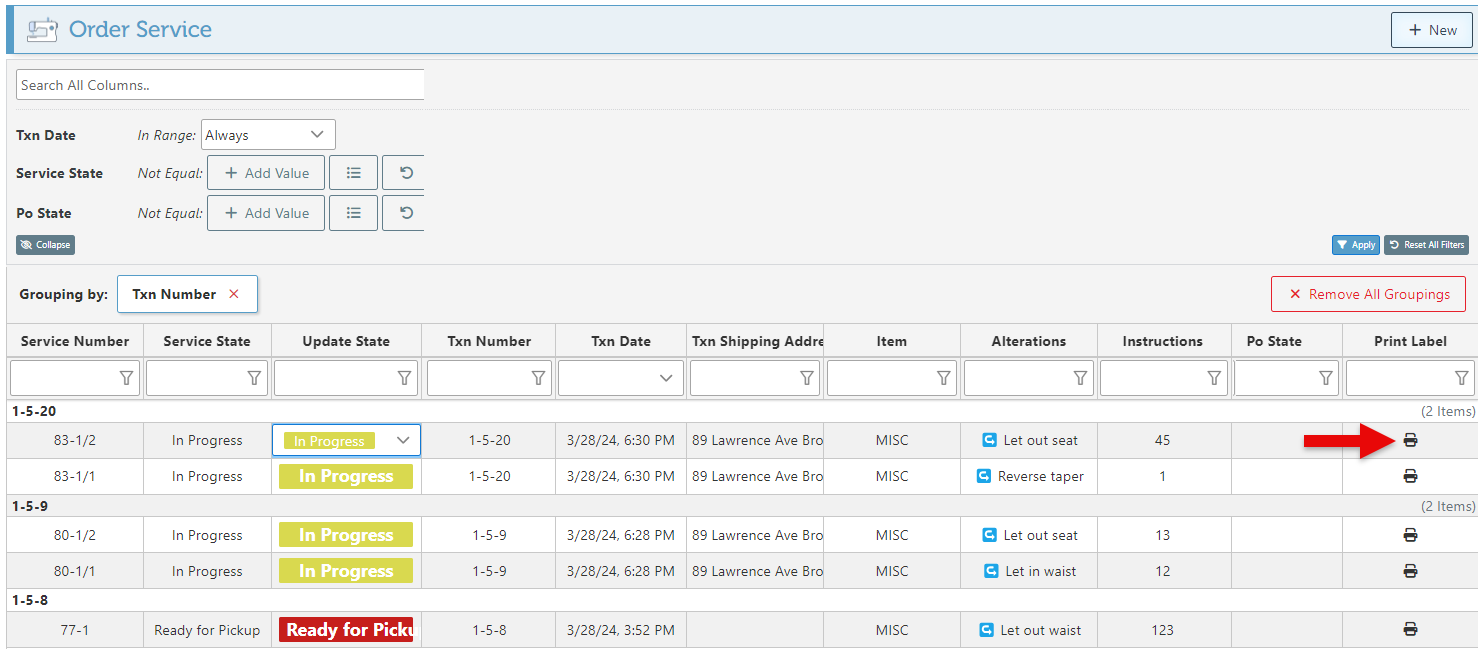
Click the Printer icon to the right of the relevant row to print a label for a specific Order Service.
-
Click the State space and select a state in the dropdown to change the order service state. When the status is changed to “Ready For Pickup,” an automatic SMS notification will be sent to the customer indicating that the order is ready for pickup. This is triggered by the setup tasks; For more details and information on tasks, Click here.