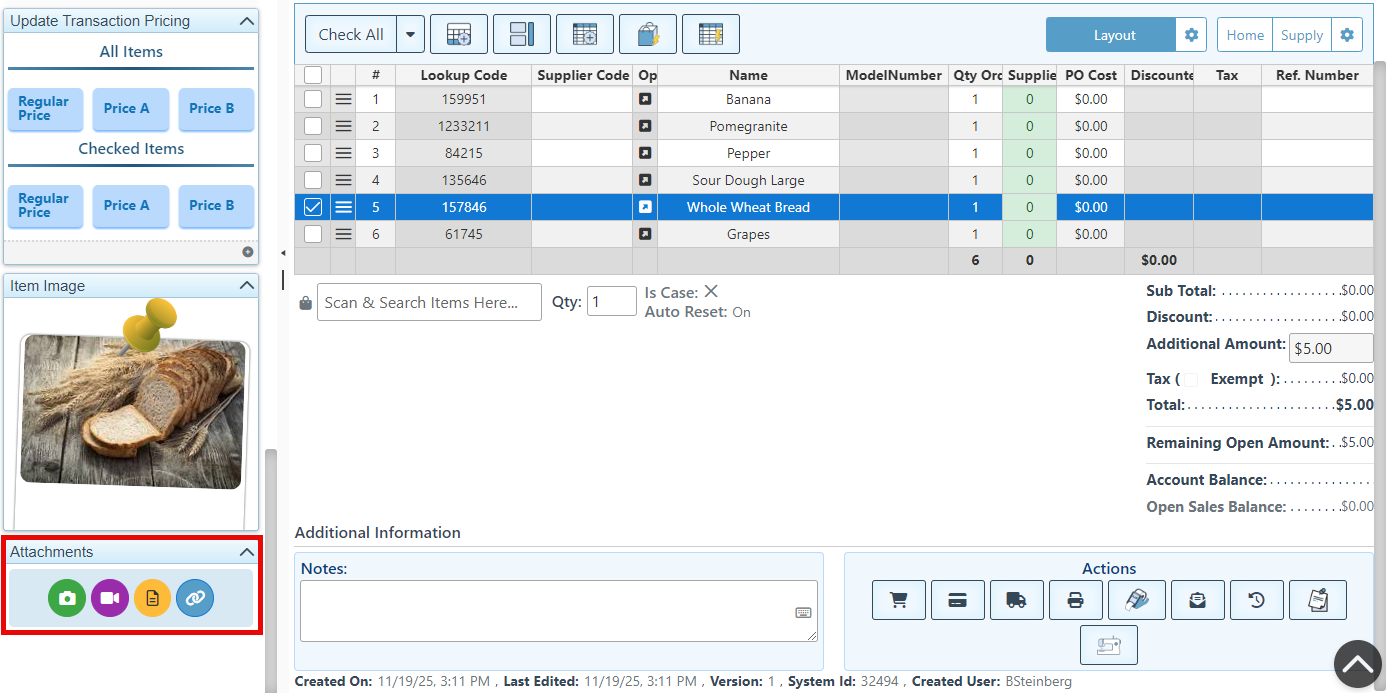
Following is a guide to some of the various purchase order side panel widgets. These widgets are configured to meet the specific needs and preferences of each enterprise, thereby ensuring optimal efficiency and user-friendliness.
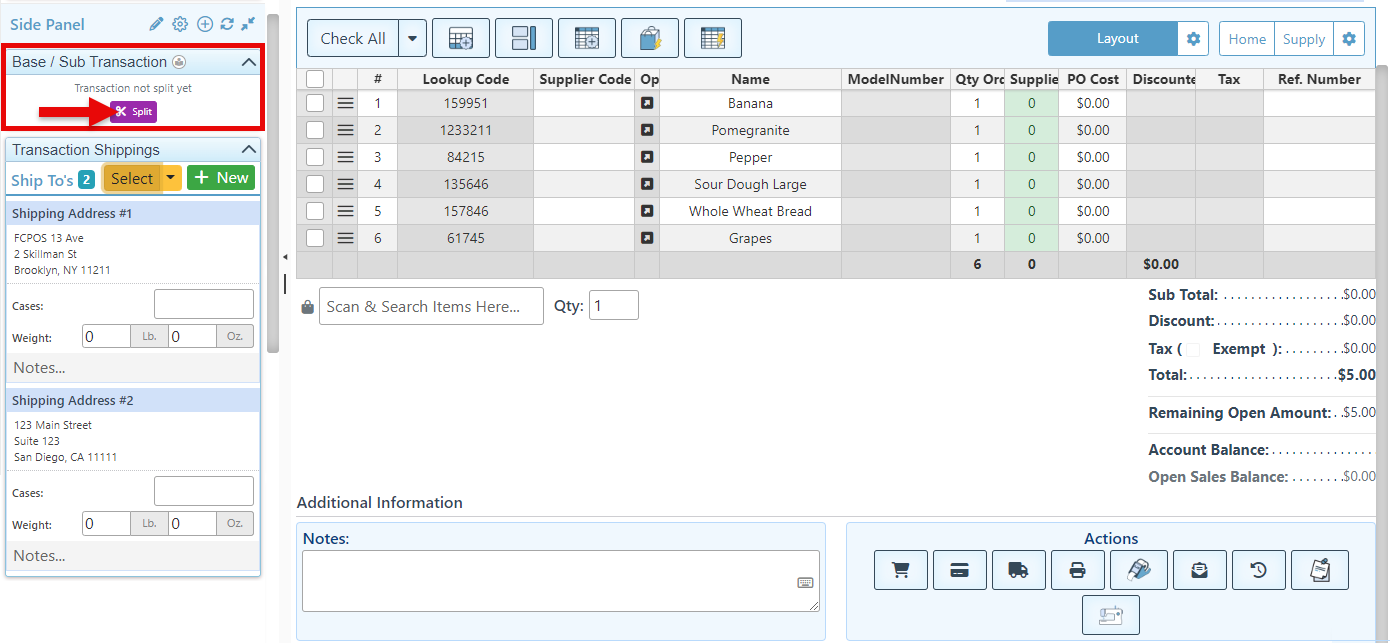
Base/ Sub Transaction
The "Split" button on the widget enables the creation of a duplicate purchase order as a sub-transaction, while saving the original as the base transaction. Once the PO has been split, any modifications made to the sub will be automatically applied to the original base Purchase Order. For more details on base and sub-transactions, click here.
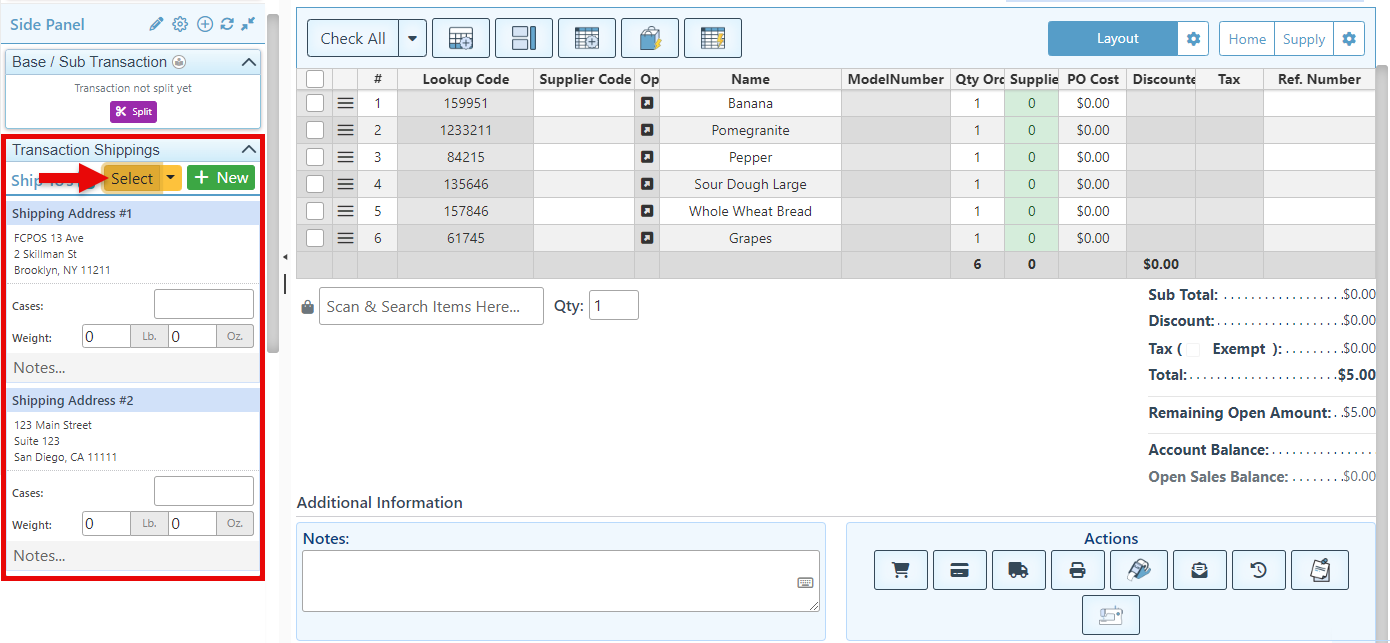
Transaction Shippings
The Transaction Shipping widget allows for the addition of multiple shipping destinations within a purchase order/ invoice. Details can then be added to each shipping entry to accurately designate the specific items to be delivered with each shipment.
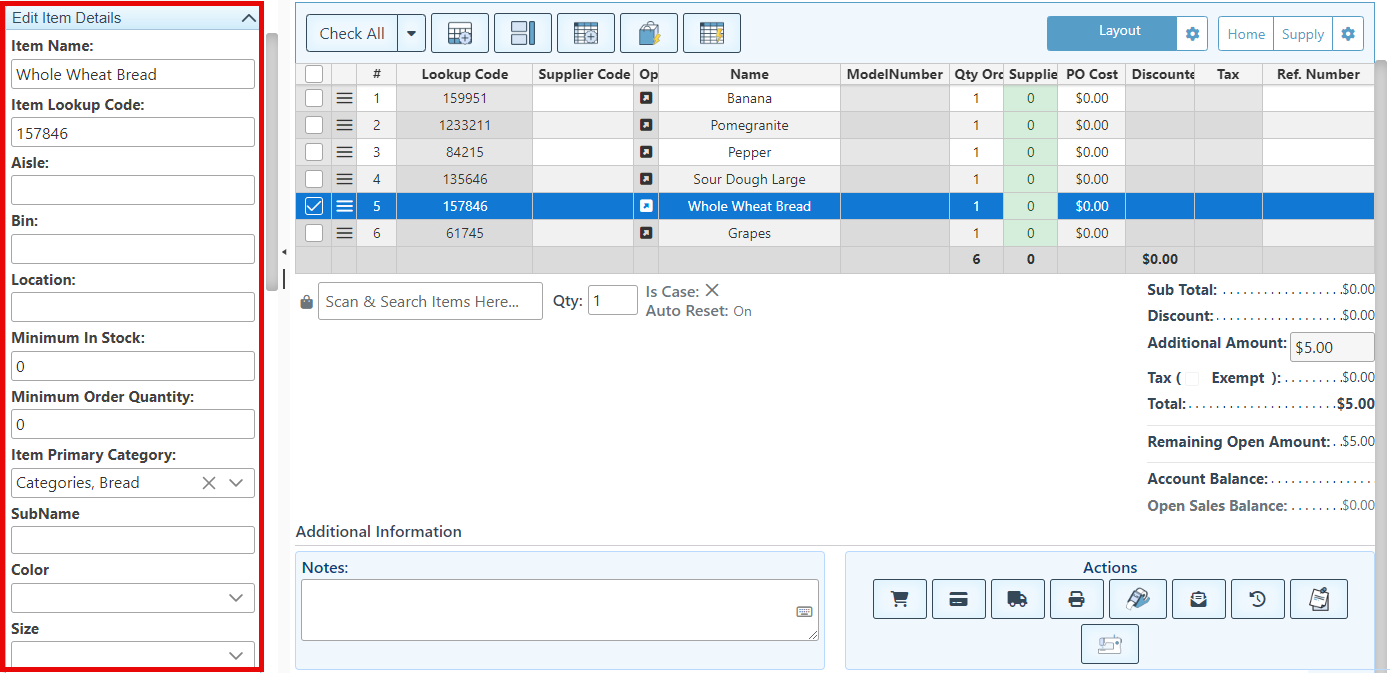
Edit Item Details
Upon selecting an item, its detailed fields will be displayed within the widget, allowing users to easily update or modify the information as needed.
Report Grid
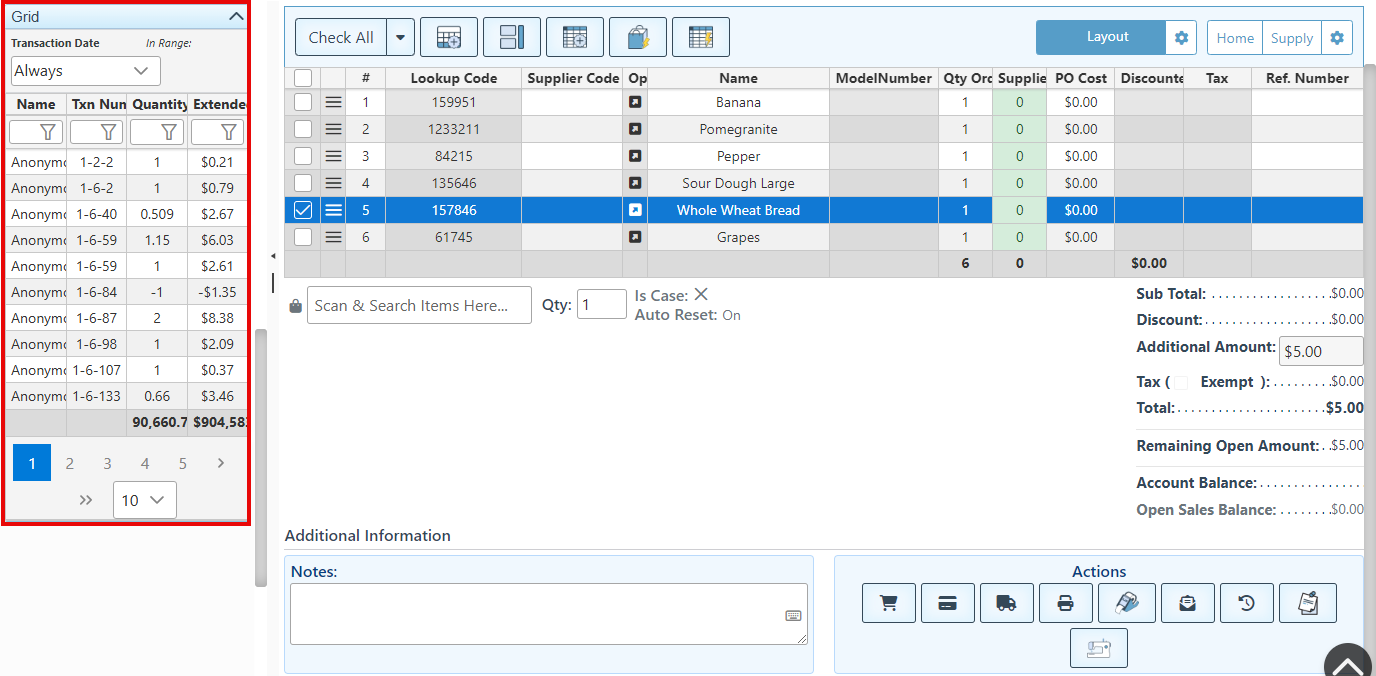
When a transaction entry is selected, the preferred item report, such as item sales history, will load within the widget, allowing users to view previous item activity.
Transaction Readout
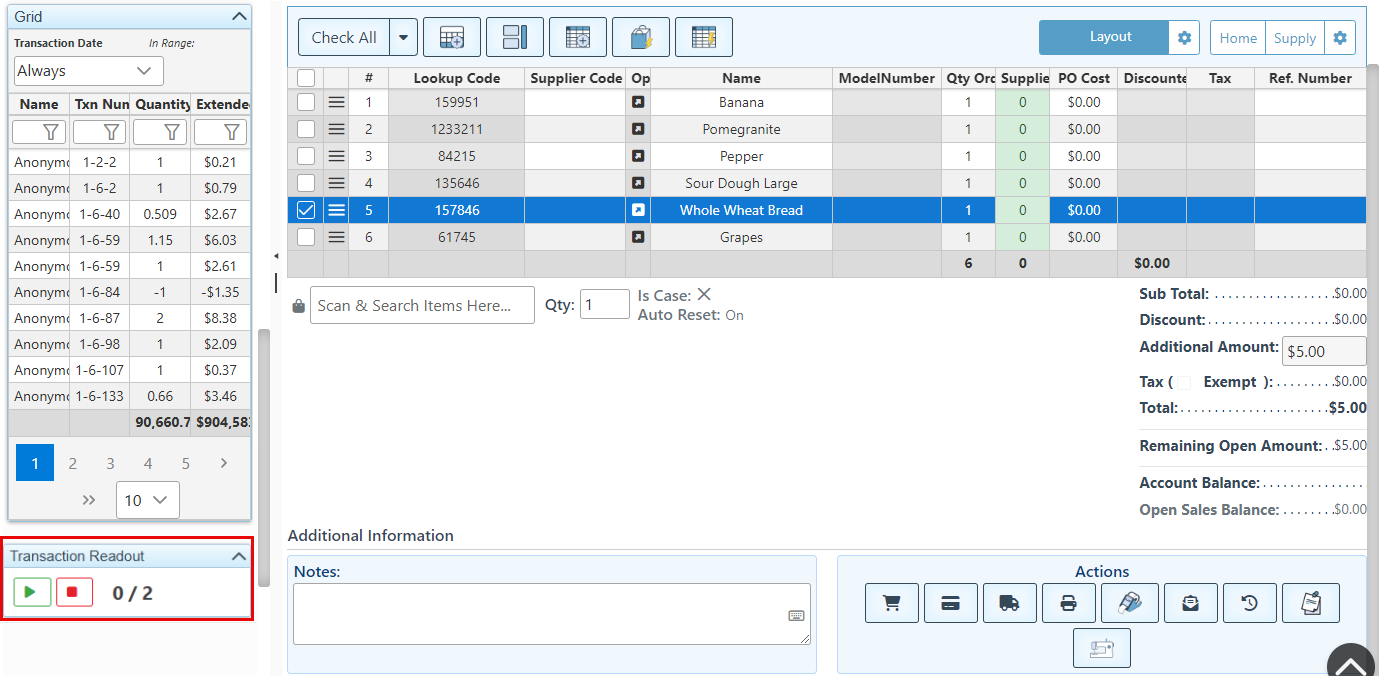
The transaction readout widget is a highly customizable tool that allows users to read out specified fields from transactions. This feature is particularly useful for comparing transaction information with other documents or transactions. Users can customize the fields being read, as well as the voice and speed settings within the widget.
Linked Transaction Entry Info
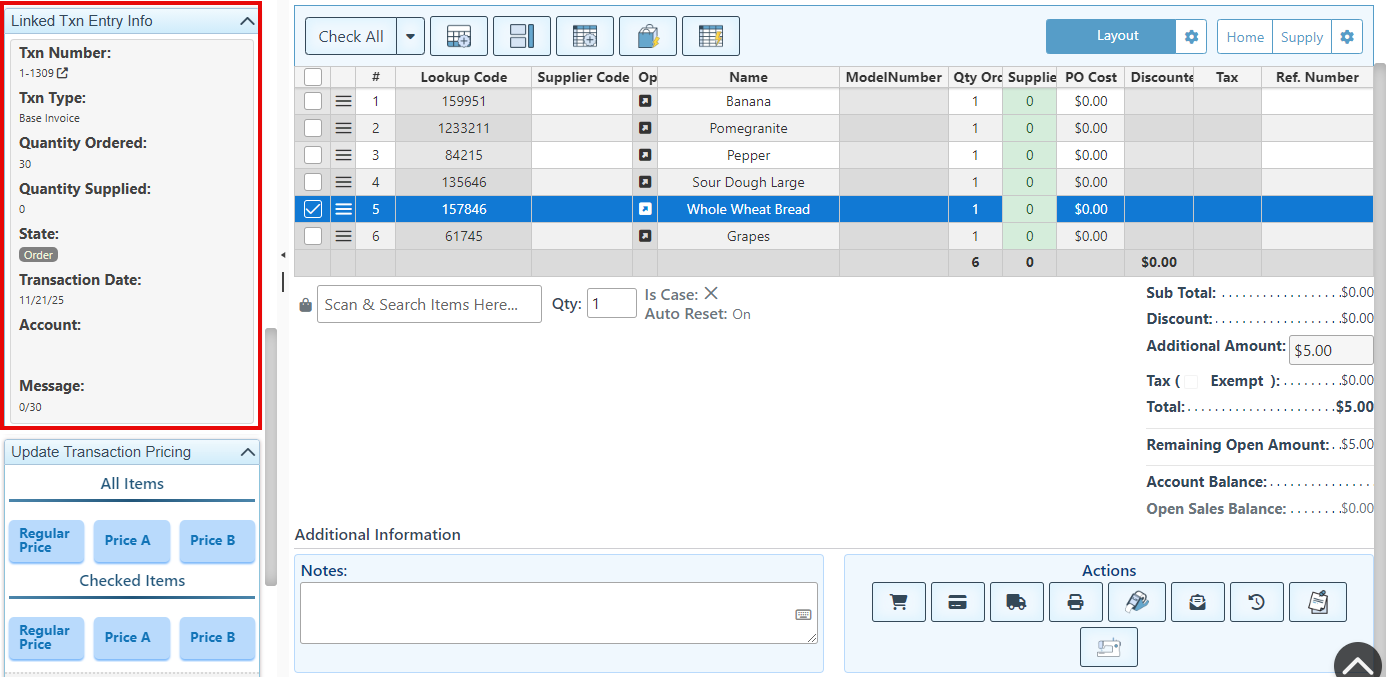
The widget will display all transactions that are linked to the transaction entry, including the invoice corresponding to the created purchase order.
Customer Details
Customer information, including details regarding previous sales, the total amount spent, and the largest sale amount, will be displayed on the widget for reference.
Update Transaction Pricing
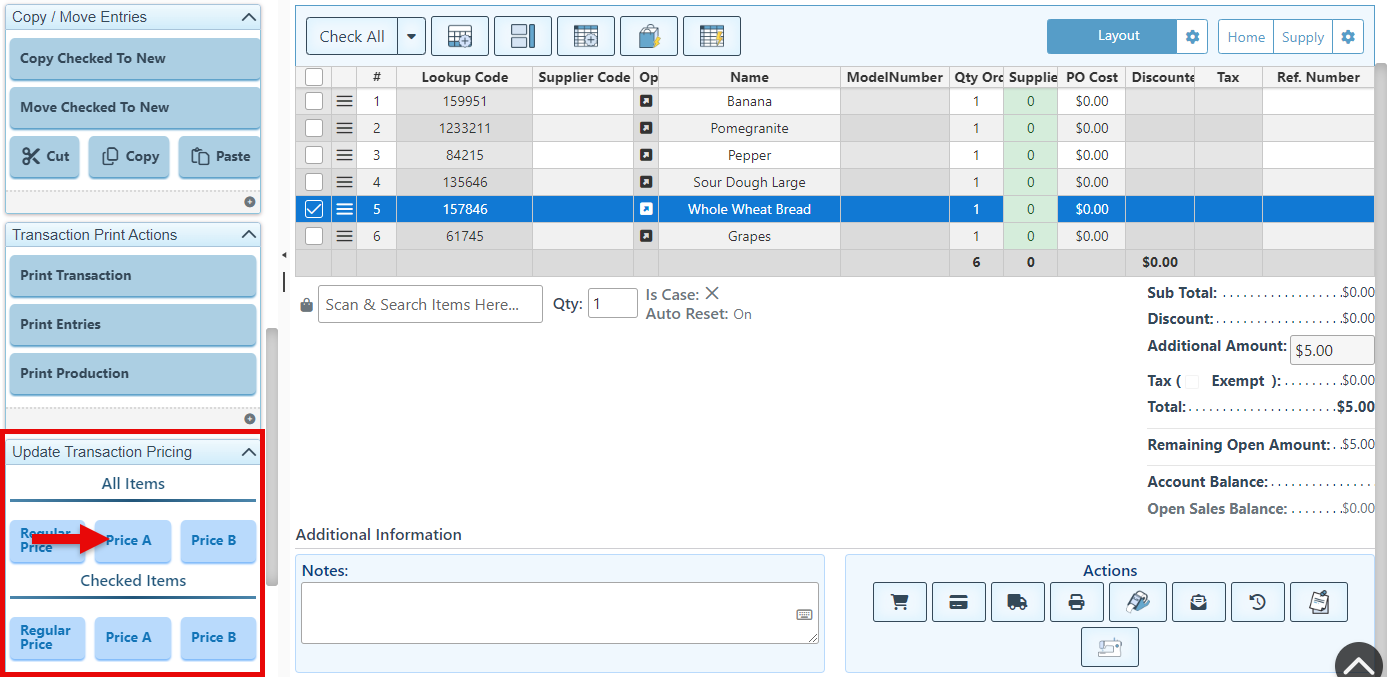
The pricing for items within the purchase order can be modified by selecting a specific pricing bracket. Special pricing can be applied to all items contained in the order or to selected individual items as needed. For more information on how to set item pricing, click here.
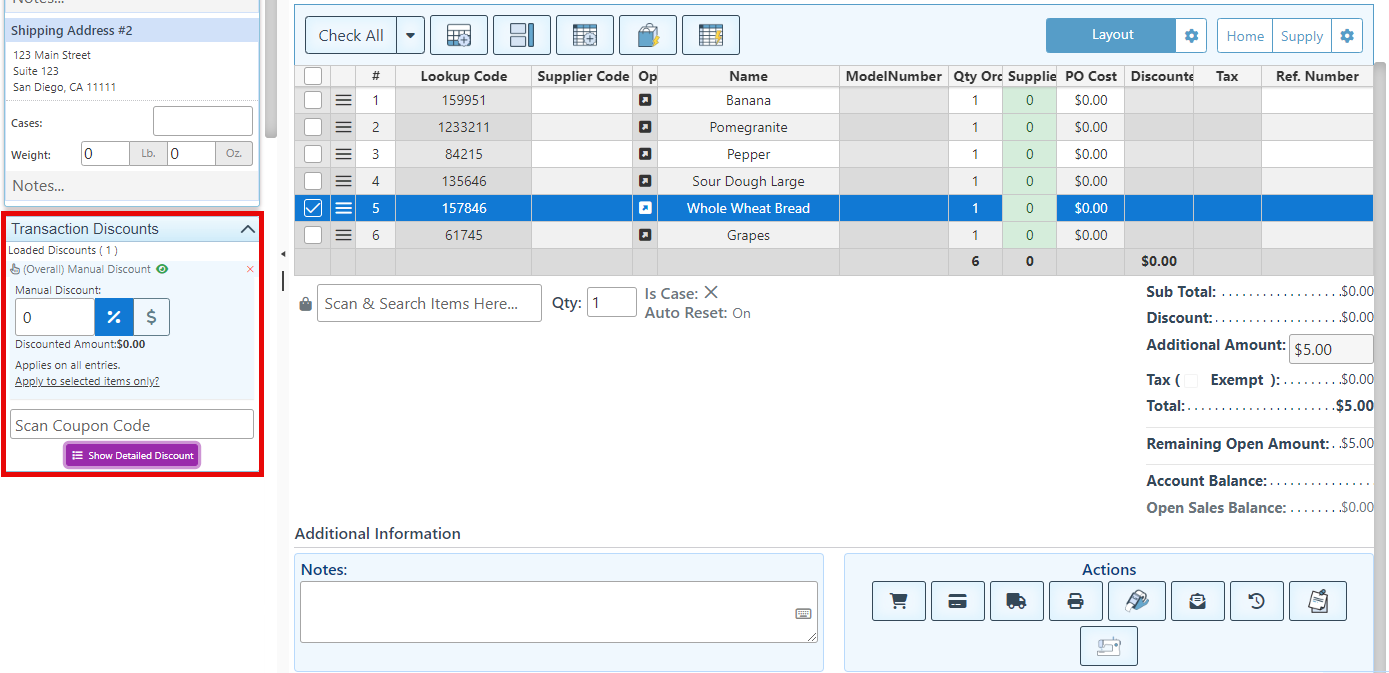
Transaction Discounts
To apply a transaction discount, scan a coupon code or click on "Add Discount" to manually enter the code. To apply the discount to specific items only, select the option labeled "Apply to selected items only." For further details regarding discount coupon codes, refer to Price Rules.
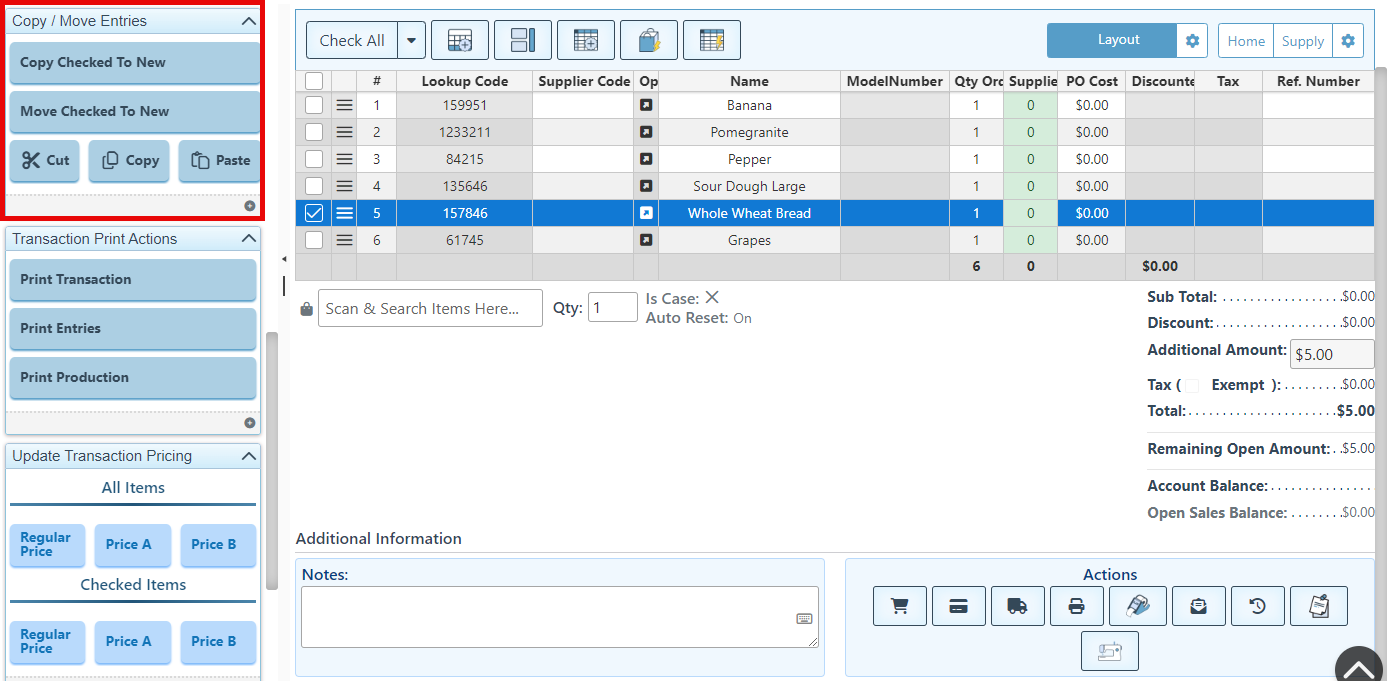
Copy/ Move Entries
The widget buttons allow users to copy or move transaction entries to different purchase orders. Furthermore, users can cut, copy, or paste transaction entries to the purchase order using these buttons.
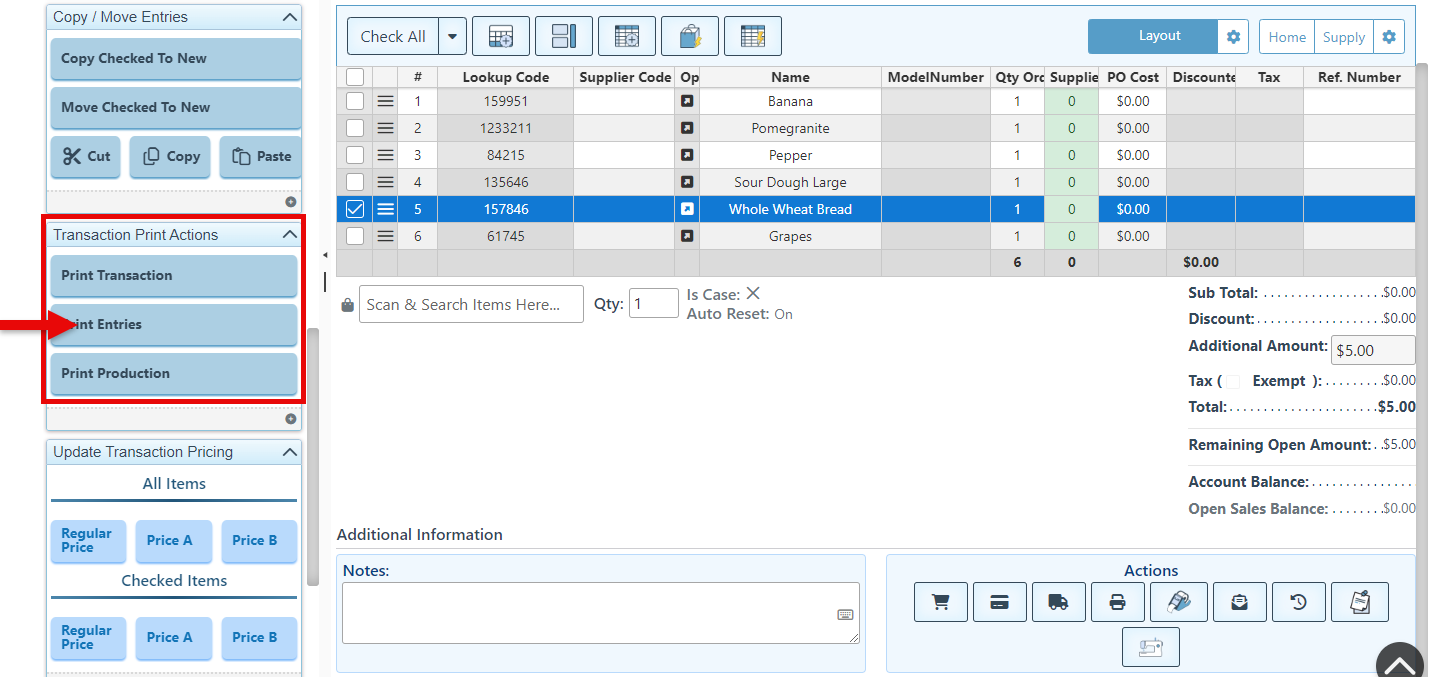
Transaction Print Actions
The Print widget displays buttons that allow for the convenient printing of the transaction or specific entries.
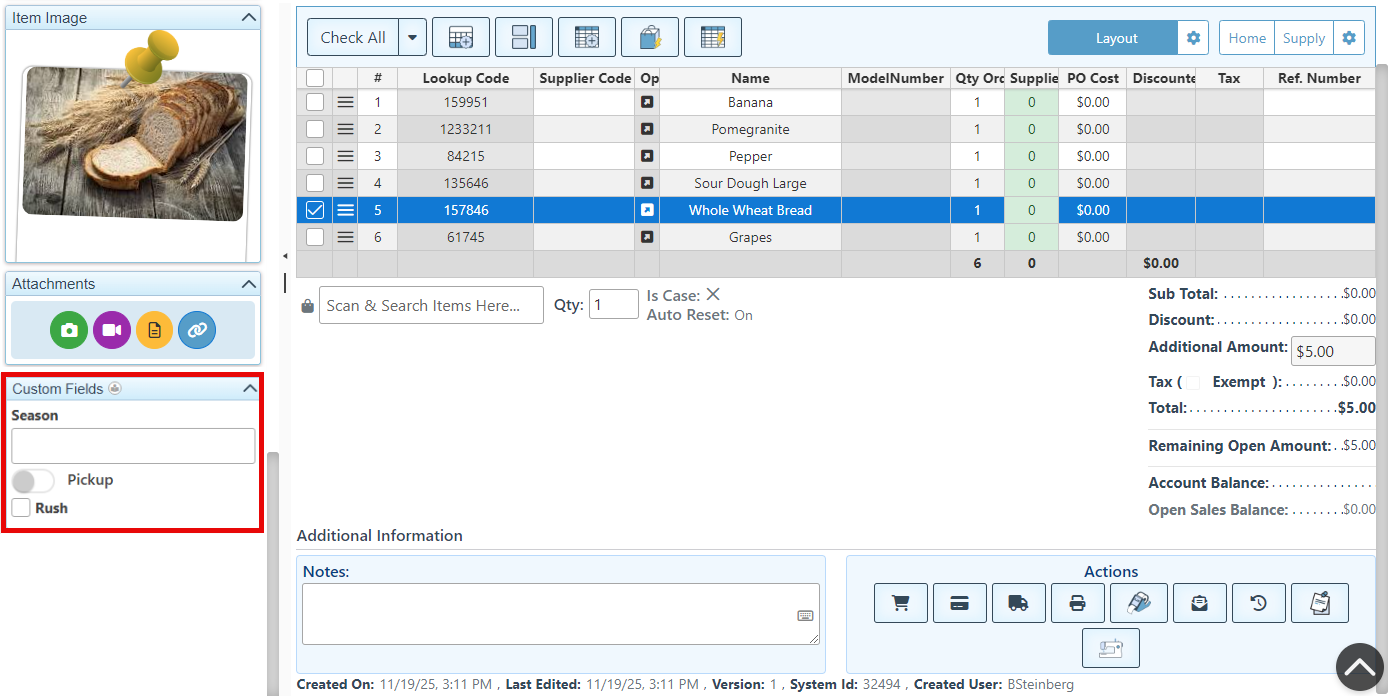
Custom Fields
The custom transaction fields are highly customizable and configured according to specific business needs and preferences. For more information on configuring custom txn fields, click here.
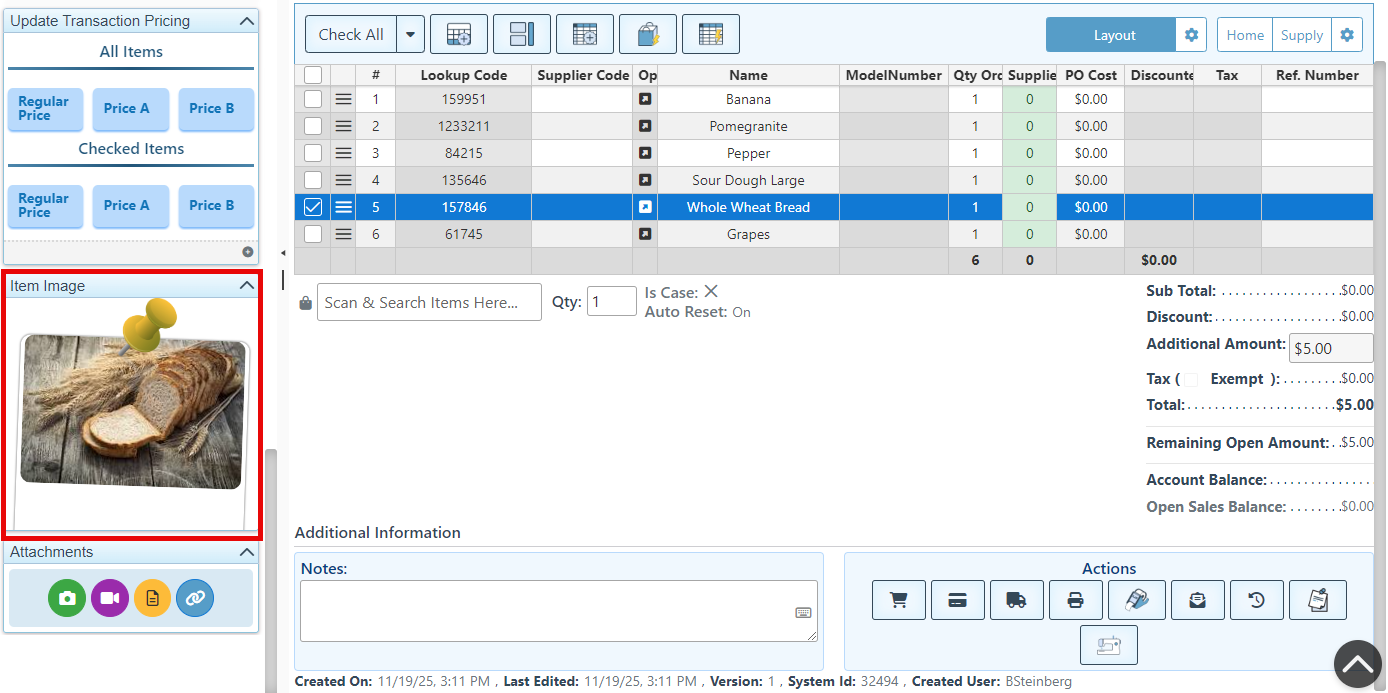
Item Image
An enlarged image of the selected entry will be displayed on the widget. The image will change as new entries are selected or added.
Attachments
The Attachments tab allows for video, image, link, or voice note attachments to be linked to the sale or specific items, helpful for clarifying customization details, attaching spec sheets, and more.