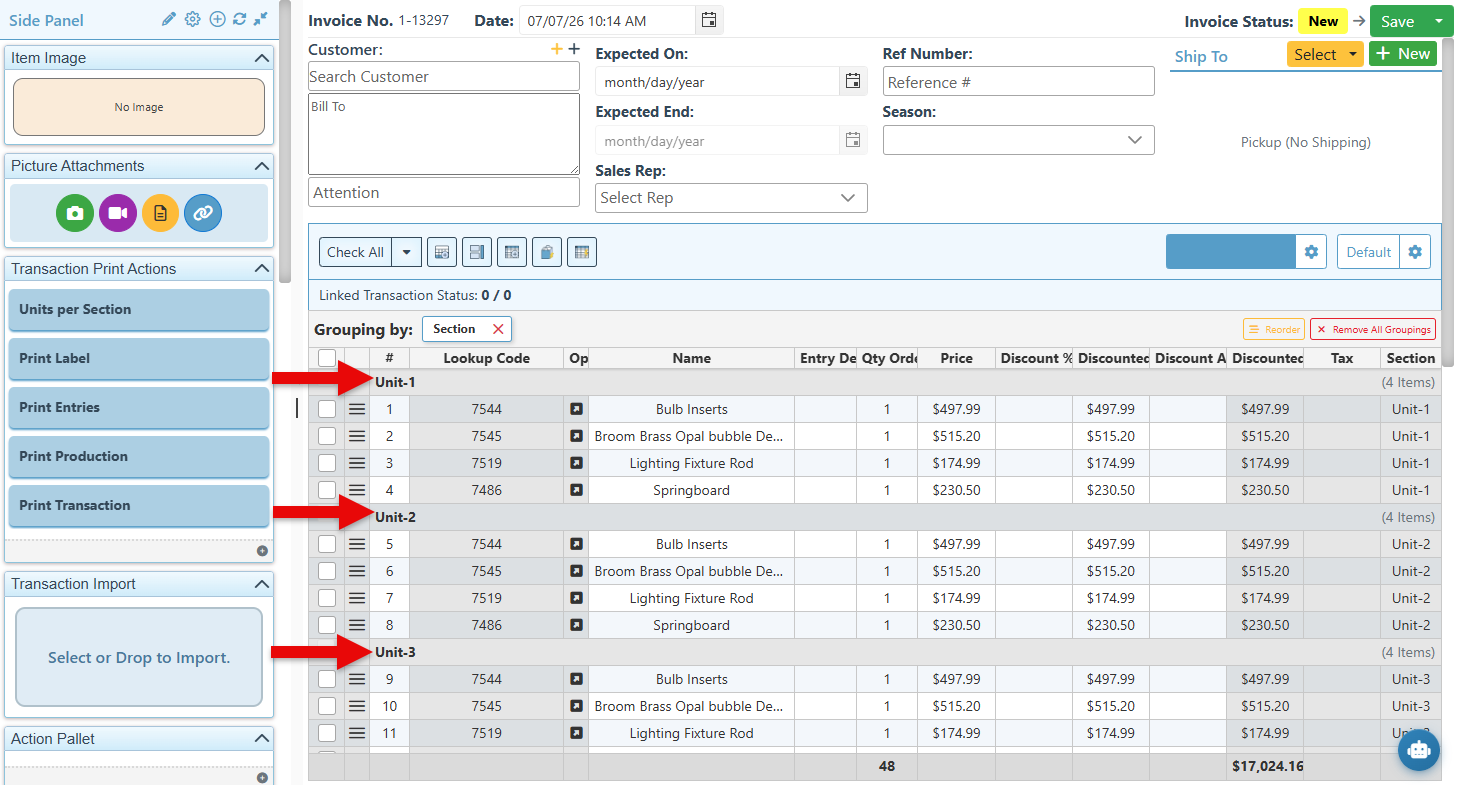
The "Duplicate Section" button allows users to copy selected items across multiple sections within a transaction. This feature is particularly useful for orders that include the same group of items being purchased multiple times, as it enhances organization and clarity by displaying each set separately.
Below is a guide on how to use the transaction duplicate sections feature:
-
Open Backoffice.
-
Click “Transactions” in the Main Navigation menu and select “Create Invoice” from the scrollable dropdown.
-
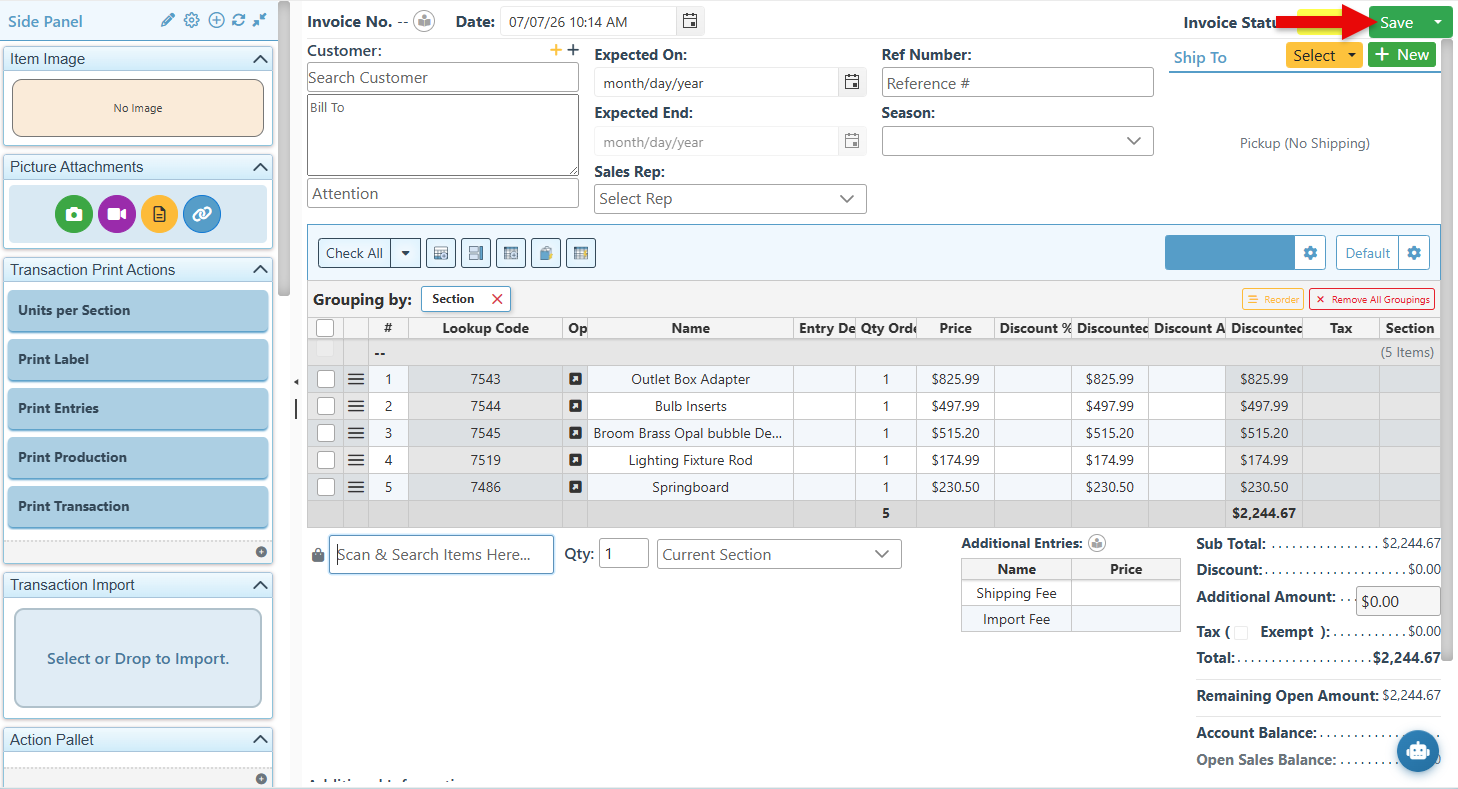
Add items to the transaction and click “Save.”
-
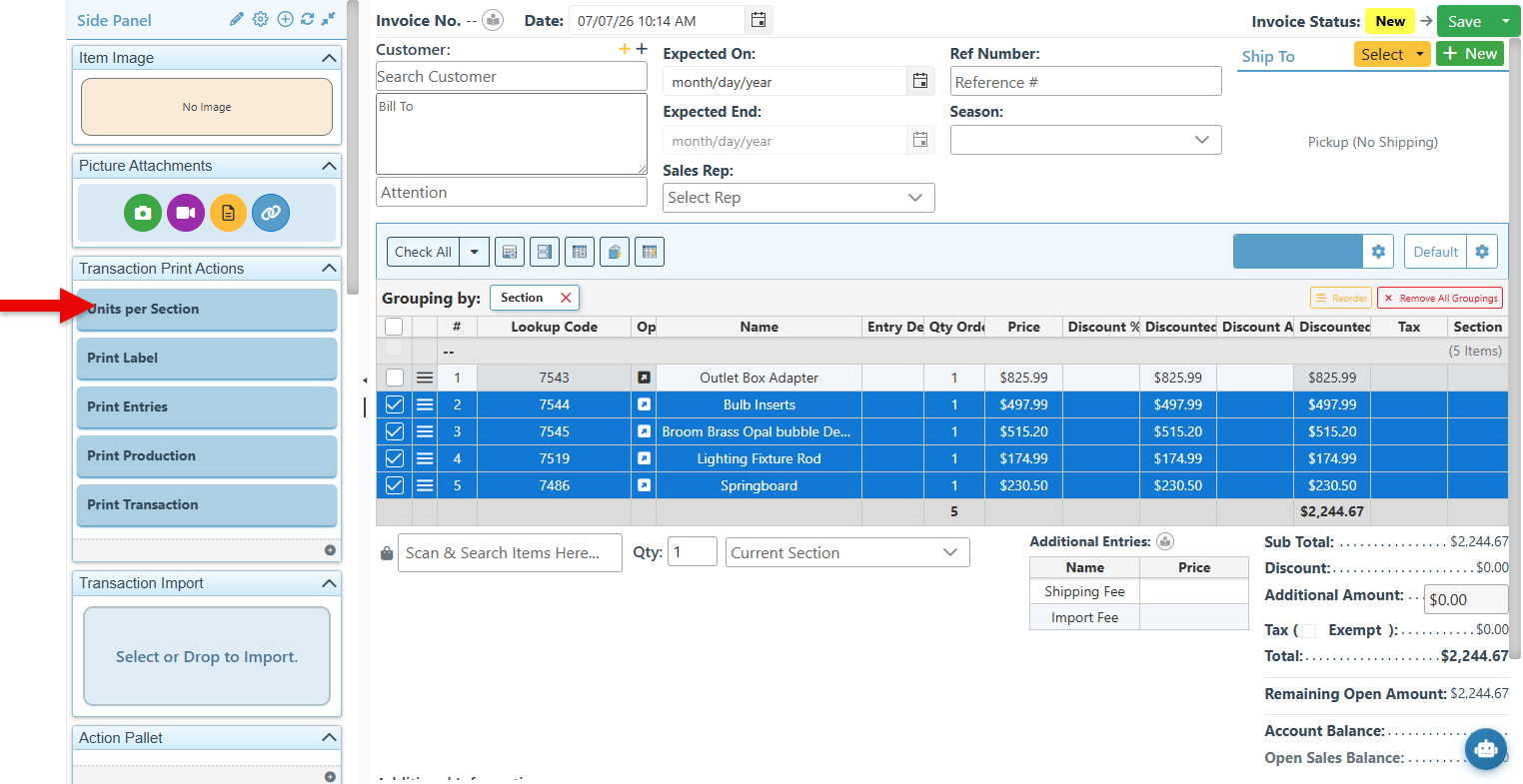
Select the items to be copied to multiple sections, then click the “Units Per Section” button to designate these items as the units to be duplicated.
-
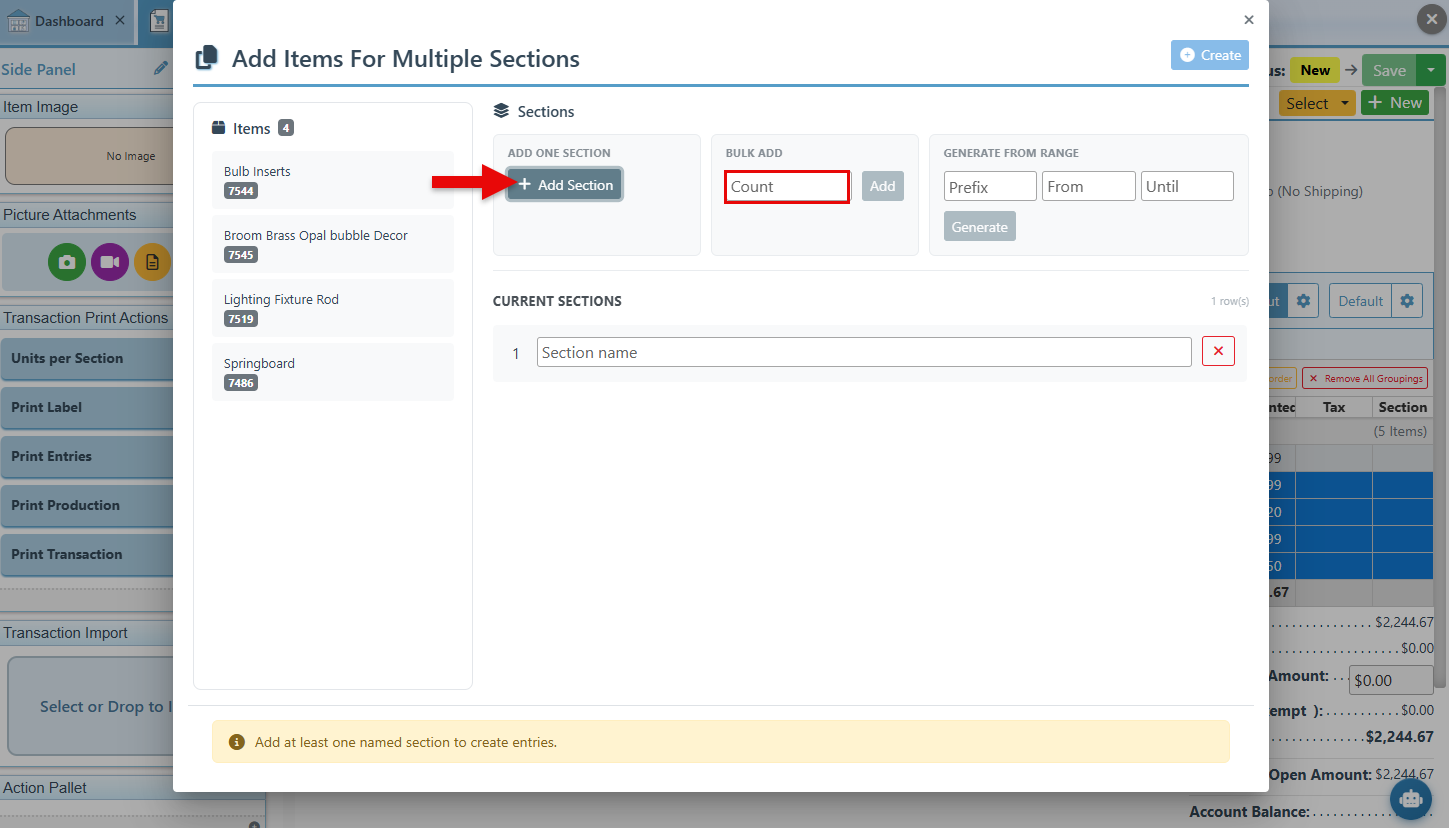
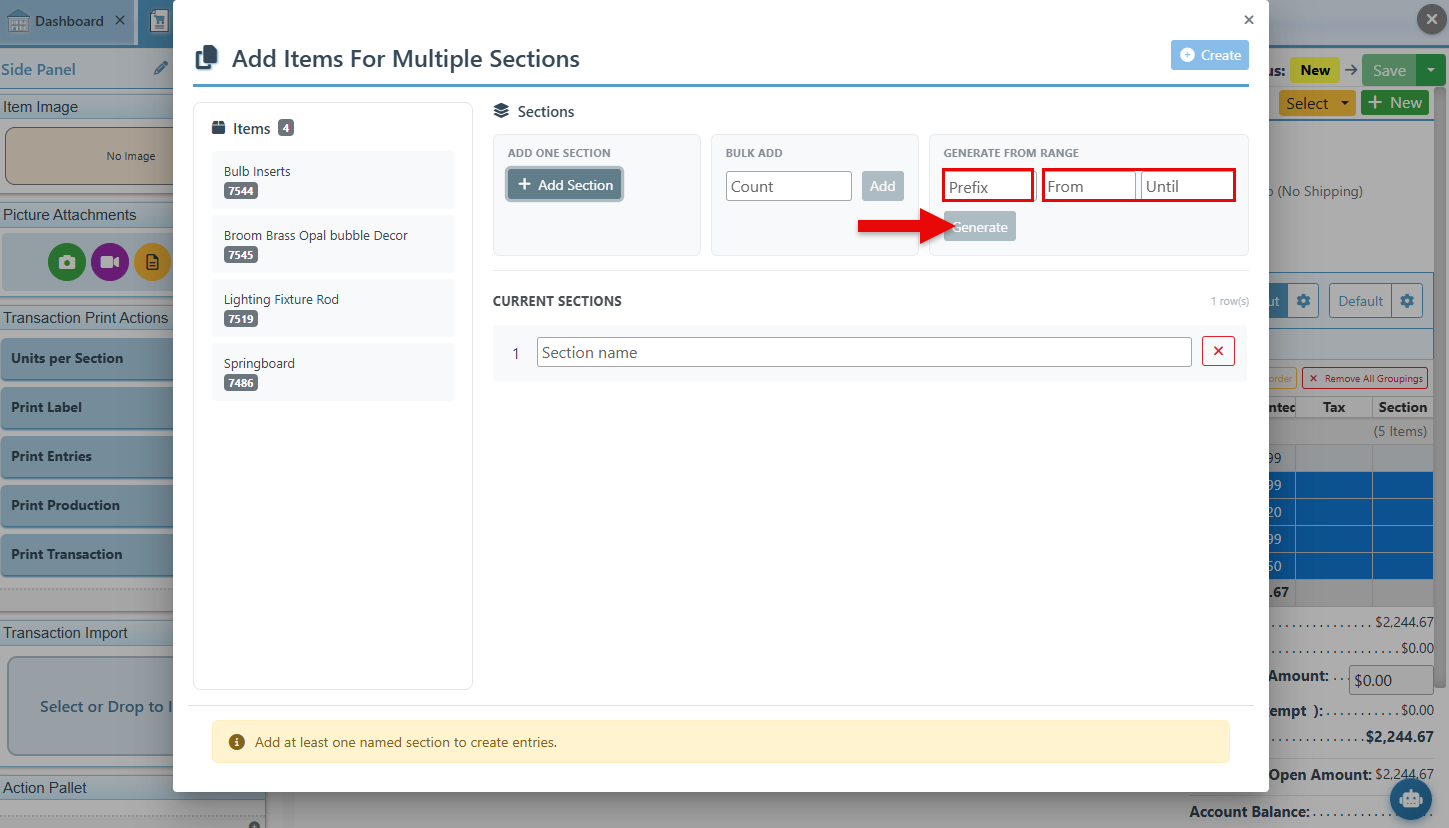
A pop-up window will appear, displaying the selected items. Use the “Add Section” button to copy to a single section, or enter a number and click “Add” in the Bulk Add section to copy to multiple sections.
-
To copy to multiple sections with specific names and numbering, enter a prefix in the designated field, select a range of numbers, and click “Generate” to create the sections.
-
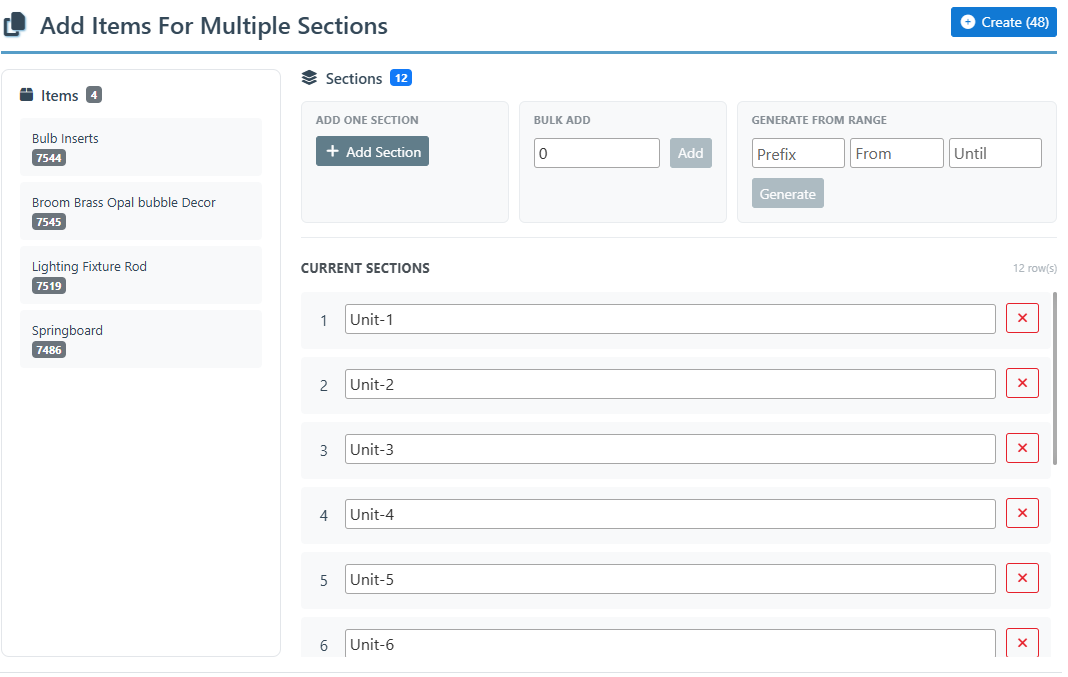
The generated sections will appear in a list, where the titles can be reviewed or updated.
-
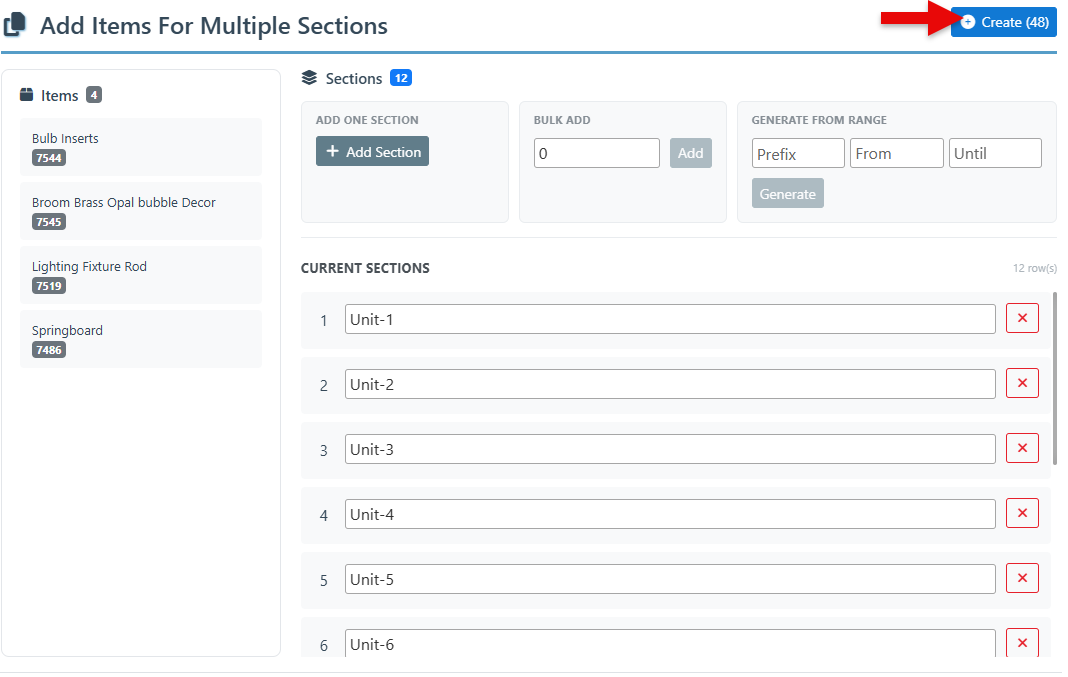
Click “Create” to finalize the creation of these sections
-
The sections will now be displayed, each listing the selected items. This streamlined process makes it easier to manage transactions with repeating items.