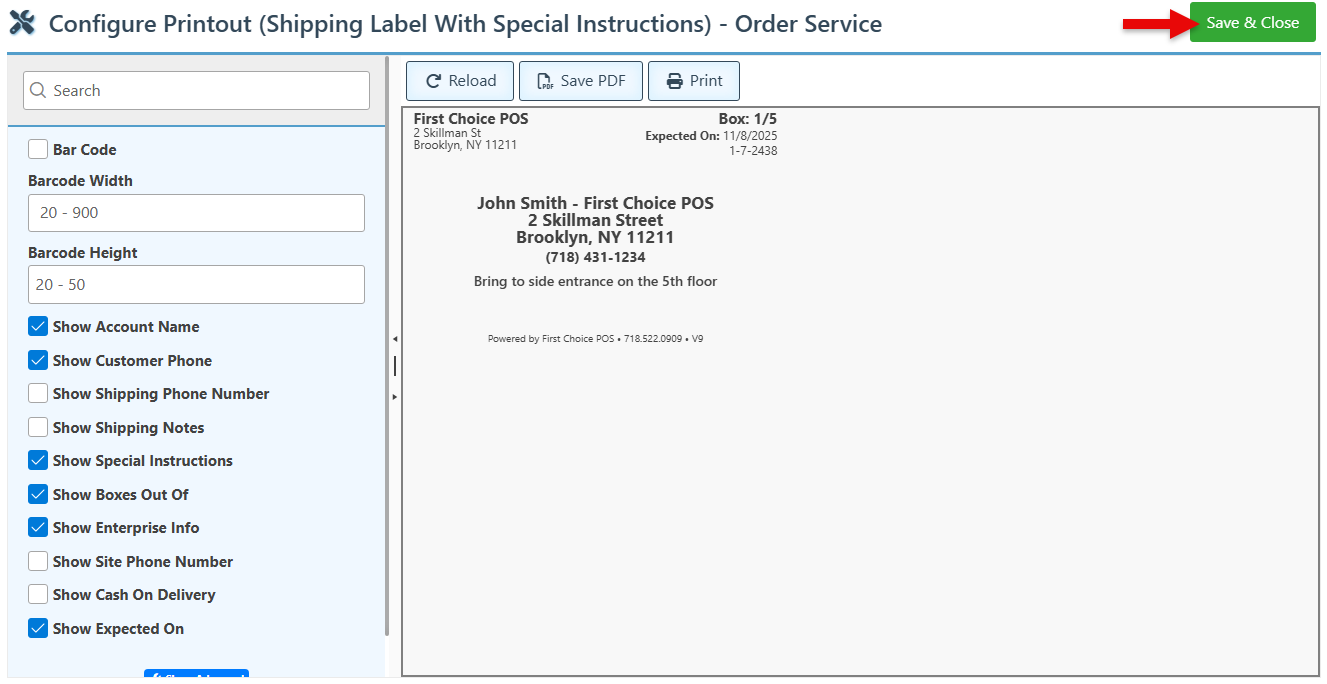
Below is a guide on the order service shipping printout layout configurations. For details on how to access the configurations shown below, see Printout Layouts:
The configurations shown below may vary depending on the specific layout selected.
The various printout layout options are designed to meet the diverse needs of different businesses. Selecting all options for one printout may lead to overflow in different fields.
-
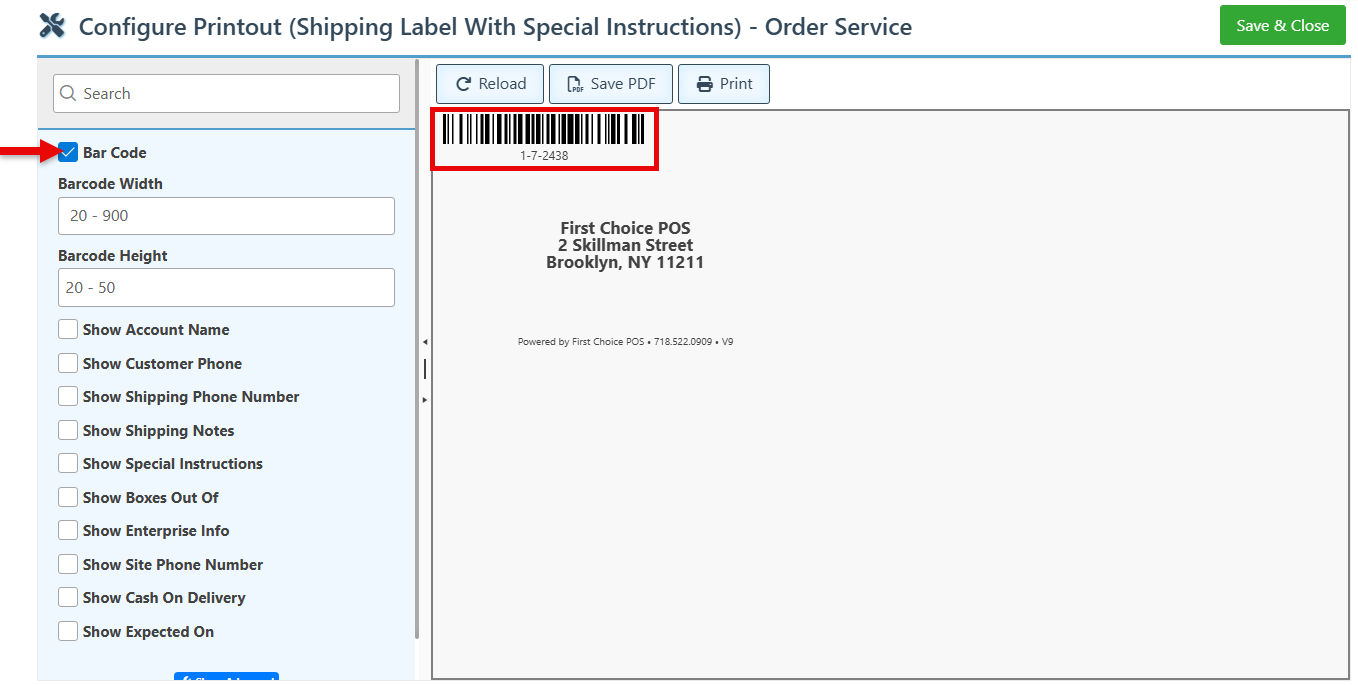
Select the “Barcode” checkbox to add the transaction barcode to the printout layout.
-
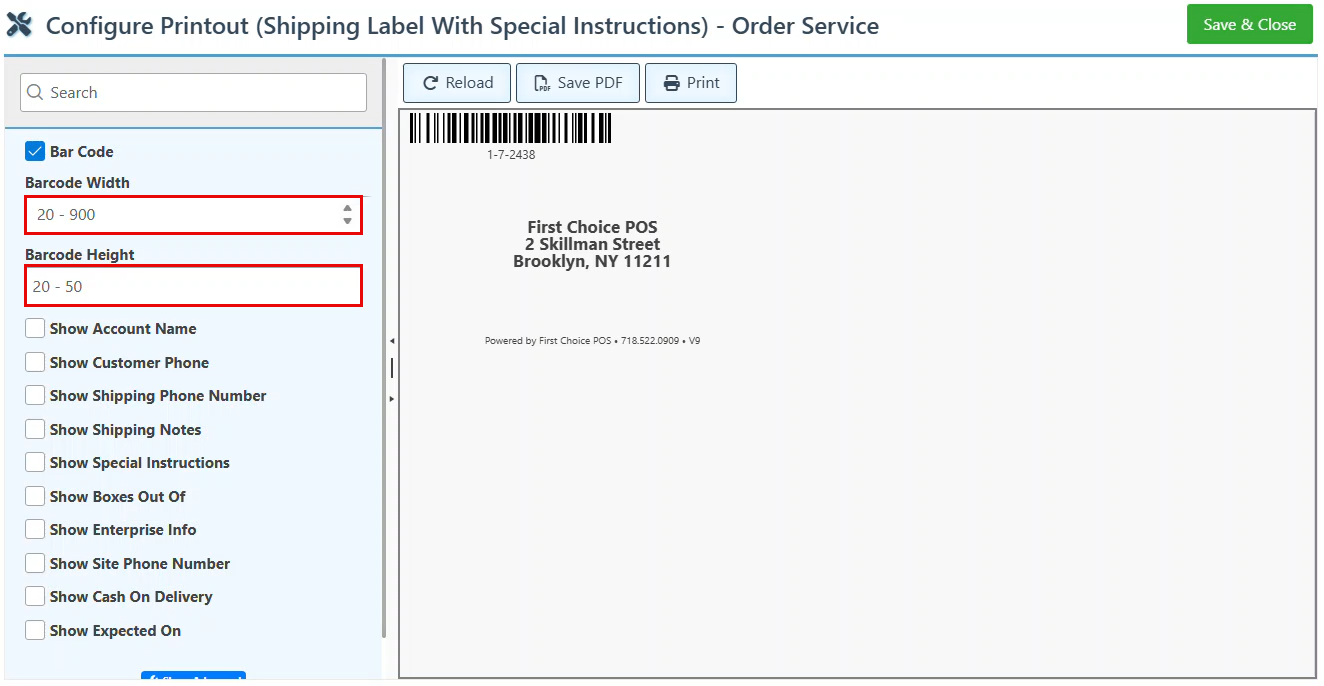
Use the arrows in the Barcode Width and Height bars to adjust the barcode sizing.
-
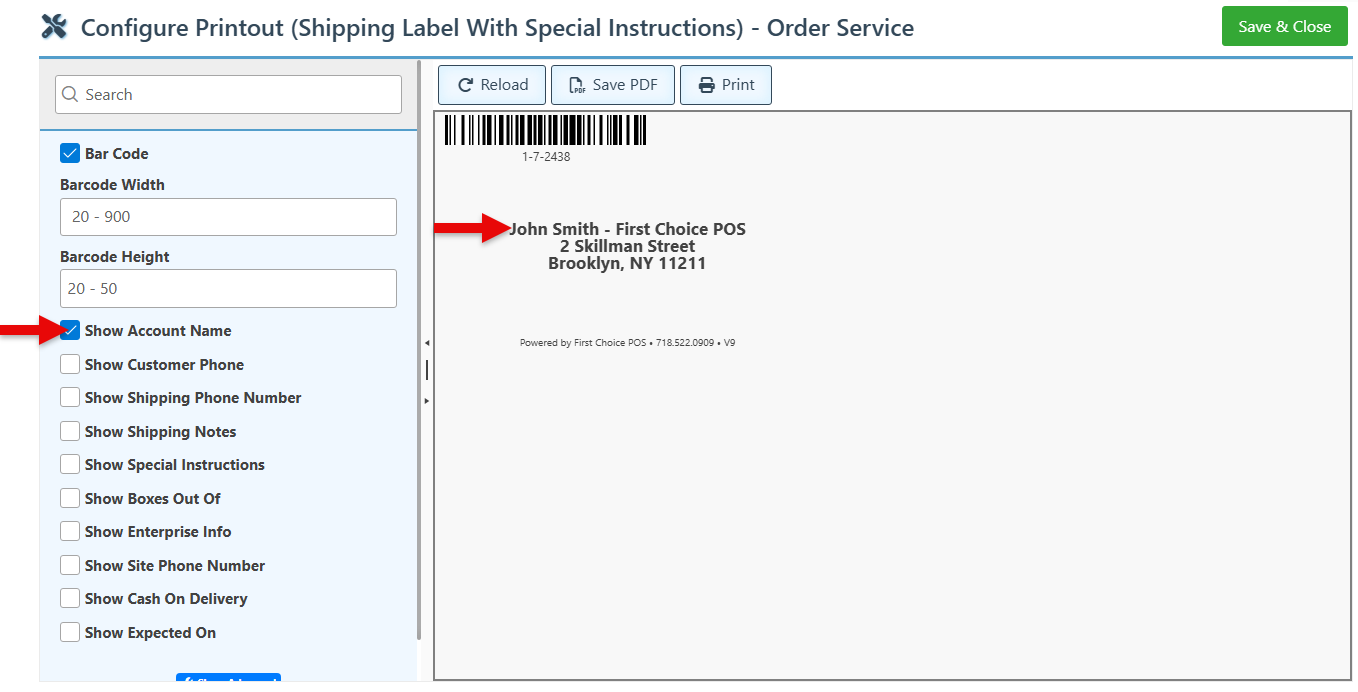
Select the “Show Account Name” checkbox to include the customer name on the printout.
-
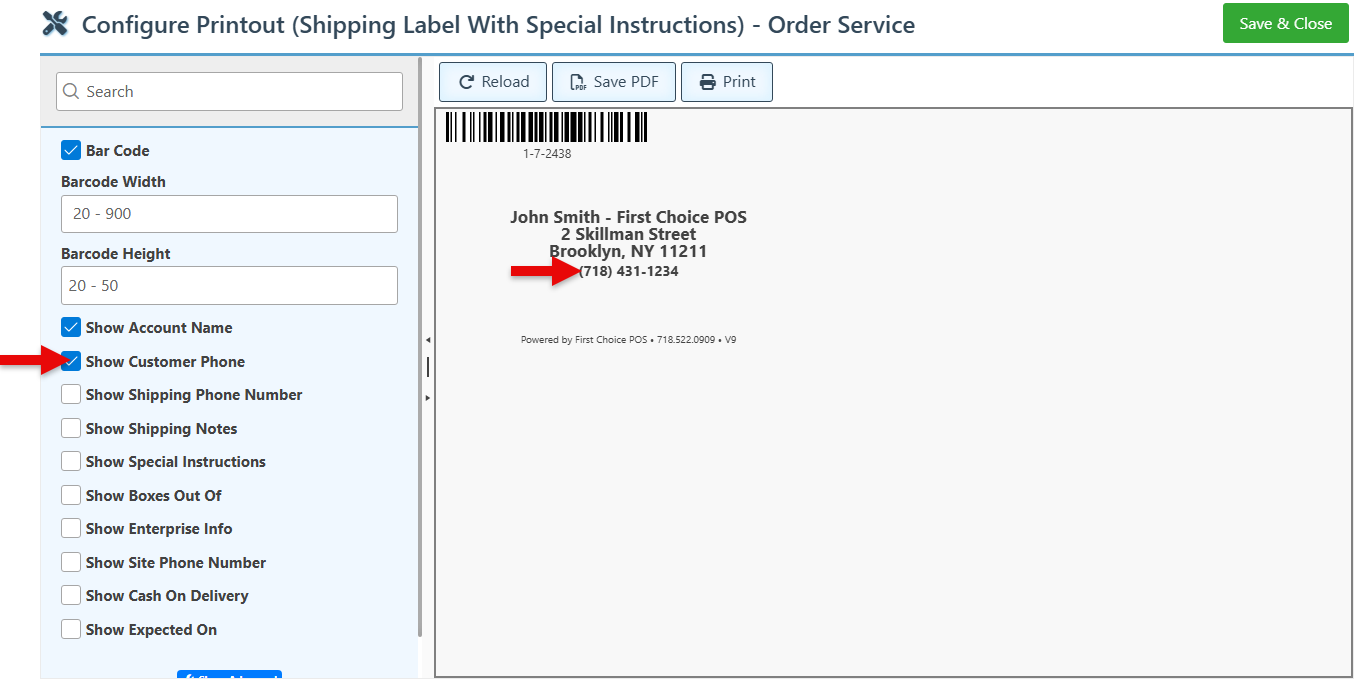
Select the “Show Customer Phone” to display the customer’s phone number on the printout.
-
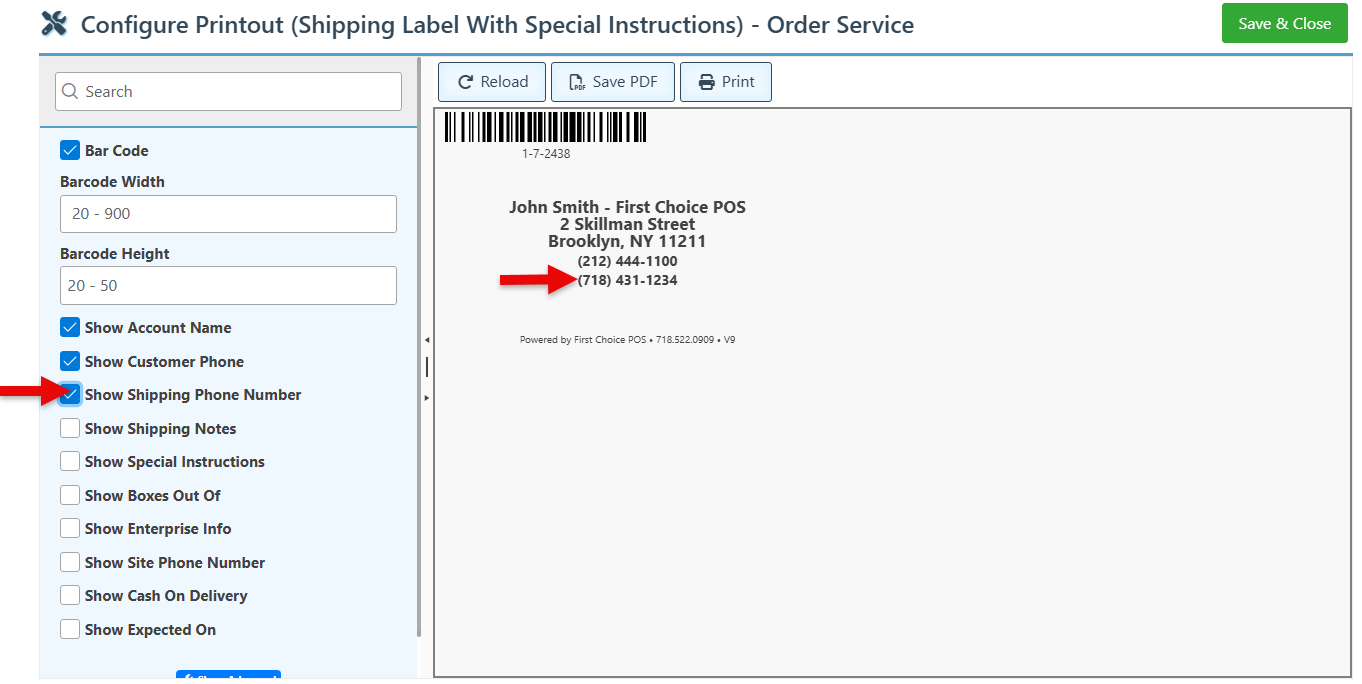
For customers with an additional delivery contact number, select “Show Shipping Phone Number” to include it on the printout.
-
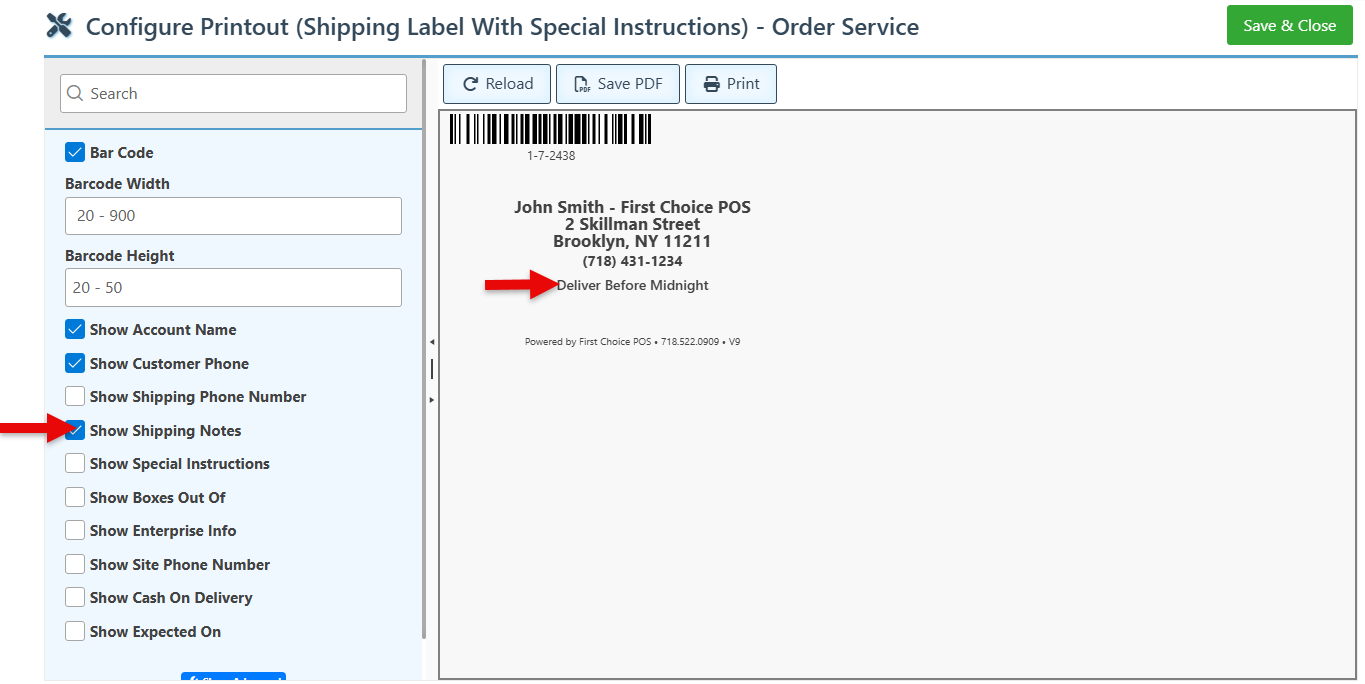
To include shipping notes on the printout, select the “Show Shipping Notes” checkbox.
-
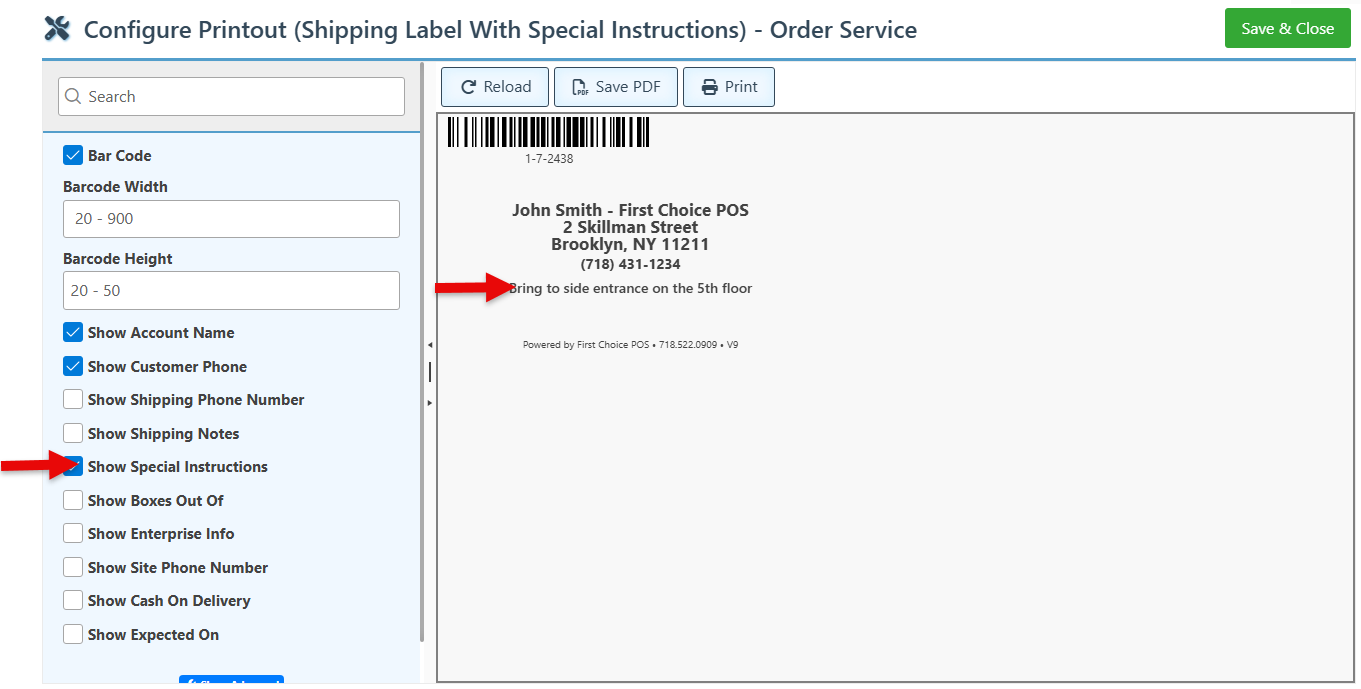
To display special instructions on the printout, select “Show Special Instructions.”
-
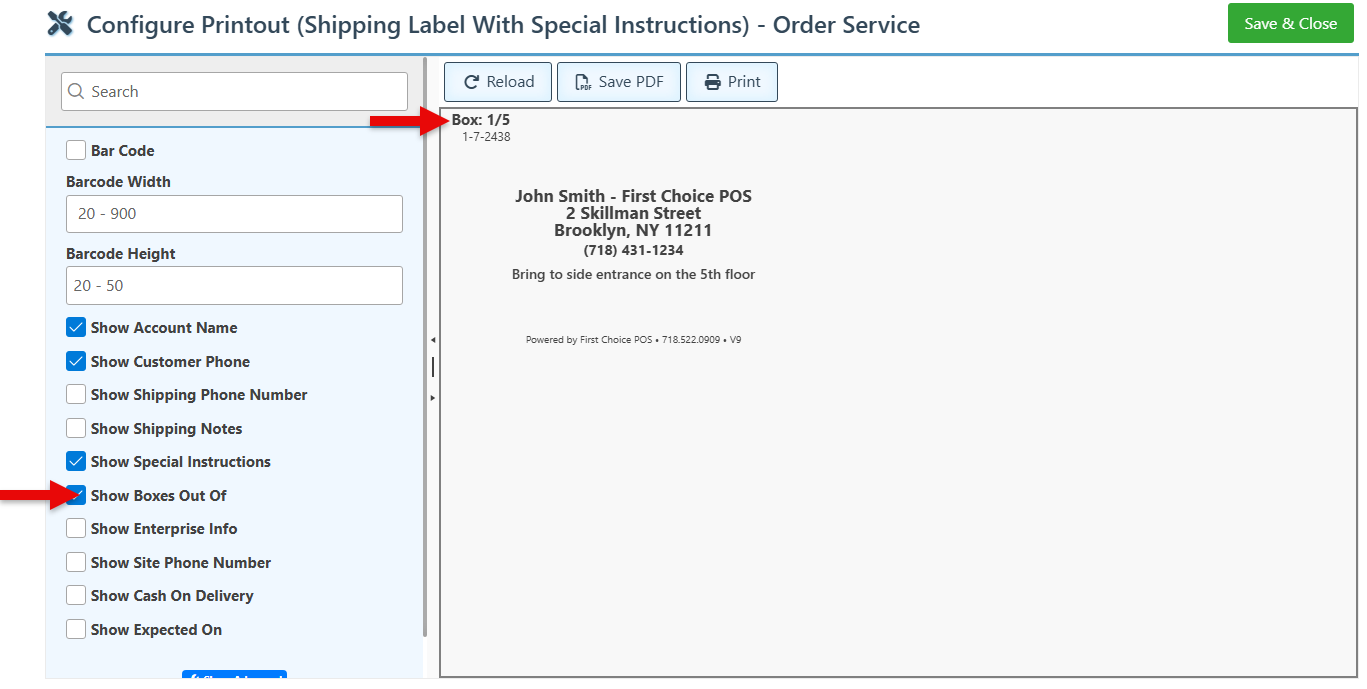
Select the “Show Boxes Out Of” checkbox to display the total amount of boxes-tracking fraction on the printout.
-
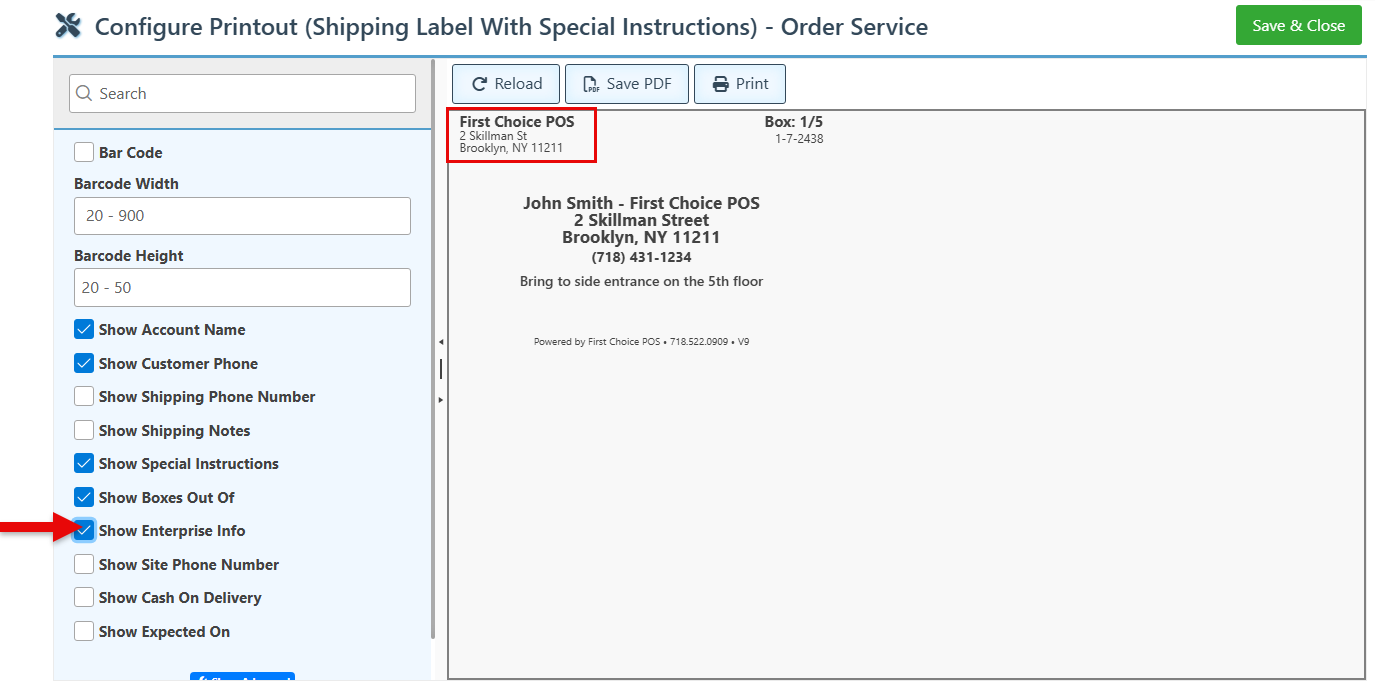
Select “Show Enterprise Info” to include the enterprise name and address on the layout.
-
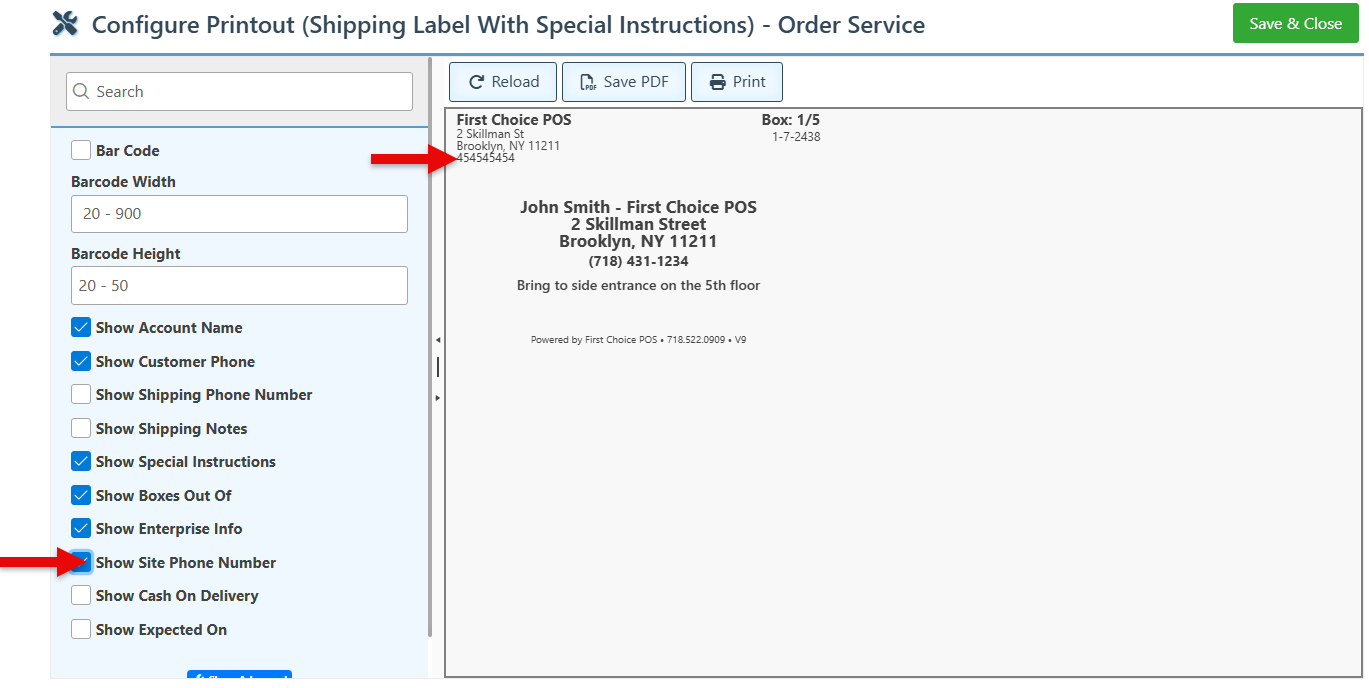
Select the “Show Site Phone Number” to add the contact number to the enterprise info.
-
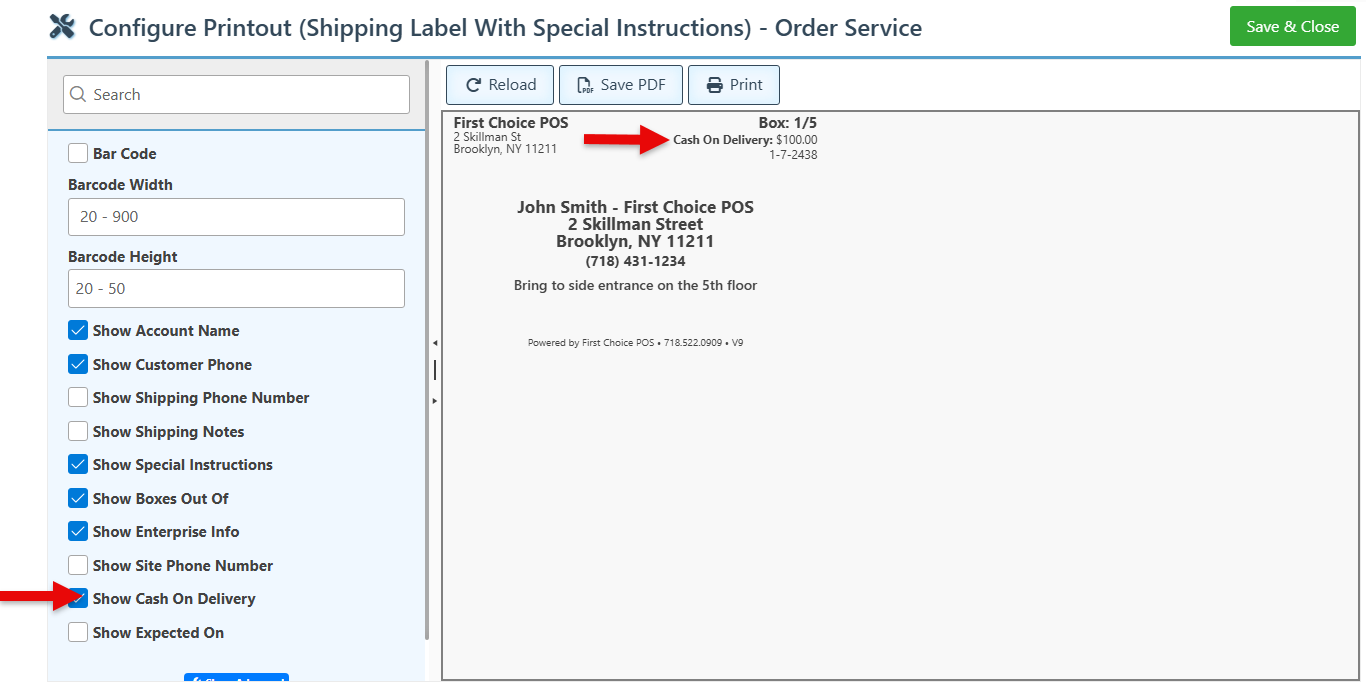
To display the total that the customer must pay upon receiving the delivery, select “Show Cash On Delivery.”
-
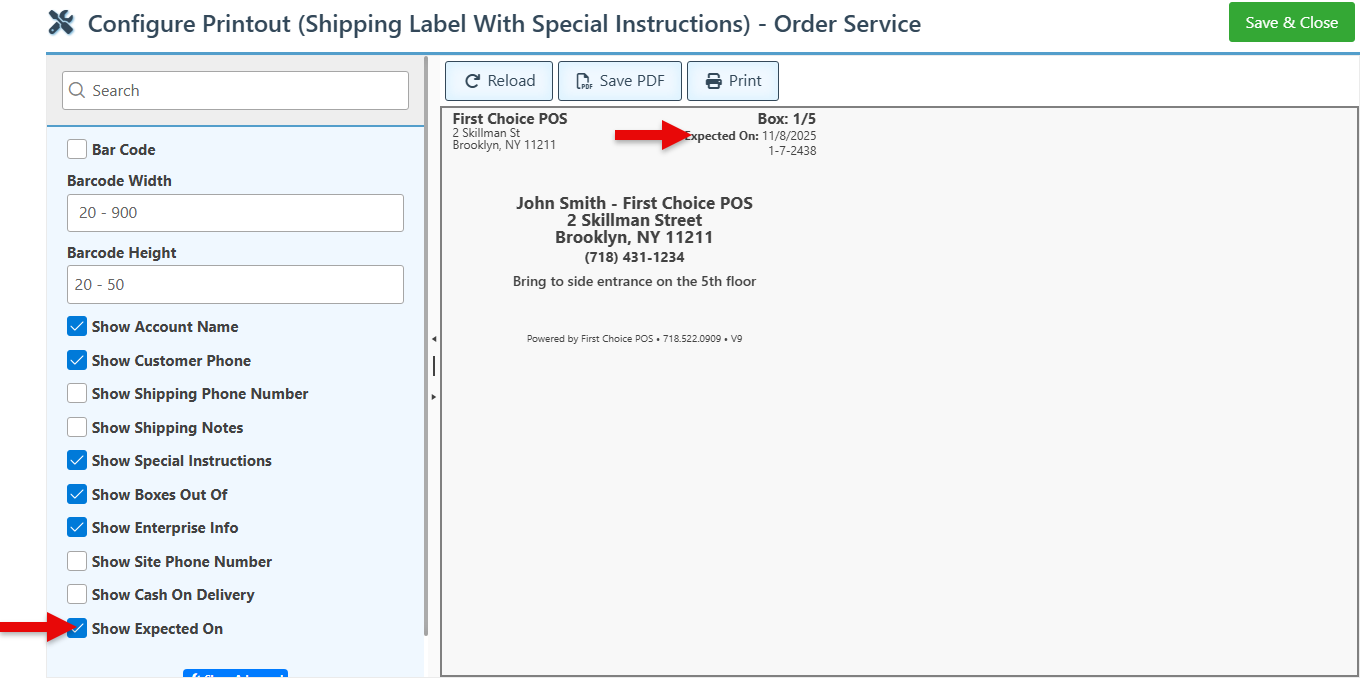
To show the expected delivery date on the shipping label, select “Show Expected On.”
-
Click the “Save &Close” button at teh top right to save changes to the printout.