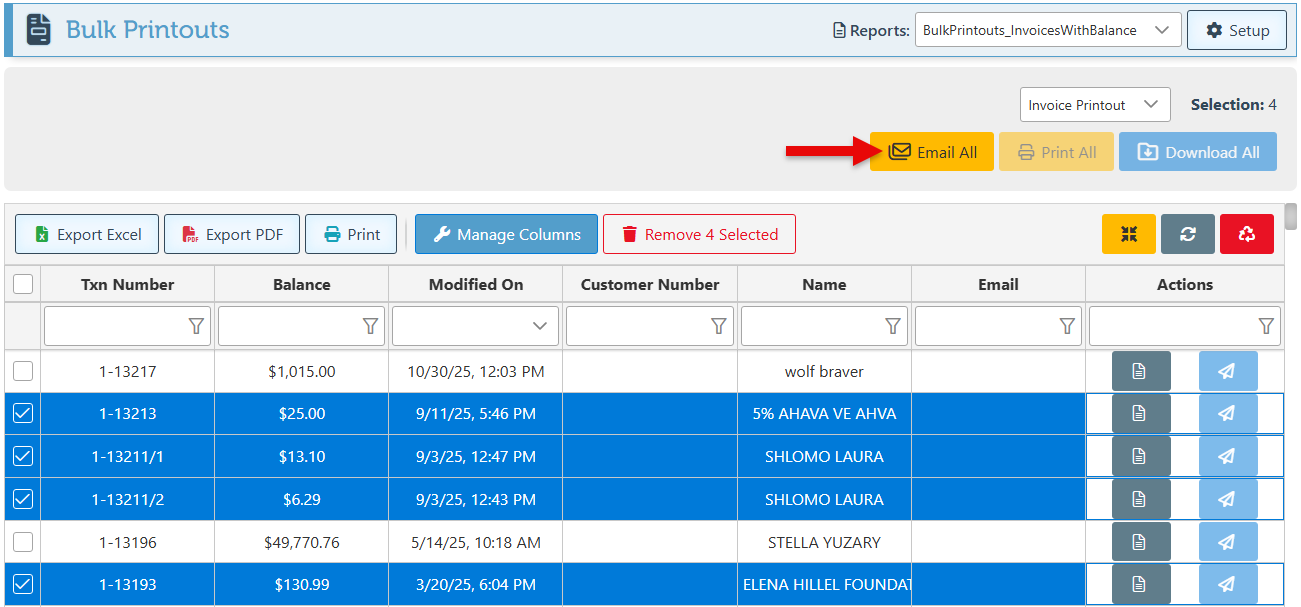
Below is a guide on printing or previewing statements in bulk. This feature is currently available for customer statements and invoices only.
-
Open Backoffice.
-
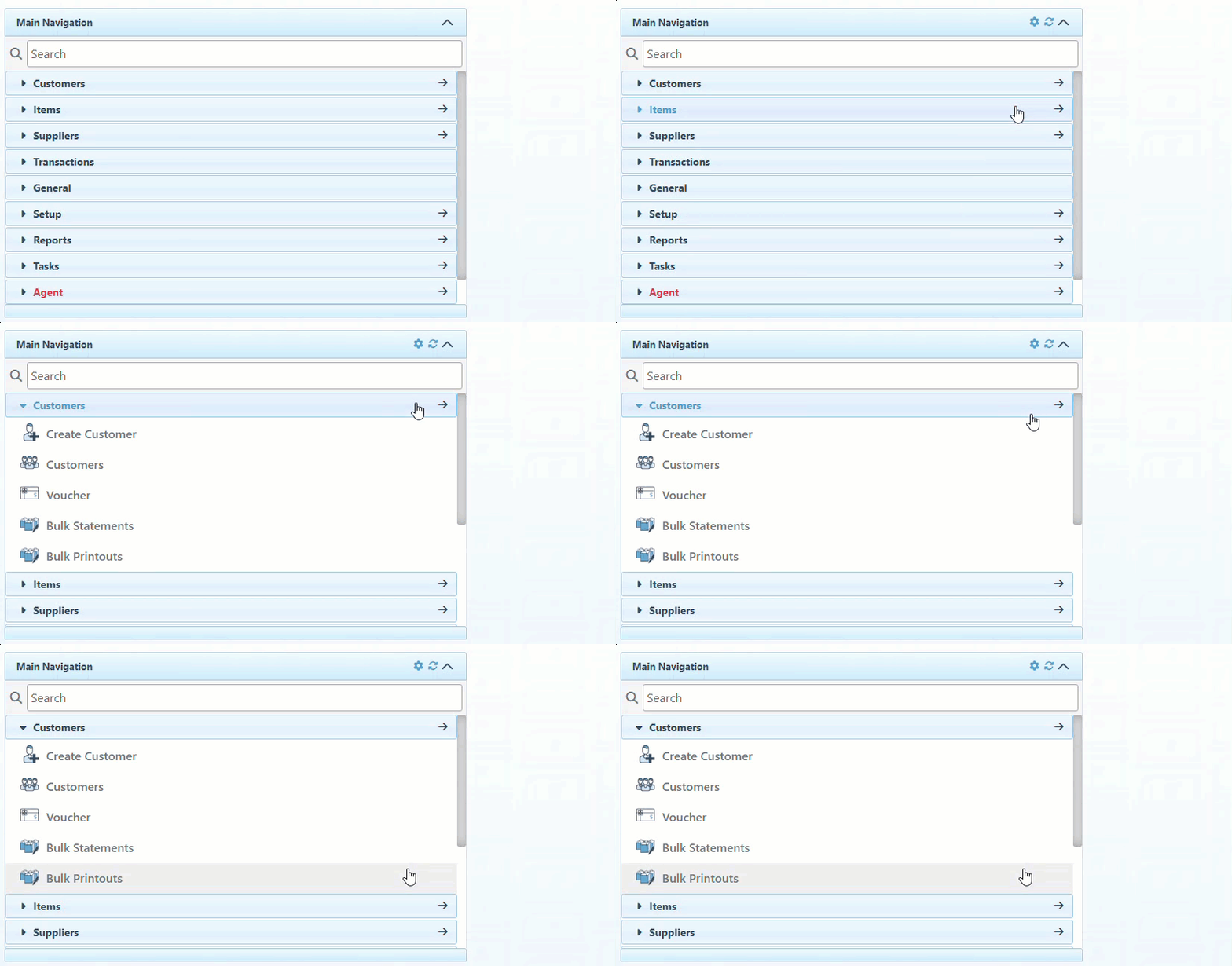
Click “Customers” in the Main Navigation menu and select “Bulk Printouts” from the scrollable dropdown.
-
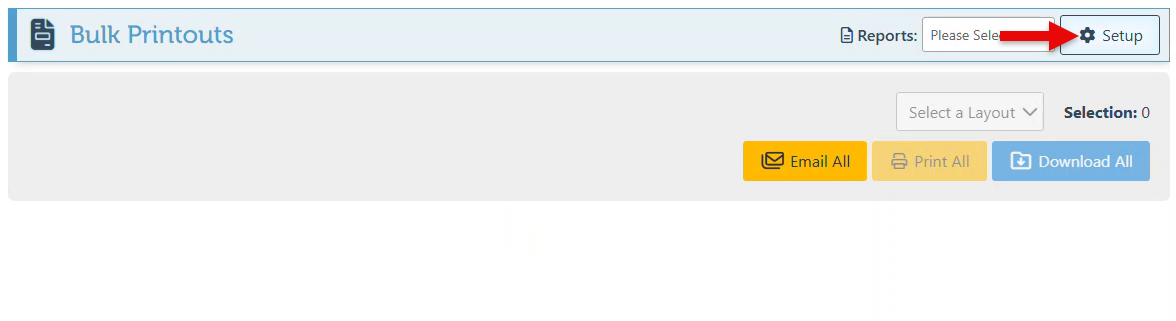
Reports will only appear in the dropdown menu once they have been added to the entity reports list. To proceed, click the “Setup” button located in the top right corner to access the entity reports list.
-
Click “Add new.”

-
Enter one of the two available report keys in the “Report Key” field of the appearing row:
**BulkPrintouts_InvoicesWithBalance** - This option will load invoices for bulk printing.
**BulkStatements_CustomersWithOpenBalance** - This option will load a list of all customers with open balances for bulk printing of statements.

-
To add both reports to the dropdown menu, click “Add New” again, and enter the second report key in the appearing row.

-
Click “Save” at the top right, and return to the bulk printouts page.

-
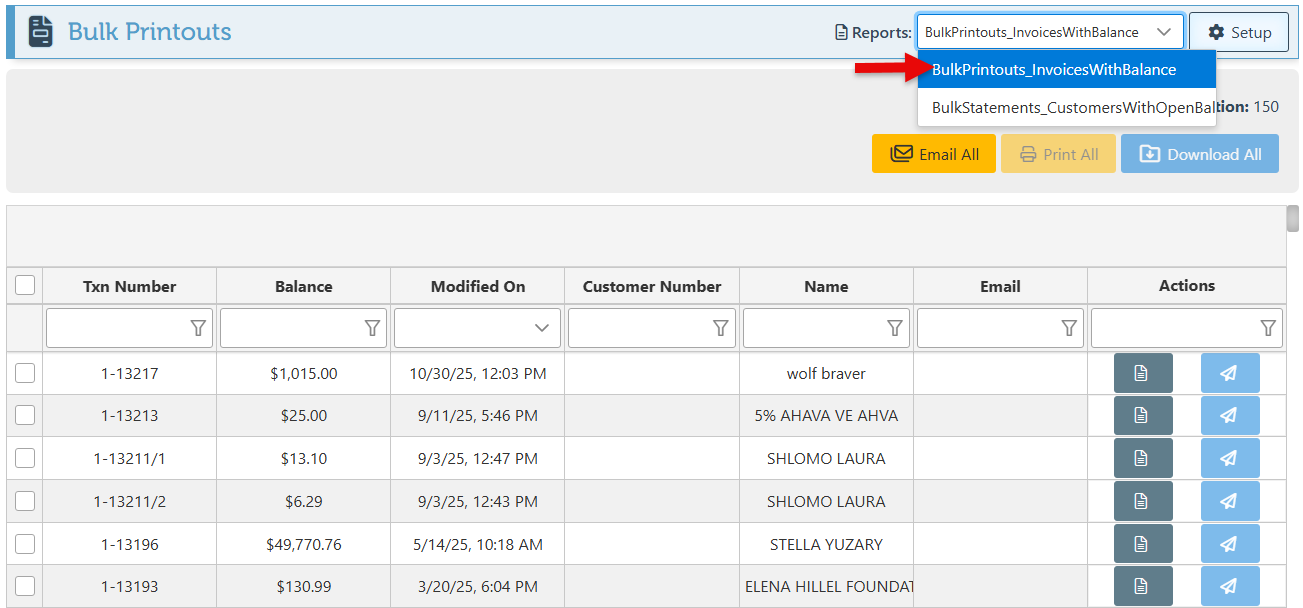
The saved reports will now be available in the dropdown menu in the header. Proceed to select the relevant report from the list.
-
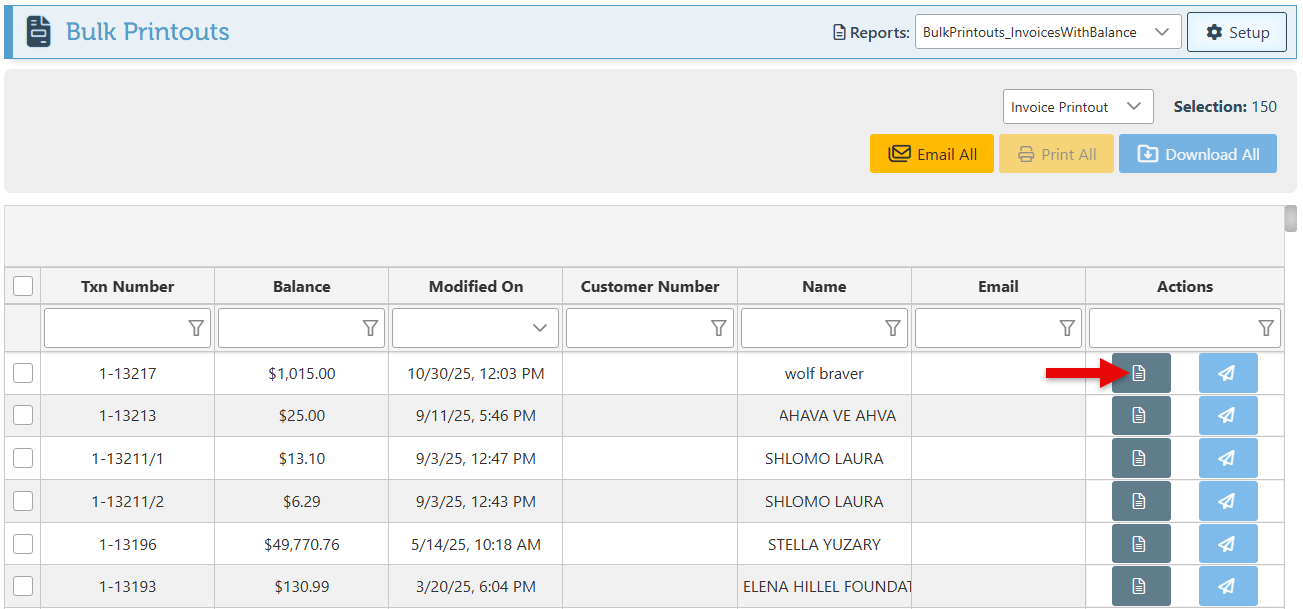
Use the “Actions” column to preview or email a specific customer statement.
-
To print statements in bulk, select multiple statements using the checkboxes on the left. Then, use the header buttons to "Email All," "Print All," or "Download All.”