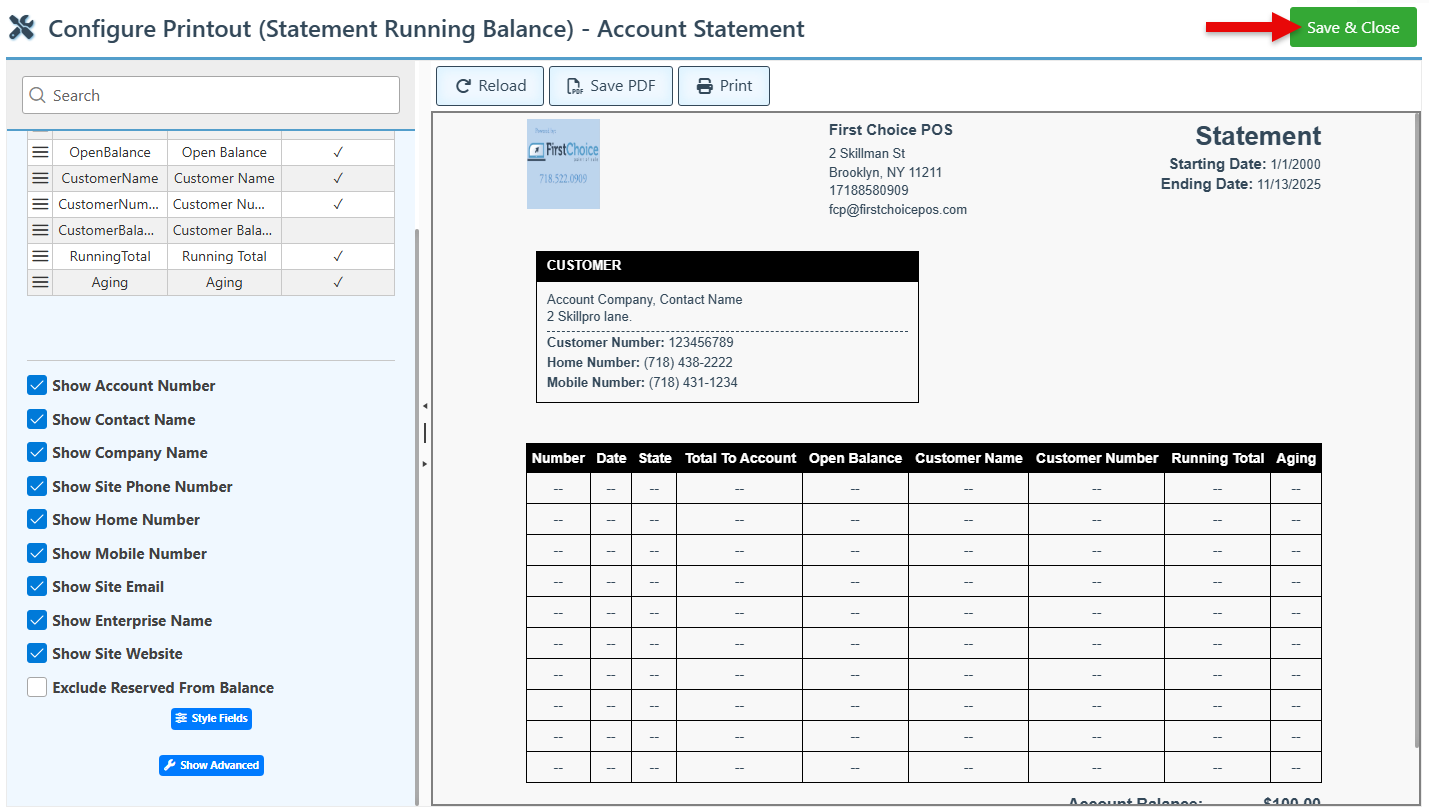
Below is a guide on the Customer Account Printout Layout Configurations. For details on how to access the configurations shown below, see Printout Layouts:
The configurations shown below may vary depending on the specific layout selected.
The various printout layout options are designed to meet the diverse needs of different businesses. Selecting all options for one printout may lead to overflow in different fields.
-
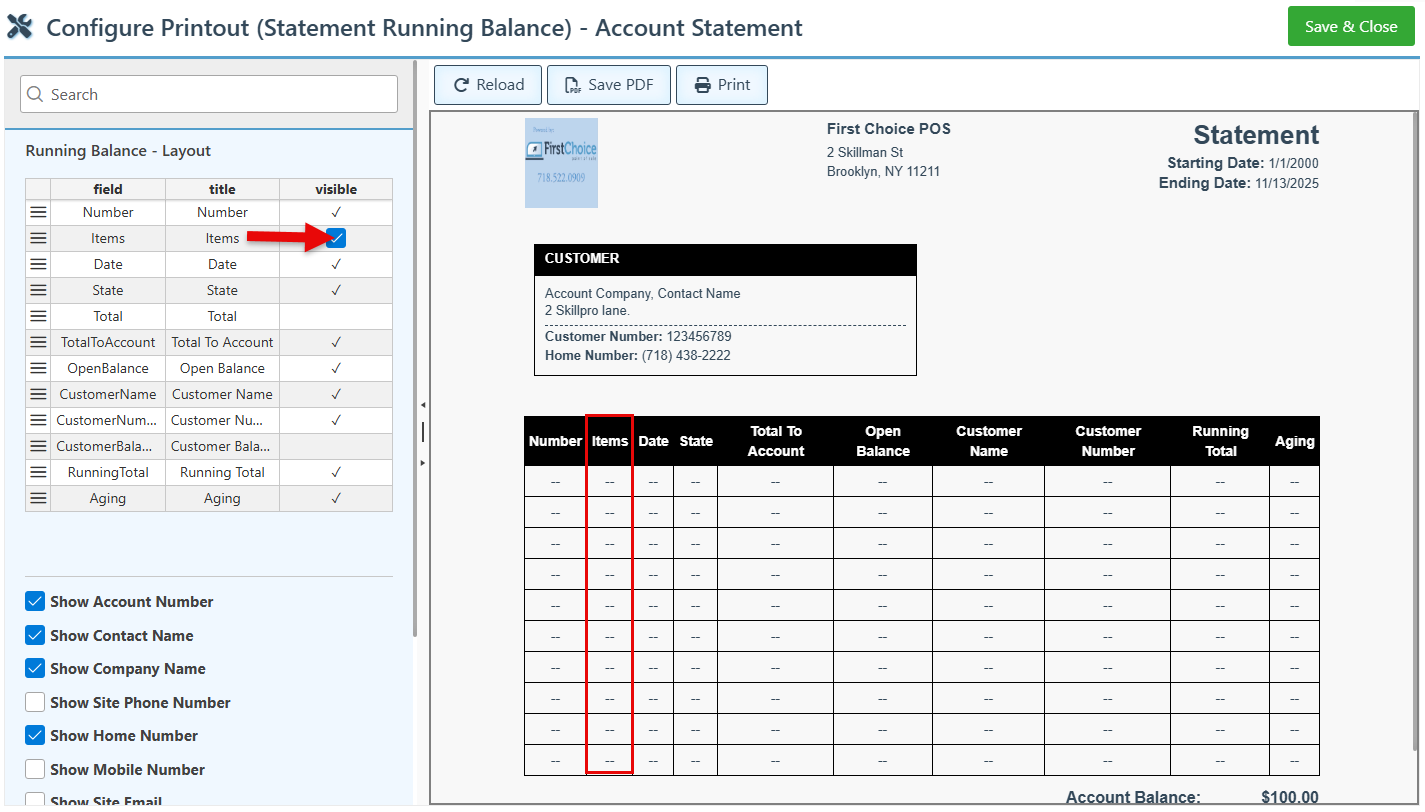
Select or deselect the “Visible” checkbox for specific fields to include or exclude them from the printout layout. For example, select the “Visible” checkbox on the Items row to include a list of the items included in each transaction on the printout.
-
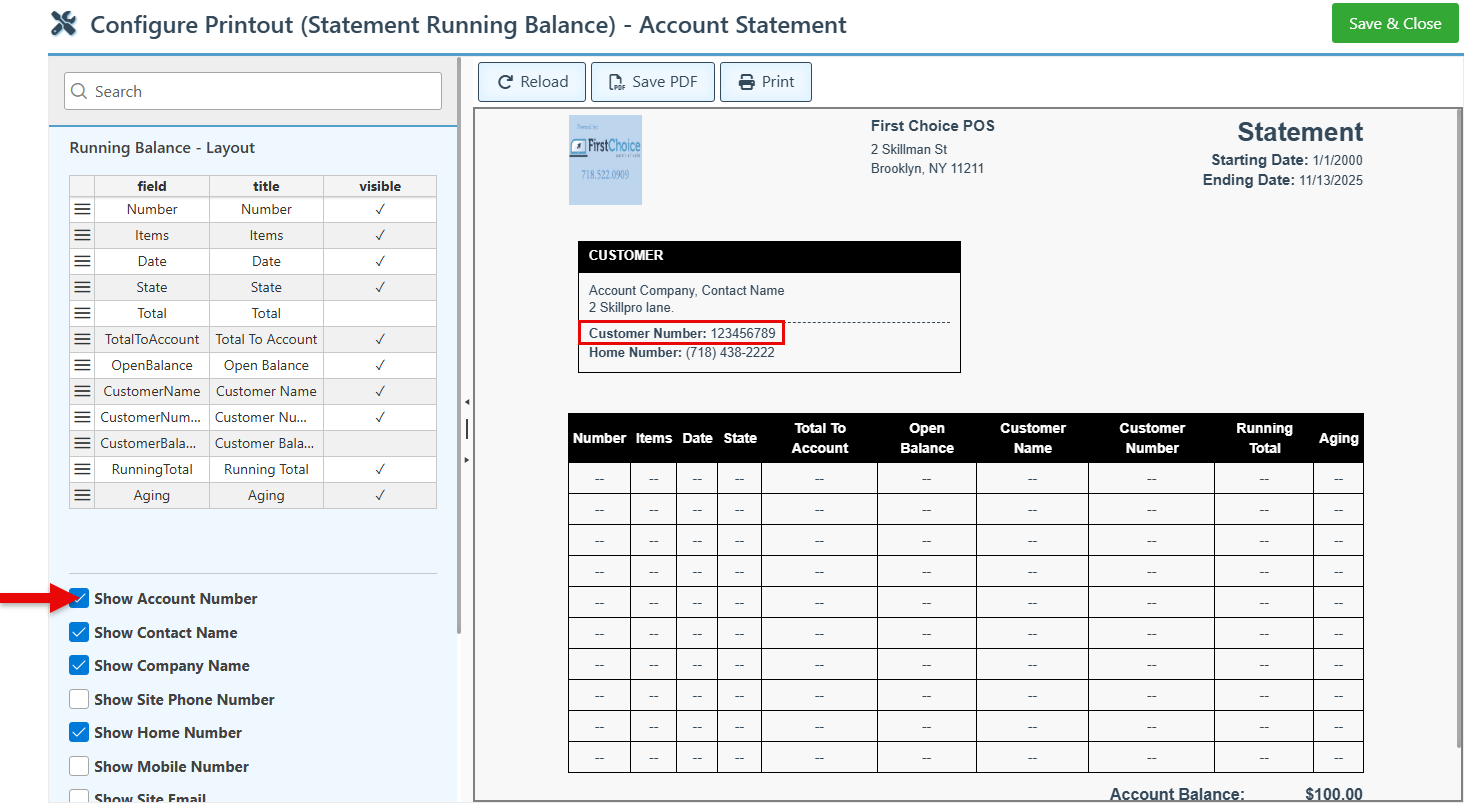
Select the “Show Account Number” checkbox to include the customer’s account phone number on the printout.
-
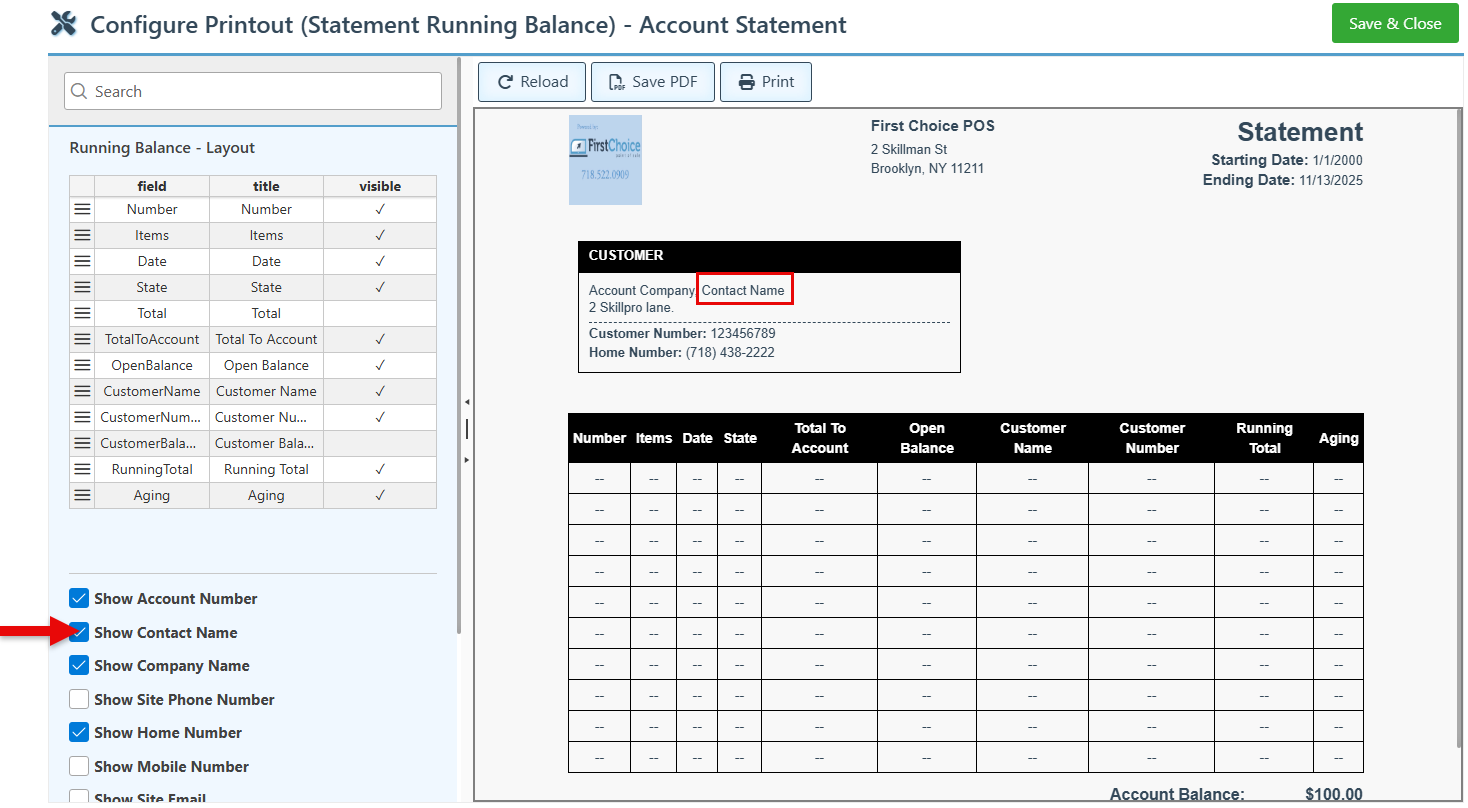
Select the “Show Contact Name” to include the customer’s name on the printout.
-
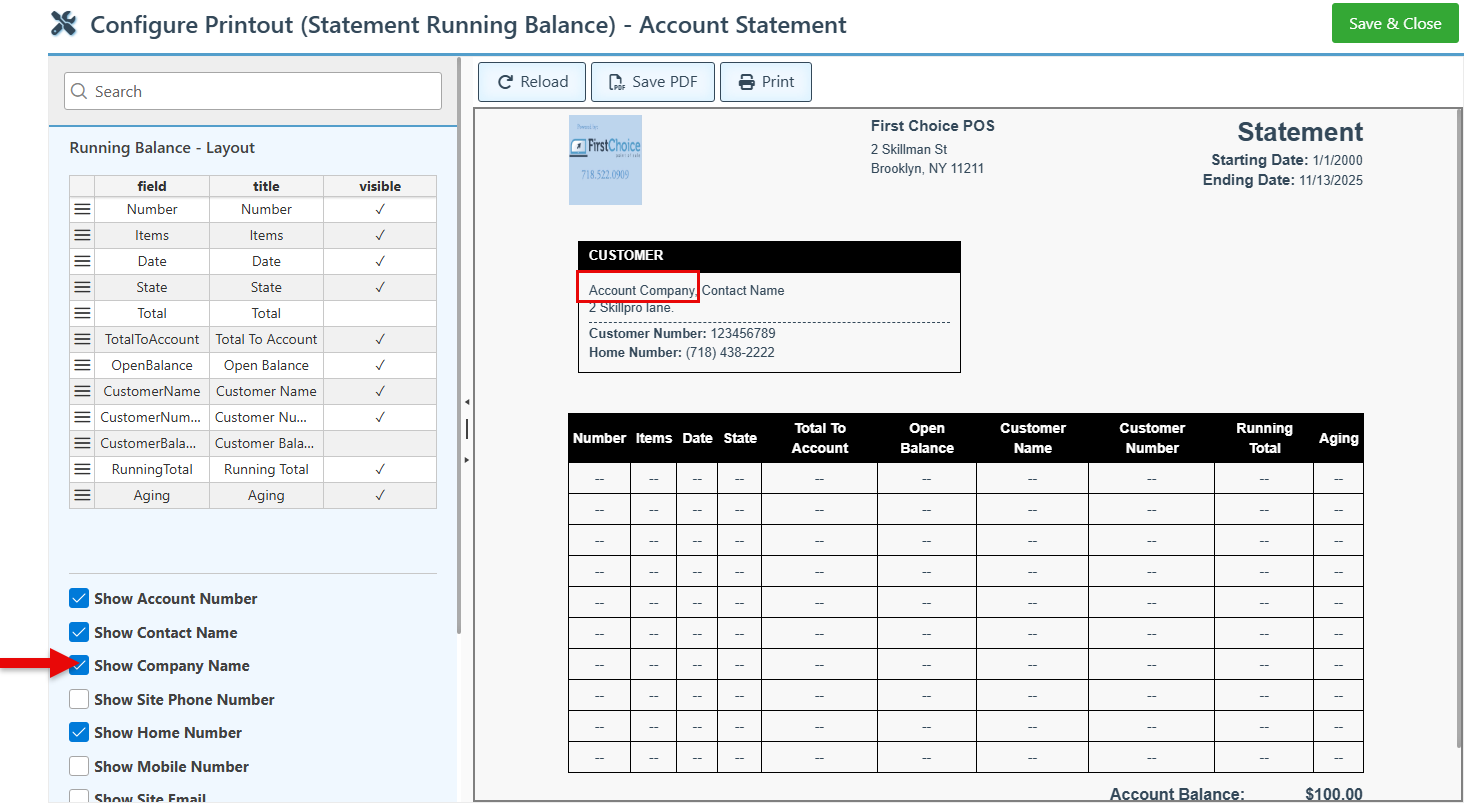
To include the Account name on the printout, select the “Show Company Name” checkbox.
-
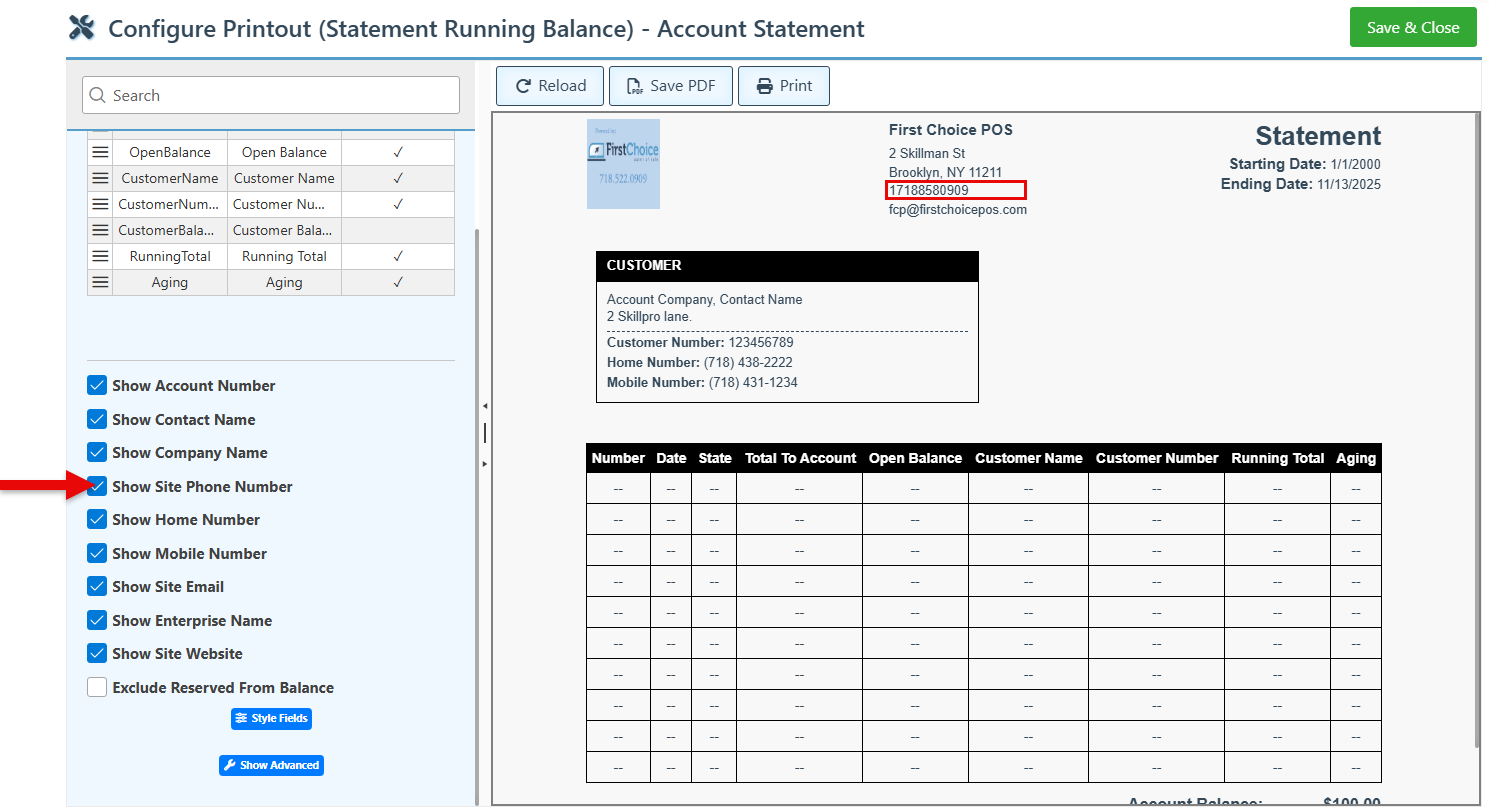
Select the “Show Site Phone Number” checkbox to include the store location/site phone number on the printout layout.
-
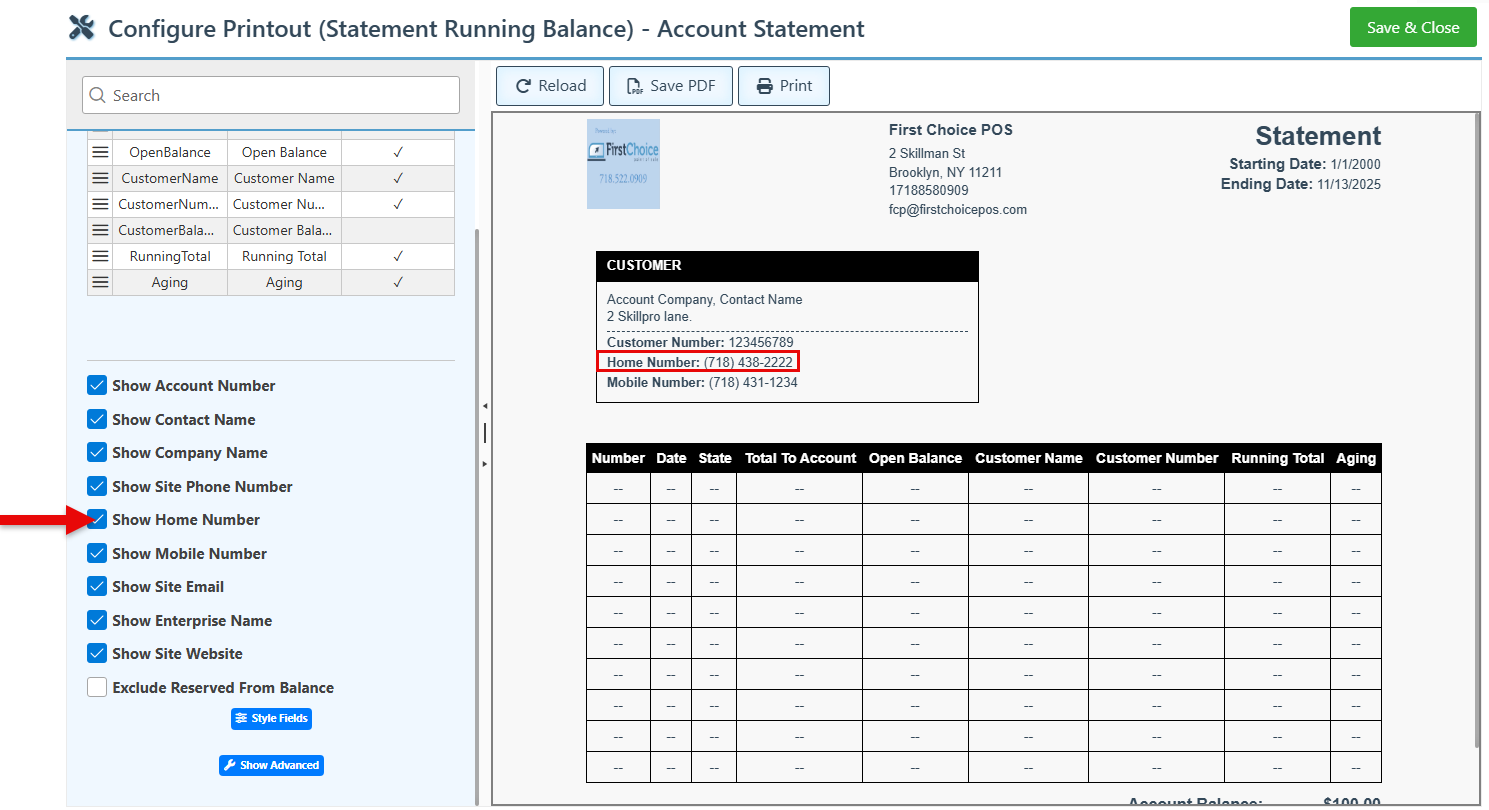
Select “Show Home Number” to include the customer’s home number on the printout.
-
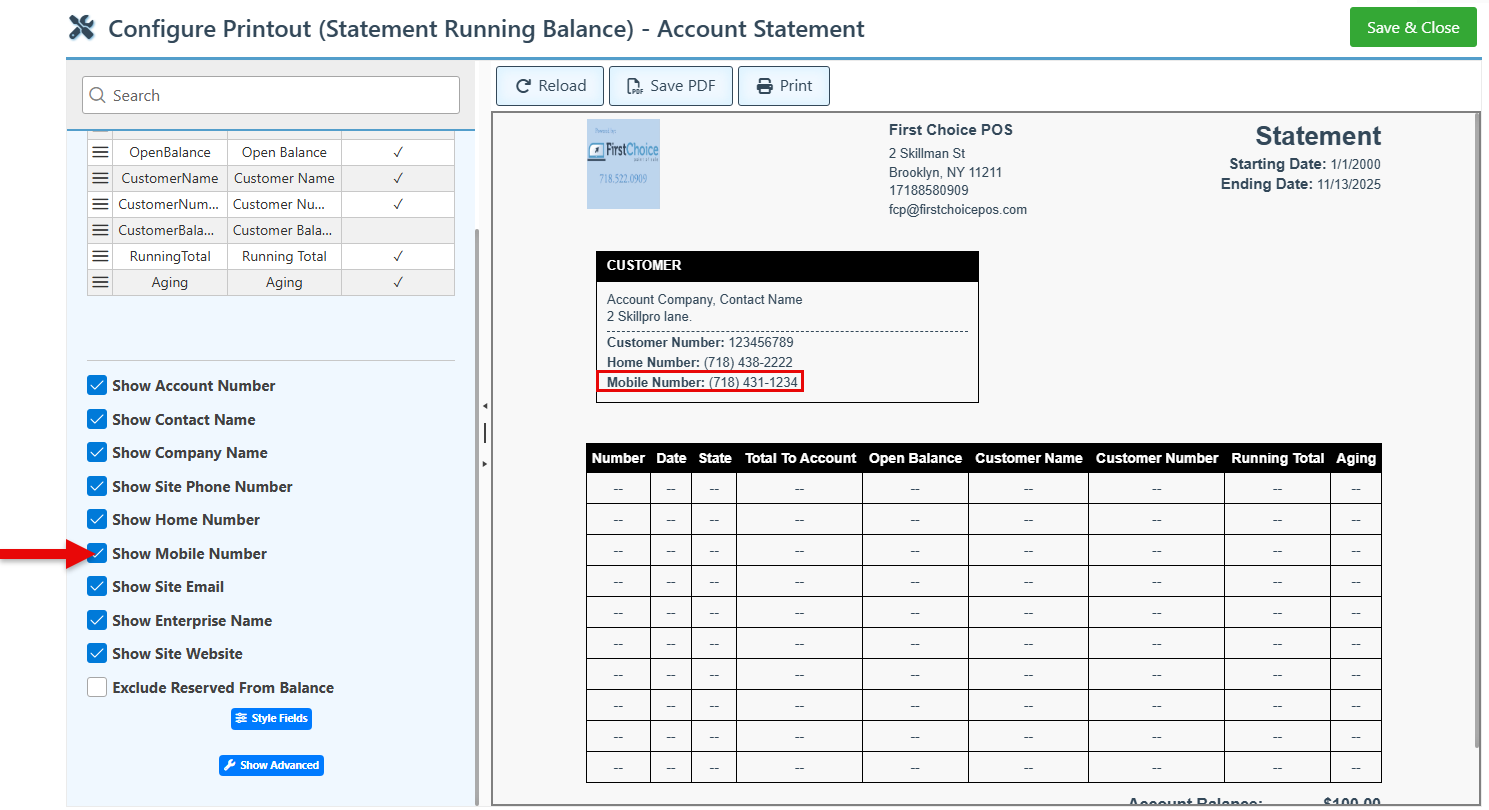
Select the “Show Mobile Number” to include the customer’s mobile number on the printout.
-
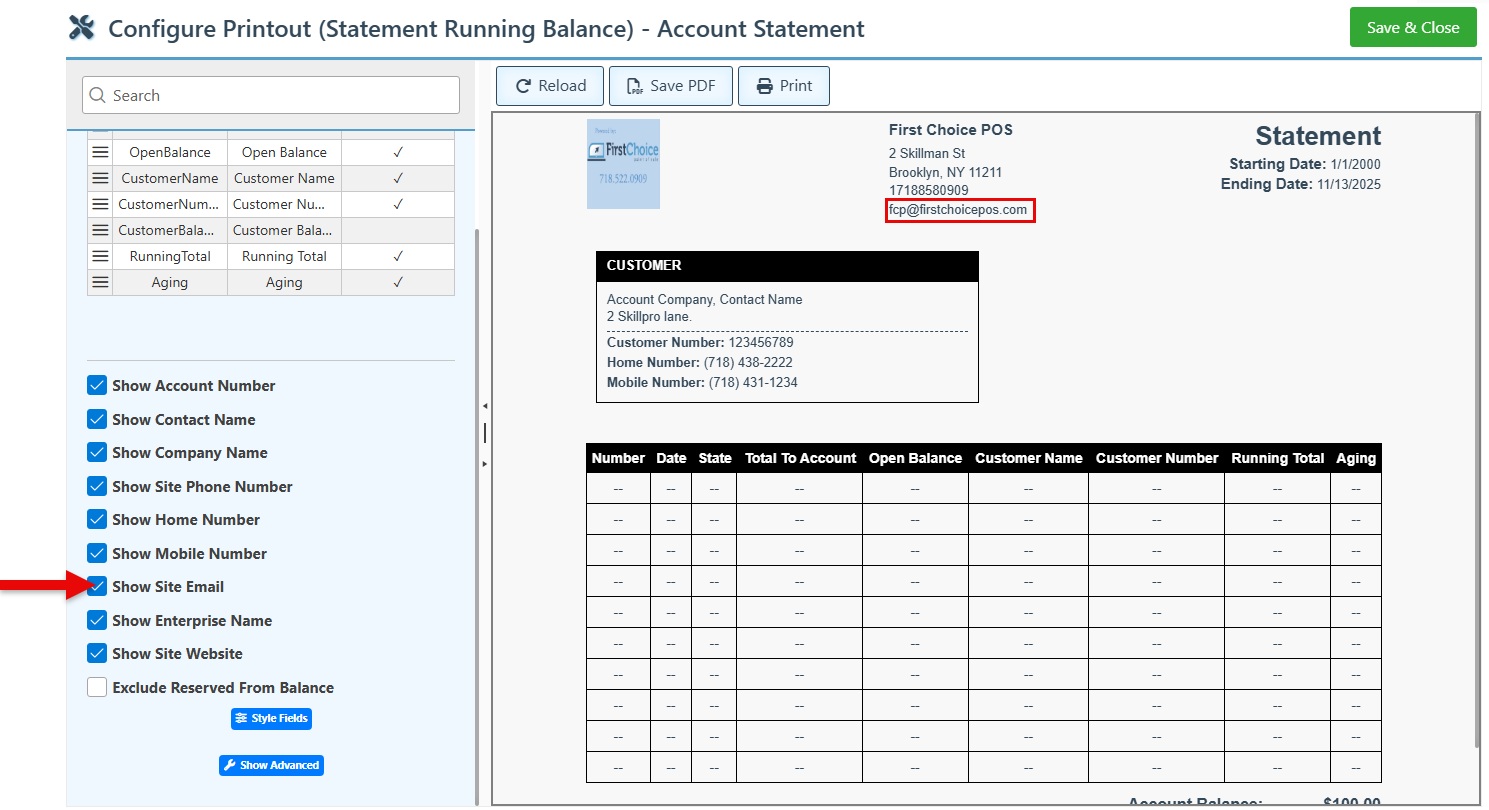
Select the “Show Site Email” checkbox to include the store location/site email address on the printout layout.
-
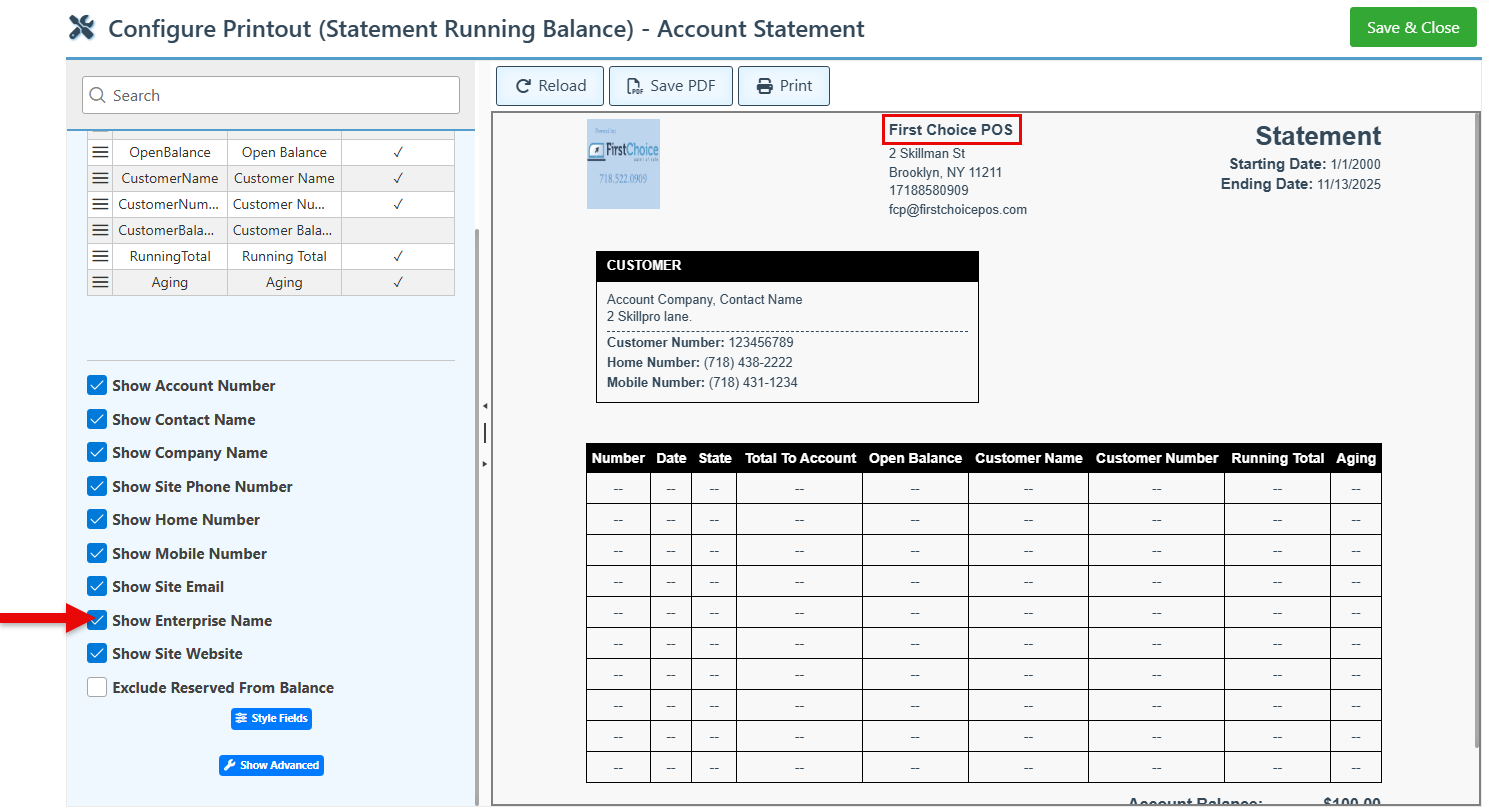
Select “Show Enterprise Name” to include the enterprise name in the statement header.
-
Click “Save & Close” at the top right to save new configurations.