By default, the price checker screen shows the item image, description, and price.
Below is a guide for changing the mode to “Price Only,” which displays a brief item name or description alongside an enlarged item price for better clarity.
Furthermore, specific item fields can now be configured in the page layout settings, for display on the price checker device.
Default Mode

Price Only Mode
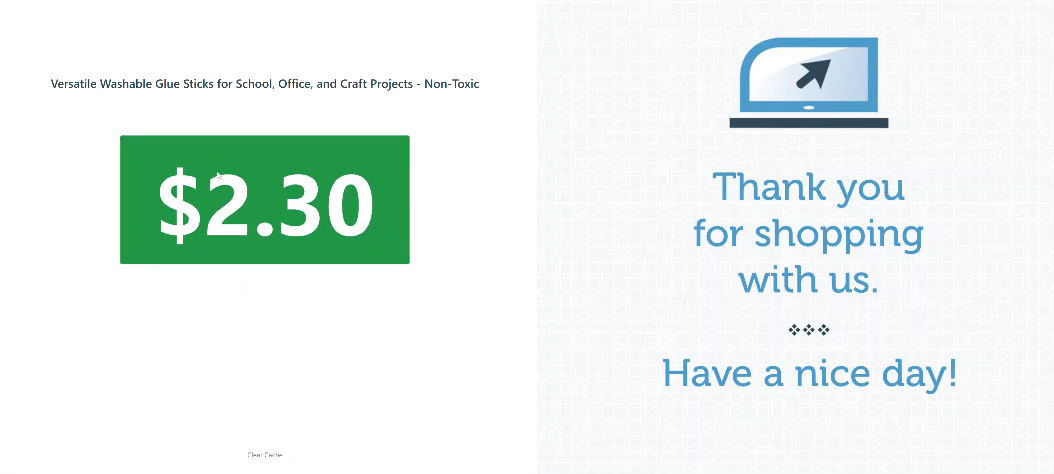
Follow the steps below to change the display mode to “Item Price Only.”
-
Log in to app.firstchoicepos.com
-
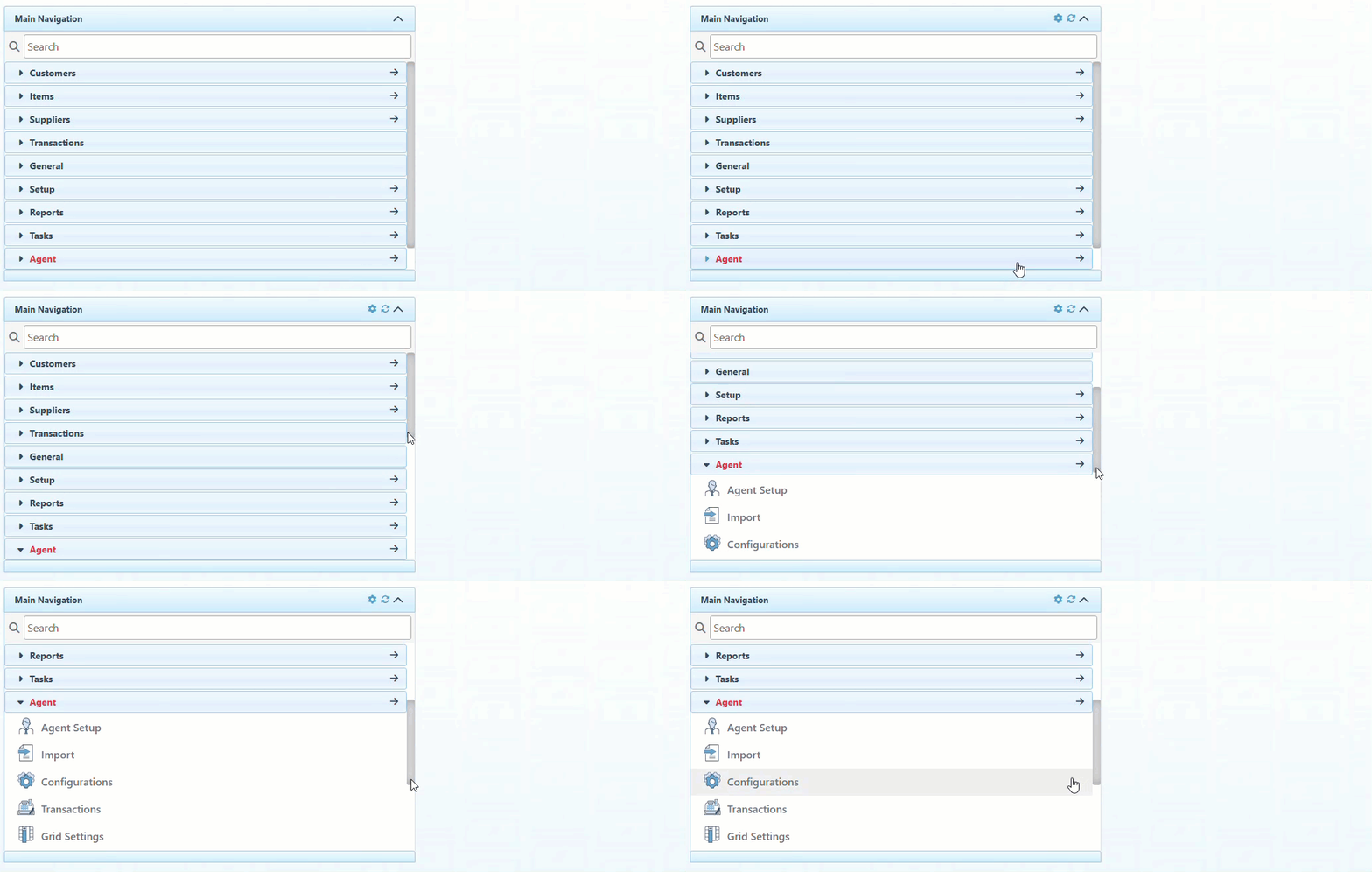
Click “Agent “ in the Main Navigation menu and select “Configurations” from the scrollable dropdown.
-
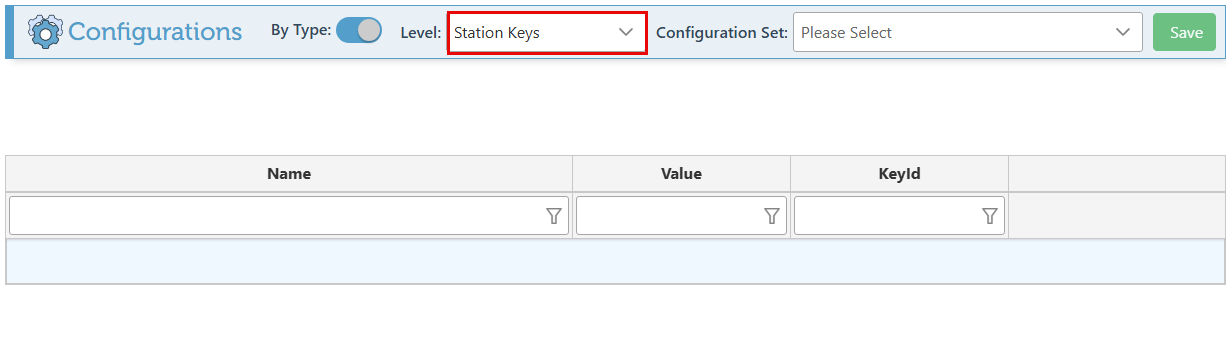
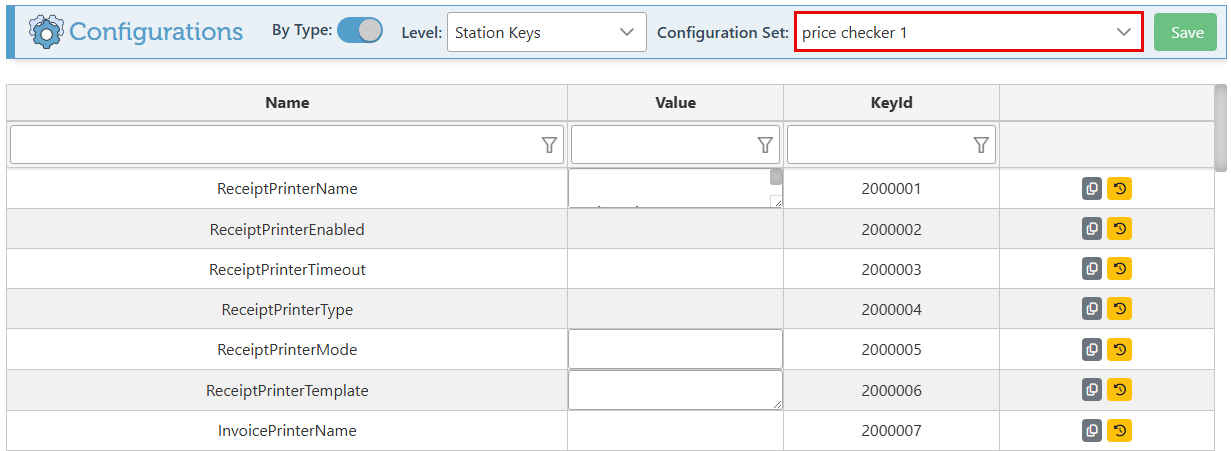
Select “Station Keys” in the Level Dropdown menu.
-
Select the relevant price checker station in the Configuration Set dropdown menu.
-
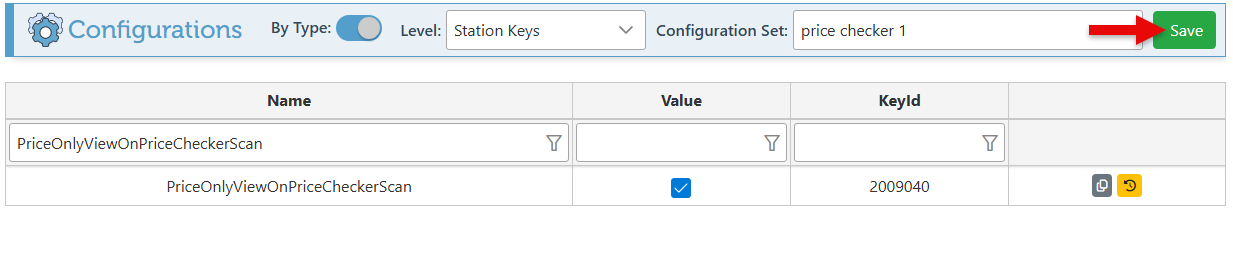
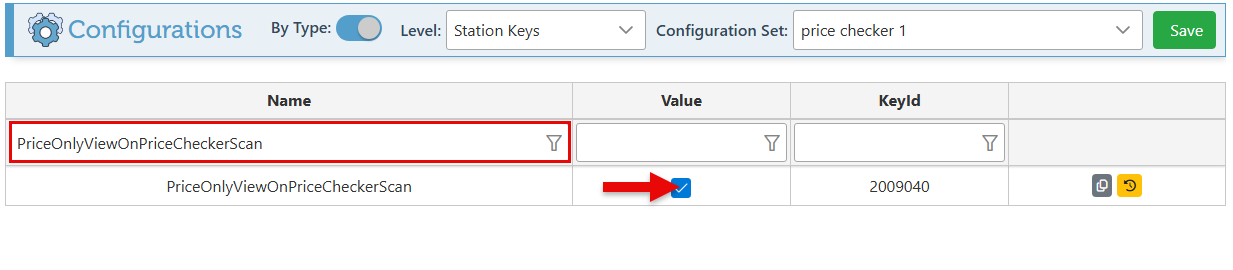
Search for the “PriceOnlyViewOnPriceCheckerScan” configuration using the header search field and select the “Value” checkbox to enable the configuration.
-
Click “Save” at the top right to save.