
Follow the steps below to configure location/site settings such as Name, Address, Receipt settings and allowed users:
-
Open Backoffice.
-
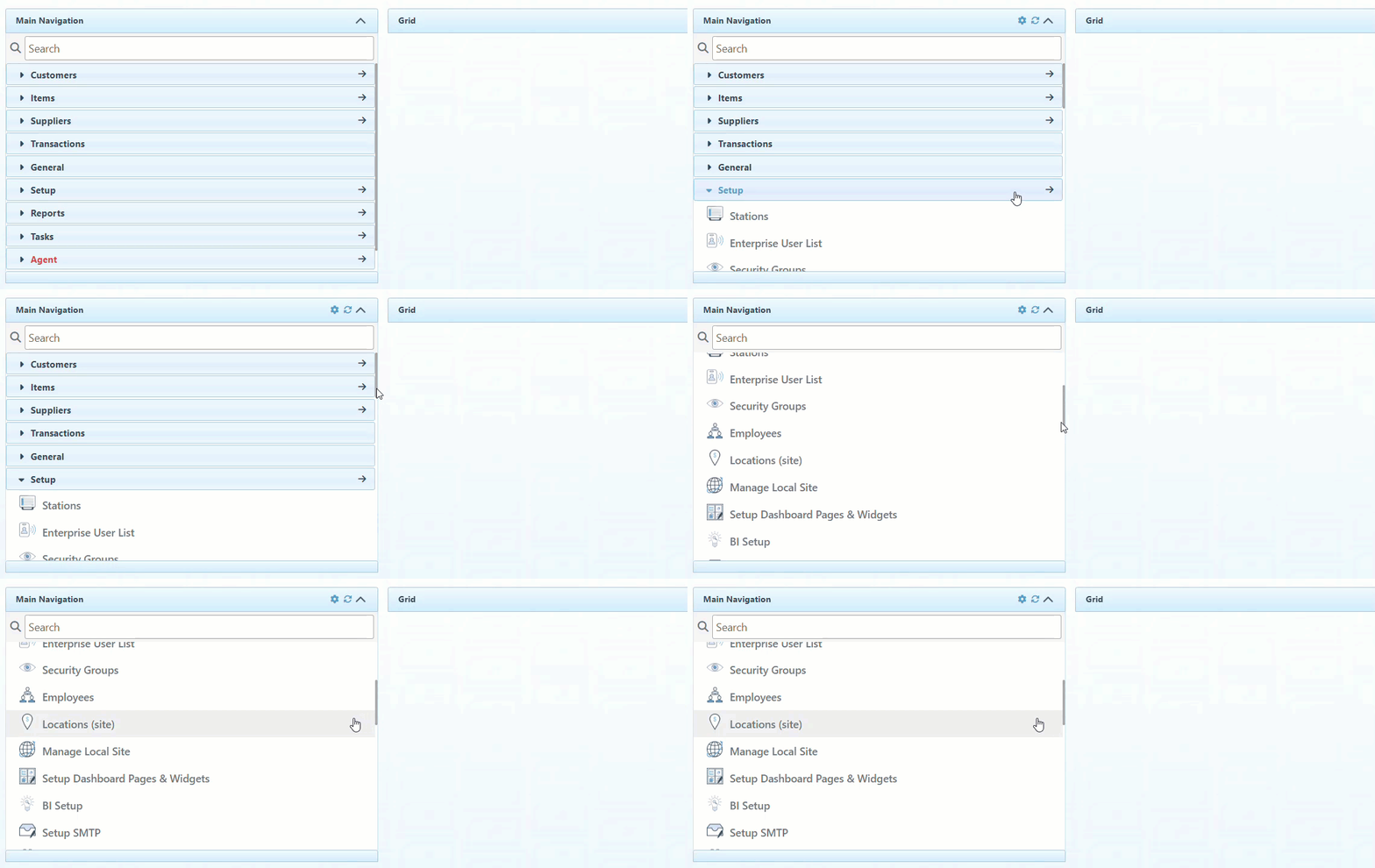
Click “Setup” in the Main Navigation menu, and select “Locations- site” in the scrollable dropdown menu.
-
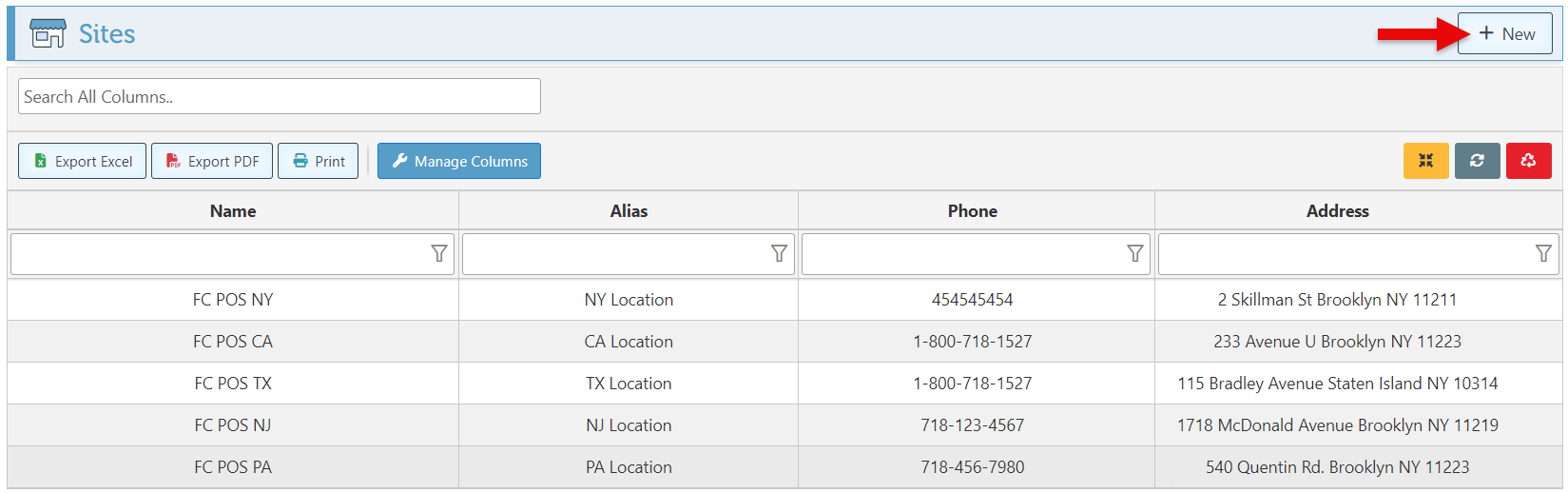
Click “New” to set up a new location.
-
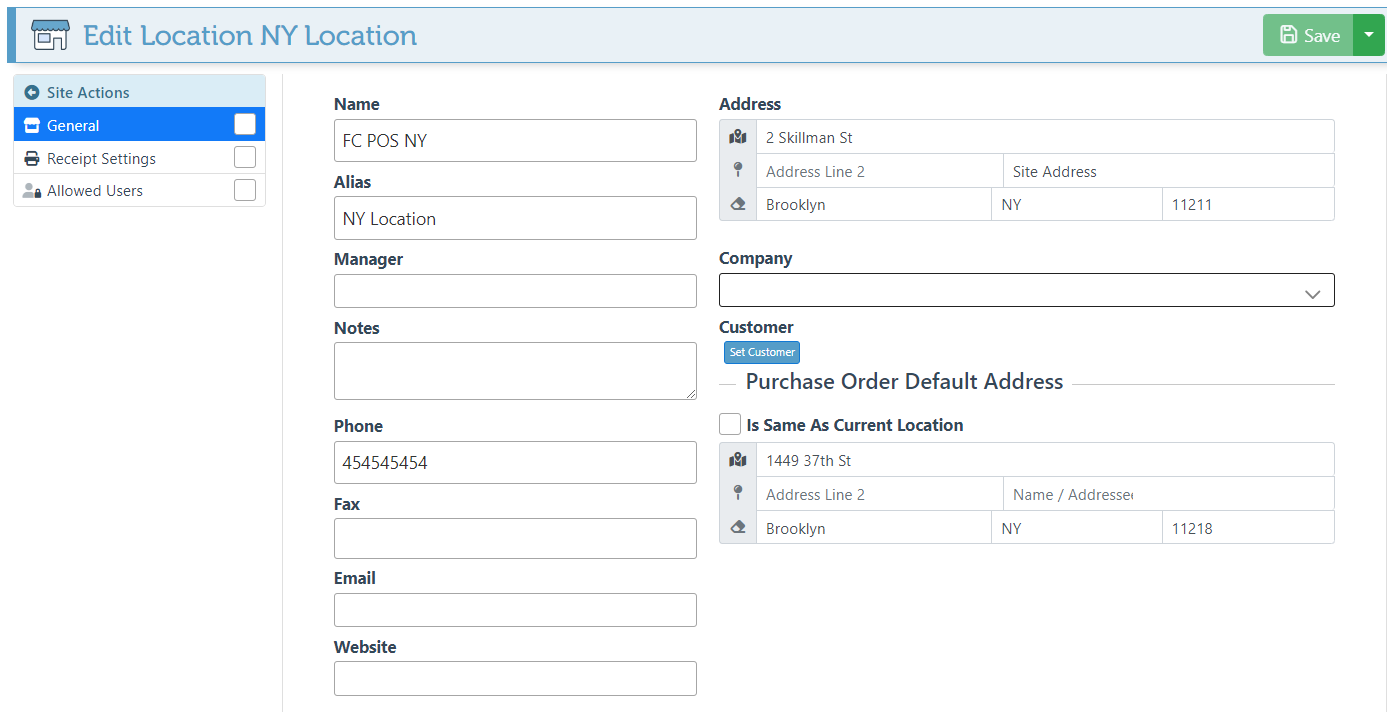
Navigate to the “General” tab in the Site Actions menu.
-
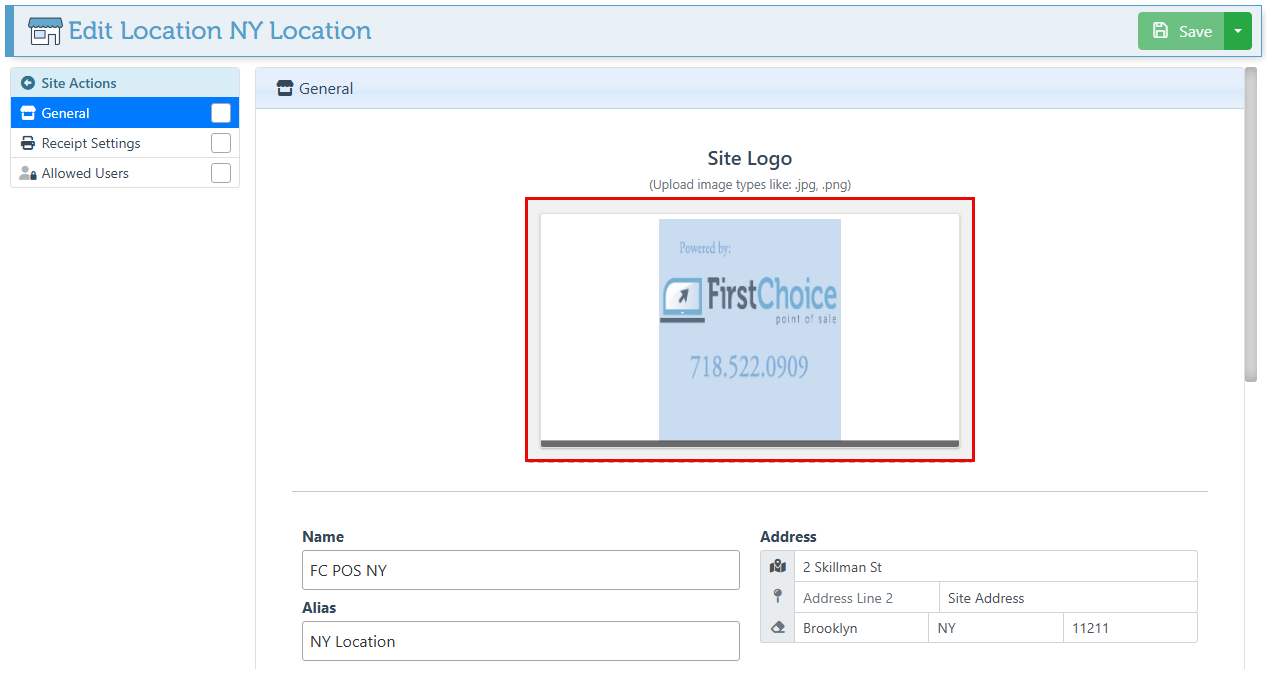
Drag & Drop or paste an image file in the designated field to set or change an enterprise logo. The logo will then automatically appear along with other site info on receipts and invoices.
-
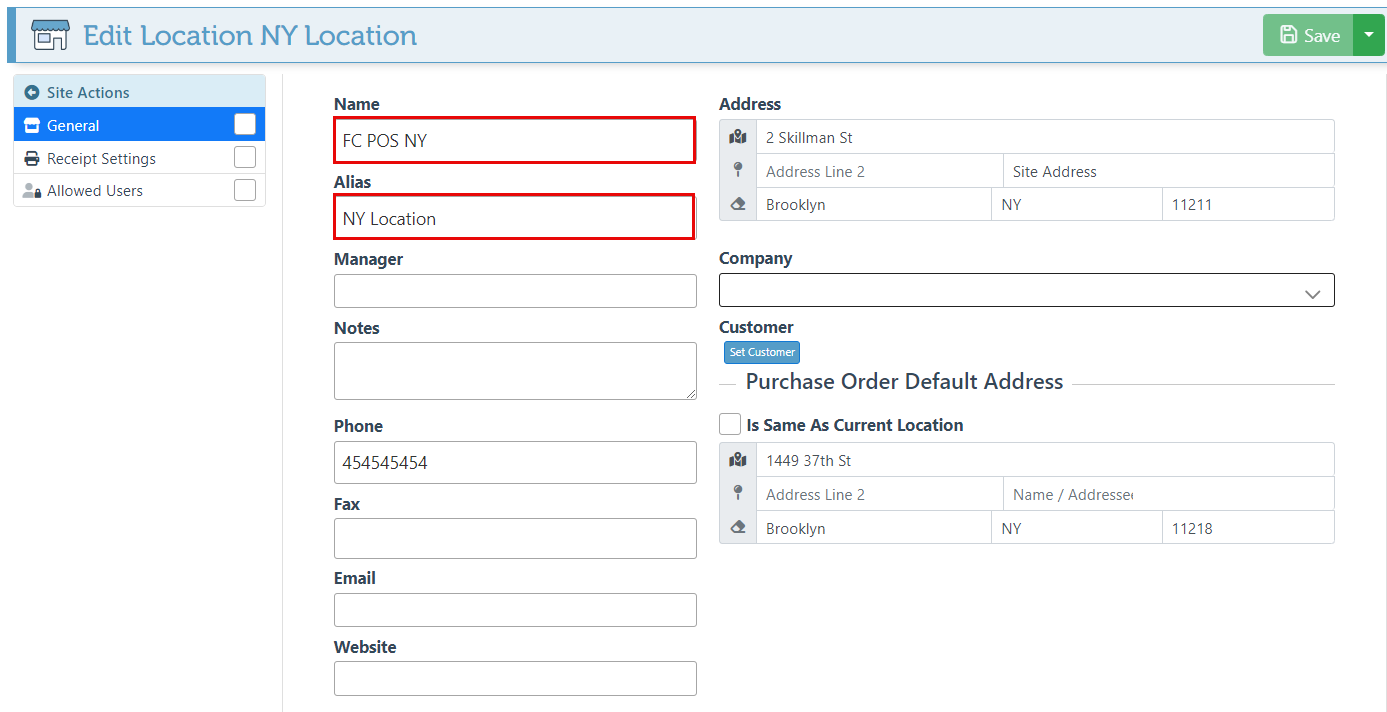
Enter the “Name” and “Alias(name to be displayed)” of the location in the designated bars.
-
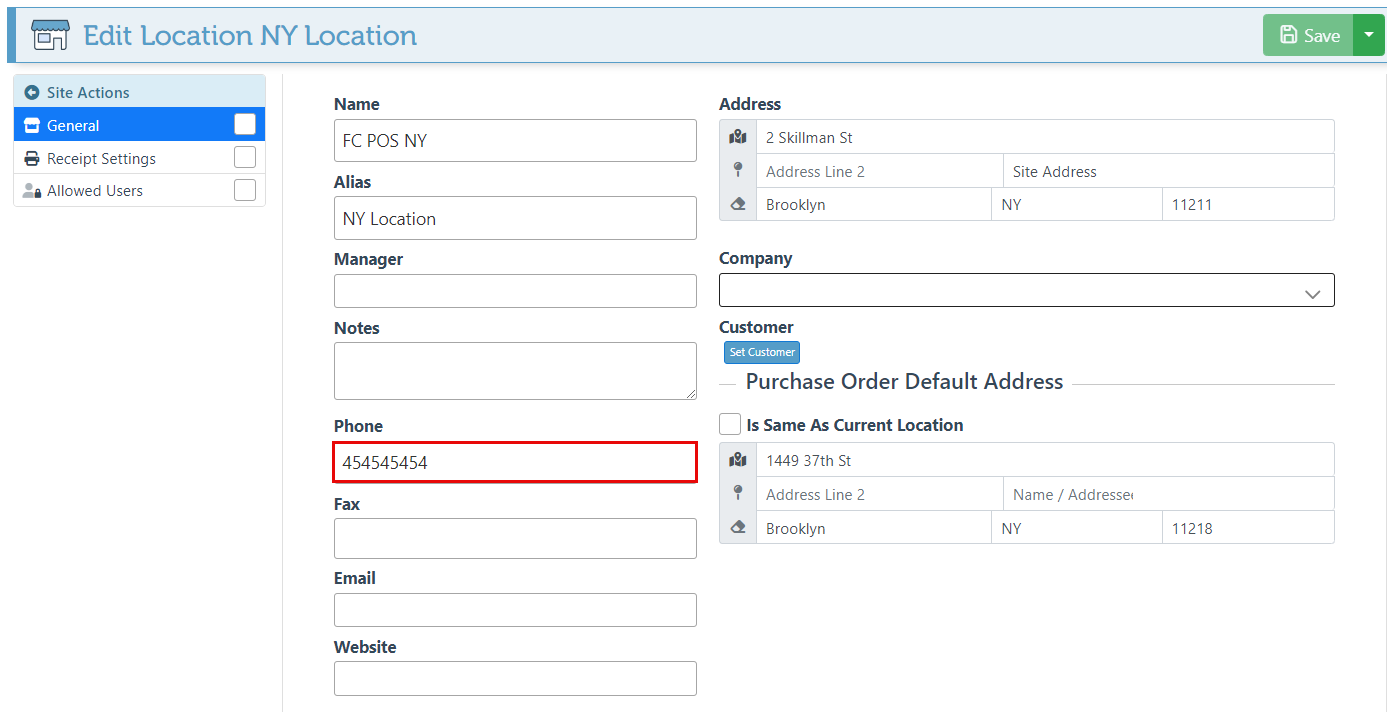
Enter the Site phone number.
-
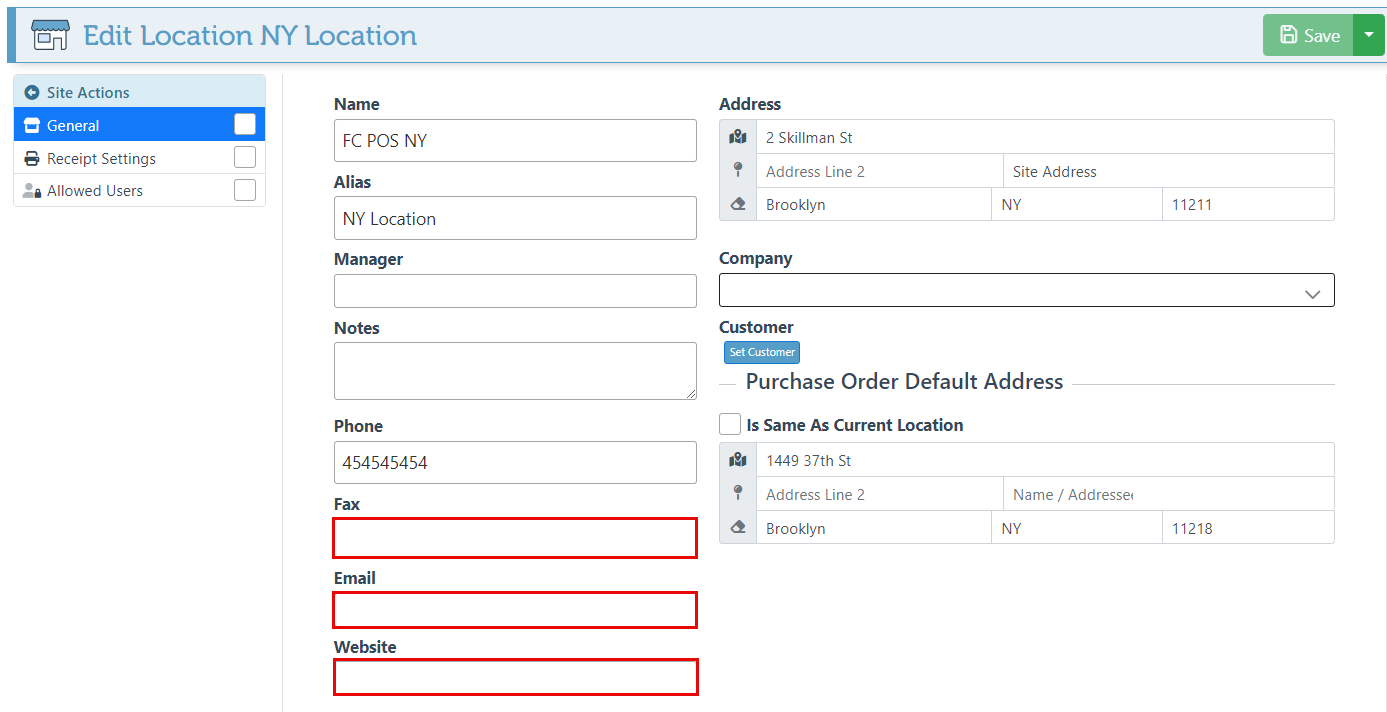
Enter the fax, email, and website of the location.
-
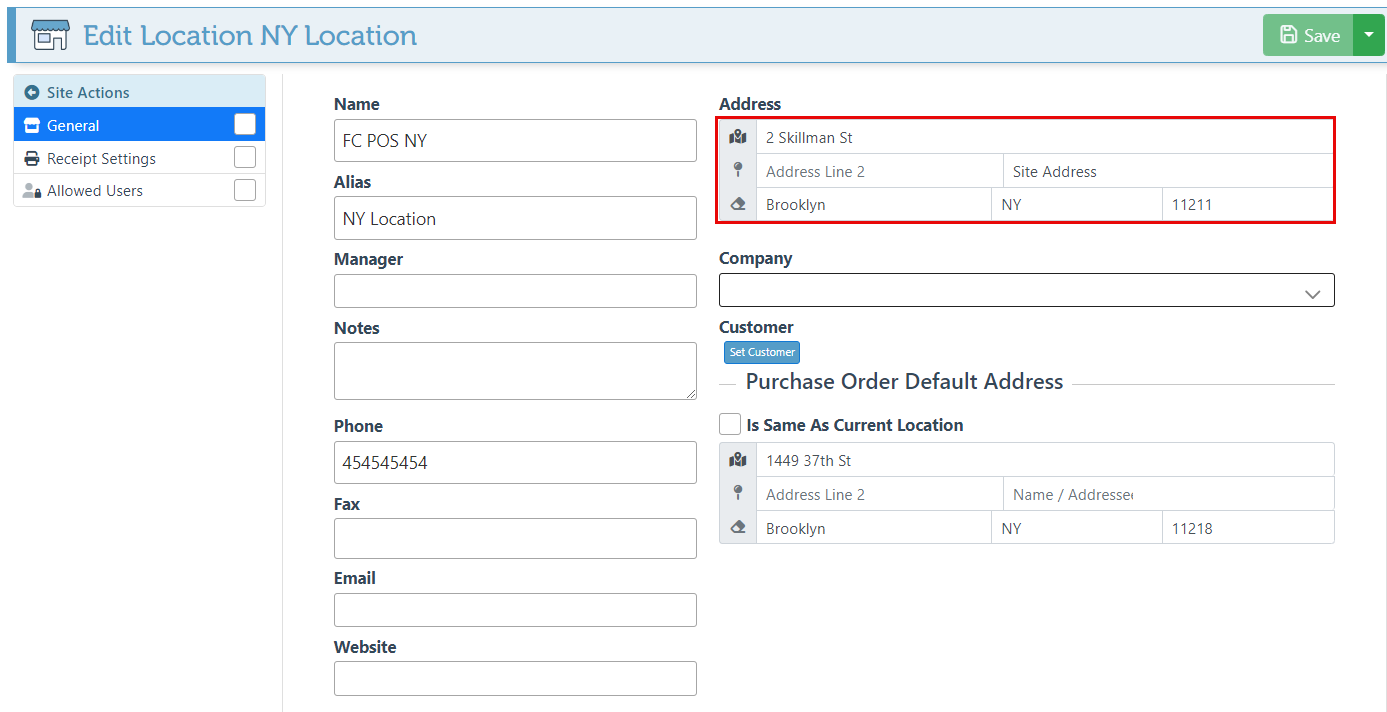
Enter the location/ site address details.
-
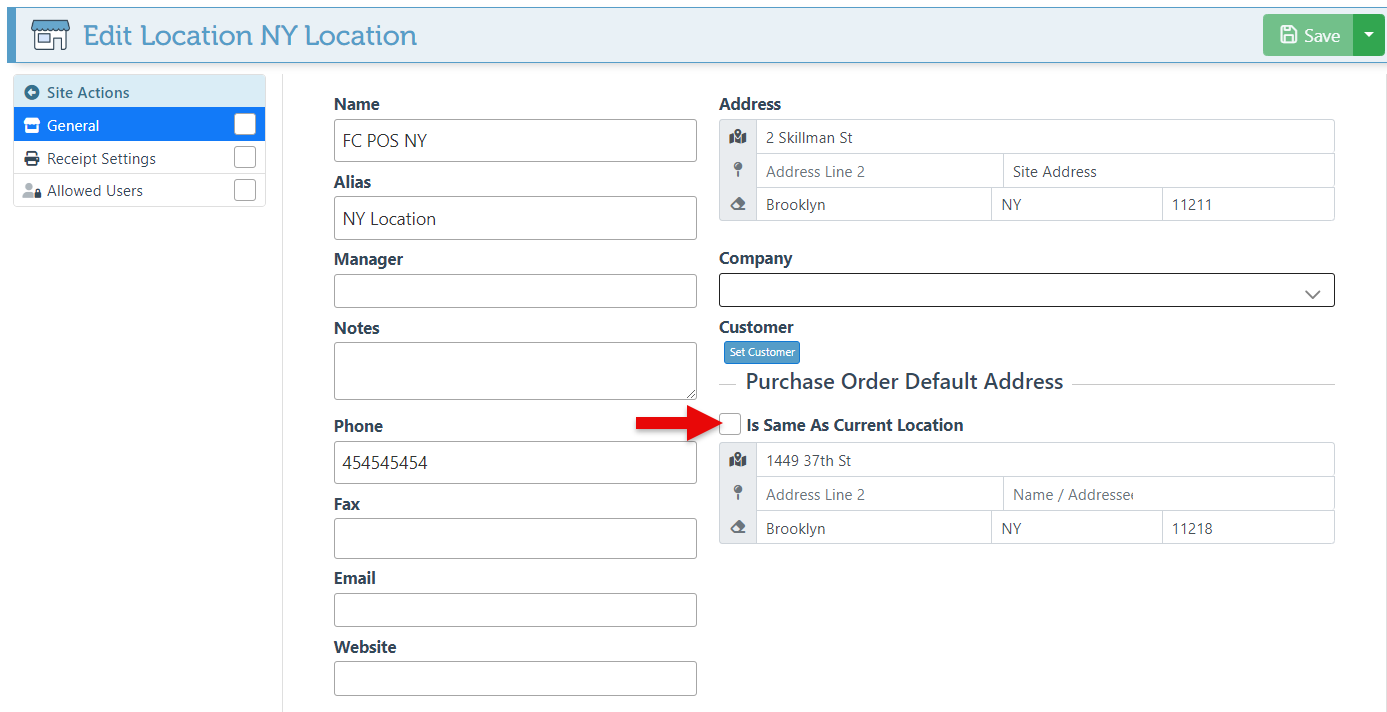
To set the site address as the Purchase Order default address, select the “Is Same As Current Location” checkbox.
-
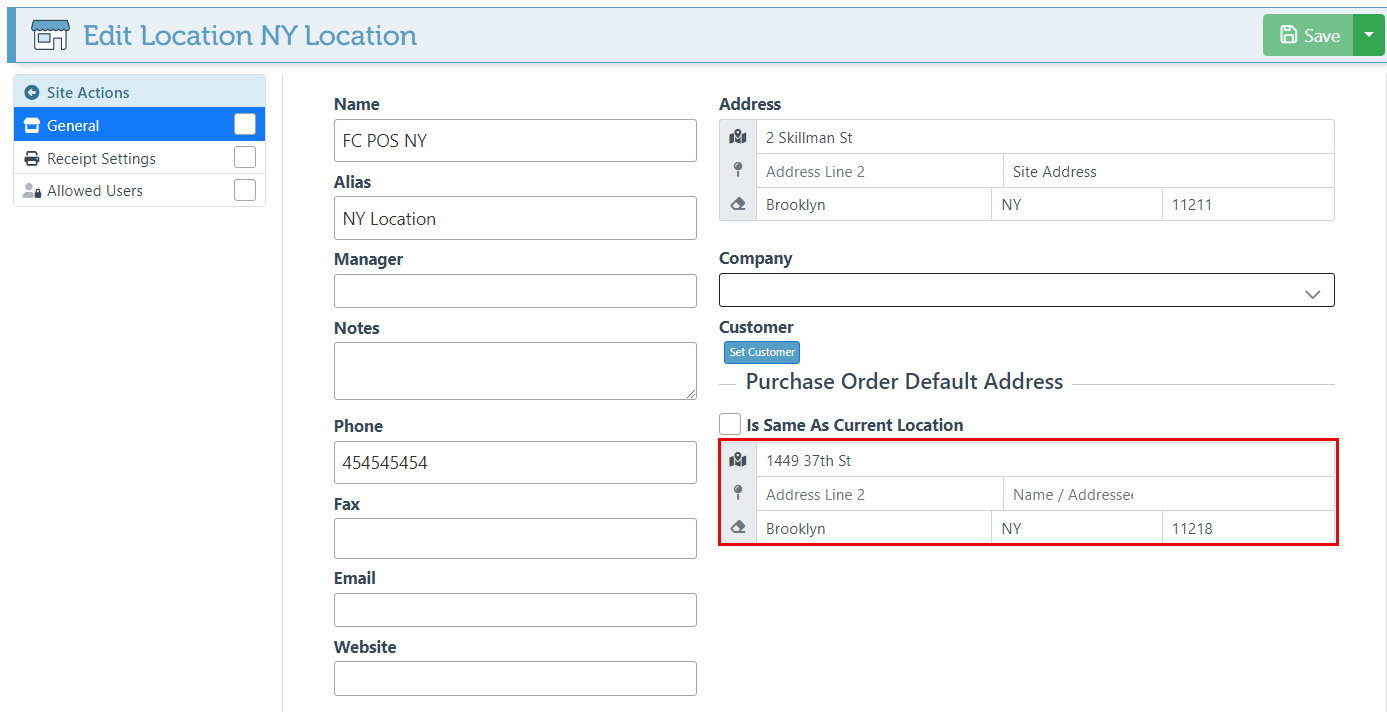
To set a different Purchase Order address, enter the address details in the second address bar.
-
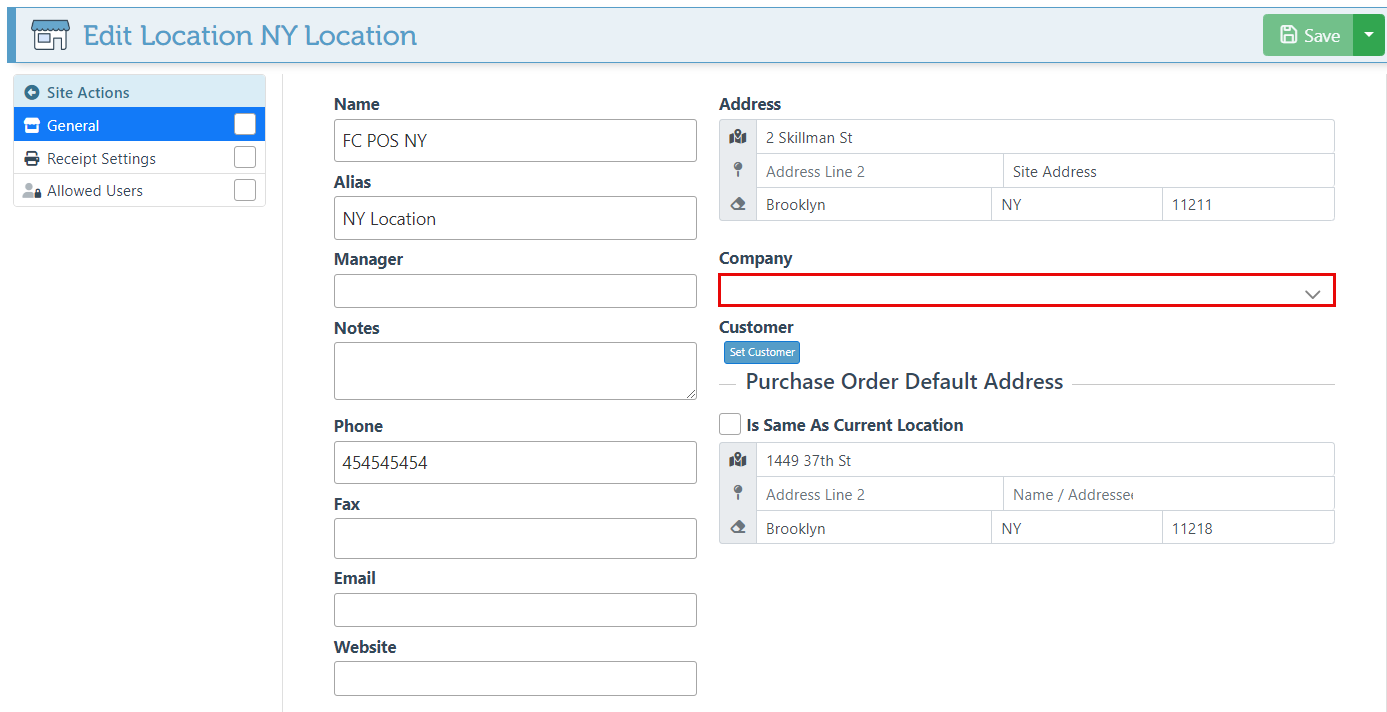
Select a company from the dropdown menu to add this location as a part of a subsidiary company. For more details on how to set up an enterprise subsidiary company, click here.
-
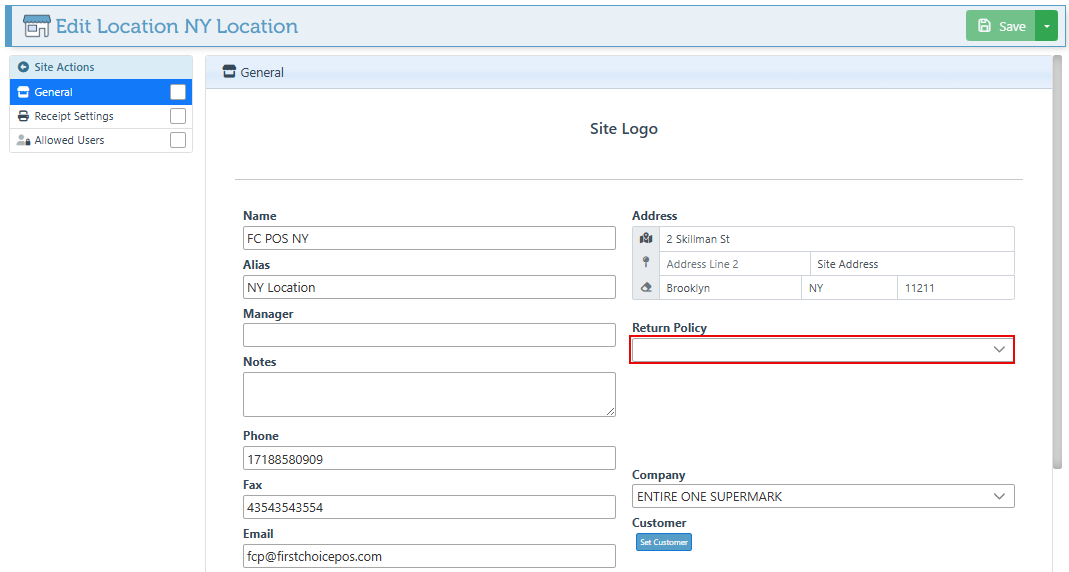
When enabled, the Return Policy dropdown will appear, where a return policy can be set for the site.
-
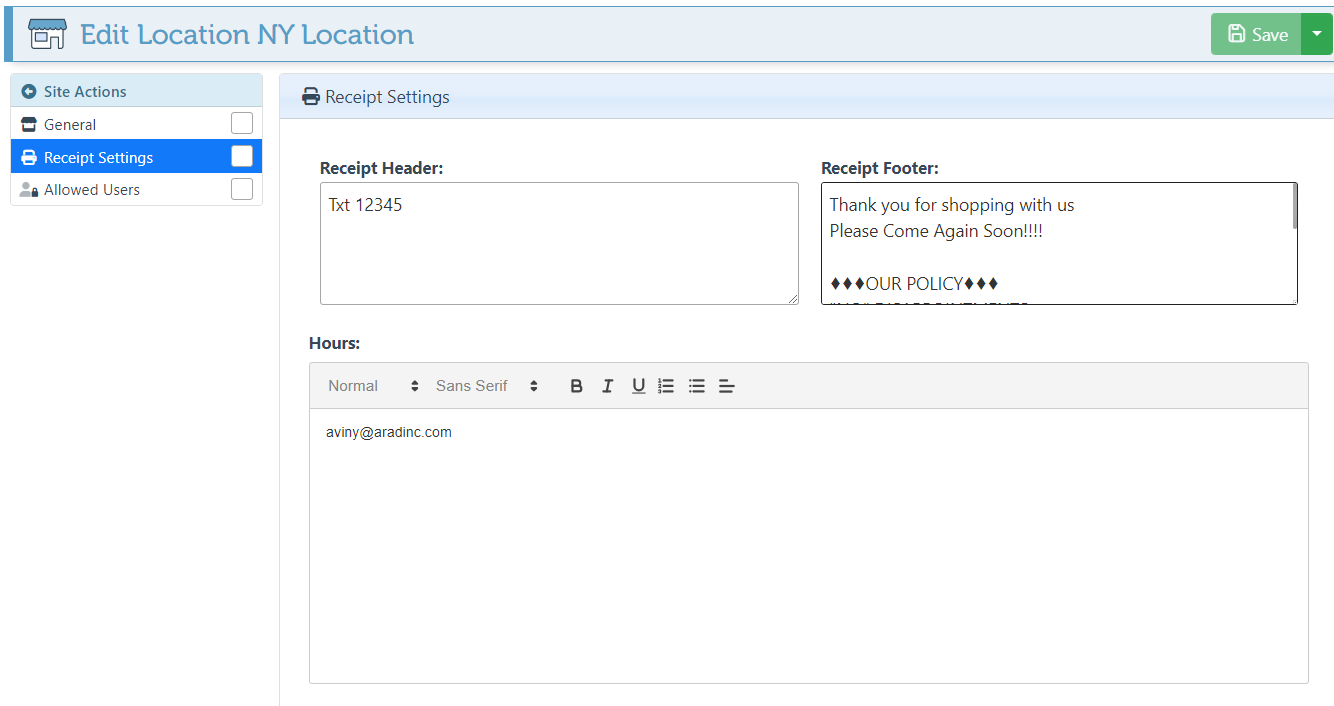
Navigate to the “Receipt Settings” tab in the Site Actions menu.
-
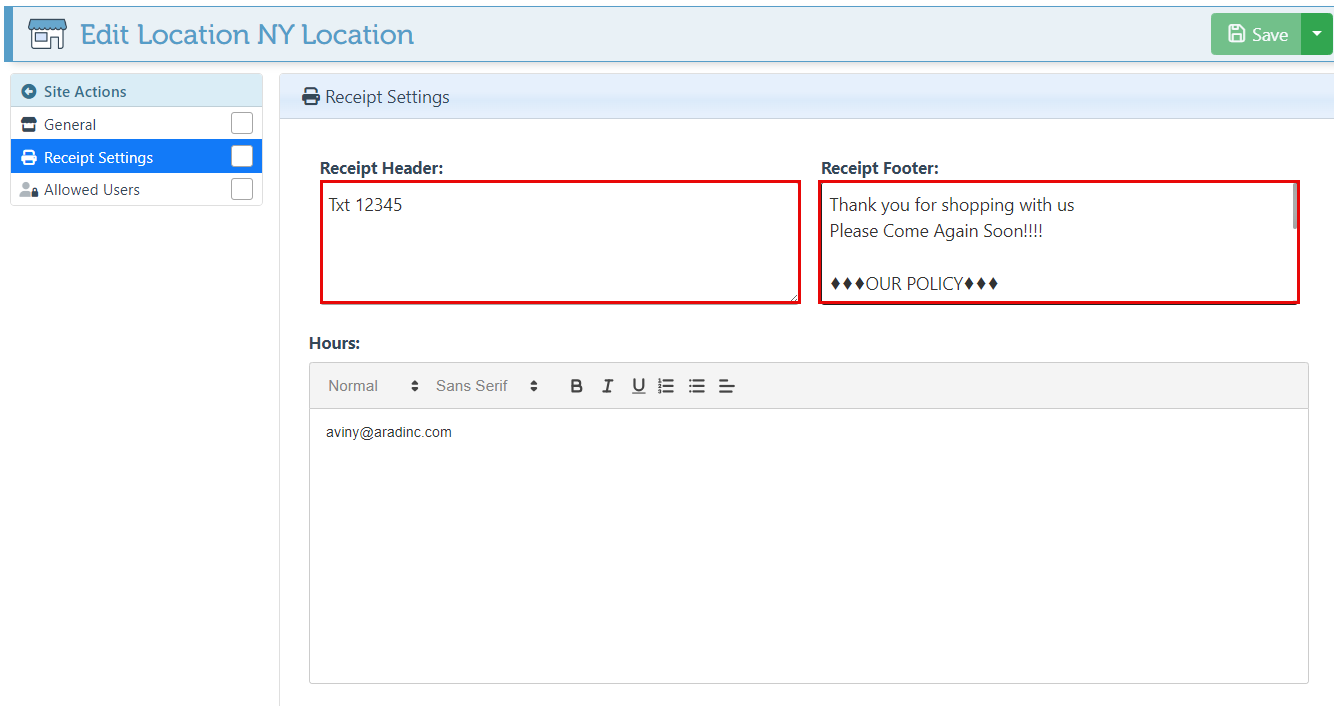
Enter text in the “Receipt Header” and “Receipt Footer” bars to set a specific receipt layout for the site.
The general layout for the receipt header and footer can be configured within the frontend settings. Ensure that the frontend header and footer configurations are not set up, as it will override the above settings. For more on how to set up general receipt settings, click here.
-
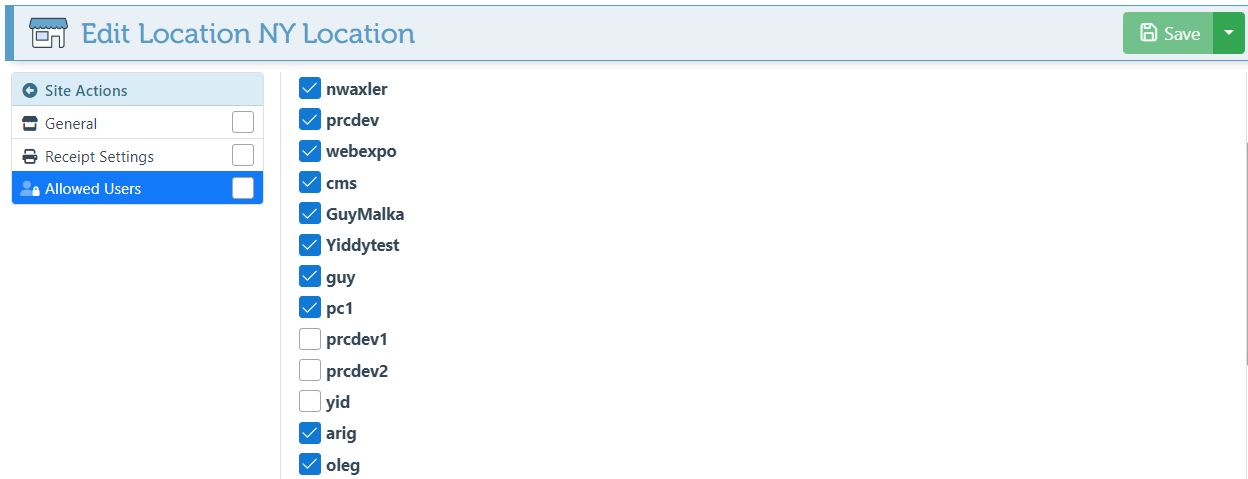
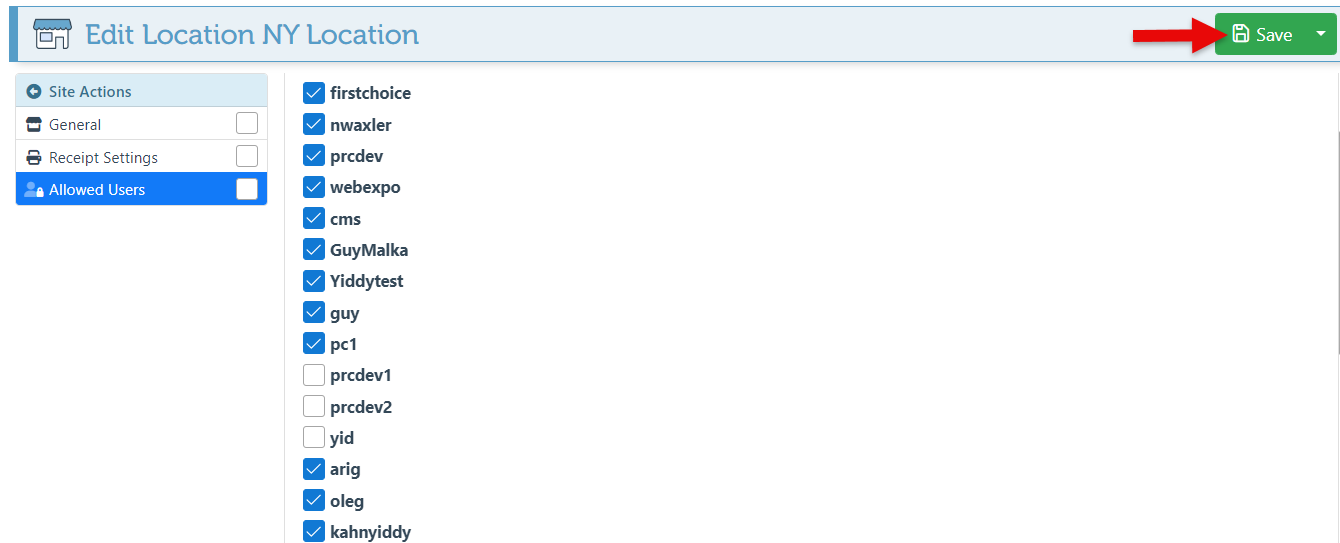
Navigate to the “Allowed users” tab in the Site Actions menu.
-
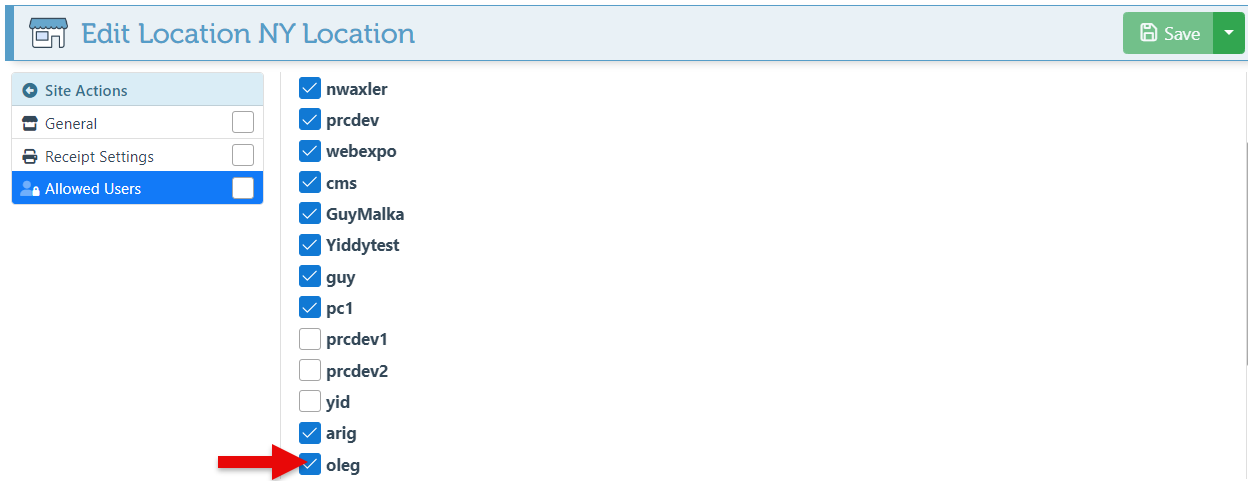
Select users to enable access to the location.
-
Click “Save” at the top right to save changes.
-
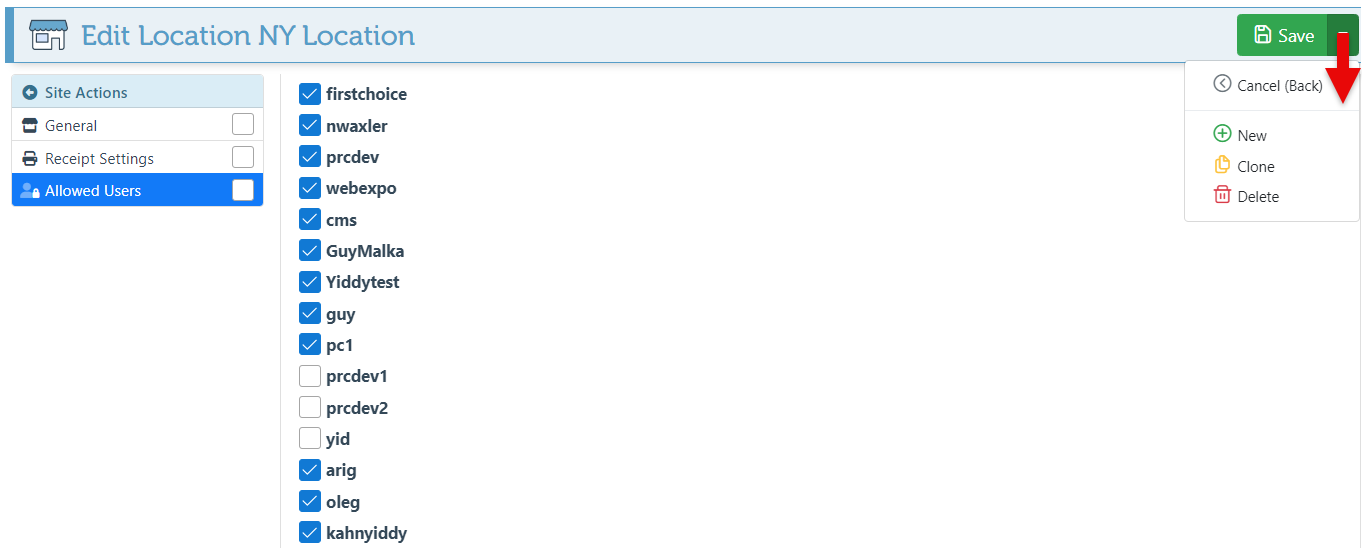
Use the save dropdown to create an additional “New” location, “Clone” to make a copy of the location, or “Delete” to delete the location.
Proceed to ensure:
-
The Enterprise Key Configuration “SharePricesBetweenSites” is enabled in order to share item pricing between sites and to ensure that item price changes are applied to all locations.
-
The Matrix/Pivot Page Layout configuration “Share Prices Between Sites” is enabled, to apply any matrix price changes to all locations.
-
The Merchant account is connected to the new location.