
What can be imported?
Imports let customers load existing business data into FirstChoice instead of entering it manually. Common cases include new location setup, POS migration, and bulk data refresh before go live.
Use POS-generated templates only
|
Import type |
Template download |
What this import is for |
|---|---|---|
|
Items |
Add or update products, prices, categories, suppliers, and item details. |
|
|
Customers |
Add or update customer records, contact information, addresses, tax status, credit limits, and categories. |
|
|
Suppliers |
Unknown Attachment |
Add or update supplier records, contact details, addresses, website info, and categories. |
|
Item Inventory |
Move or set inventory quantities by source, destination, item code, and transfer quantity. |
|
|
Vouchers |
Add or update vouchers, balances, linked customers, transaction details, and usage settings. |
|
|
Item Pricing |
Update item prices, price levels, case prices, costs, price locks, and food-stamp or WIC settings by location. |
|
|
Cards |
Import stored card or bank account details linked to customers and payment tenders. |
|
|
Single Transaction |
Unknown Attachment |
Import one transaction with buyer, account, tax status, item, quantity, workflow, and reference details. |
|
Price Rules |
Create or update discount rules, schedules, quantity limits, coupon rules, item filters, and customer or supplier filters. |
|
|
Payments |
Import payments with tender, reference, authorization, customer, ACH details, amount, payment number, and location. |
More supported import options
For other import types, create the template in POS so the columns match your system.
Supported imports include categories, inventory, pricing, accounts, payments, employees, suppliers, and transaction data.
How to get the correct template from POS
-
Open FirstChoice POS.
-
Go to Import - http://app.firstchoicepos.com/import
-
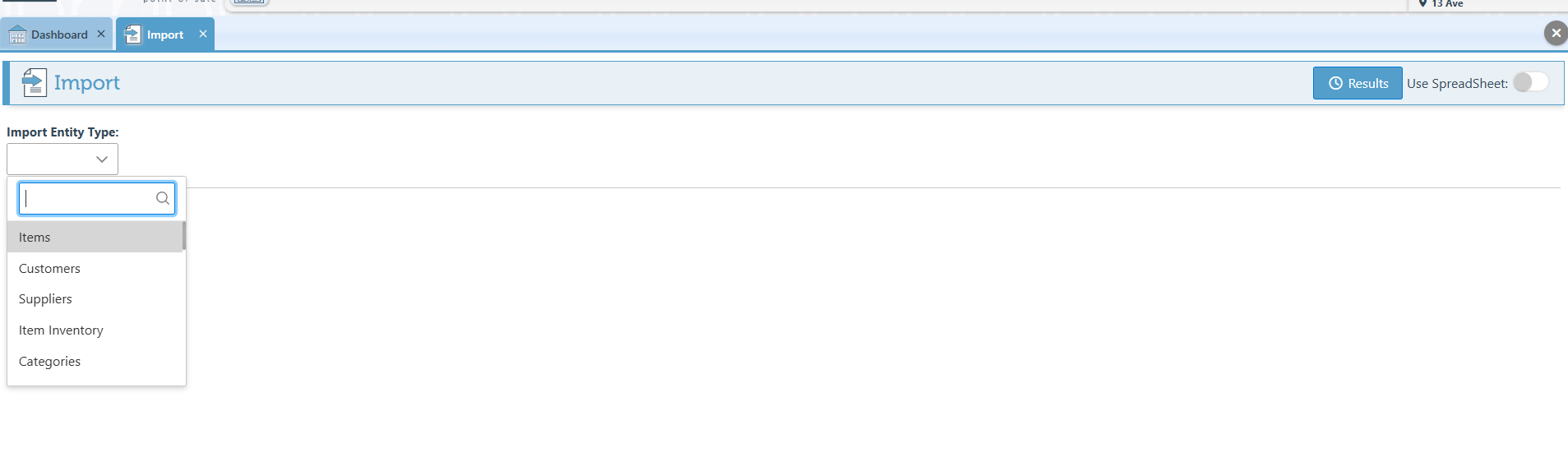
Select the import type you need.
-
Click Get Template.
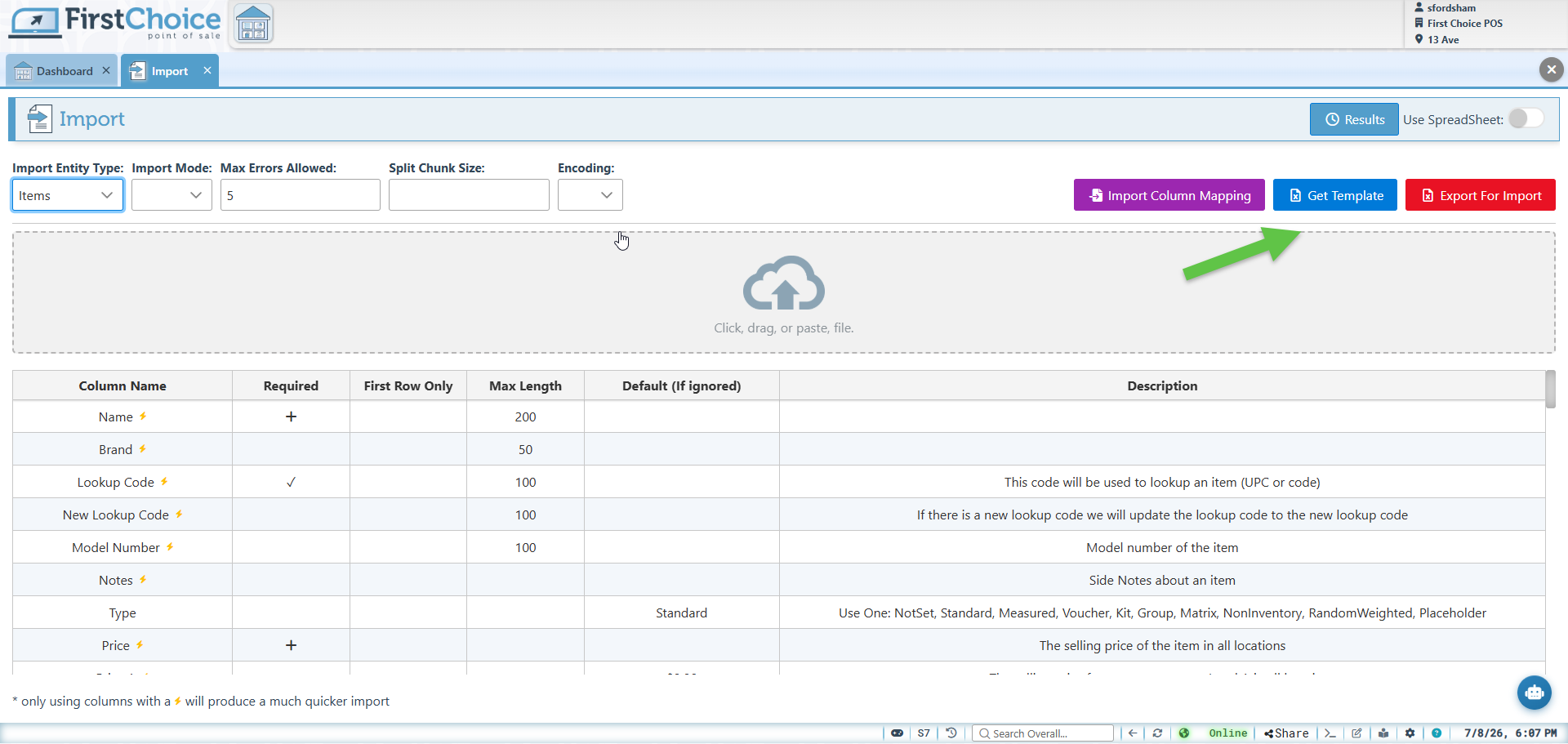
5. Fill in customer data under the headers and import the file.
Prepare your data before importing
-
One row per record - each row equals one item, customer, etc.
-
Keep IDs unique - lookup codes and barcodes must not repeat
-
Fill required fields - core fields must be complete for a clean import
-
Remove duplicates - duplicates cause import errors
-
Standardize names - clean categories, units, and naming before submitting
-
Start small - test with a small sample file when migrating messy data