The Transaction Pricing option is available on the Purchase Order page and allows item pricing to be updated directly from the PO. This feature helps ensure pricing is applied more accurately based on the item's current cost.
To access this feature, open a Purchase Order and click the “Open Txn Pricing” button in the side panel. This will open the Transaction Pricing window, where pricing calculations can be reviewed and updated.
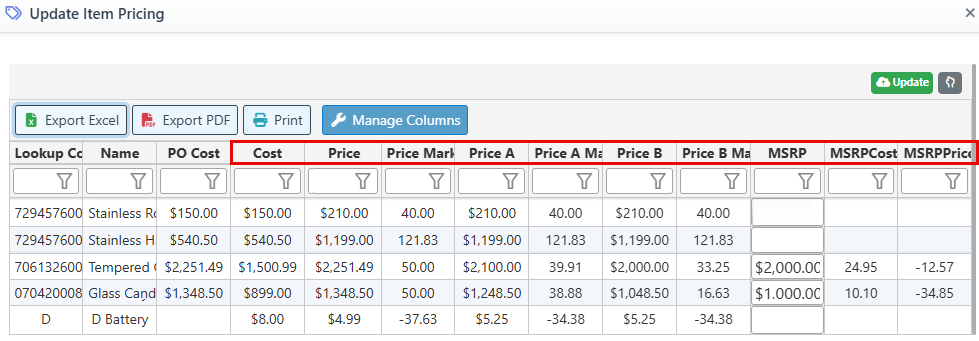
The editable columns include:
-
-
Cost – Update the item's cost.
-
Price – Update the item's selling price.
-
Price Markup – Enter a markup percentage to automatically recalculate the Price based on the item's cost and the updated markup percentage.
-
Price A – Update Price A.
-
Price A Markup – Enter a markup percentage to automatically recalculate Price A based on the item's cost and the updated markup percentage.
-
Price B – Update Price B.
-
Price B Markup – Enter a markup percentage to automatically recalculate Price B based on the item's cost and the updated markup percentage.
-
MSRP – Update the item's MSRP.
-
MSRP Cost – Enter a markdown percentage to automatically recalculate the Cost based on the MSRP and the updated markdown percentage.
-
MSRP Price – Enter a markup percentage to automatically recalculate the Price based on the MSRP and the updated markup percentage.
-
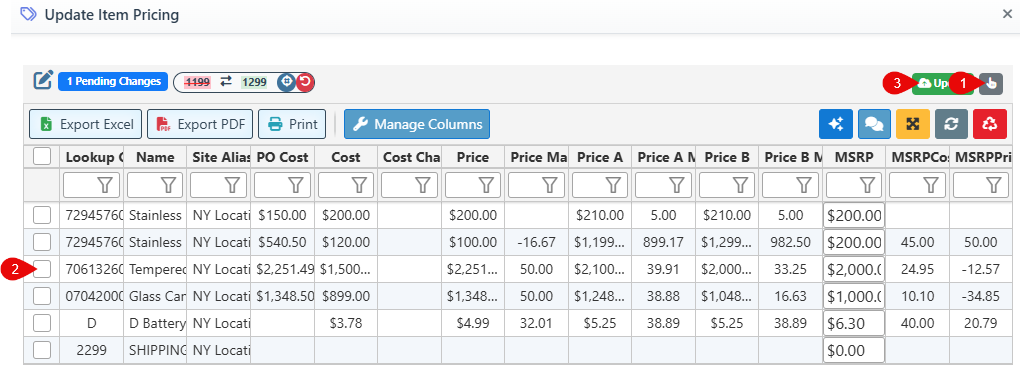
To apply the same update to multiple items, click the Manual edit button(1), and proceed to select items by clicking the check box to the left of the item row(2). Finally, click the “Update” button to apply the change to the selected items(3).