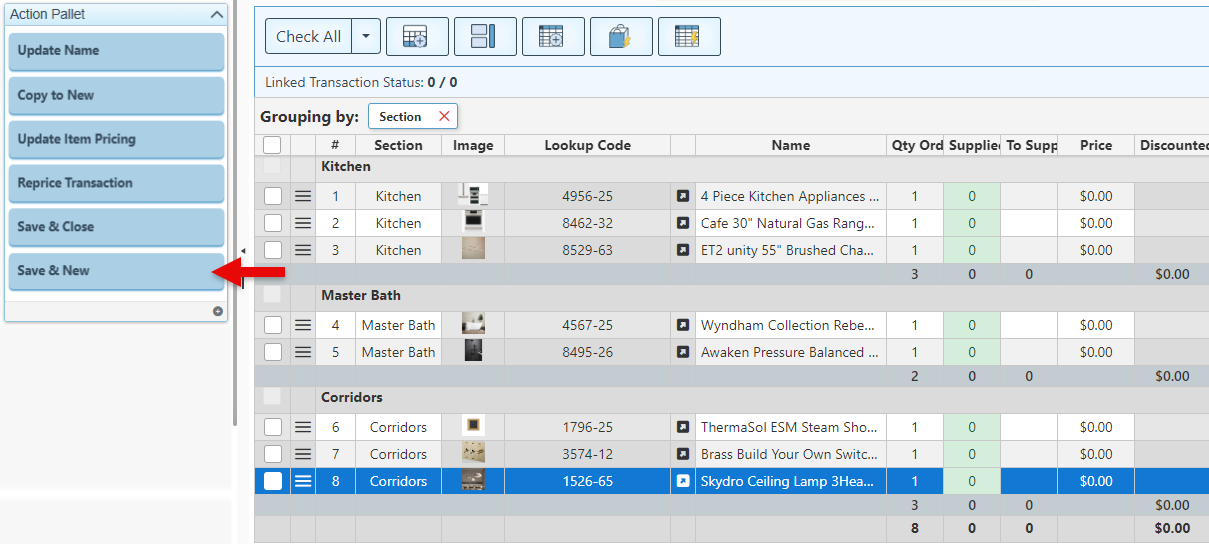
Below is a guide to the Purchase Order Action Pallet, where multiple advanced actions can be done to the purchase order or its entries:
-
Open Backoffice.
-
Click “Transactions” in the Main Navigation menu and select “Purchase orders” from the scrollable dropdown.
-
Click to select the relevant purchase order, or click the “New” button at the top right to create a new Purchase order.
-
Select the checkbox at the left of an item row(s) to perform any action on the item.
The buttons and actions displayed in the Side Panel can be customized based on preference. The buttons can be removed or added as needed, and additional buttons can be configured. To configure a new panel button, hover over the top right corner of the action pallet and click the settings button that appears. For more details on how to configure the panel button, see Configure a Panel Button.
-
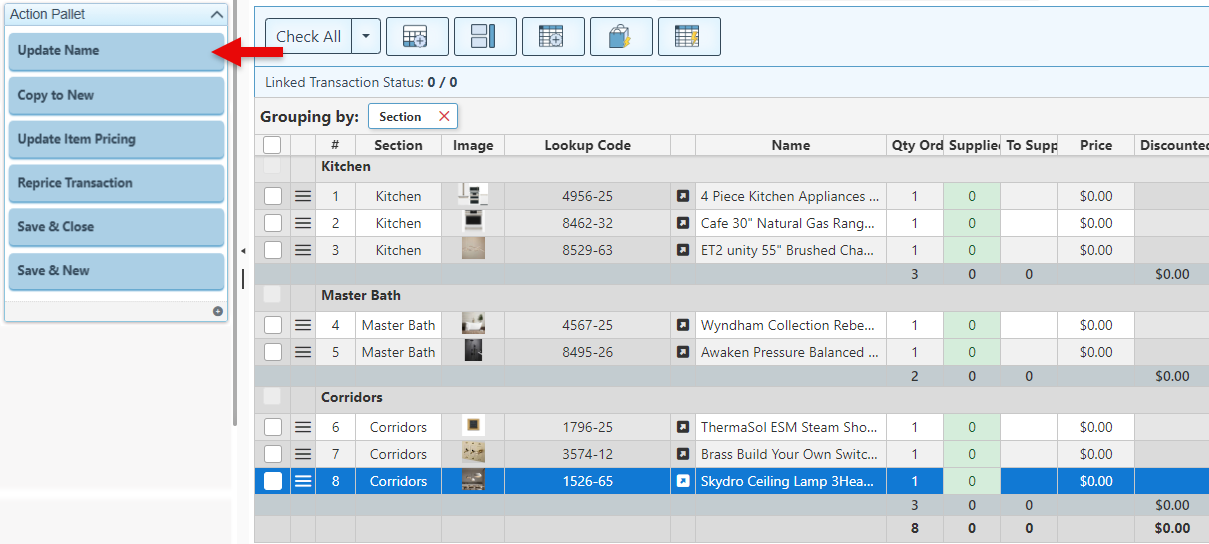
Click “Update Name” to update the item's name on the purchase order. This is necessary if the item name has been changed elsewhere in the system after it was added to the PO, for example, if the item name was modified or if an attribute affecting the item's name was deleted or updated.
-
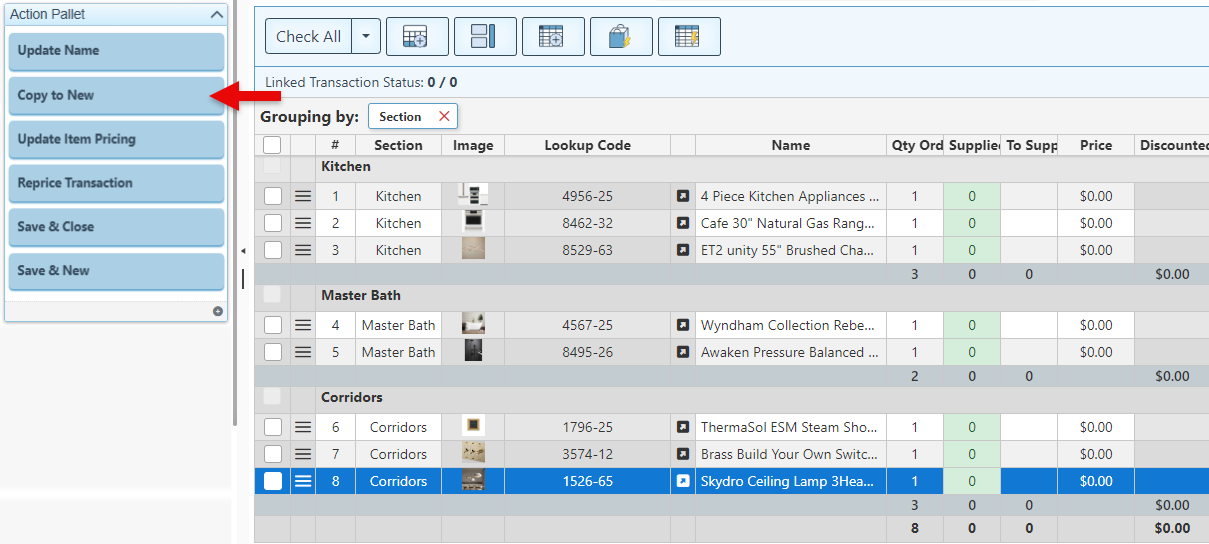
Click “Copy to New” to copy the selected item entries and paste them into a new PO. The copied entries will remain in the original PO while being duplicated.
-
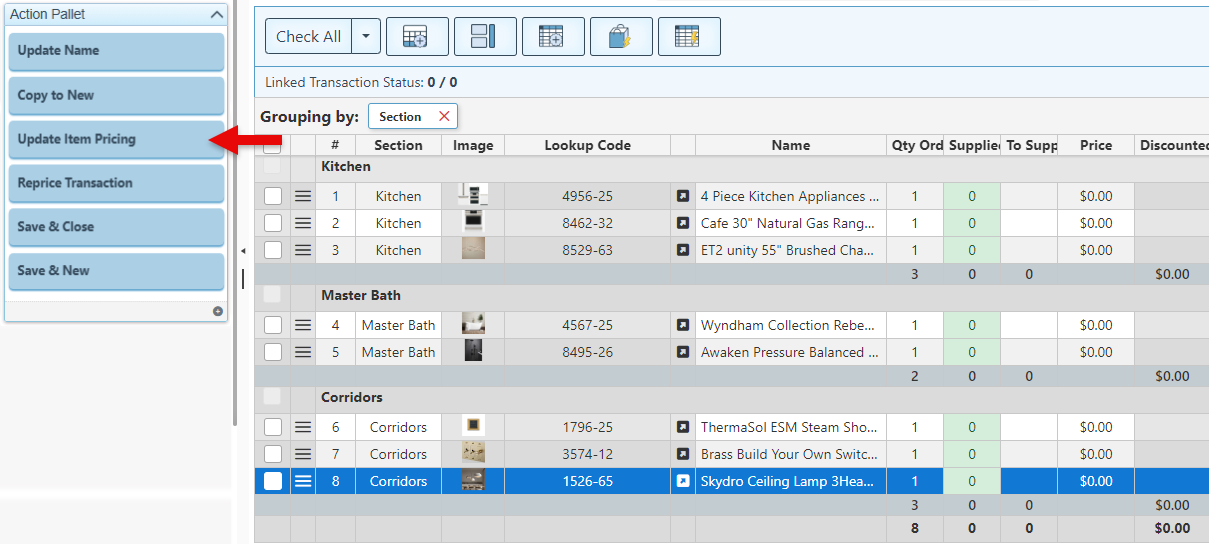
Click “Update Item Pricing” to access a list of the selected items with editable pricing fields, allowing for the modification of the item prices.
These changes to the items list will affect both the item price in the purchase order and the item price in the system.
-
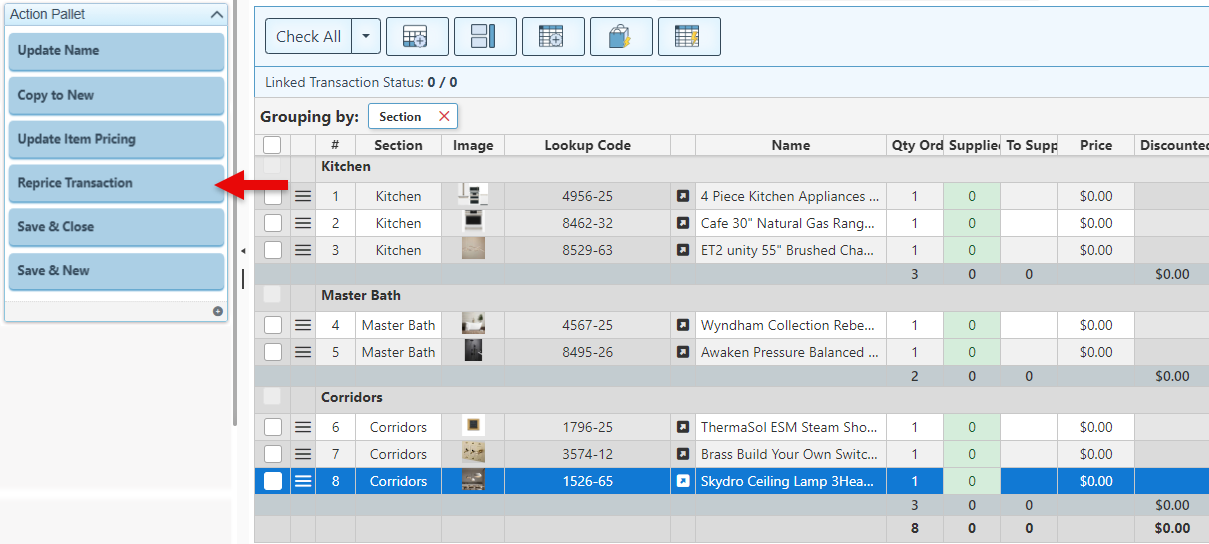
Click “Reprice Transaction” to restore all item prices to the original value. This is used in the event that item prices have been manually adjusted on the PO.
-
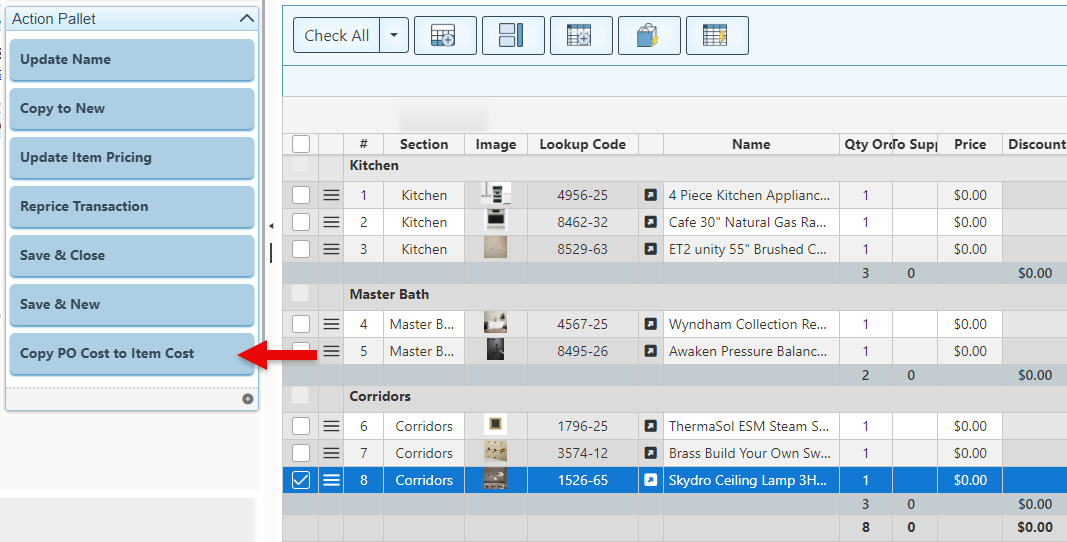
Click the “Copy PO Cost to Item Cost” button to update the default item cost to match the item cost on the PO.
-
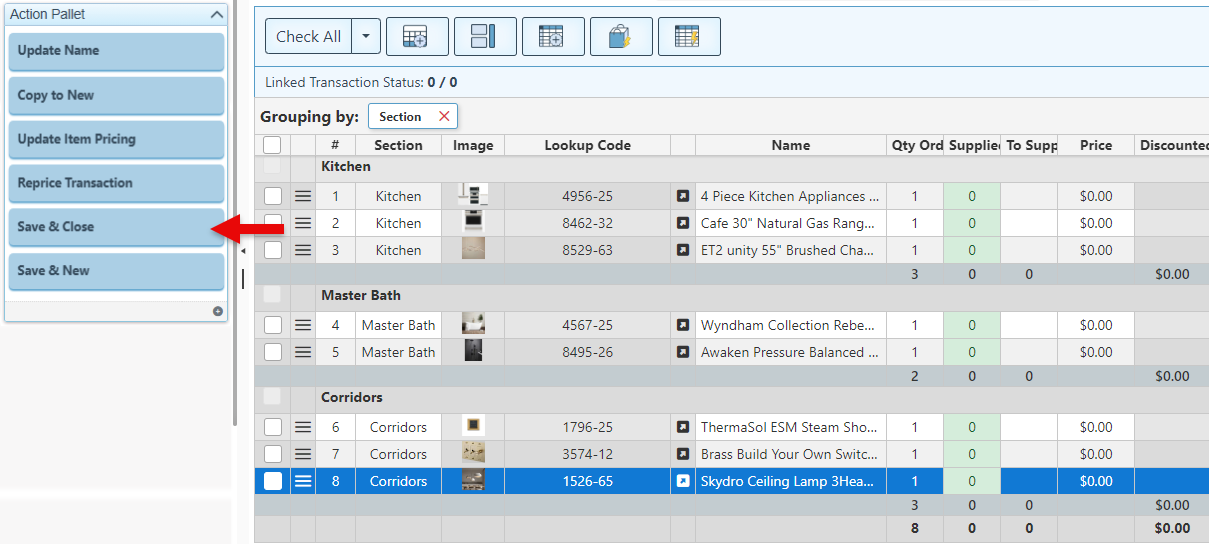
Click “Save & Close” to save the PO and return to the Main Navigation menu.
-
Click “Save & New” to save the transaction and open a new PO.