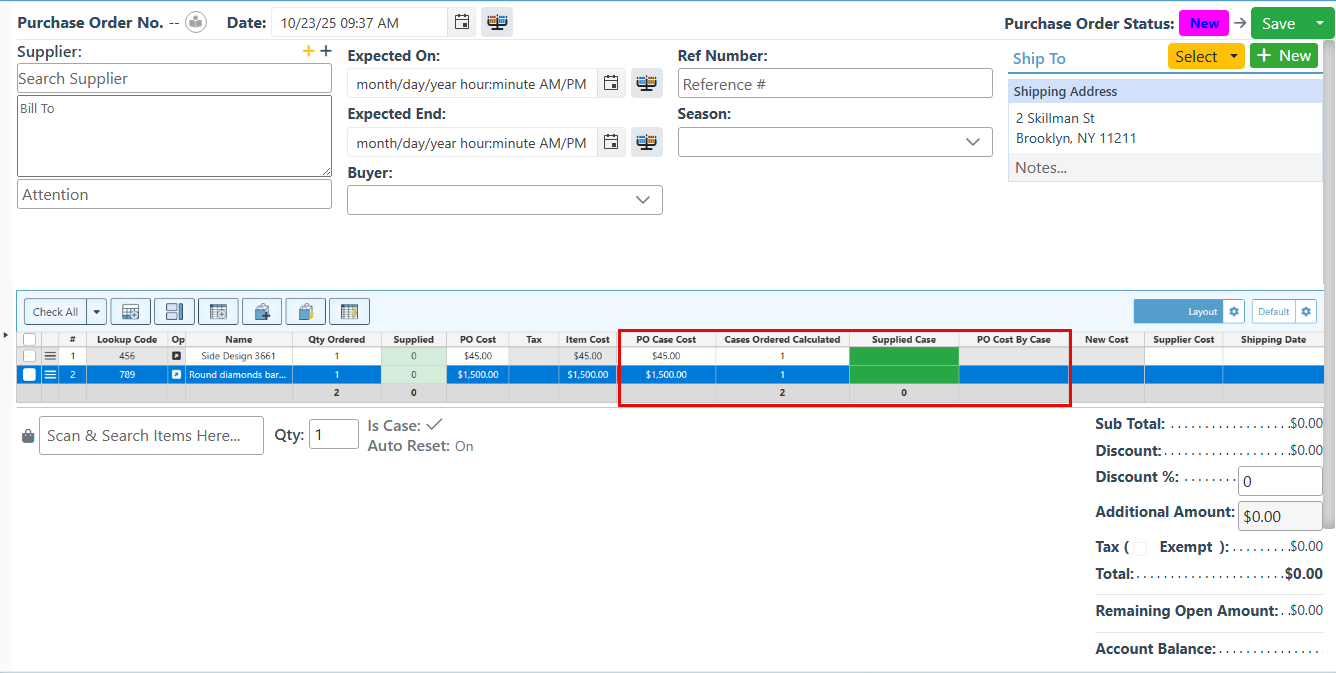
Below is a guide on how to enable items to be automatically scanned as a case and then supplied as cases on the purchase order.
-
Open Backoffice.
-
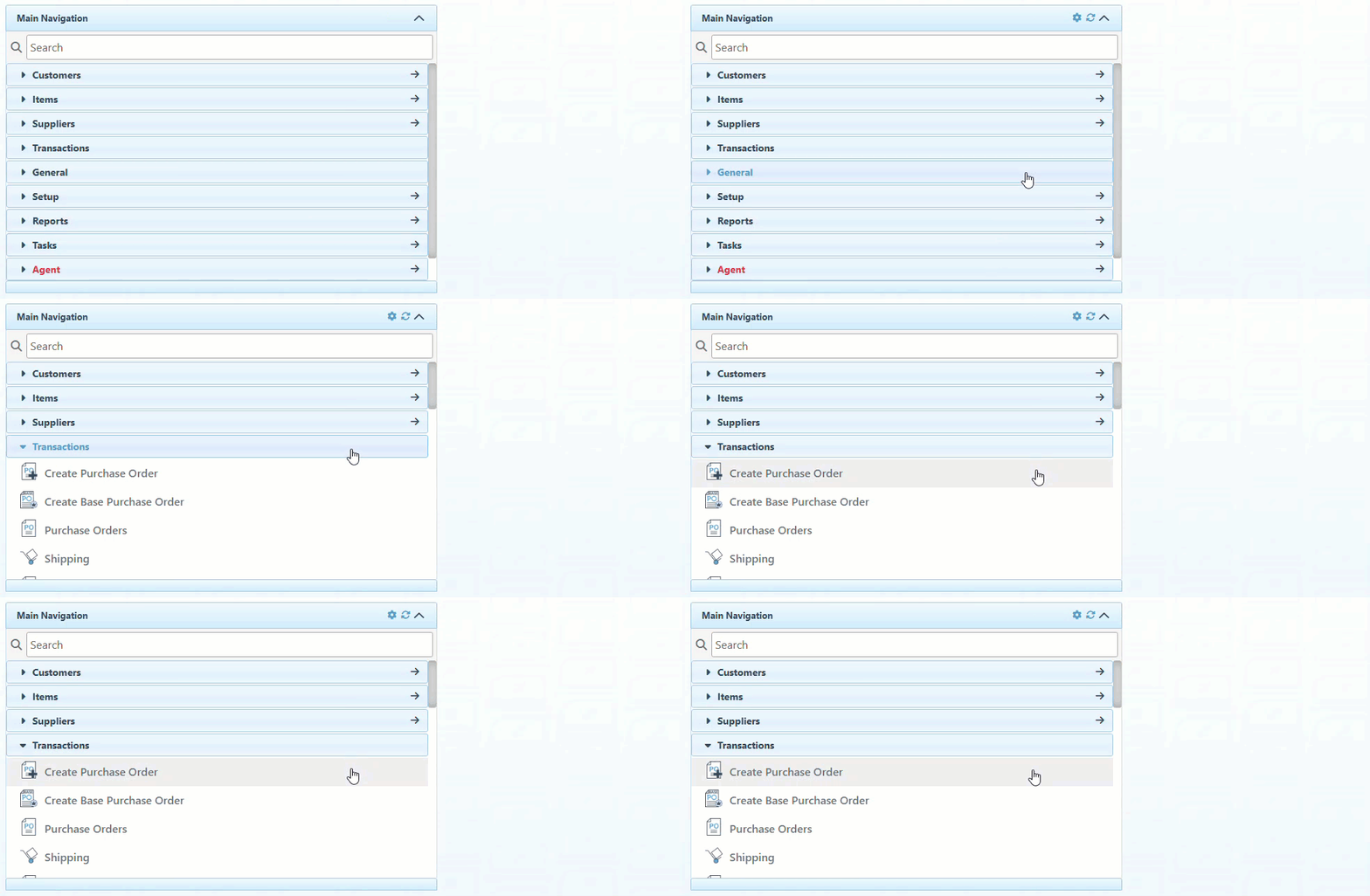
Click “Transactions” in the Main Navigation menu and select “Create Purchase Order” from the scrollable dropdown. (Alternatively, select “Purchase Orders” and choose the relevant purchase order from the list.)
Configure to Scan Items as Case
-
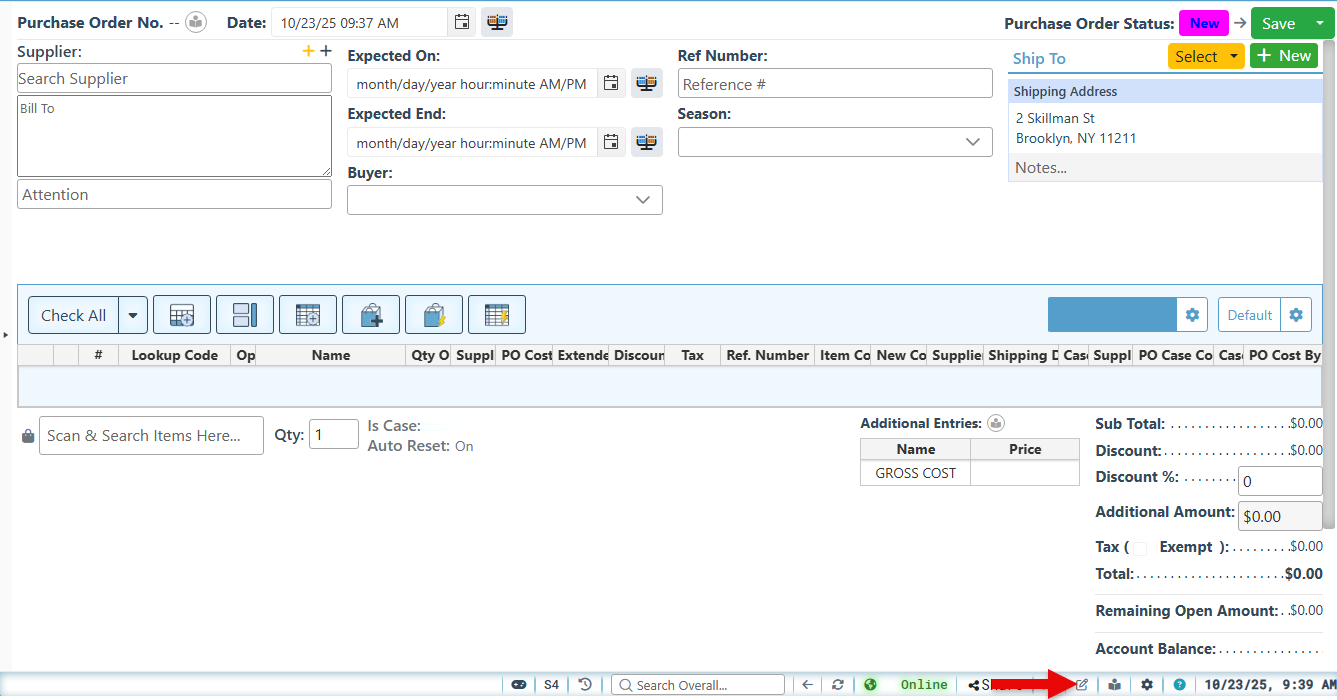
Click the Page Layout configuration icon on the page footer.
-
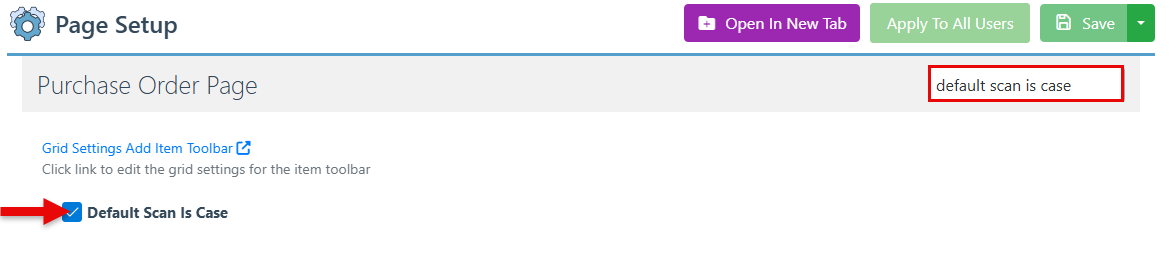
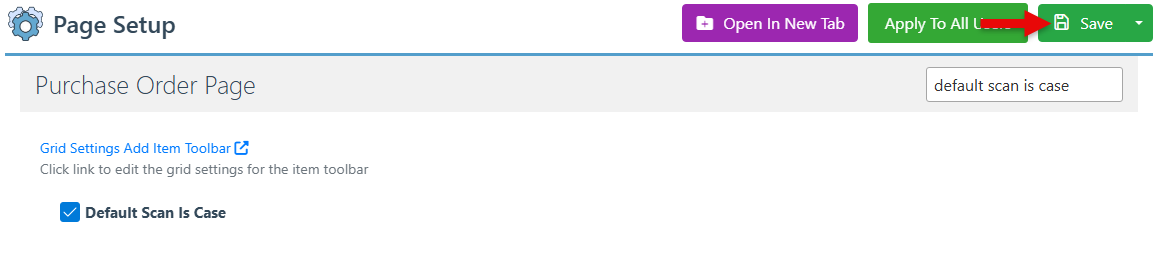
Use the search bar at the top right to search for the “Default Scan Is Case” configuration and select the checkbox to enable.
-
Click “Save” at the top right.
-
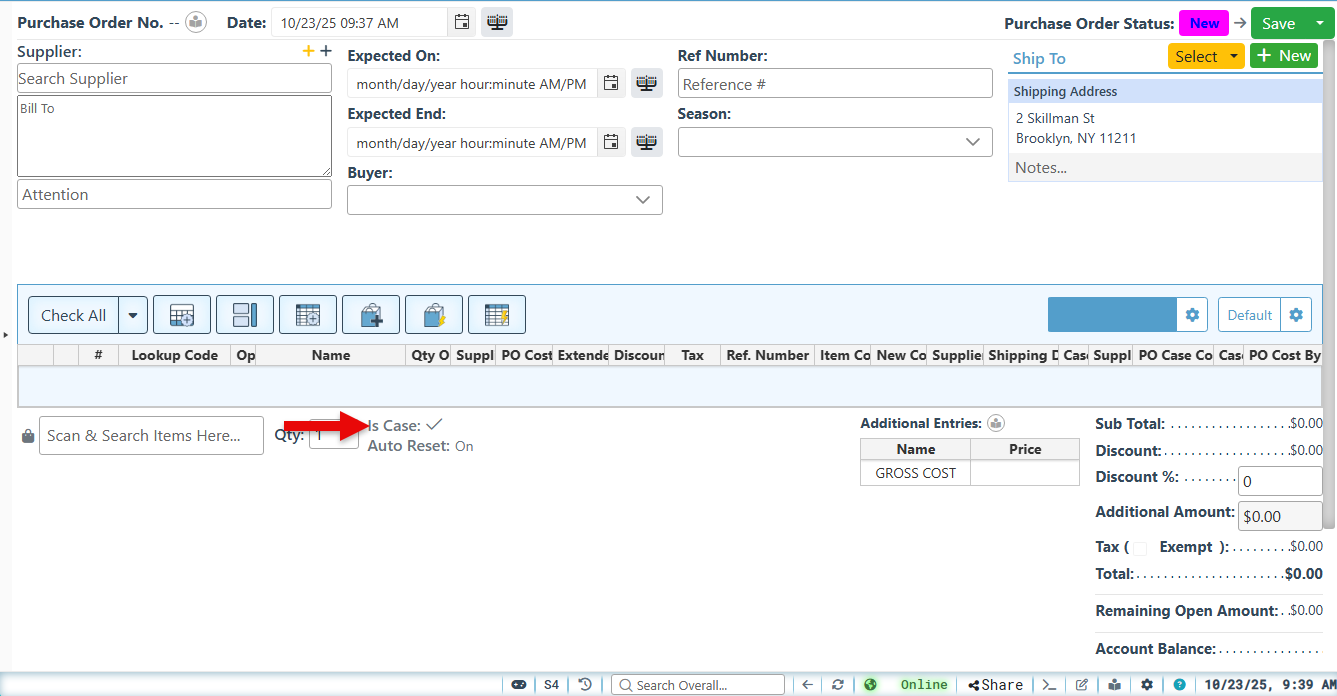
The “Is Case” feature will now be checked by default.
Supply Items by Case
-
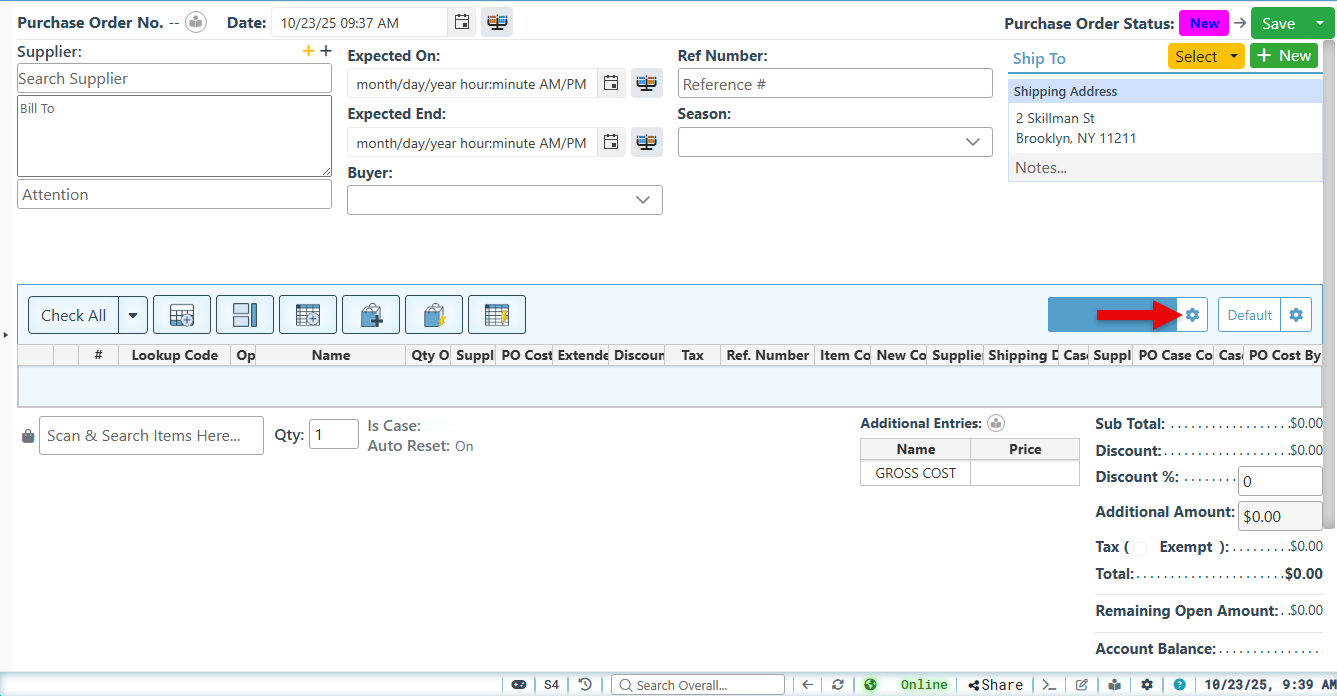
Click the Layout Settings button to open the grid layout configurations.
-
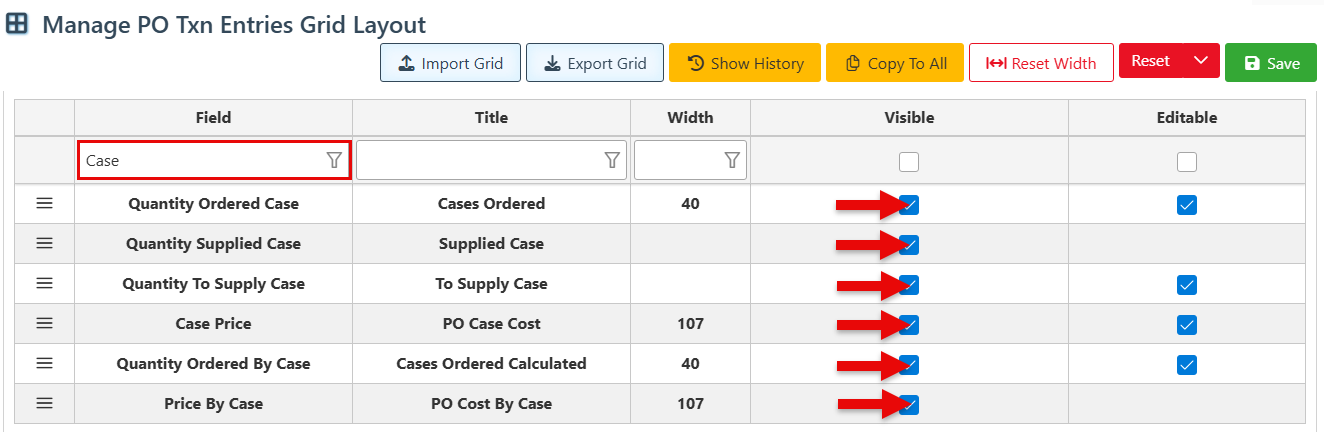
Search “Case” using the Field search bar and select the Visible checkbox for all the appearing columns to enable orders to be calculated and supplied by case.
-
Click “Save” at the top right to save.
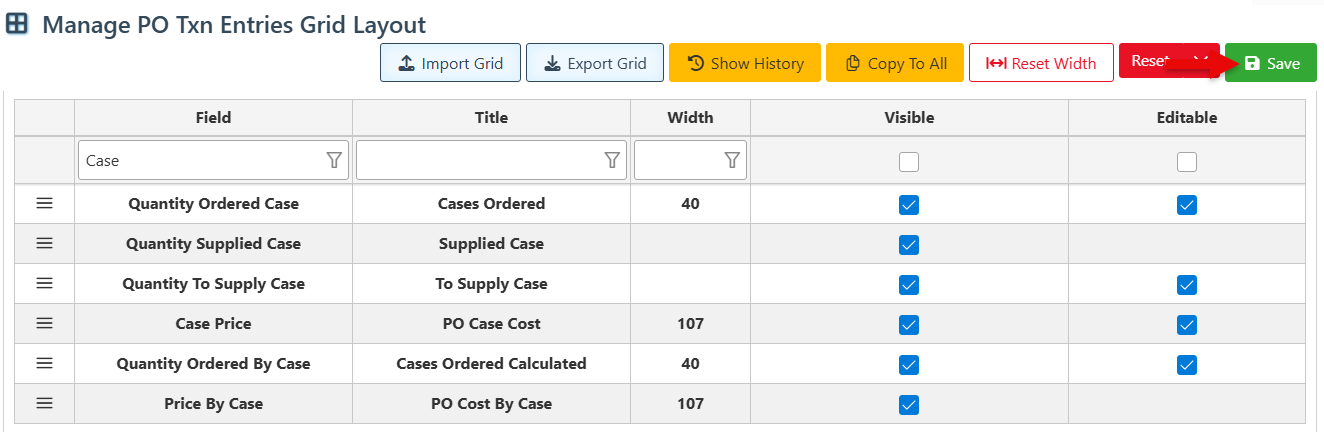
10. The purchase order grid layout will now feature the “Case” columns for a detailed and accurate record of cases ordered and supplied, along with the item pricing per case.