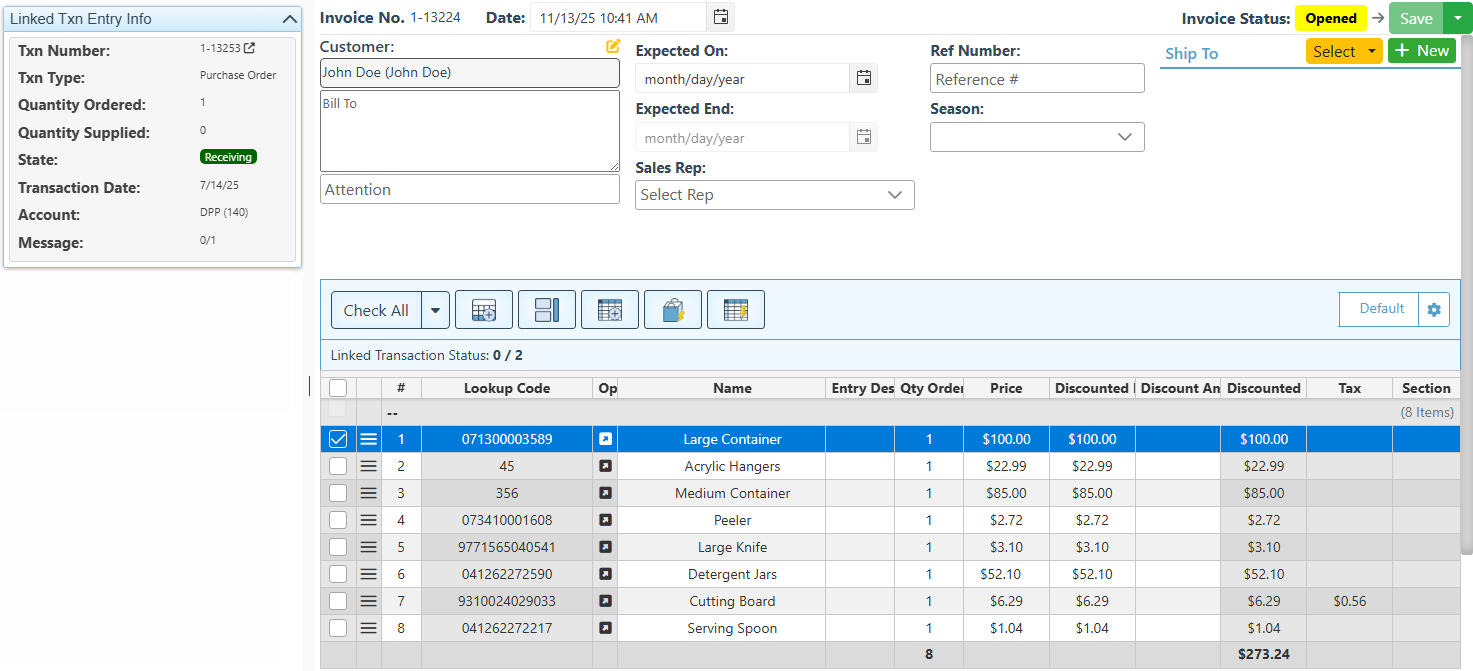
Below is a guide on enabling the linking of purchase orders to invoices, along with instructions on how to use the feature on the invoices.
-
Open Backoffice.
-
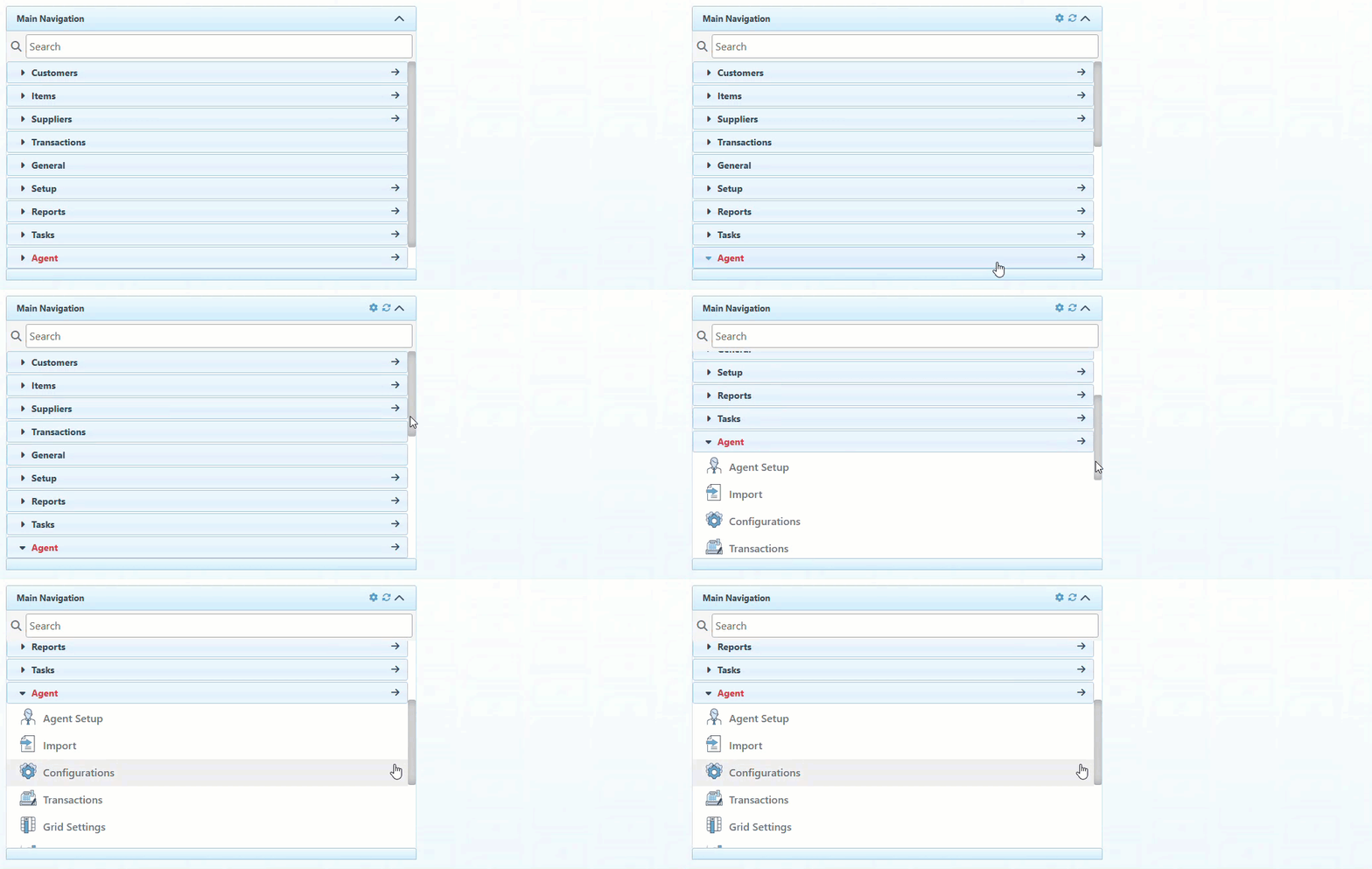
Click “Agent” in the Main Navigation menu and select “Configurations” from the scrollable dropdown.
-
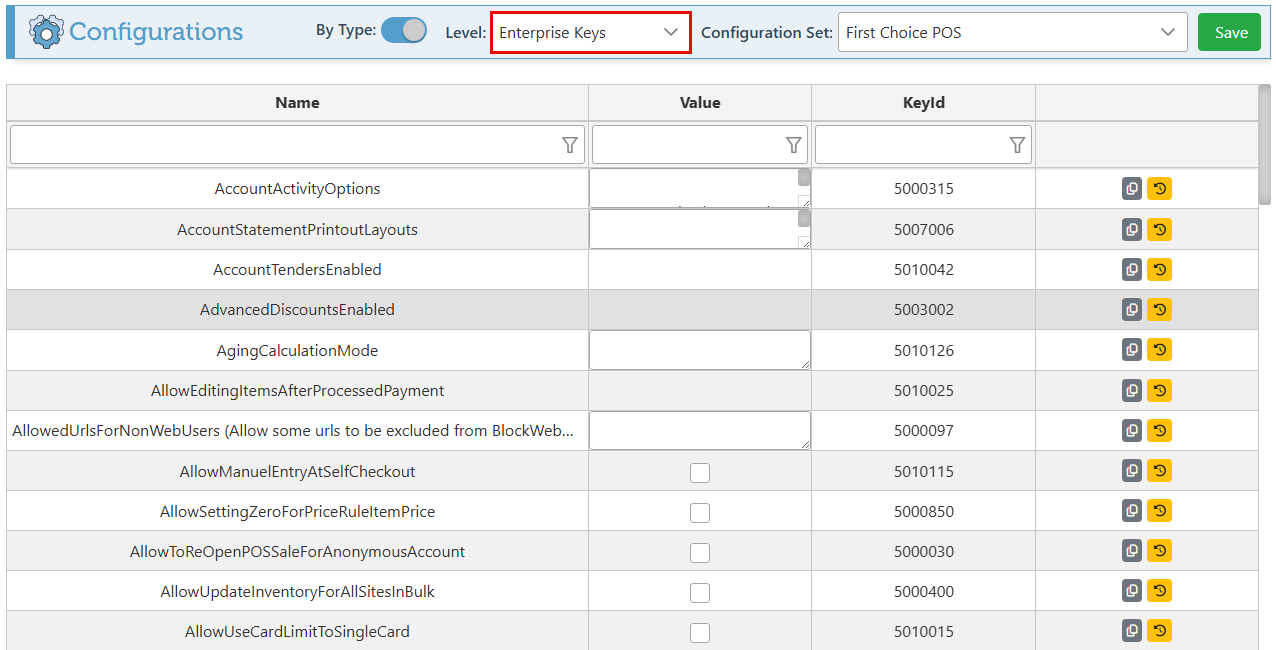
Select “ Enterprise Keys” in the Level dropdown menu.
-
Use the Name header to search for the “LinkedPurchaseOrderEnabled” configuration and select the Value checkbox to enable it.

-
Click “Save” at the top right.

-
Navigate to the invoice page where the “Create PO” button will now be enabled.
-
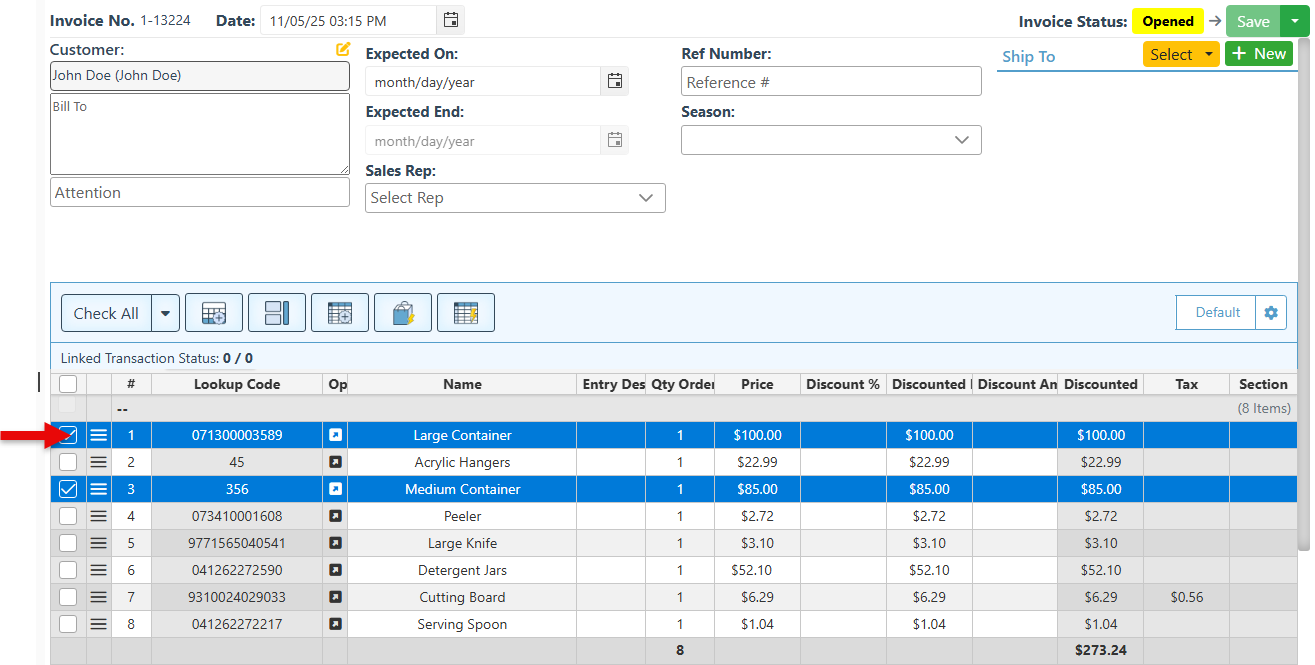
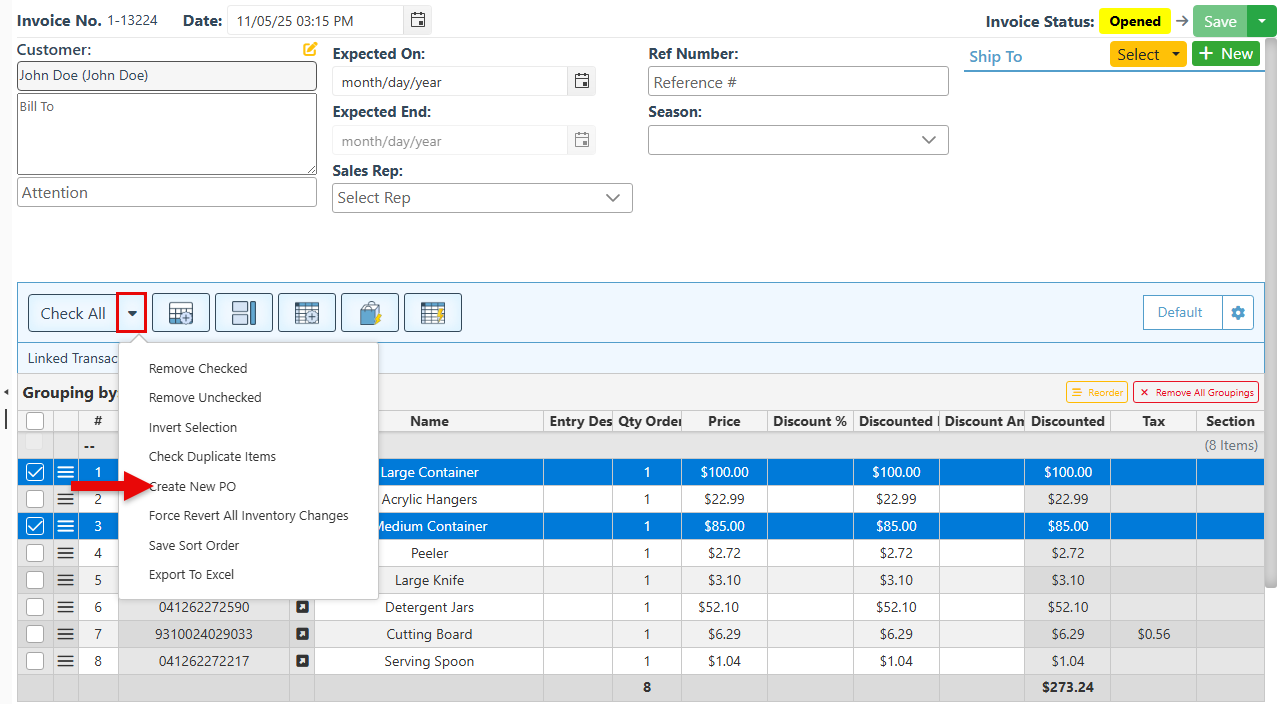
Select entries for which to create or link a PO.
-
Click the arrow button in the header to expand the dropdown menu, and select “Create New PO.”
-
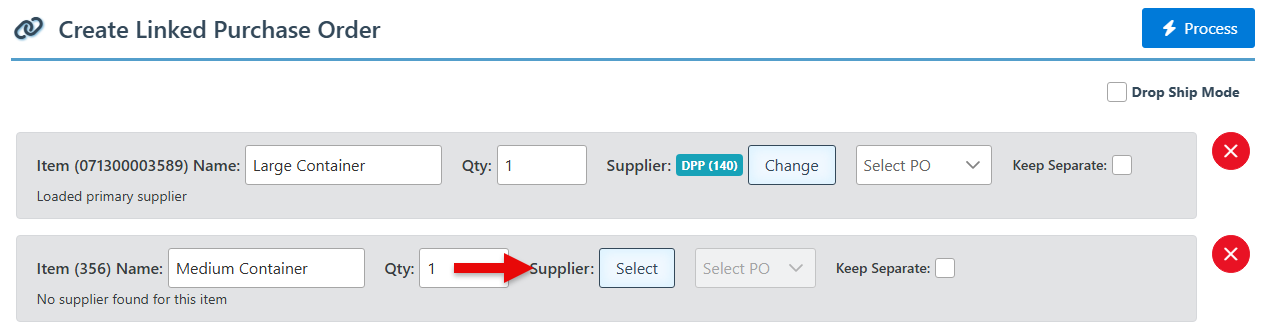
A pop-up featuring the selected entries will appear. For items with a default supplier, the supplier will be automatically selected. Otherwise, use the “Select” button to select the item supplier manually.
-
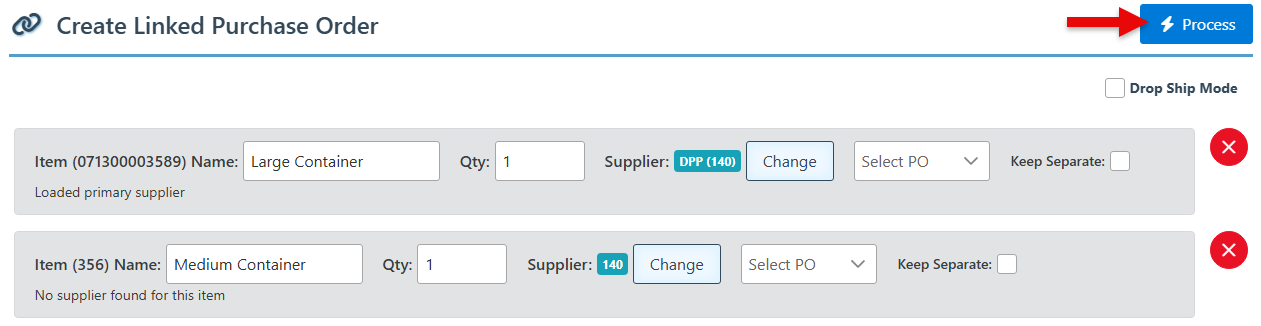
To create a new PO(s) for the items, click “Process.” This will automatically create separate POs according to the supplier.
-
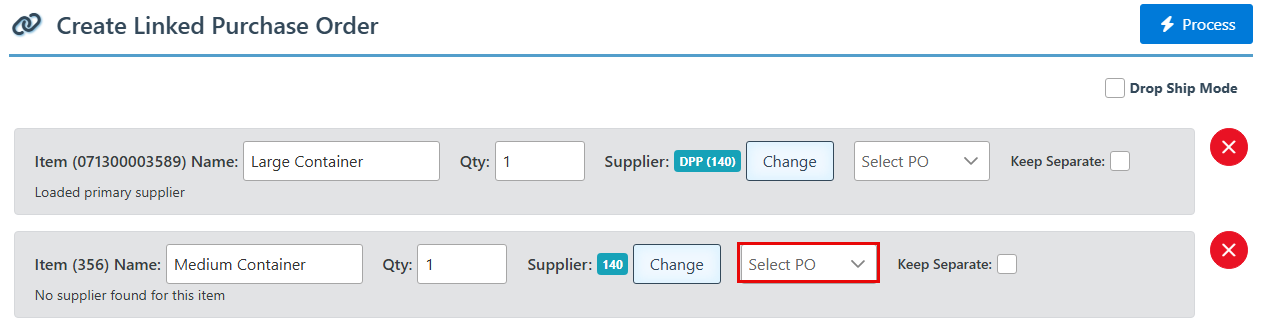
To link the items to an existing PO, use the “Select PO” dropdown to select the relevant PO and click the “Process” button.
-
When selecting an entry linked to a purchase order, the details of the linked purchase order will be displayed in the “Linked Txn Entry Info” widget.