
Below is a guide on how to create a return for items on a PO/invoice and automatically link it to the original purchase order or invoice. Additionally, the guide illustrates how to later view a summary of the transaction items, showing which items were sold, returned or available.
Linking a return to its original transaction makes it possible to:
-
See which purchase order or invoice a return came from.
-
See every return made against an original purchase order or invoice.
-
Track how many items remain available to return, which prevents returning more than was ordered or invoiced.
For clarity purposes, Purchase orders are used to demonstrate the following. Although the same applies for invoices.
Take a Return
The “Take Return” option is only available on an original purchase order and will not appear on return purchase orders.
-
Open Backoffice.
-
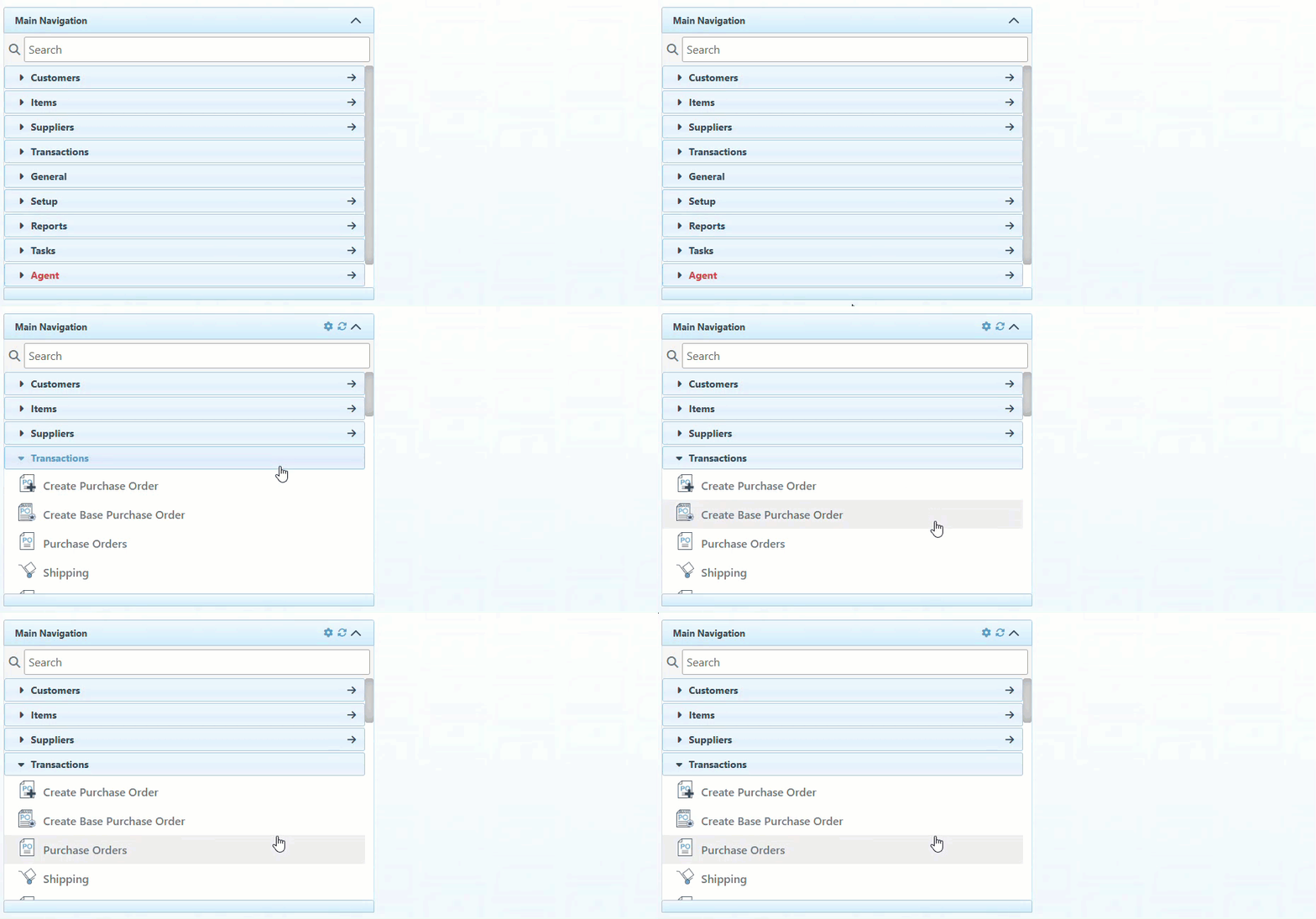
Click “Transactions” in the Main Navigation menu and select “Purchase Orders” from the scrollable dropdown. Choose the relevant purchase order from which to return items.
-
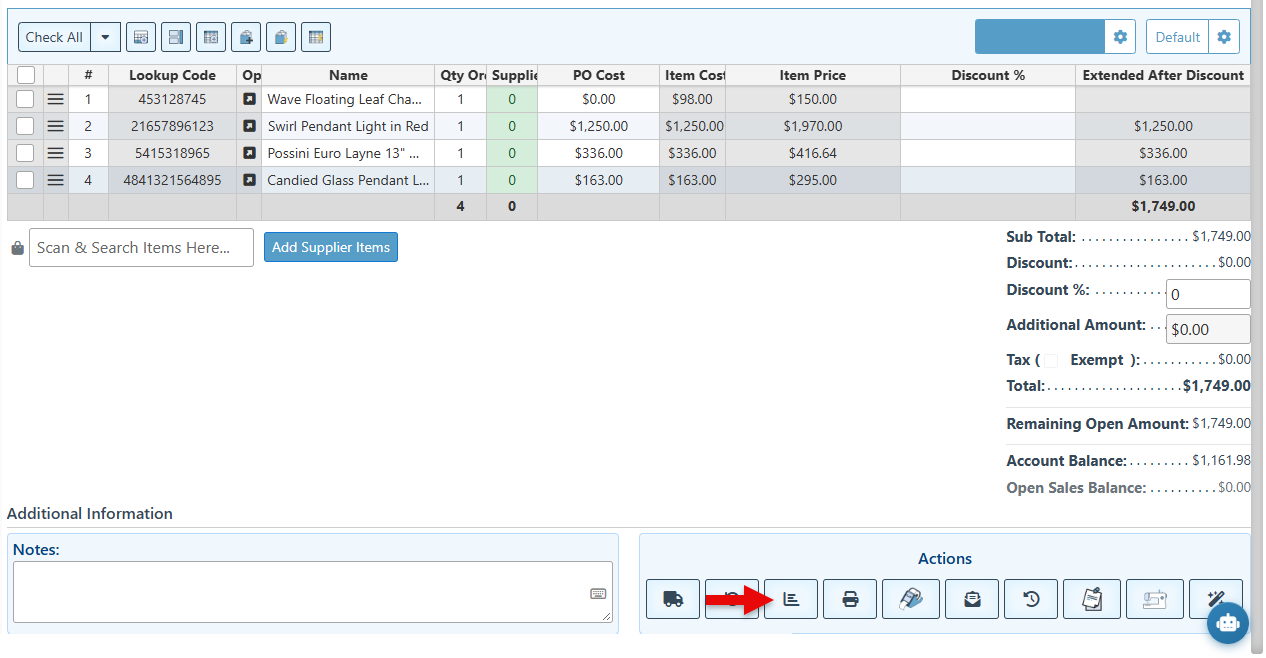
Click the “Take Return” button in the Actions panel at the bottom right of the page, to take a return for items on the PO.
-
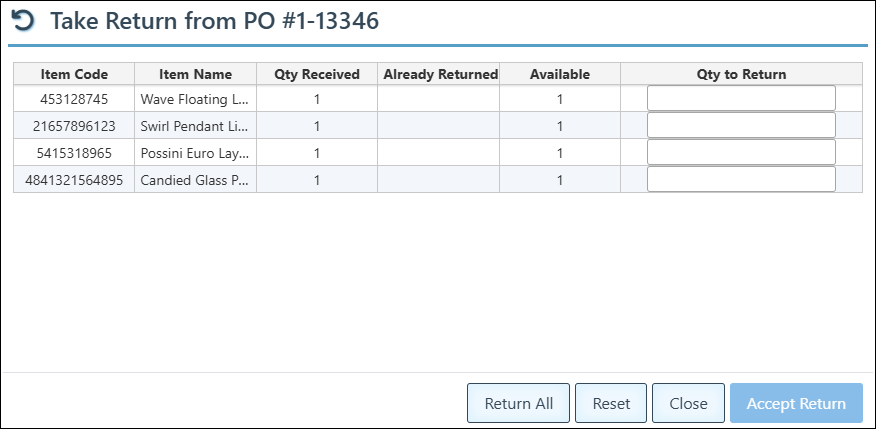
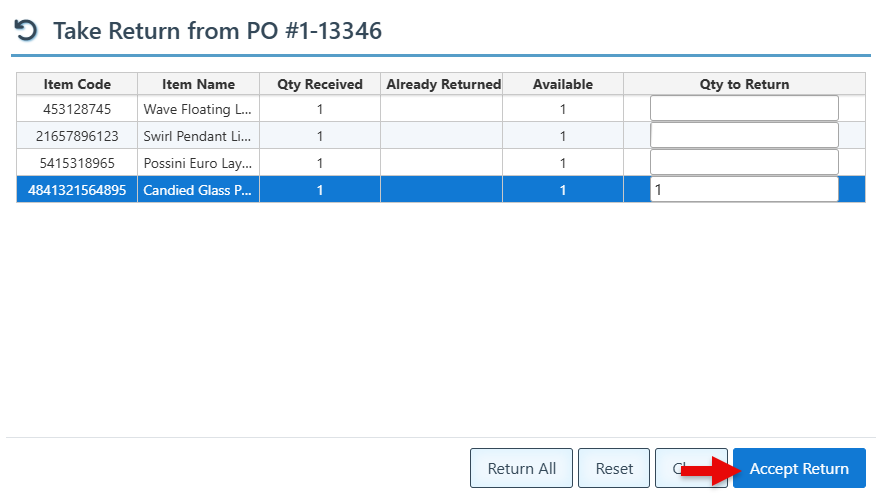
The “Take Return from PO” pop-up will appear, listing every item on the purchase order. Fields in the grid show:
-
Qty Received– the quantity already received on the original purchase order.
-
Already Returned – the quantity already returned on earlier return POs.
-
Available – the quantity that can still be returned.
-
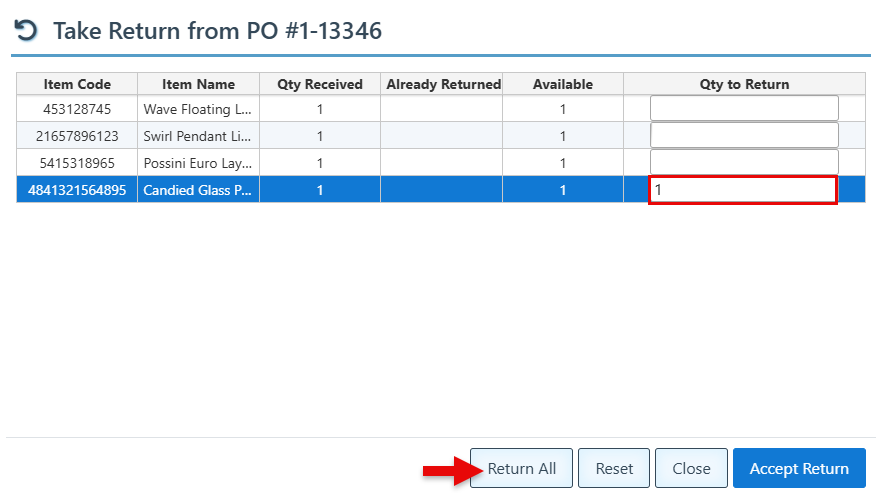
Enter the quantity to return for each item in the “Qty to Return” column. Alternatively, click “Return All” to fill in the full available quantity for every item, or “Reset” to clear all quantities.
-
Click “Accept Return.” A new return purchase order with negative quantities will be created and linked to the original PO, and the message “Return PO created and linked successfully” will be displayed on the original PO.
-
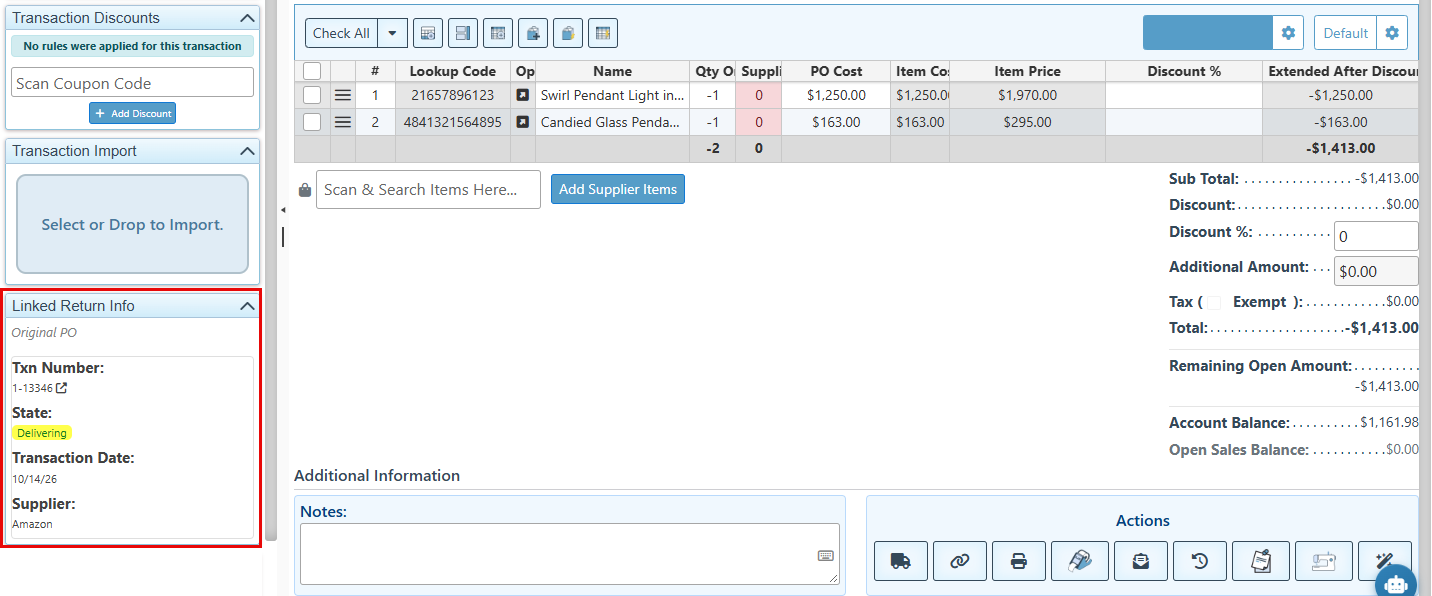
If a transaction has a linked return transaction, it will show the return txn info in the “Linked Return PO Info” side panel widget.
-
On a return purchase order, the widget shows the Original PO with its Txn Number, State and Transaction Date. Click the Txn Number to open the original purchase order.
-
On an original purchase order, the widget lists all Return POs made against it. Click any Txn Number to open that return.
Manually Link a Return Purchase Order
A return purchase order that was created manually (with negative quantities), rather than through “Take Return,” can still be linked to the original purchase order.
-
Open the return purchase order.
-
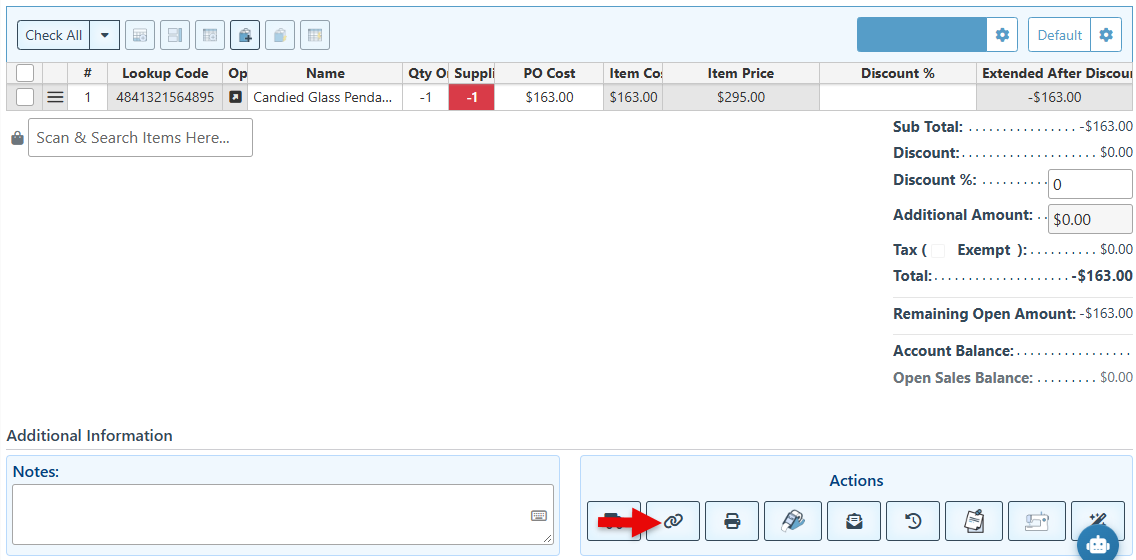
In the “Actions” panel, click the “Link to Original PO” button (chain-link icon).
-
Select the original purchase order to link from the appearing list of purchase orders. It will only show purchase orders from the same supplier that still have items available to return.
A return purchase order can be linked to only one original purchase order. Once it is linked, the link cannot be changed to a different purchase order.
View the Purchase Order Summary
The purchase order summary provides a detailed breakdown of the items in the PO, showing the items that have been returned, sold, and those still on hand
-
Click the “PO Summary” button in the actions panel. The pop-up will display the following columns for each item:
-
Ordered – the quantity on the purchase order.
-
Sold – the quantity sold.
-
Returned – the quantity returned to the supplier.
-
On Hand – the quantity still in stock.