Follow the steps below to set up a delivery using postal carriers, such as UPS, Fedex, or others.
-
Open Backoffice.
-
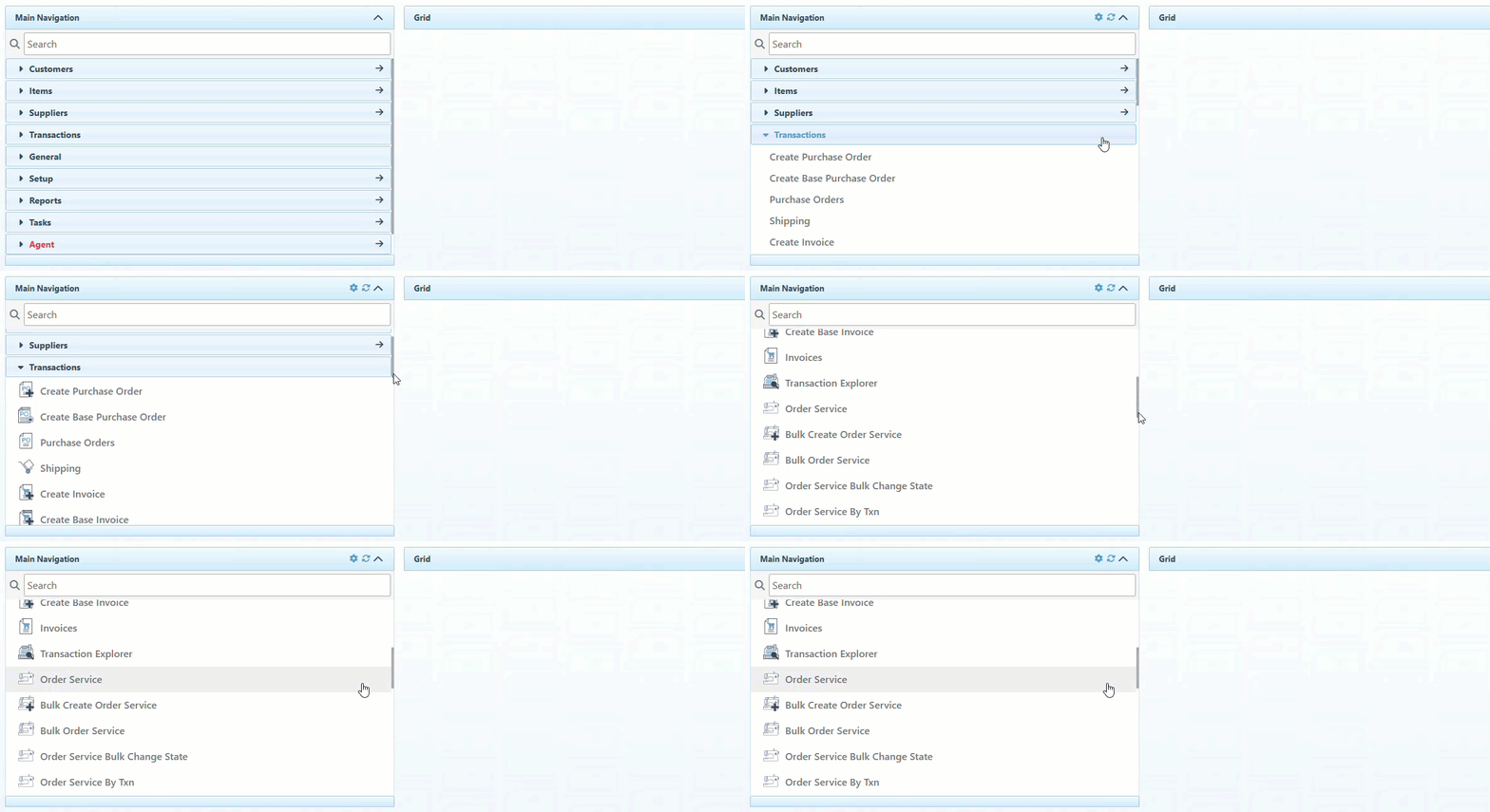
Click “Transactions” in the Main Navigation menu, and select “Order Service” from the scrollable dropdown.
-
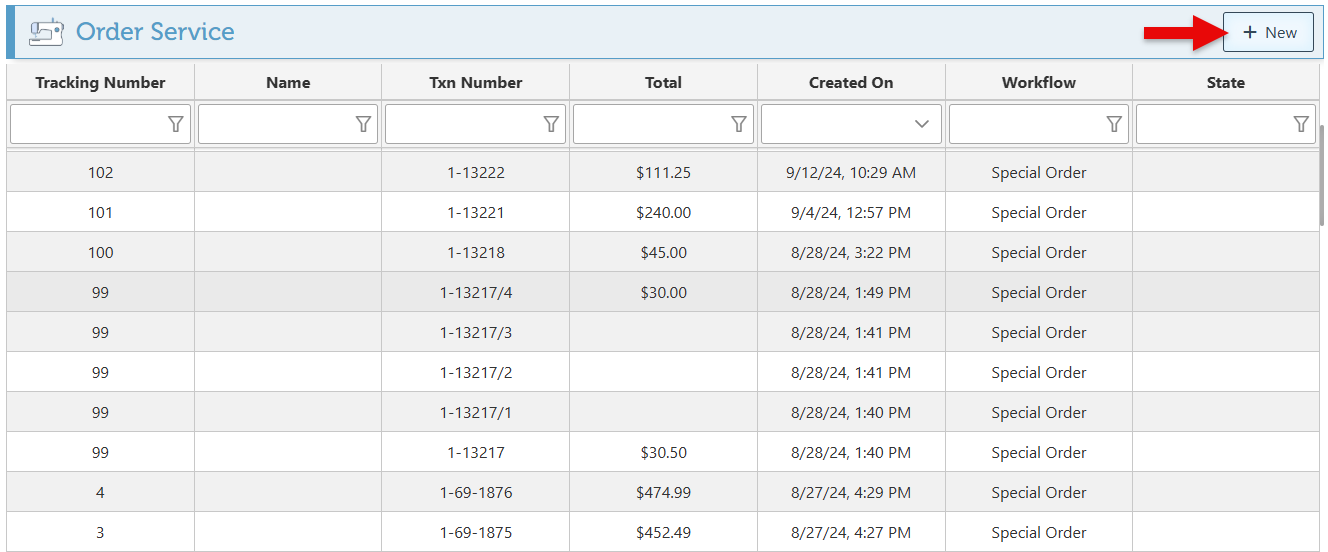
Click the “New” button at the top right of the page to create a new order service, or search and select an existing order service to edit. For more details about order services, click here.
-
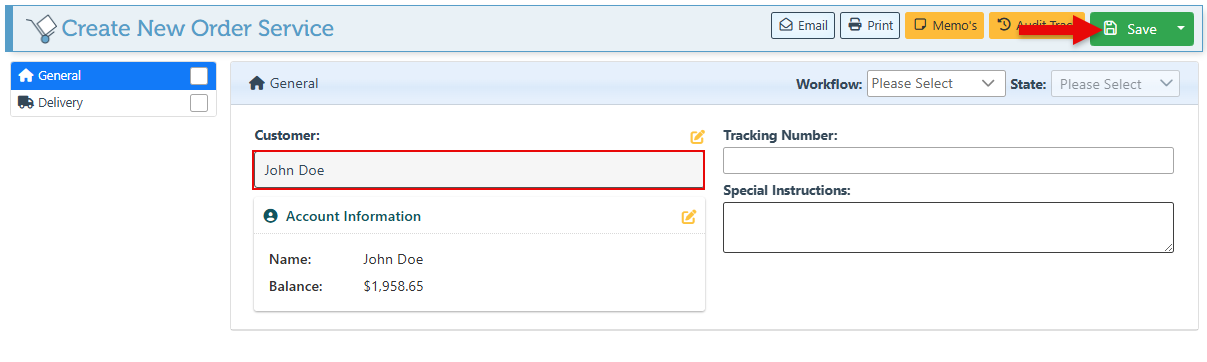
Use the General tab to select a customer for whom the delivery is being arranged, then click “Save.”
-
Additional tabs will now appear in the left-side menu. To link the delivery to a specific transaction, navigate to the “Linked To” tab and click “Link Transaction.”

-
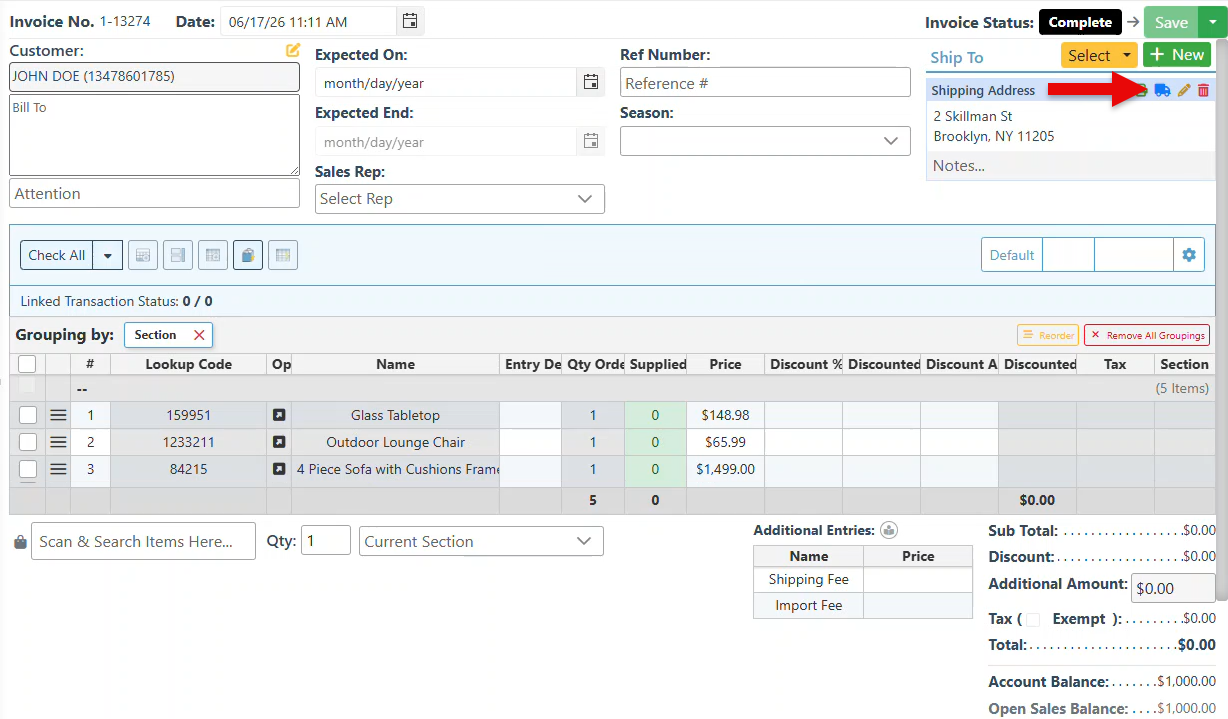
The delivery page can also be accessed directly from a transaction by clicking the delivery icon in the “Ship To” field.
-
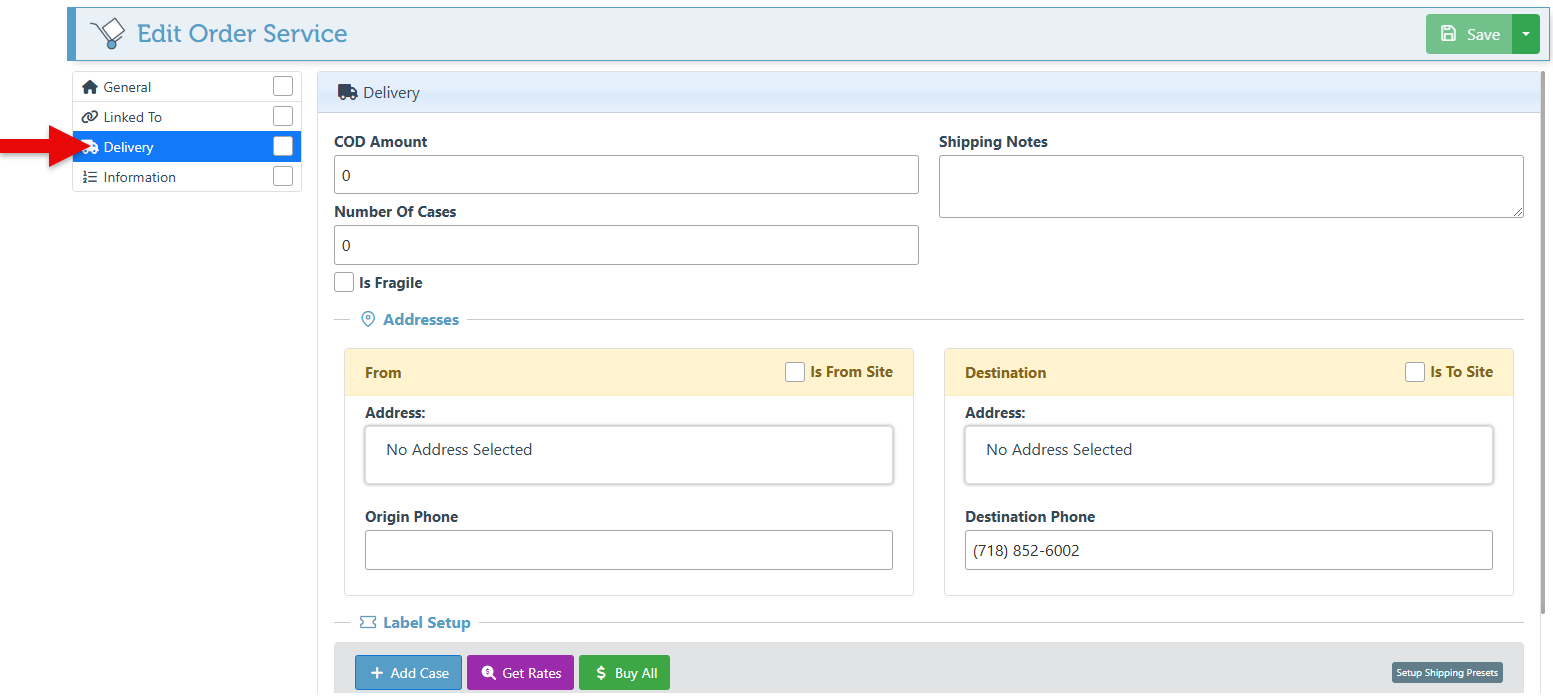
Navigate to the “Delivery” tab in the left side menu.
-
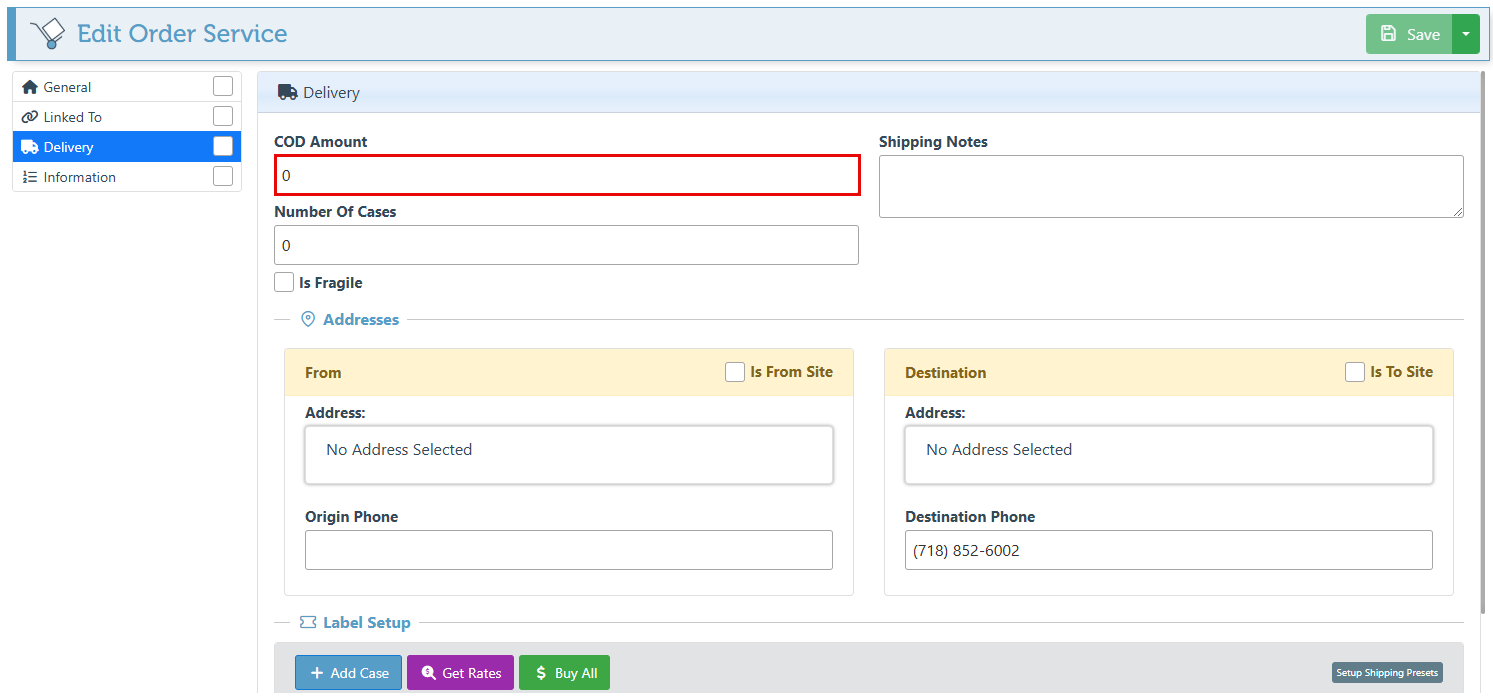
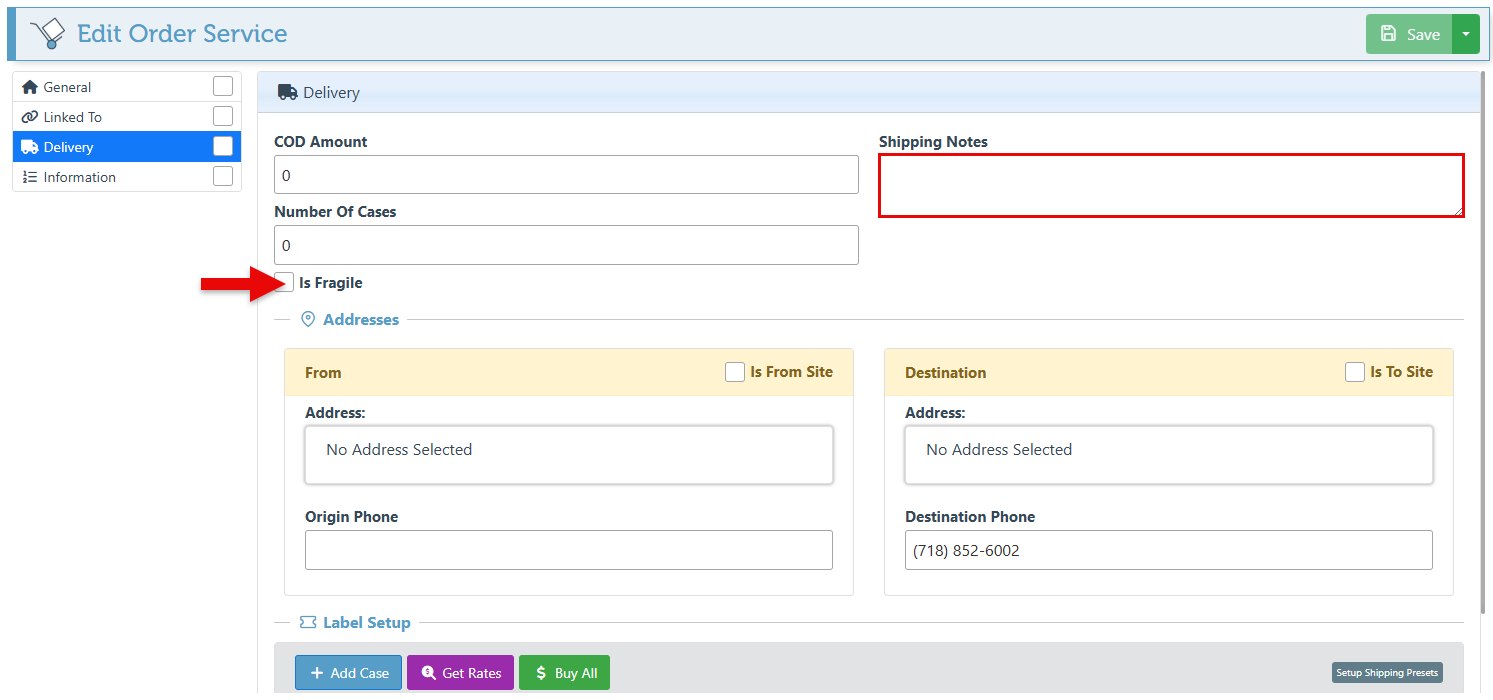
If a charge is due upon delivery, enter the amount in the “COD Amount” field.
-
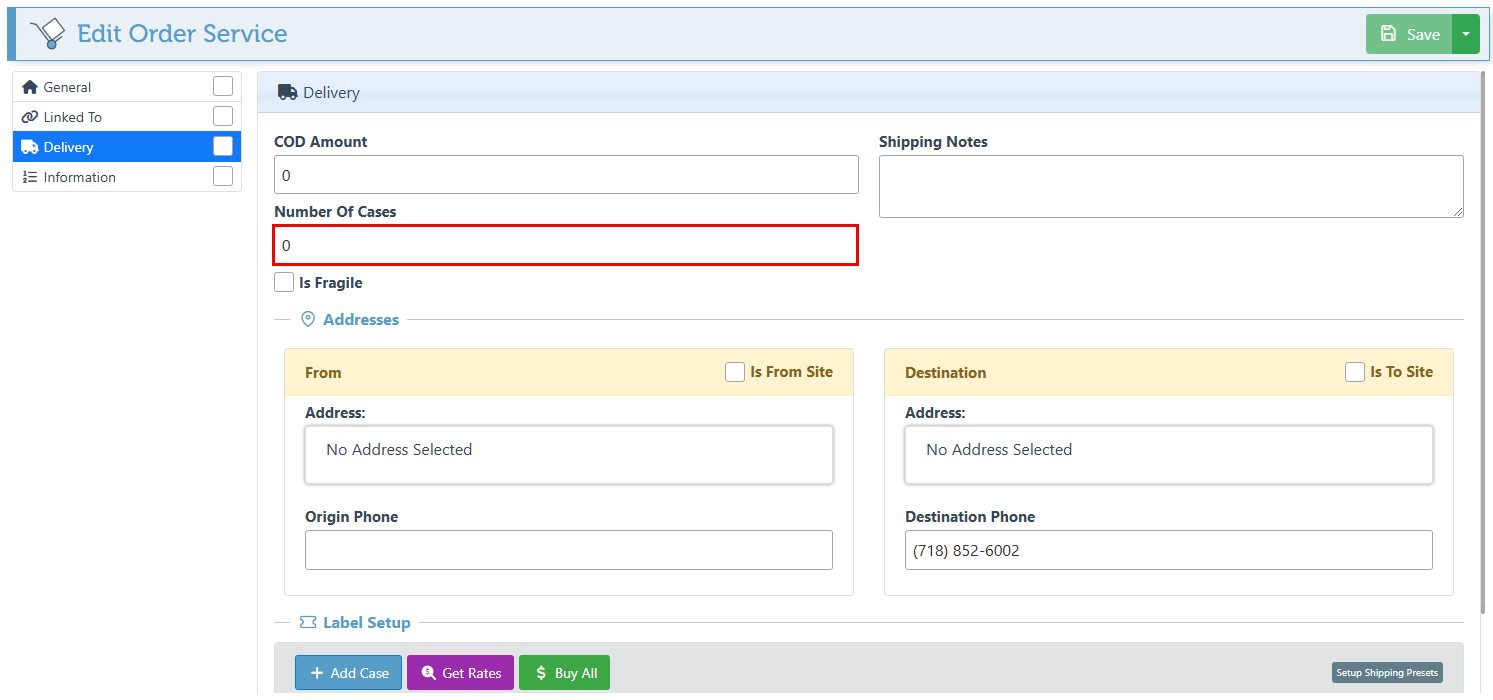
Select the amount of boxes to be included in the delivery in the “Number of Cases” field.
-
Use the “Shipping Notes” field to add details or notes regarding the delivery of the items, and select the “Is Fragile” checkbox if necessary.
-
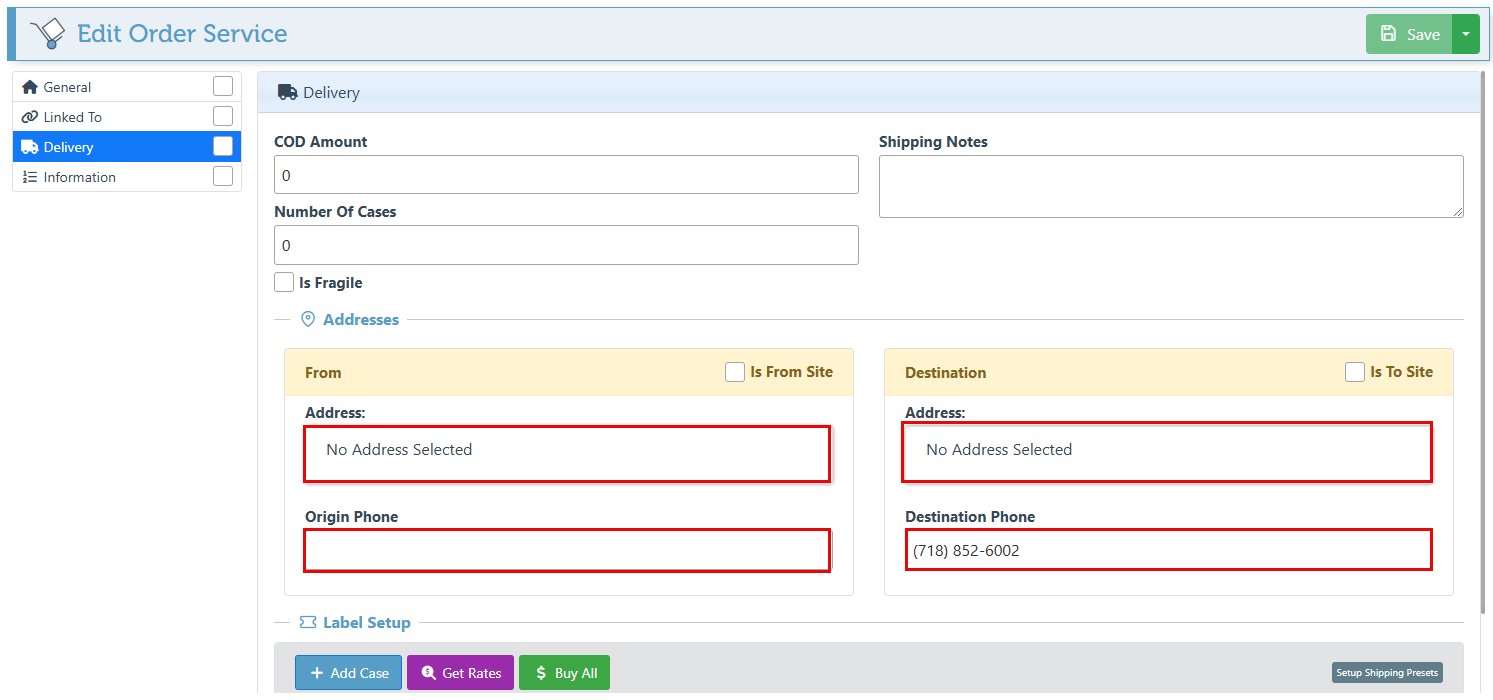
Enter the Source and Destination addresses and phone numbers in the designated fields.
-
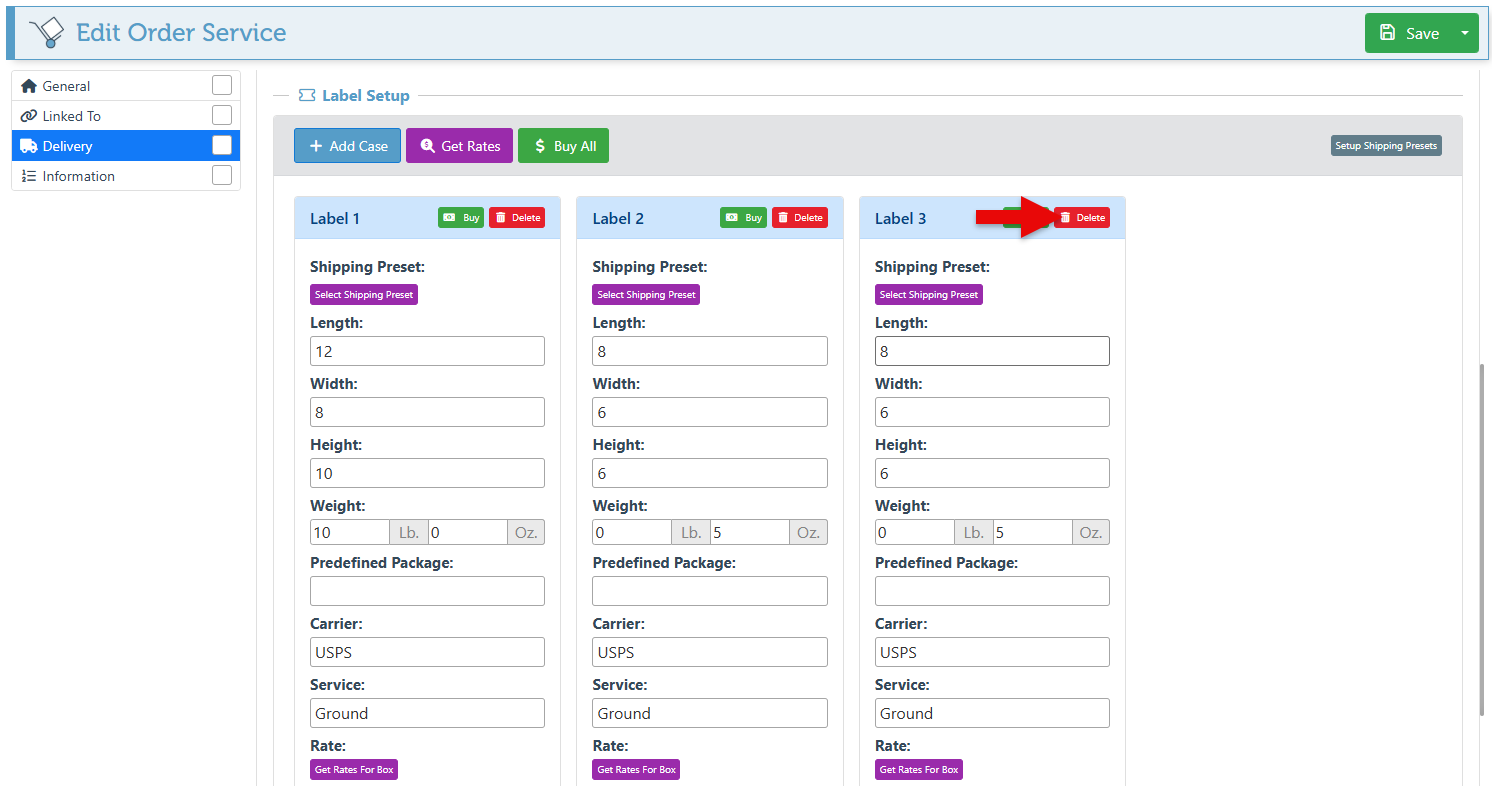
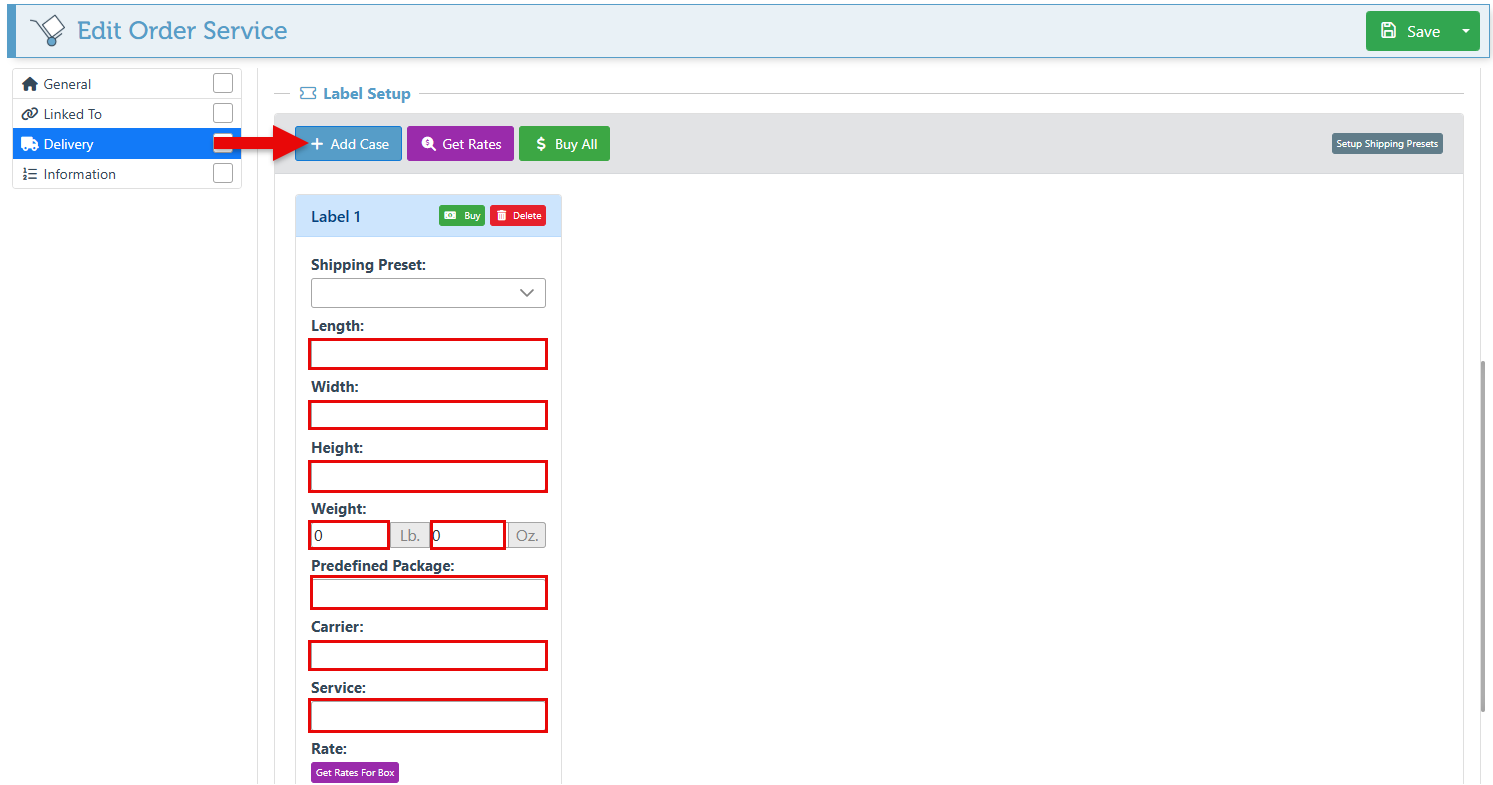
To use a shipping carrier to deliver the items, click the “Add Case” button, then enter the relevant information in the shipping label fields.
-
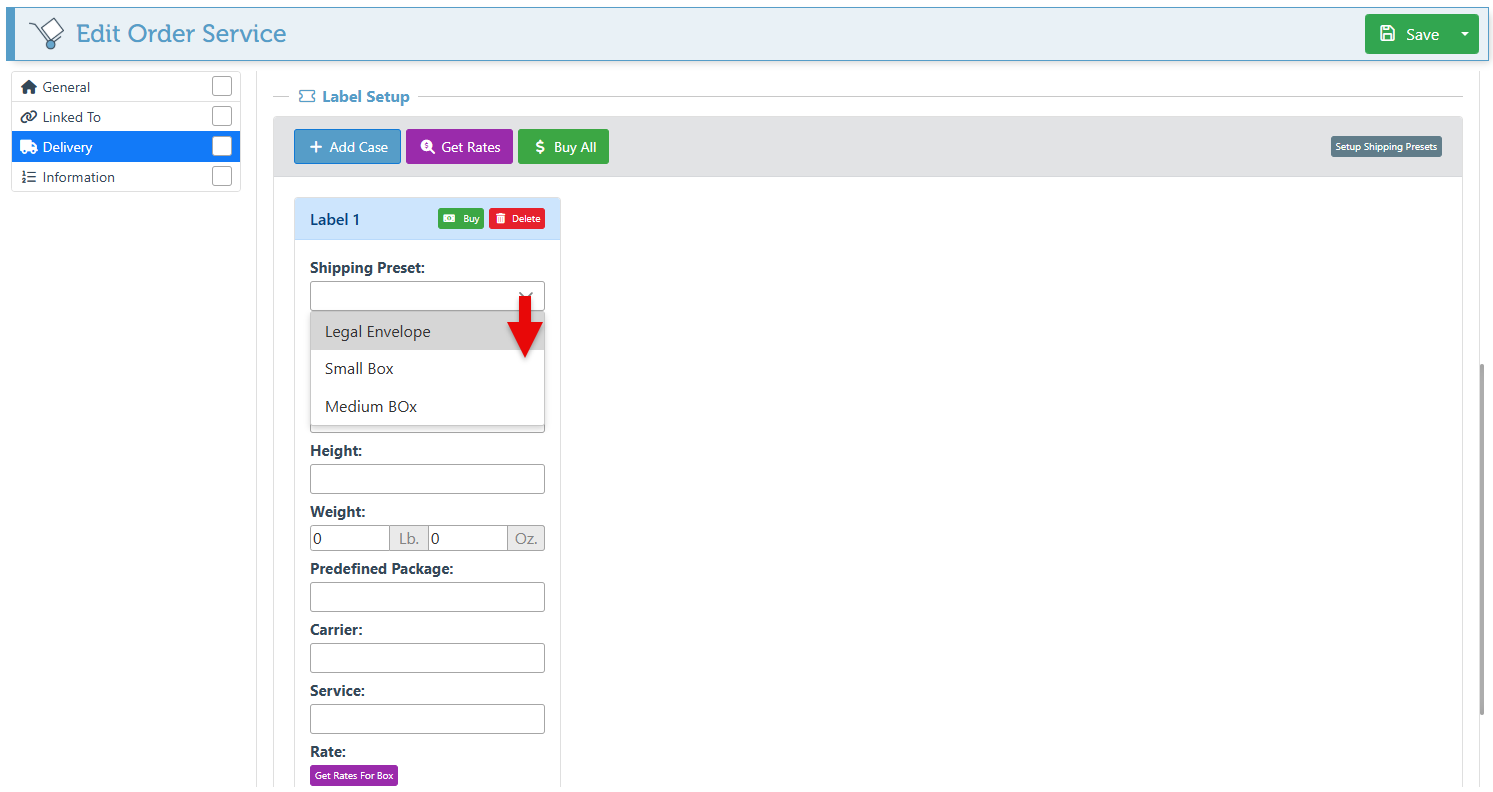
The Shipping preset feature enables the automatic selection of preset package dimensions and details. Click the “Select Shipping Preset” button to select a preset package type. For more information on how to create preset shipping labels, click here.
-
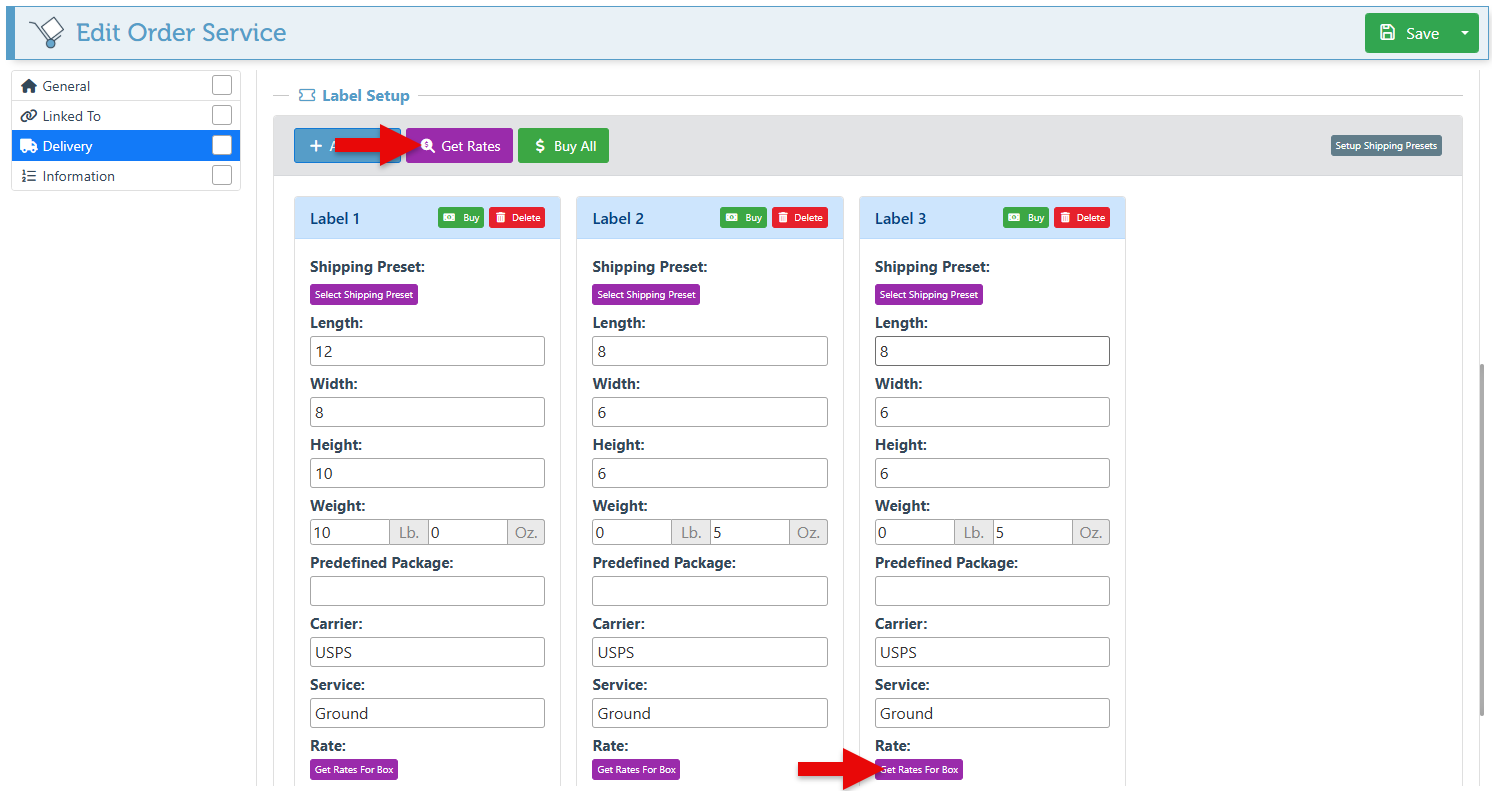
Click "Get Rates" to see the pricing for package delivery from different carriers. Use the button in the section header to get rates for all options, or click the button for a specific case to view those rates.
-
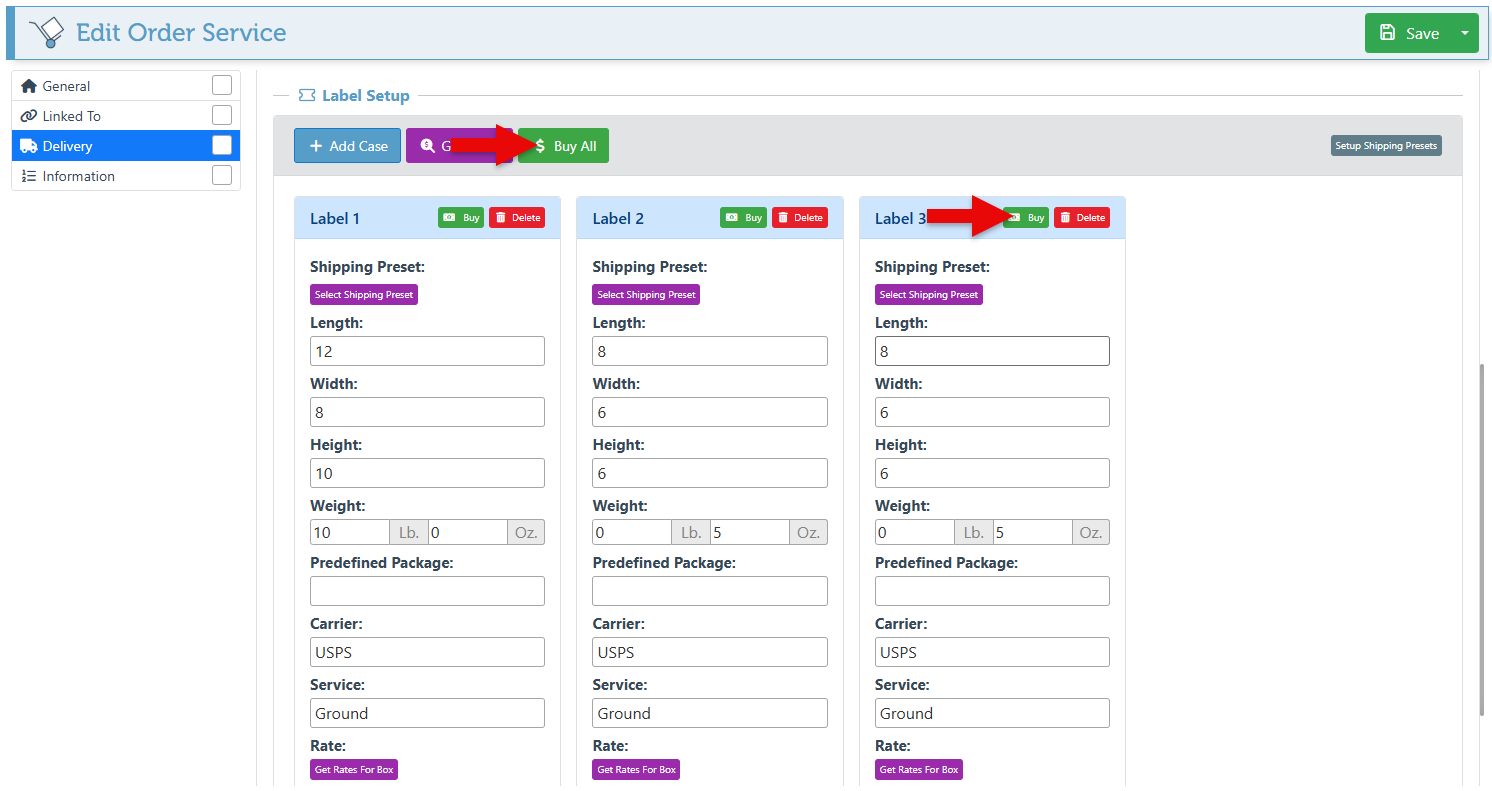
After confirming the pricing, click “Buy” on a specific label or the section header to purchase and pay for the shipping labels.
-
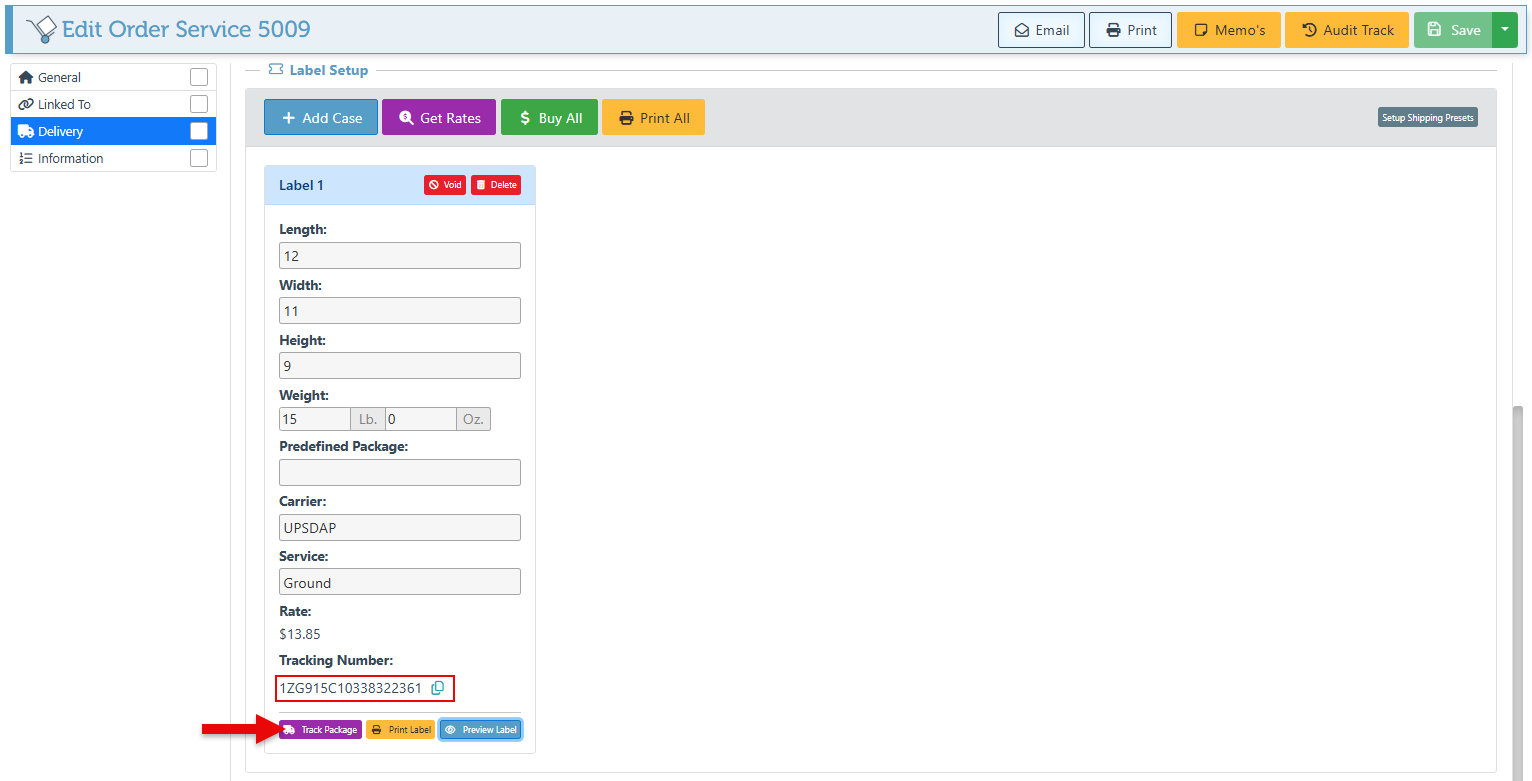
Once the shipping for the package has been paid, a tracking number and button will appear. The “Track Package” button can automatically redirect to the postal carrier's tracking page, or the number can be copied and sent to the customer to track shipping updates.
-
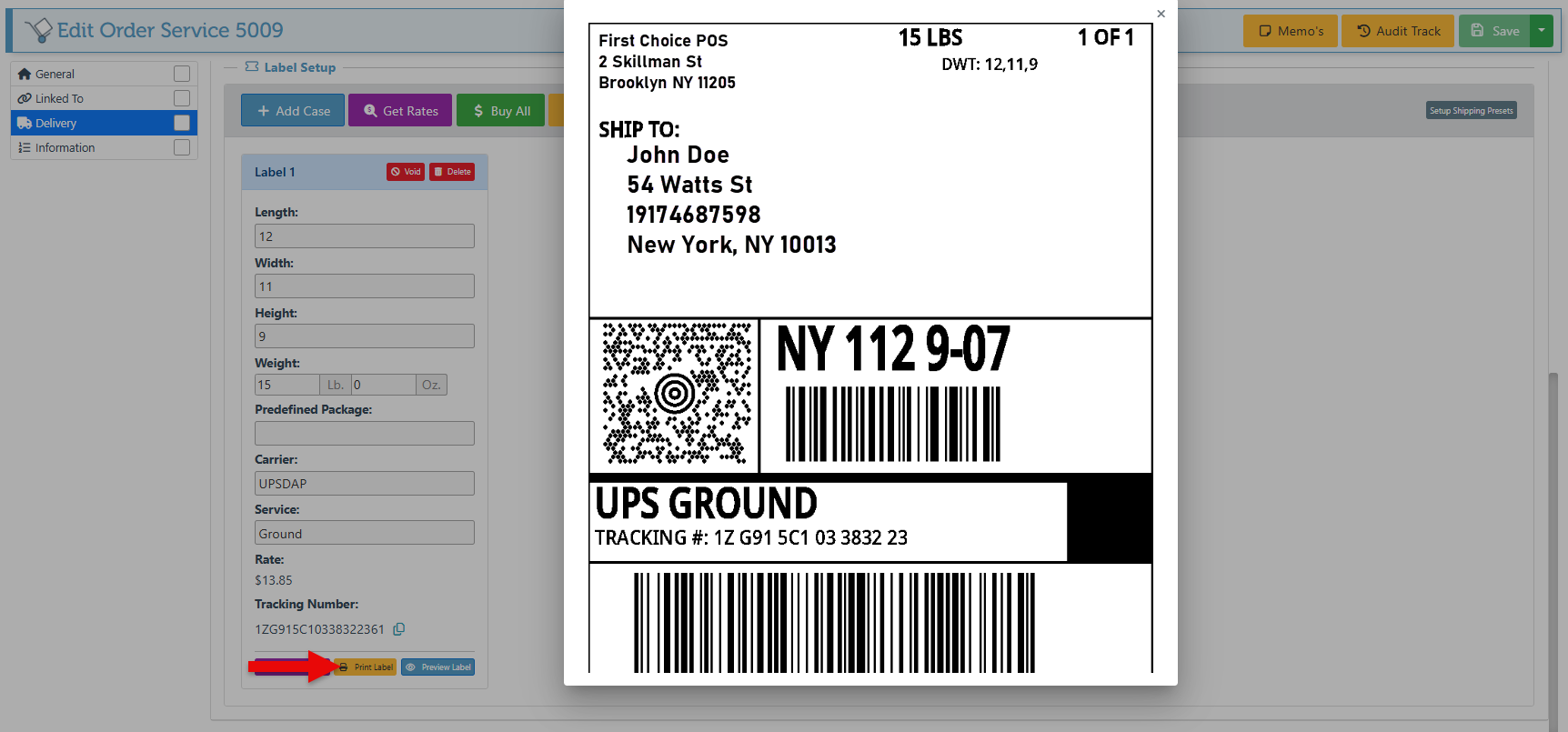
Additionally, new buttons will appear, allowing the UPS/FedEx shipping labels to be viewed and printed.
-
To remove a specific label, click the “Delete” button.