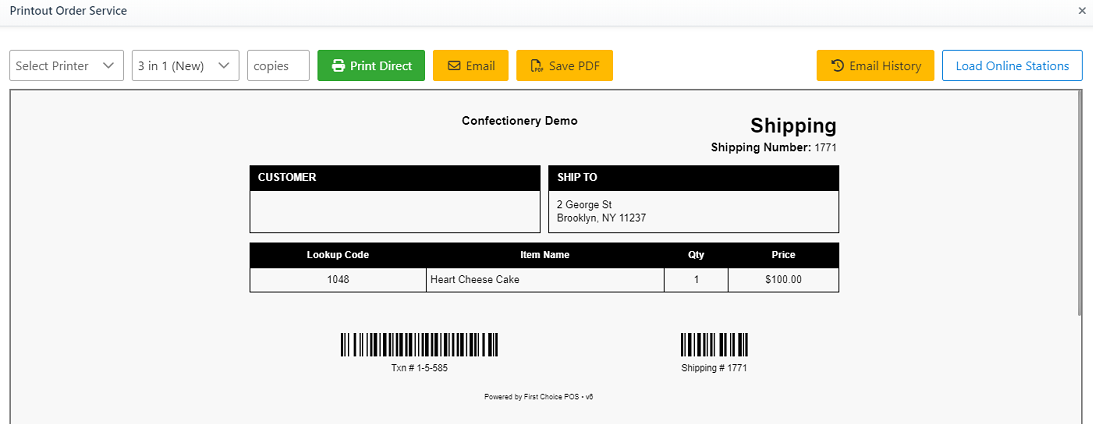
Follow the steps below to arrange delivery for large or corporate orders:
-
Open the relevant order for which to arrange delivery.
-
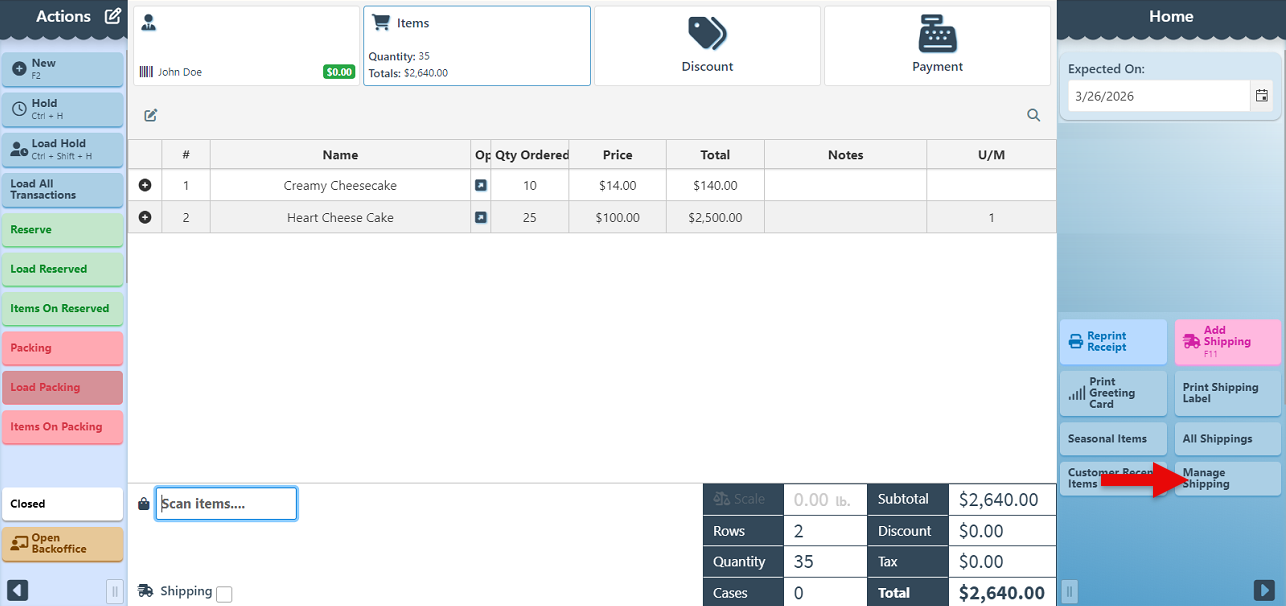
Click the “Manage Shipping” button to open the shipments page.
-
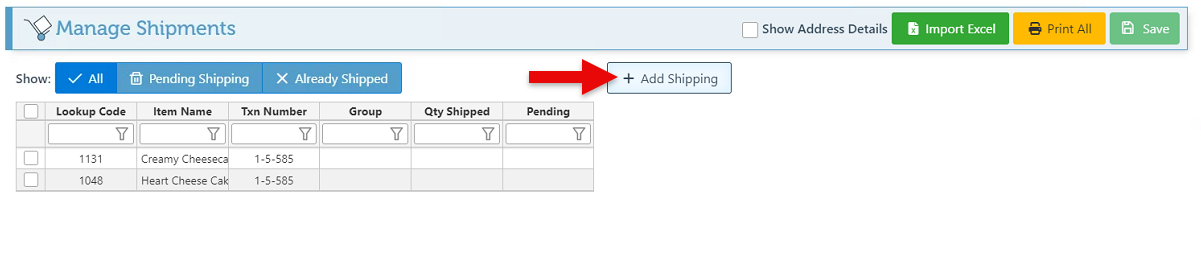
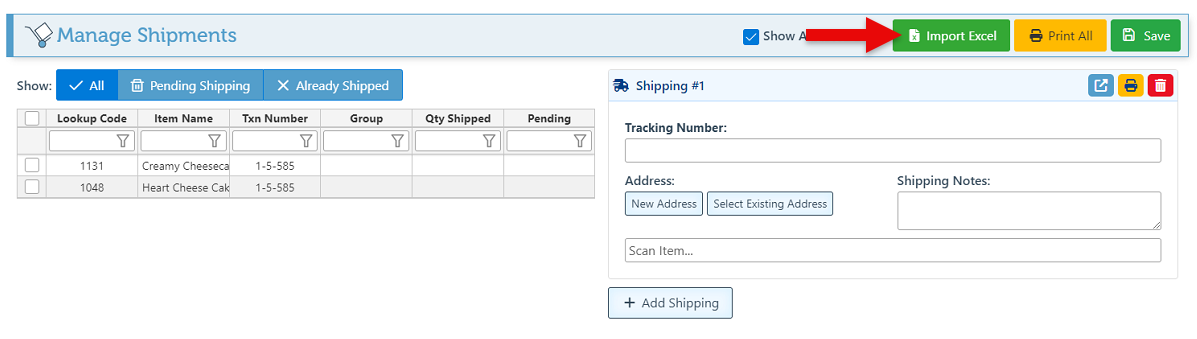
Click “Add Shipping” to arrange a new delivery. Keep clicking the button again to set up delivery to multiple addresses.
-
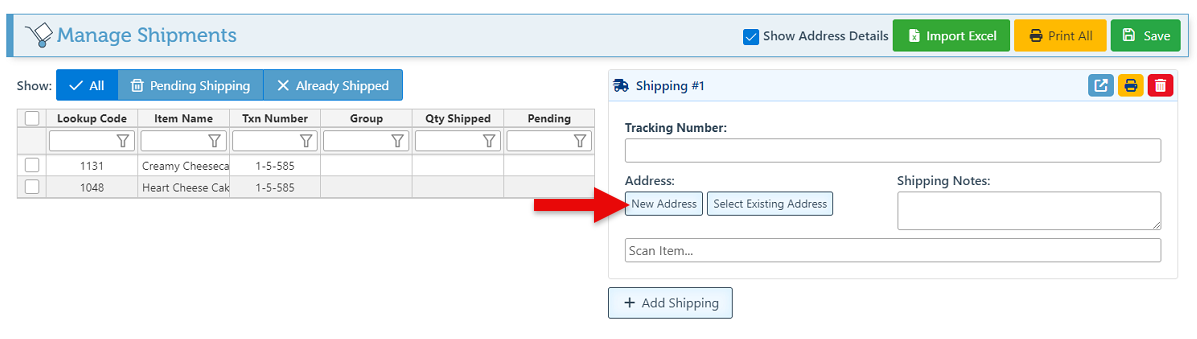
Use the “New Address” button to add a new address, or the “Select Existing Address” button to select an address already saved by the customer.
-
Alternatively, use the “Import Excel” option to upload a complete list of addresses. This significantly simplifies the process, especially for corporate orders sent to multiple addresses.
-
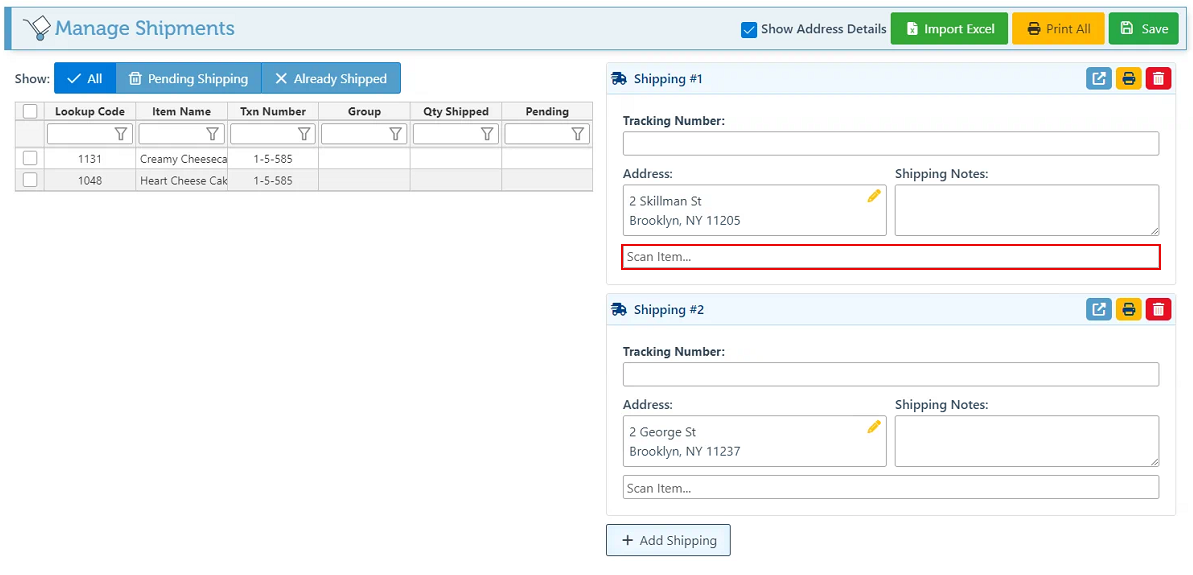
Use the “Scan Item” field to add and designate specific items to be delivered to the address.
-
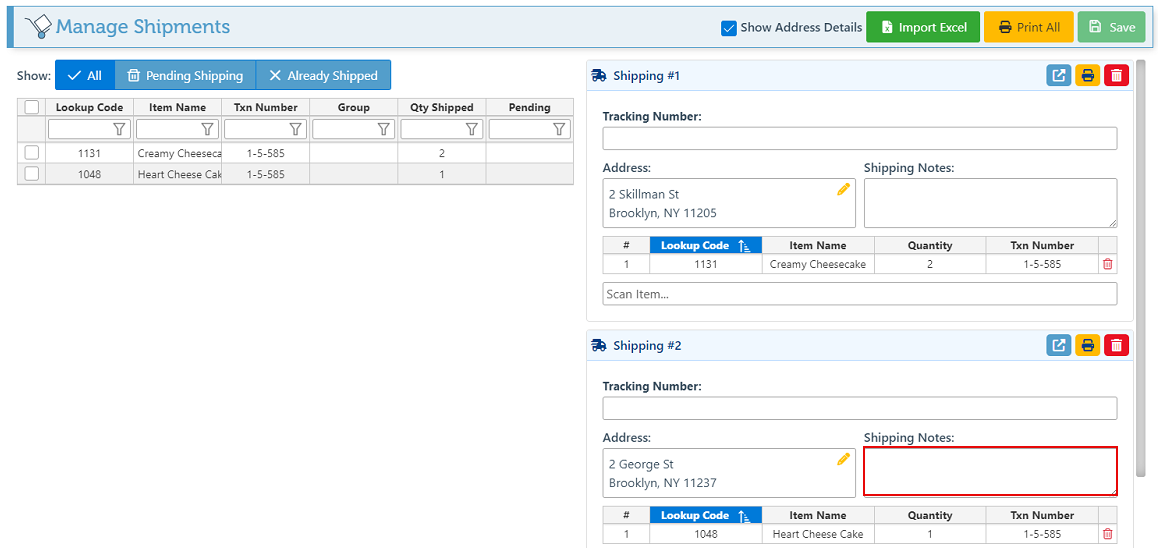
Use the shipping Notes field to add additional details to the delivery, such as the address zone or drop-off details.
-
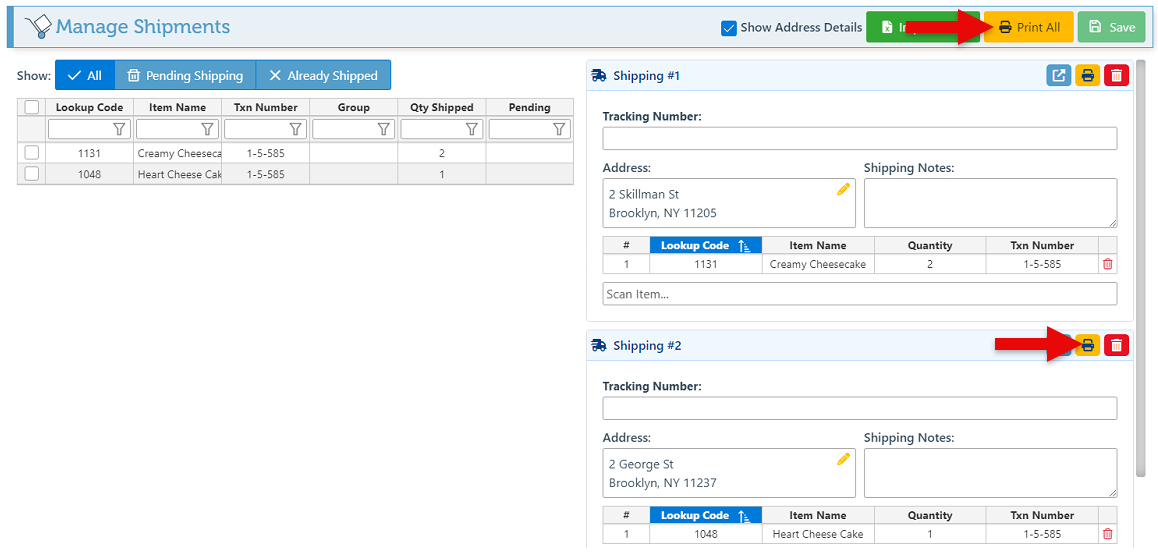
Use the print buttons to generate either a specific shipping label or to print all labels simultaneously.
-
The shipping labels are specifically configured to show the items included in the delivery, to ensure smooth and accurate delivery.