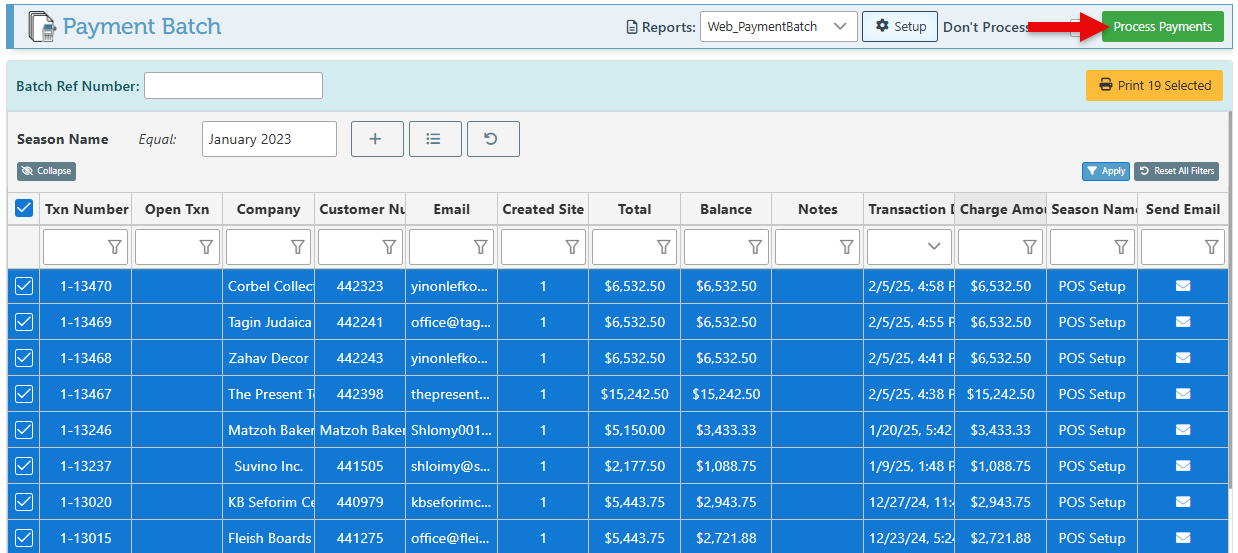
The Payment Batch page enables multiple transactions to be printed or emailed simultaneously. Furthermore, payments can then be processed for all selected transactions in bulk.
-
Open Backoffice.
-
Search and select “Payment Batch” In the Main Navigation menu.
-
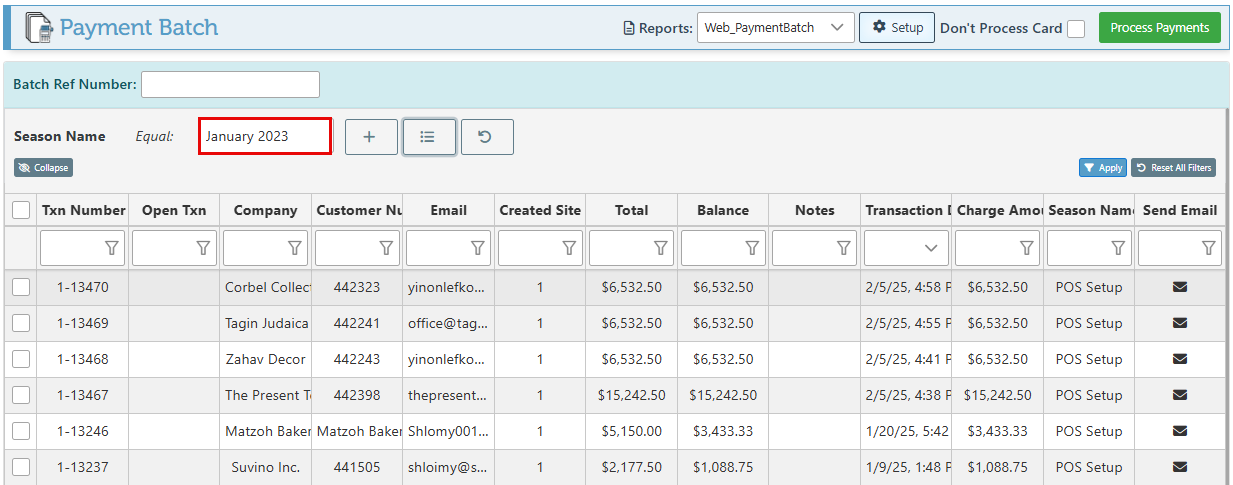
Select the relevant dates for which to load transactions with balances, using the filter dropdown menu in the page header.
-
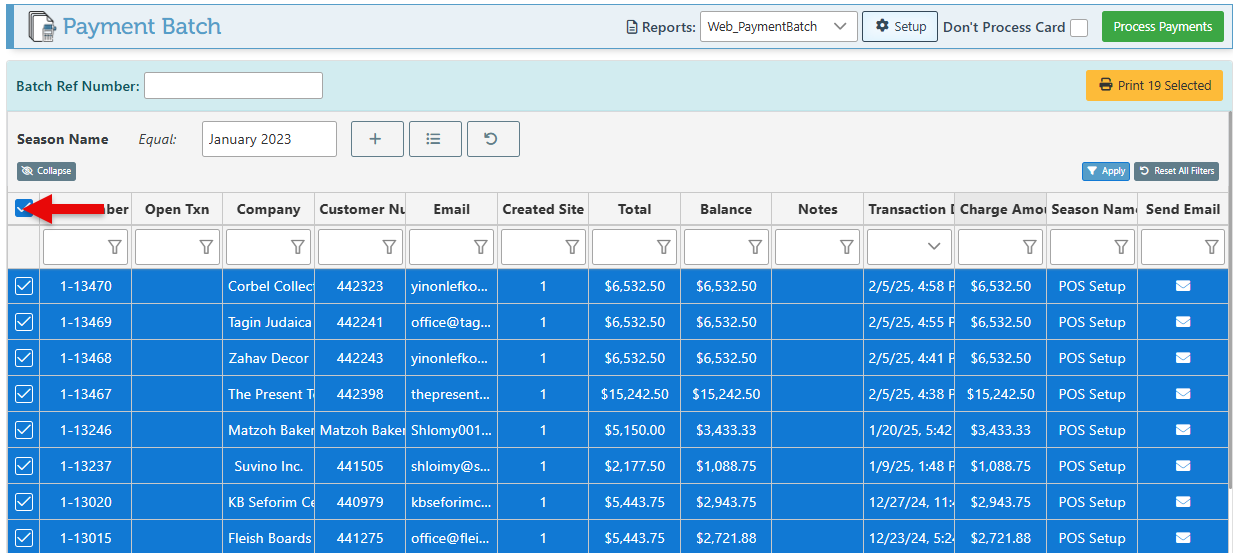
Select specific customers using the checkboxes at the left of line, or select all invoices by clicking the checkbox located at the top left of the grid.
-
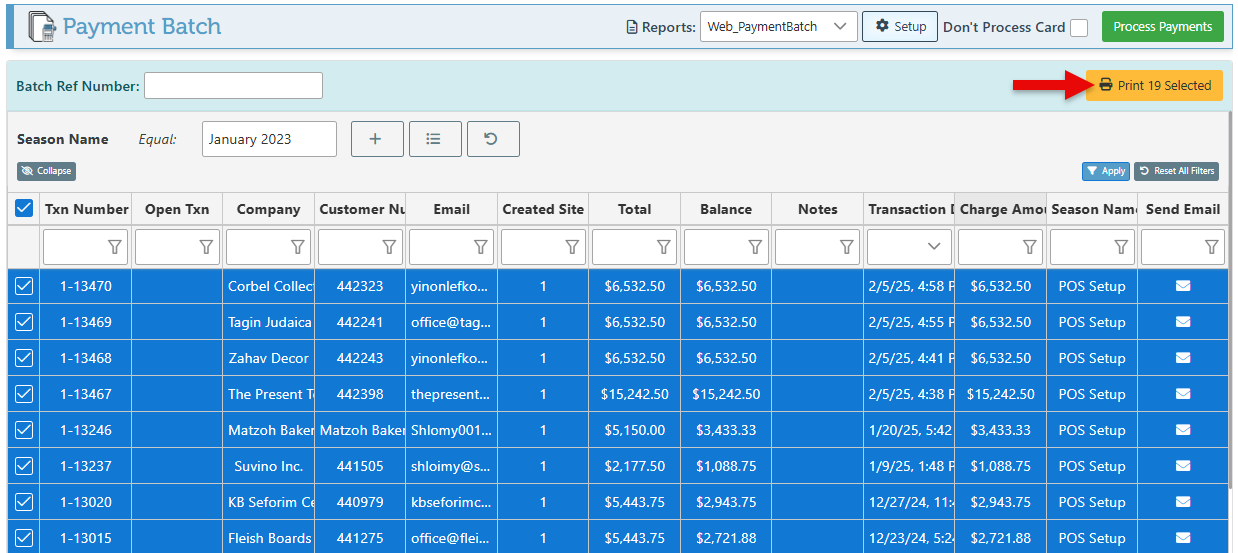
To send billing invoices to customers, click the “Print All” button located at the top right corner. A popup will then appear, displaying the progress as the emails are dispatched.
Whether a transaction is emailed or printed depends on whether an email address is saved in the customer's account. An envelope icon indicates the transaction will be emailed. A printer icon indicates it will be printed because the customer has no email on file.
-
Once the customers have received the billing invoices and notification, click the “Process Payment” button at the top right of the page to process payment and charge for all invoices.