The guide below demonstrates how to send customers a link to the public payment page, enabling them to conveniently and securely pay their invoices. This feature enhances customer satisfaction and streamlines payment collection.
-
Open Backoffice.
-
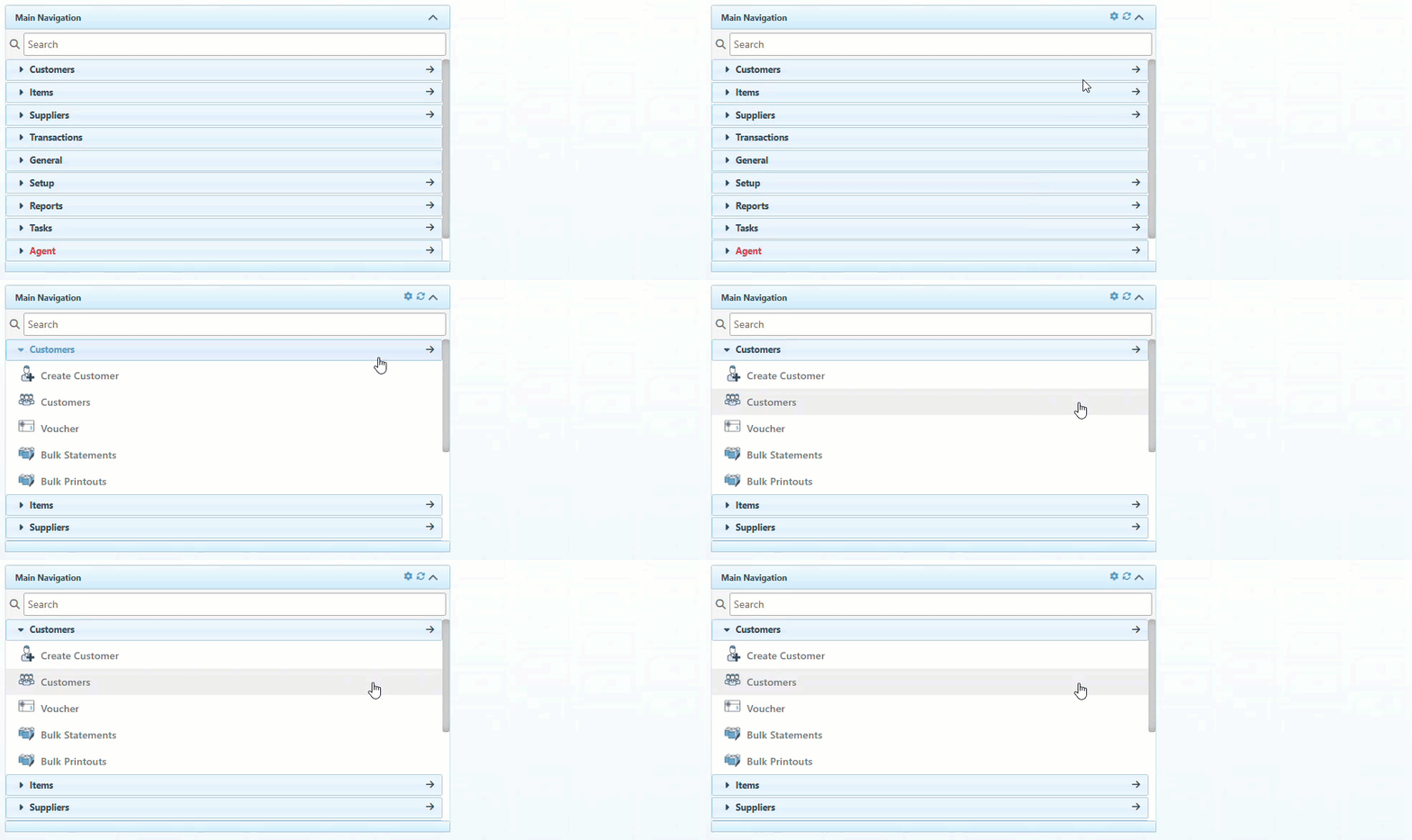
Click “Customers” in the Main Navigation menu and select “Customers” from the scrollable dropdown.
-
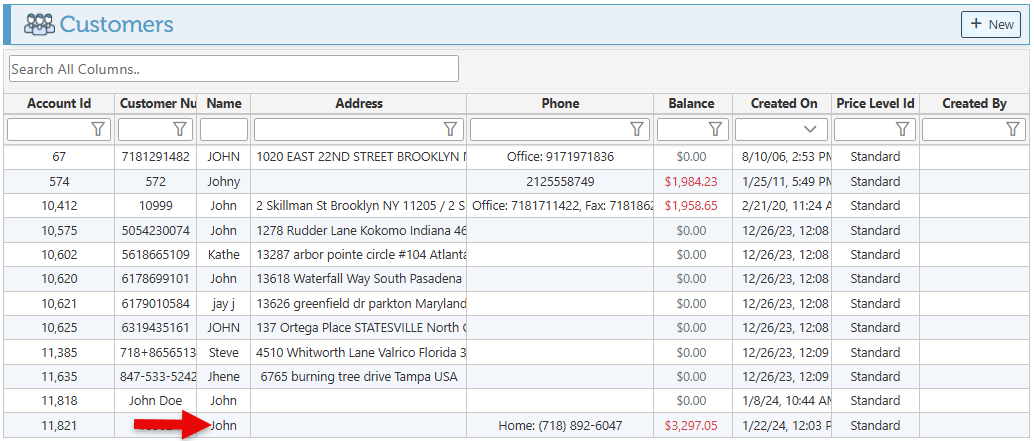
Select the relevant customer from the customer list.
-
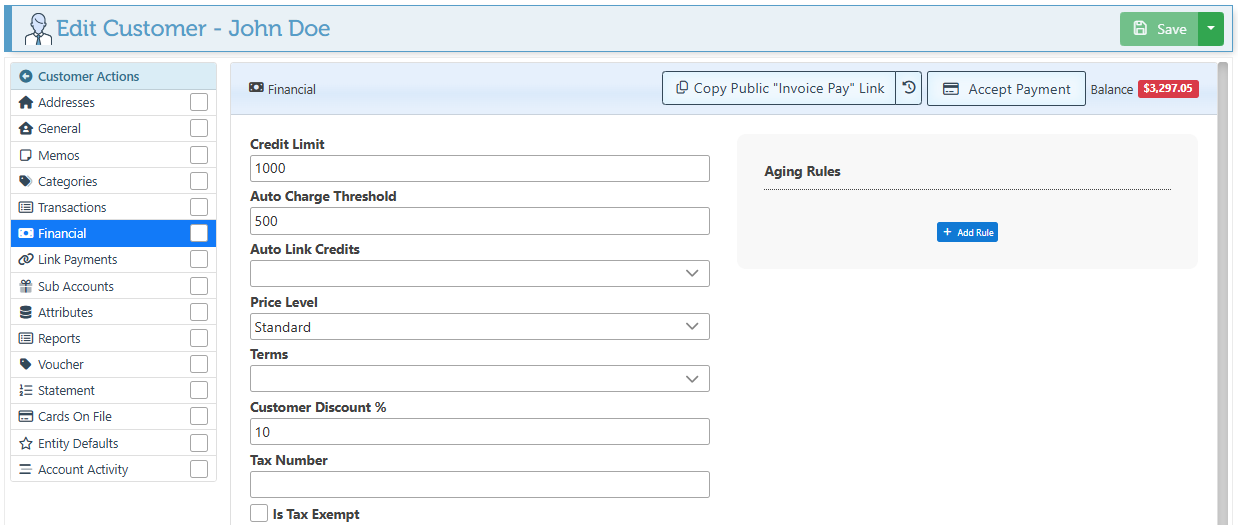
Navigate to the Financial tab in the left side menu.
-
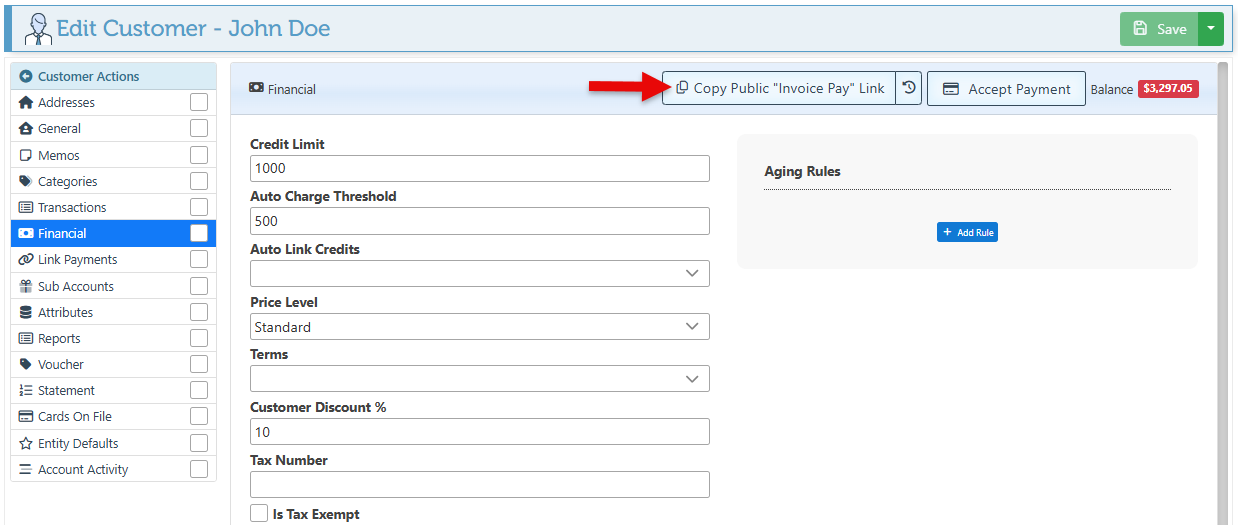
Click the "Copy Public Invoice Pay Link" button in the top-right corner to copy a link to the invoice pay page. You can then attach this link to any email notifying the customer to pay their existing balance.
Additionally, the invoice printout layout can be configured to display a link to the invoice pay page by default. If enabled, the invoice printout will display a button that, when clicked, redirects customers to the public payment page.
-
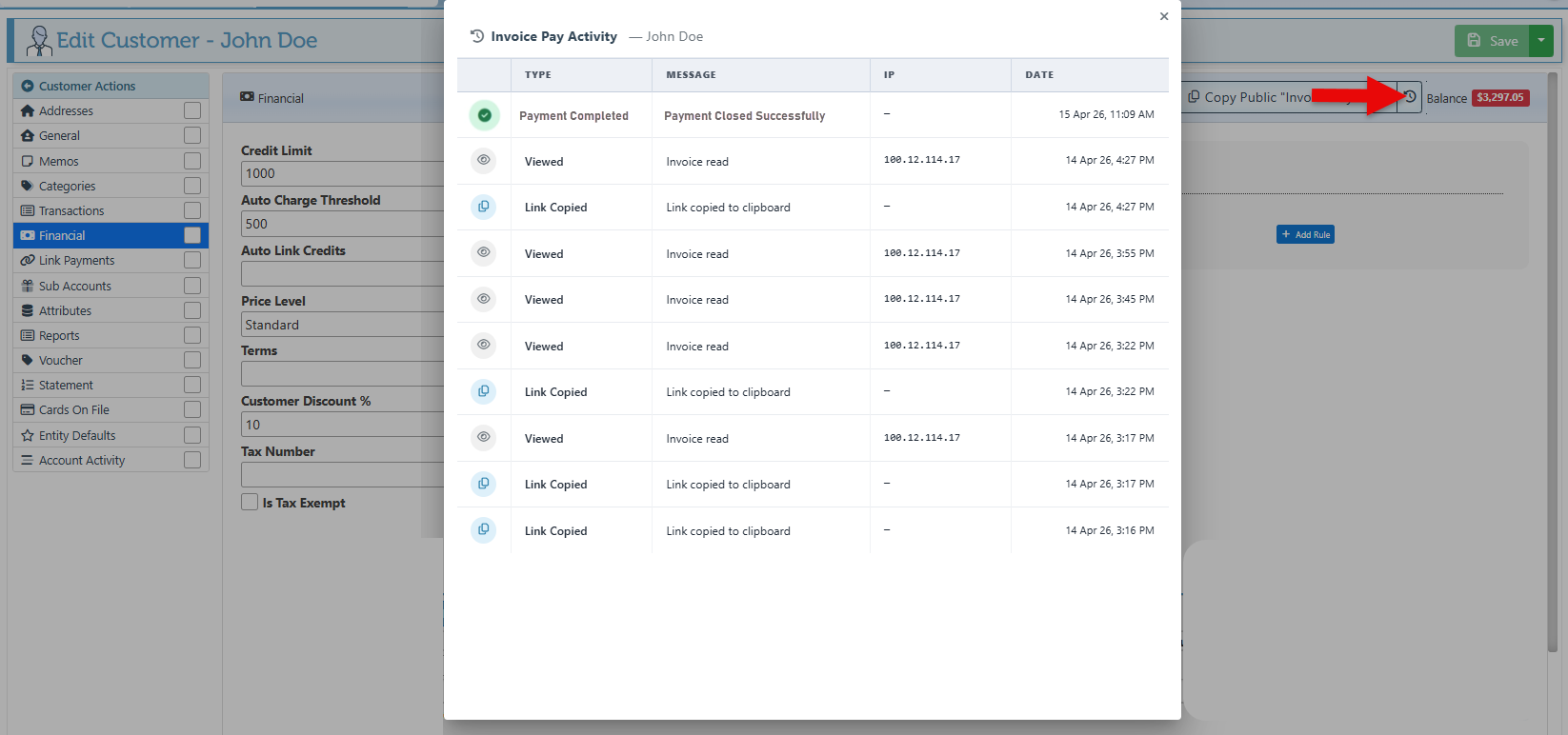
The activity button allows users to view the payment link history, including statuses such as "Copied," "Sent," and "Payment Made," to monitor payment status updates.
-
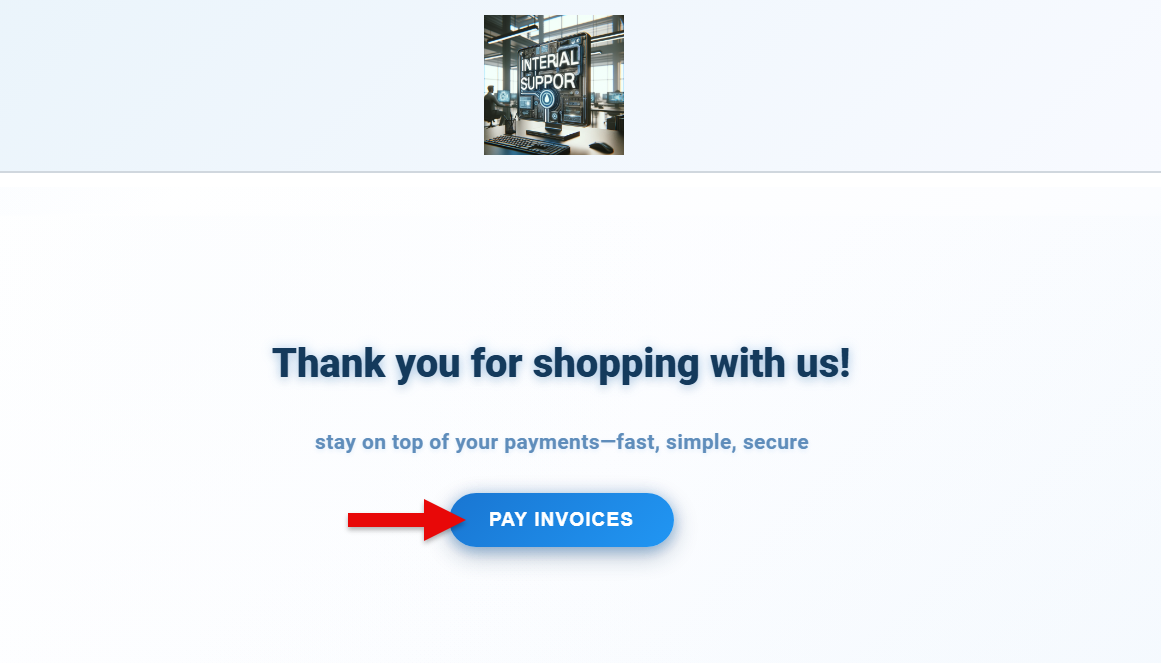
The link will direct the customer to the public payment page. Click "Pay Invoices" to view invoices with an open balance.
-
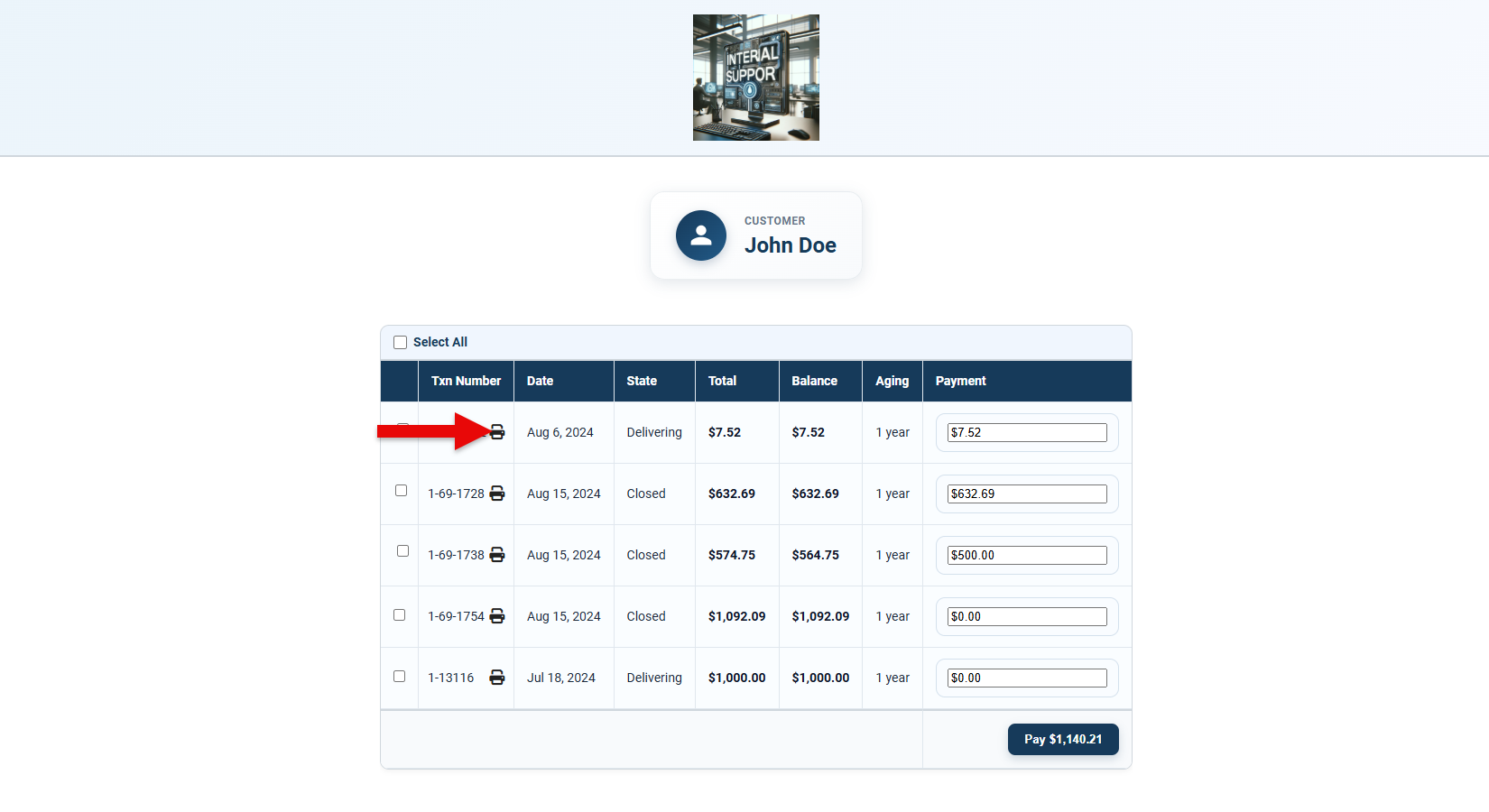
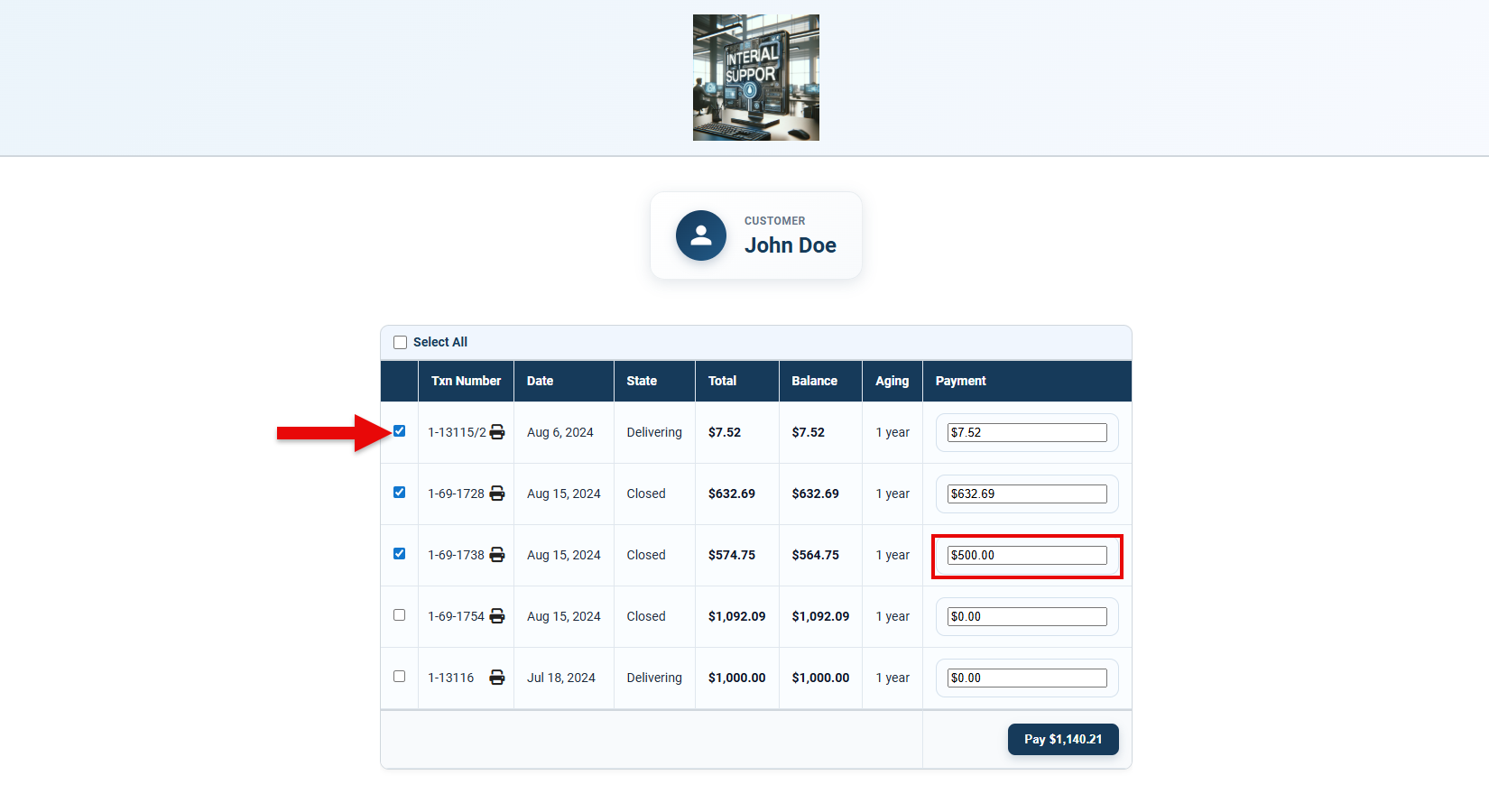
To view or print a specific invoice, click the “Print” icon located on the invoice row.
-
Use the checkboxes on the left side of each invoice row to select the invoices to pay, or enter a specific amount in the payment field to make a partial payment toward an invoice.
-
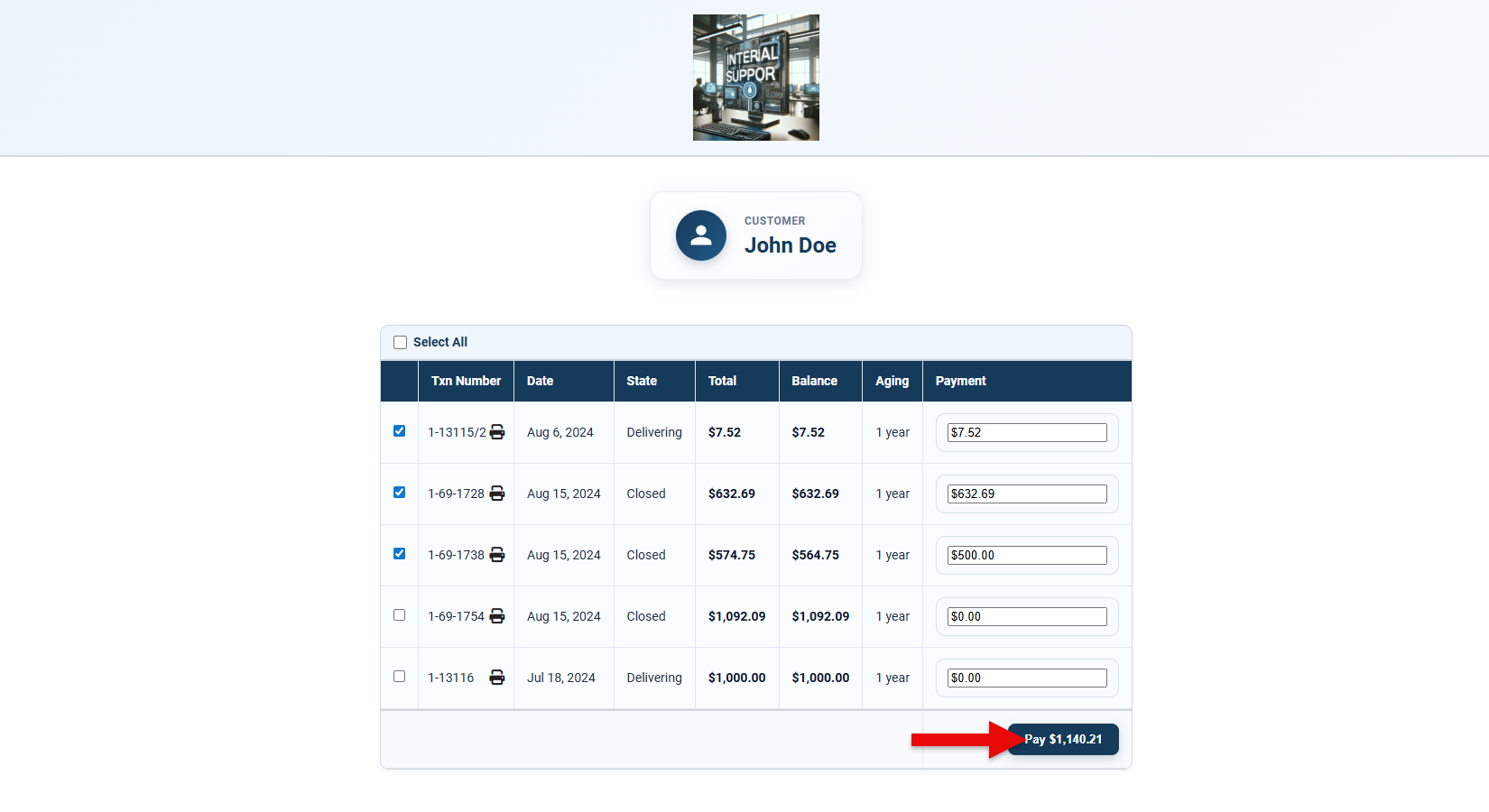
The total will be automatically calculated for the selected amounts. Click “Pay” to proceed with entering payment information.
-
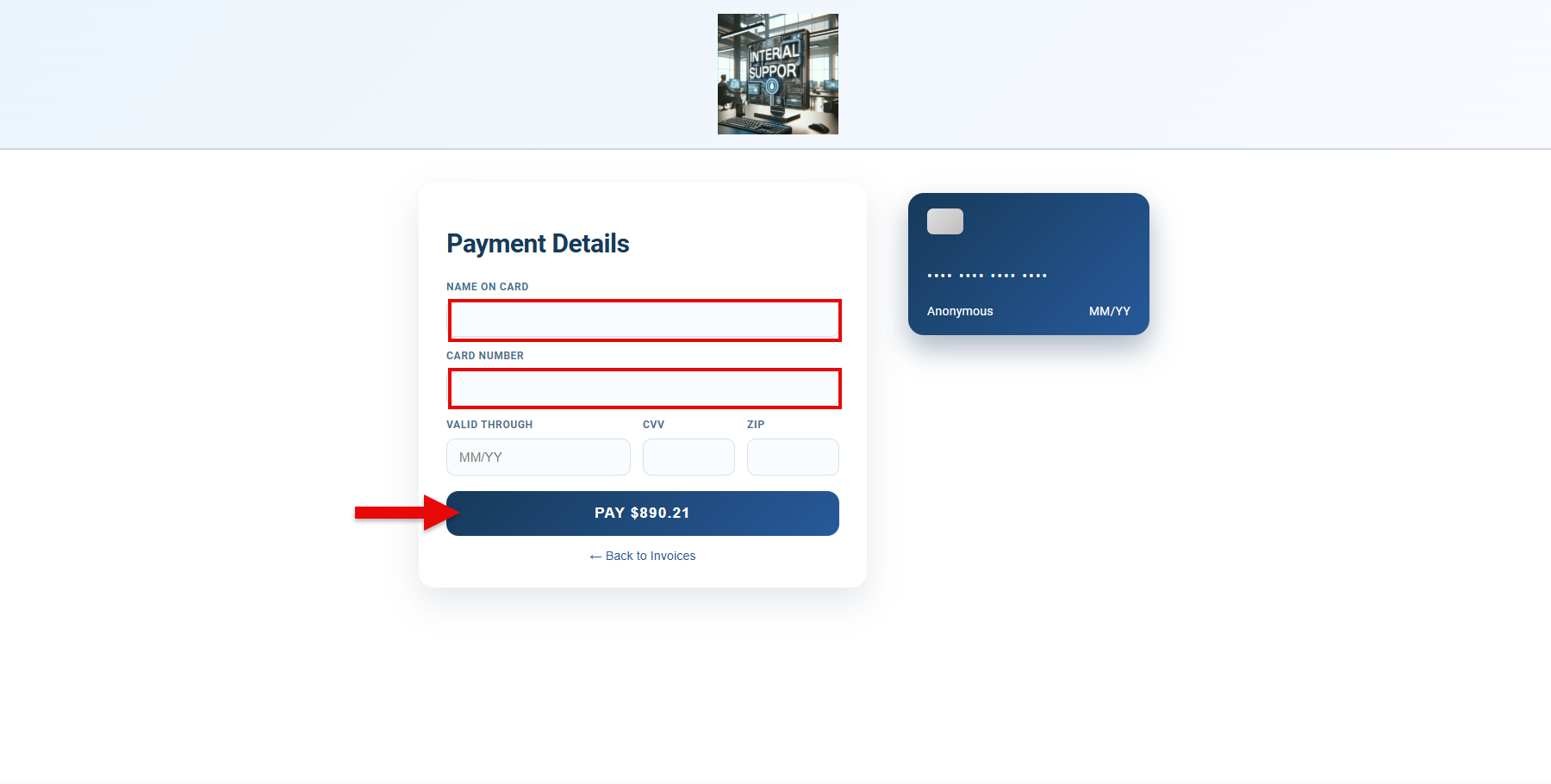
Enter credit card information in the designated fields, and click "Pay" to complete payment.
If a convenience fee has been set up for a specific payment method, it will automatically be added to payments made on the public page using that payment method.
-
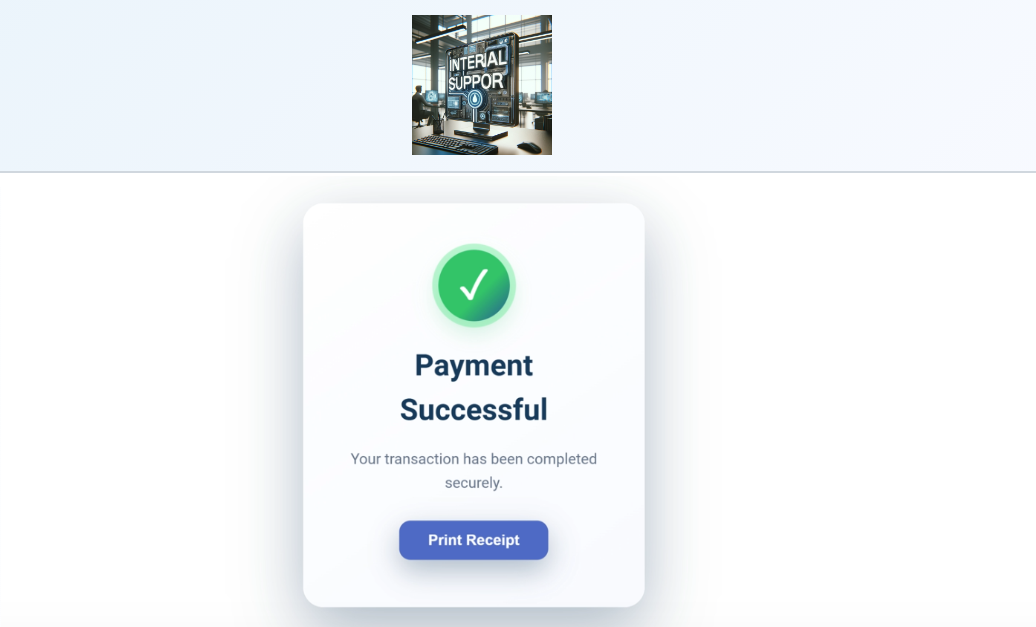
A “Payment Successful” notification pop-up will appear, offering the option to print a receipt.
A specific receipt layout can be selected in the POS Public Pay Page layout configurations.