Follow the steps below to create a coupon code, which can be scanned or entered to apply a specific discount during a transaction.
Enable the “Don’t Allow Coupon Without Customer” frontend configuration, to set a customer to be required in order to apply a coupon, thereby enhancing the tracking and management of coupons used.
-
Open Backoffice.
-
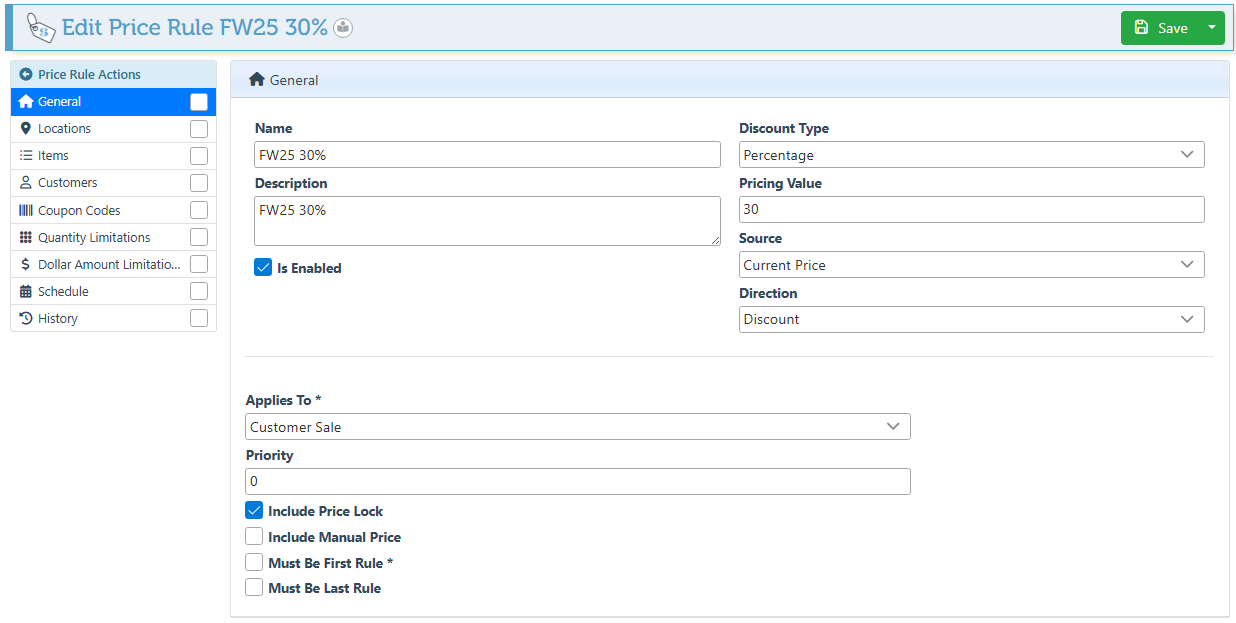
Create a price rule to be represented by the coupon. For more details on creating a price rule, click here.
-
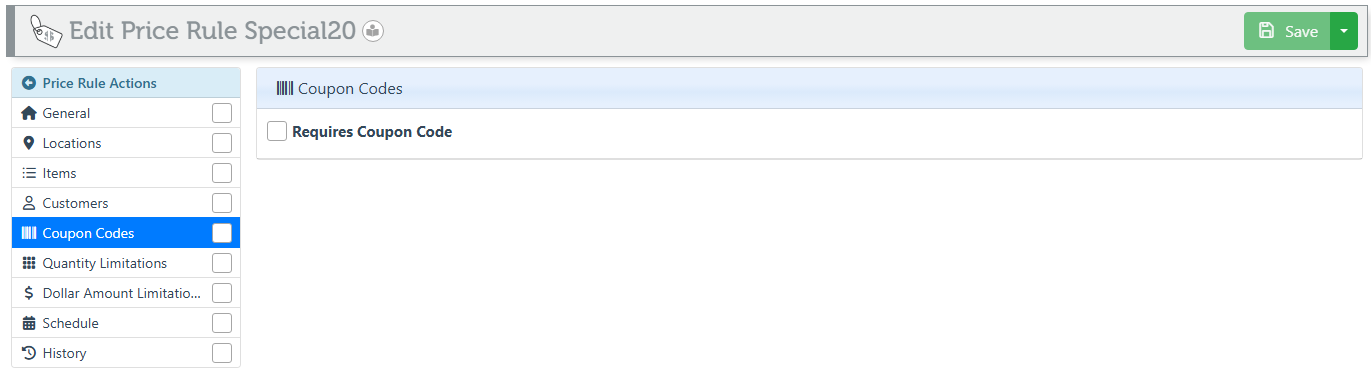
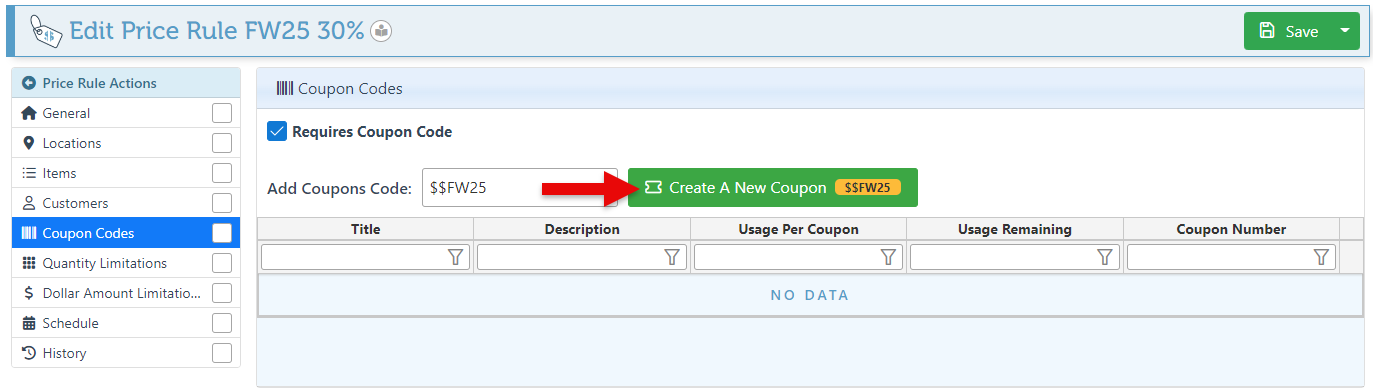
Navigate to the “Coupon Codes” tab in the left side menu.
-
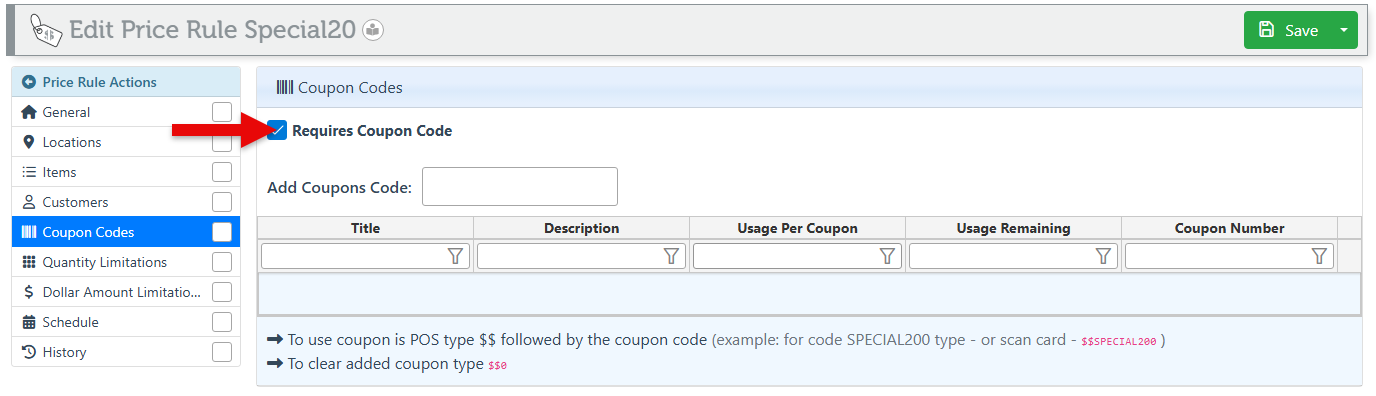
Select the “Requires Coupon Code” checkbox.
-
Proceed to enter the coupon code name in the designated field, and click “Create a New Coupon.”
Hebrew Letterings are not supported in coupon codes.
-
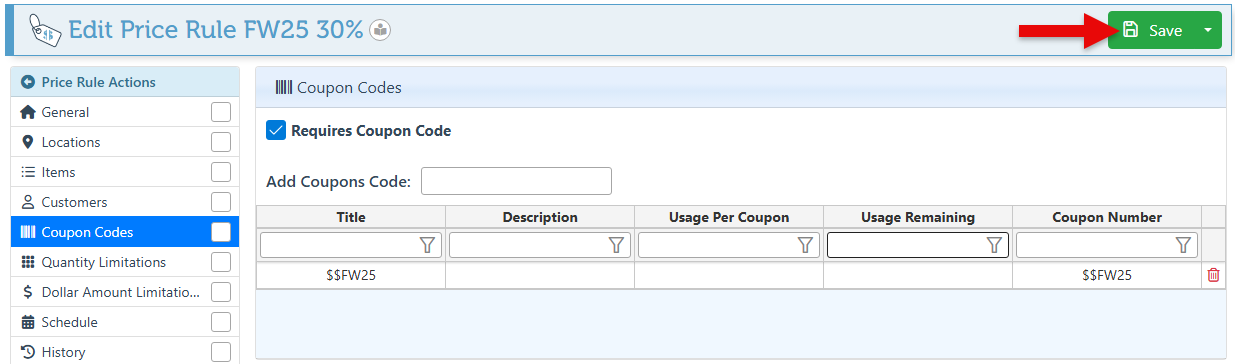
Click “Save” in the top right corner. The coupon code can now be applied to a transaction by typing or scanning $$ followed by the coupon code name.
-
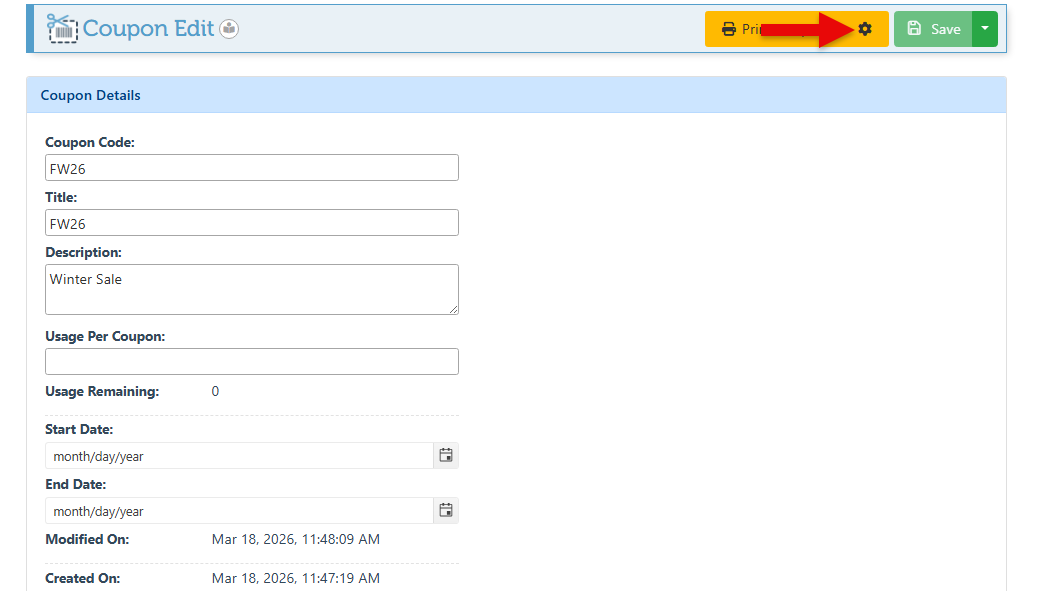
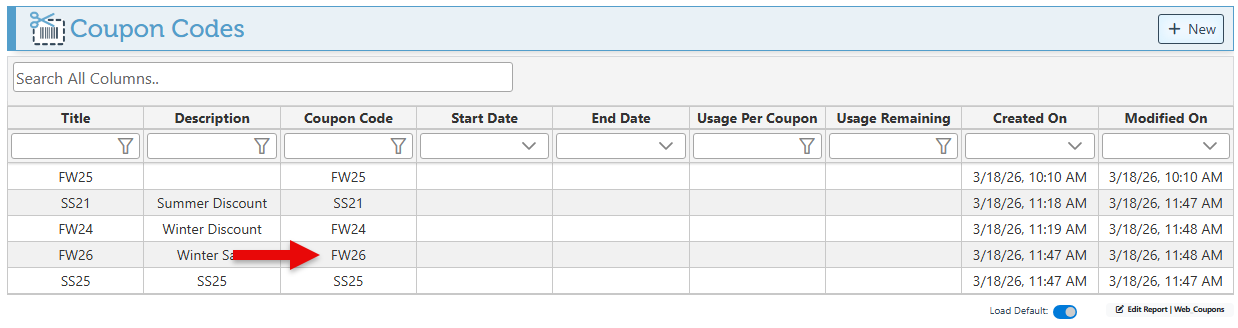
To make changes or print the coupon code, search for “Coupons” in the Main Navigation menu, and proceed to select the relevant coupon from the list that appears.
-
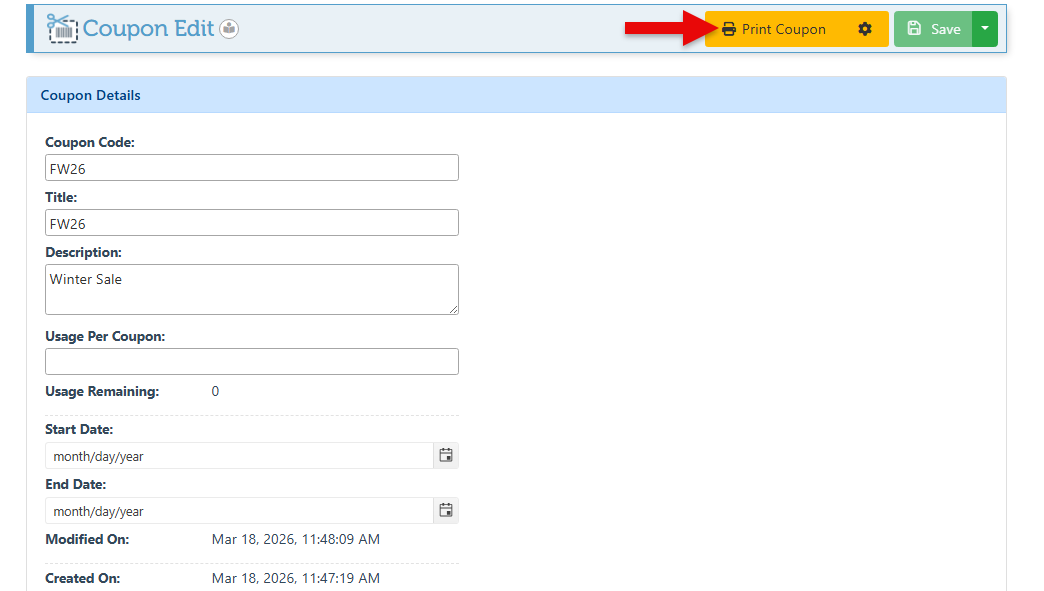
To print the coupon barcode, click on "Print Coupon.”
-
To select the printer or number of copies to print, click the configurations icon to the right of the print button.